
This view consolidates in one place the relationship between elements, tickets, and risks, aiming to facilitate the analysis and monitoring of these linkages in the system.
The information is obtained from the THREATS field present in the tickets, where the element, the associated risk analysis, and the selected risks are currently linked. This view organizes all that information hierarchically, allowing for clearer and more contextual navigation.
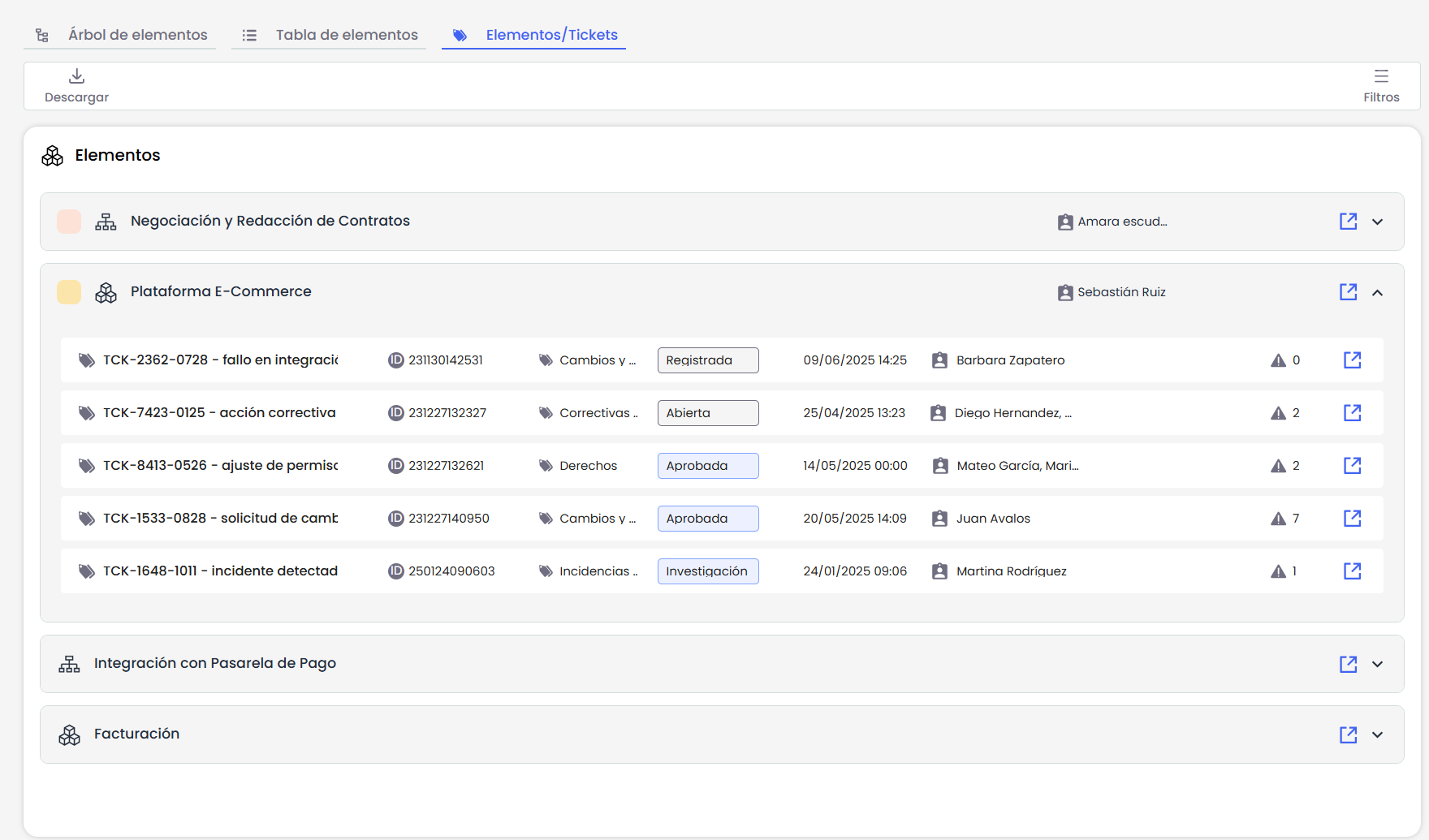
View Structure
The screen is organized into three hierarchical levels:
Items
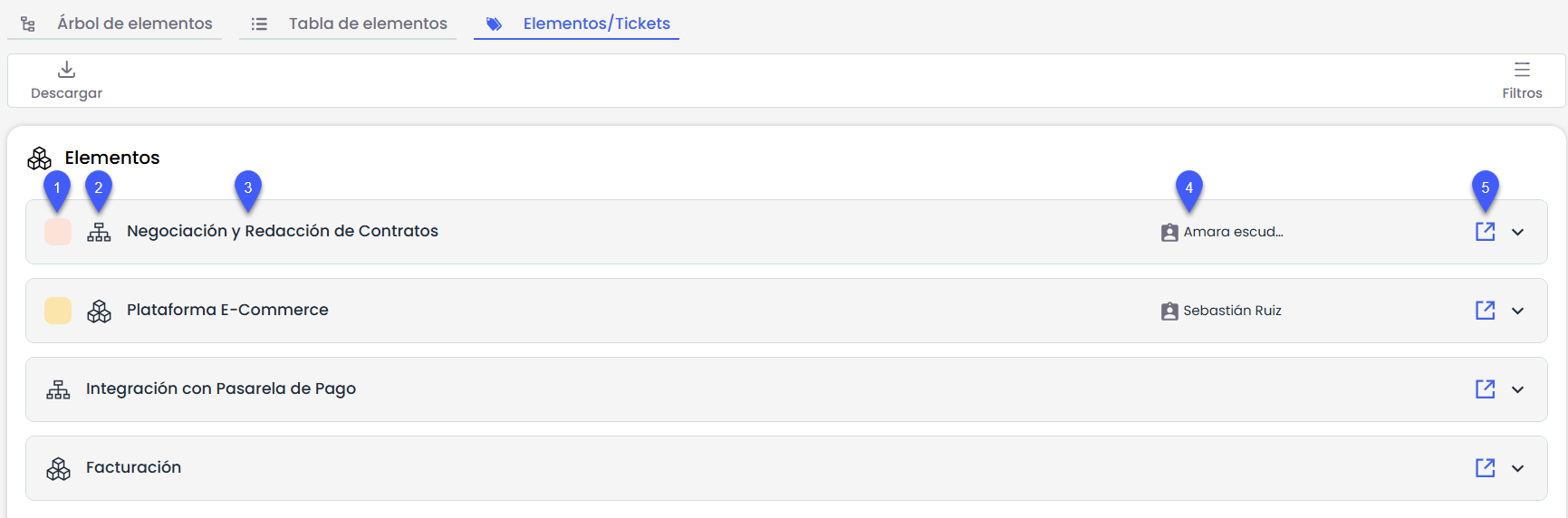
Each element is represented as an expandable card that includes:
-
Criticality dimension level of the Element. In case the dimension in Settings > Elements Methodology is qualitative.
-
Icon according to its category.
-
Item name.
-
Element owner.
-
“View details” button: Clicking it opens the element form in the Inventory in a new tab.
2. Tickets
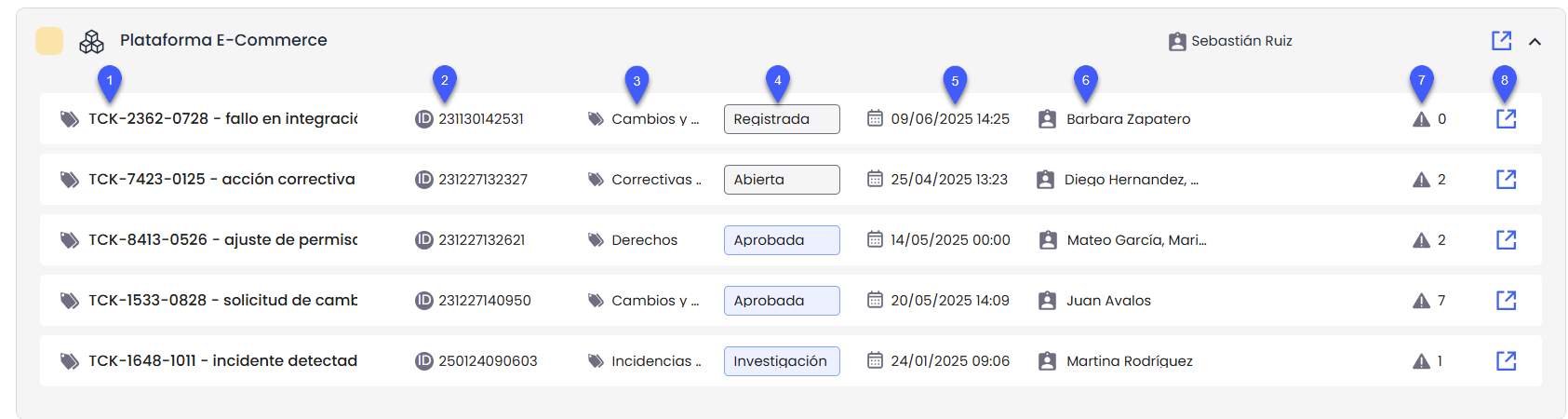
Clicking on the element card displays the list of tickets related to that element. Each displayed ticket is linked to the element through the THREATS field. The information shown for each ticket is defined in Settings > Tickets > Common Screen and includes:
-
Ticket subject: In Settings > Tickets > Common Screen, a single INPUT field must be selected, which will be used as the ticket subject. This field will be truncated if its content is too long and will appear in this position.
-
Ticket ID: A single ID field must also be defined in Common Screen, which will be displayed in this position.
-
Ticket type: Label indicating the classification of the ticket (e.g., Incident, Change, Non-conformity, etc.).
-
Status: Displays the current status of the ticket, represented with a distinctive color depending on its phase: gray, blue, or green.
-
Date: For each ticket type, a single DATE field must be configured in Common Screen. Only one date per ticket will be displayed, and it will appear in this position.
-
Owner: This view supports a single owner per ticket, configurable in Common Screen from a field of type OWNER, EMPLOYEES, or SUPERVISOR, and it will appear in this position.
-
Associated risks: If there are risks linked to the ticket and the corresponding element, a counter is displayed indicating the total number of associated risks.
-
“View details” button: Clicking it opens the complete ticket form in a new browser tab.
It may happen that some of these fields are not configured in Common Screen. In that case, the field will not be displayed in the view and will not be replaced by any other field of a different type. The corresponding position will remain empty.
3. Associated Risks
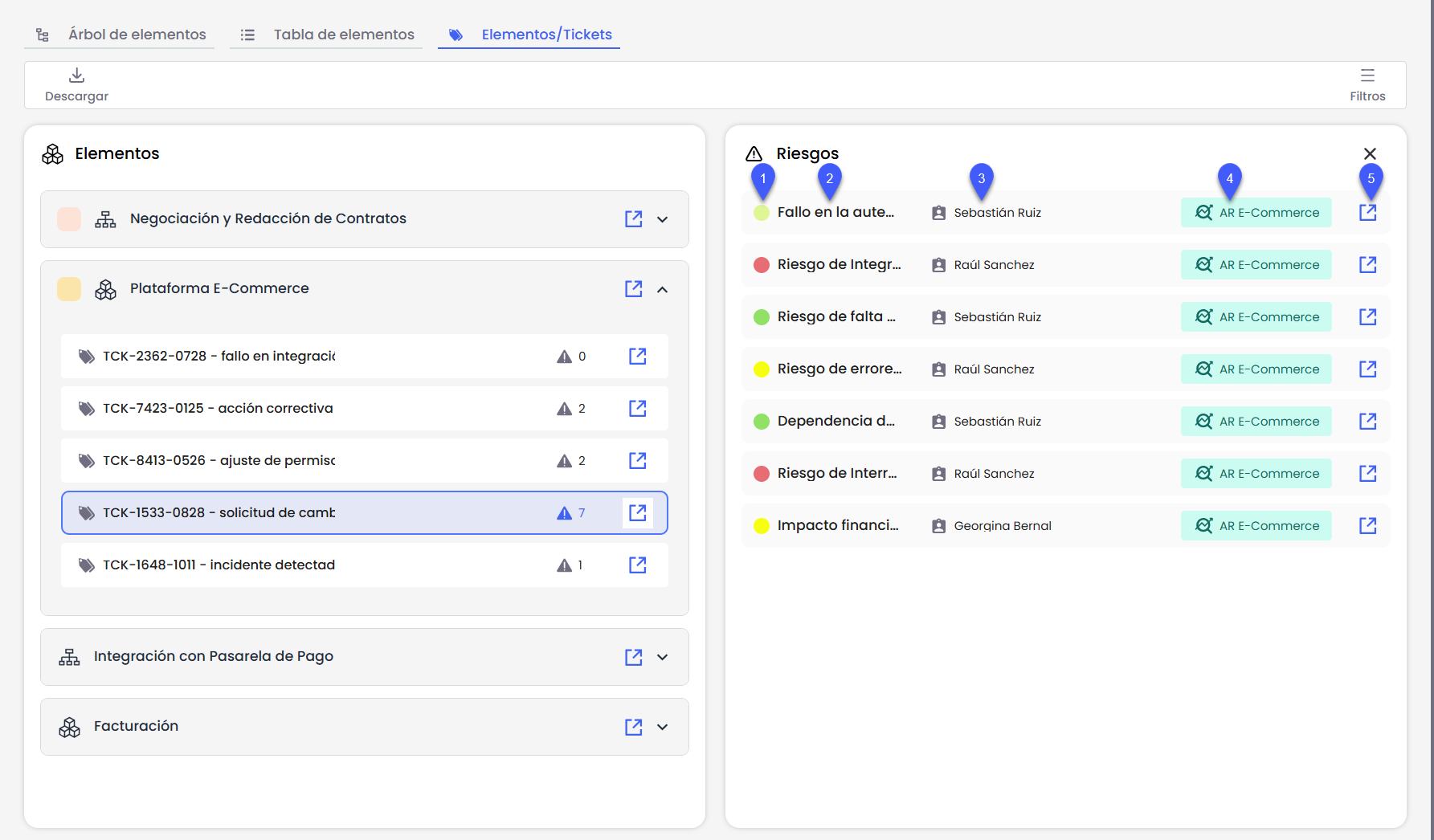
The side panel that opens when clicking on a ticket shows the risks linked to the connection between that ticket and that element.
-
Risk level: Displays the risk assessment according to the main dimension defined in Settings > Risk Methodologies > Choose Risk Dimension.
-
Risk name: Identifier of the risk as defined in the Risk Analysis.
-
Risk owner: Person assigned as responsible in the corresponding analysis.
-
Risk Analysis: Name of the analysis in which the relationship between the risk and the element is defined.
-
“View details” button: Allows access to the full risk record, which opens in a new browser tab in read-only mode.
Risk Detail
From the side panel, clicking on a risk in the list opens the complete risk form in read-only mode. This form presents:
-
The main risk field (e.g., “Threat”), as configured in Settings > Risks > Configurable Fields.
-
Name of the Risk Analysis to which it belongs.
-
Other fields of the methodology (except the main one).
-
Responsible.
-
Risk dimensions.
Filters
At the top of the screen, the following filters are available to limit the displayed data:
-
Item
-
Ticket
-
Ticket type
-
Risks
-
Element owner
-
Ticket owner
-
Risk owner
Filter functionality:
Each filter allows selecting one or more values through a multi-selector, and its functionality includes the following options:
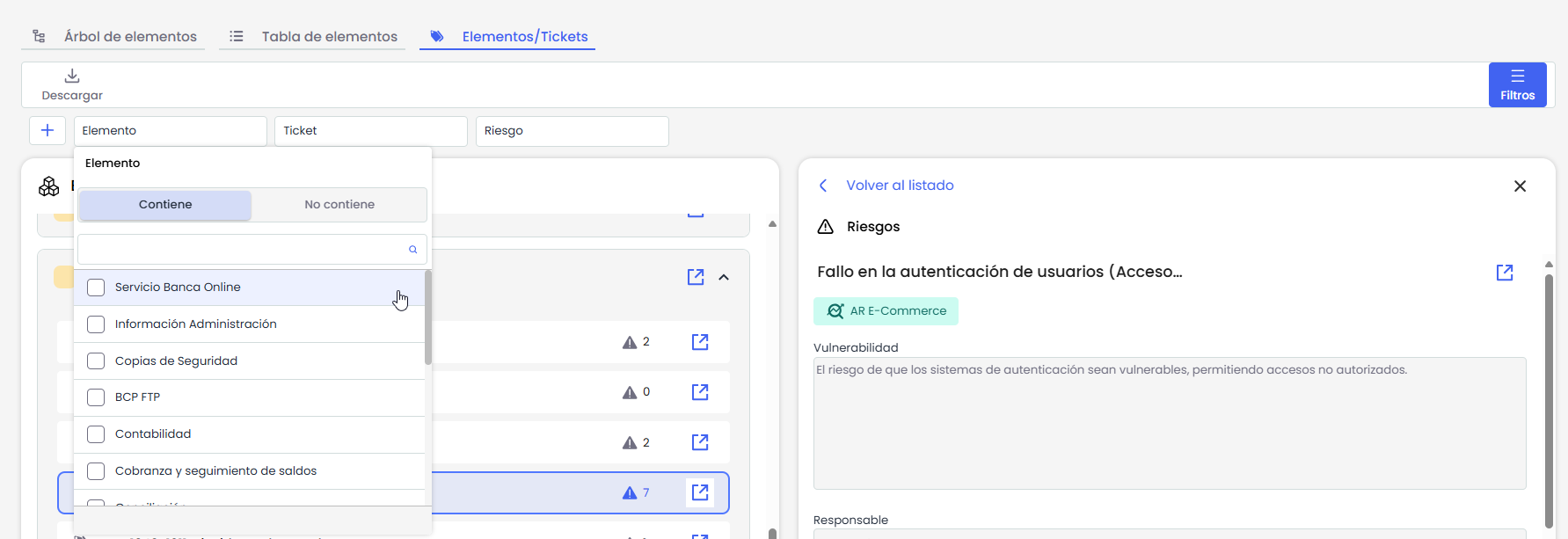
-
Contains / Does not contain: This option filters the results within the list of available options in the selector, not on the visible data in the view. That is, it helps quickly find values within the dropdown.
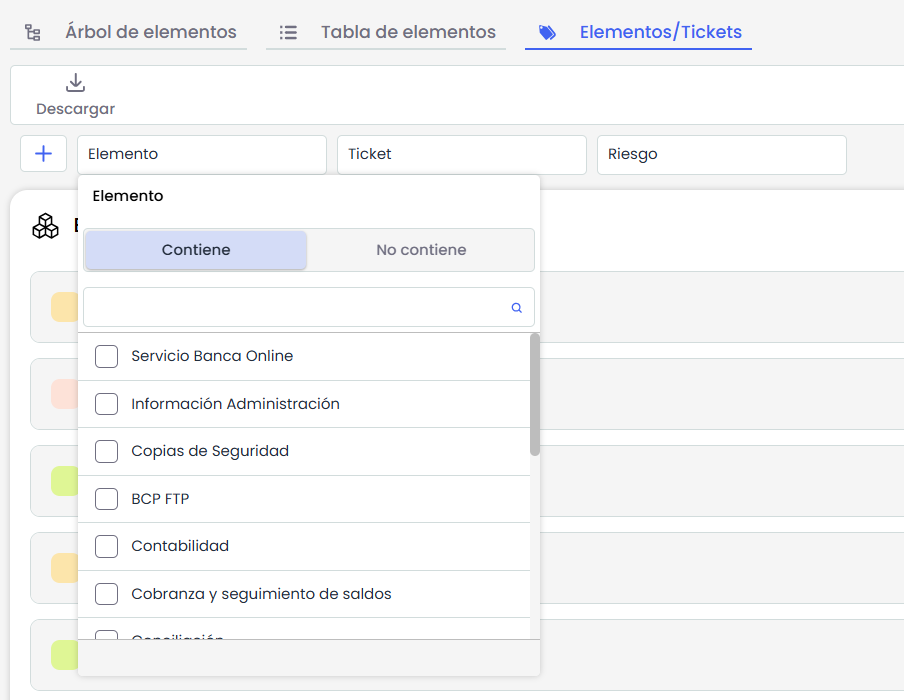
-
Multi-selector: You can select one or more options within the filter. When selected, the view automatically updates to show only the records matching the chosen criteria.
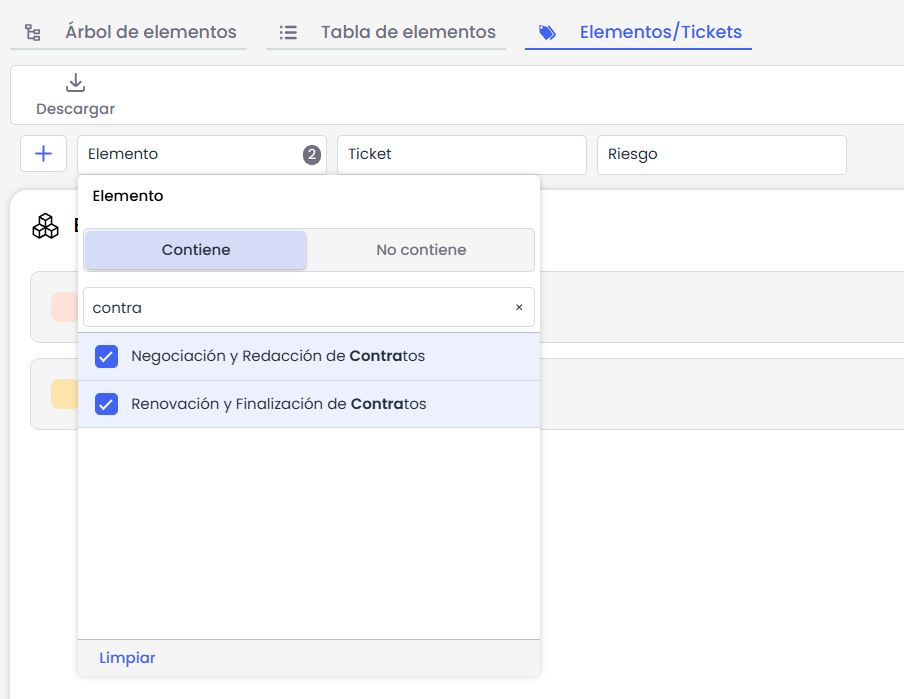
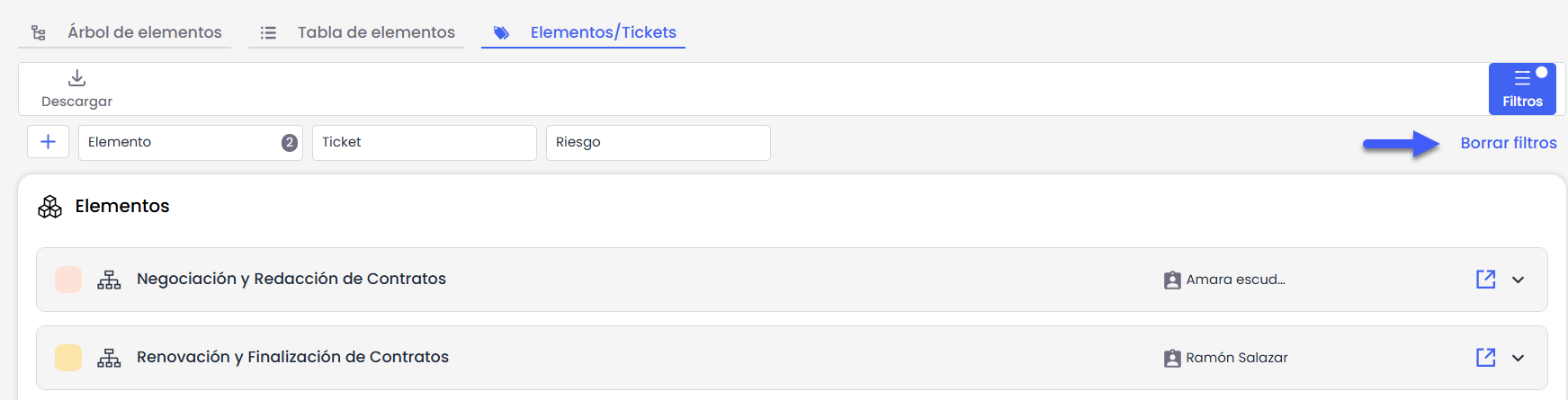
-
Filter clearing: To the right of the filters, there is a “Clear filters” button, which allows removing all selected values and restoring the full view.
Download
The view offers a “Download” button that allows downloading the visible data into a .csv file. The export respects the applied filters and is only active if there are results on the screen.
The generated file includes one row for each unique Element–Ticket–Risk combination, with the following columns:
-
Element name
-
Element category
-
Element owner
-
Element criticality dimension
-
Ticket name
-
Fields defined in Common Screen of tickets
-
Risk name
-
Final risk dimension