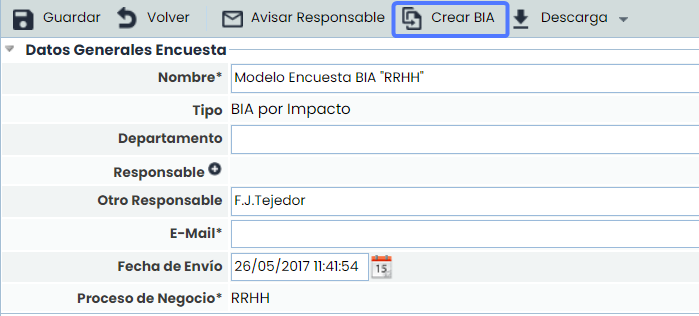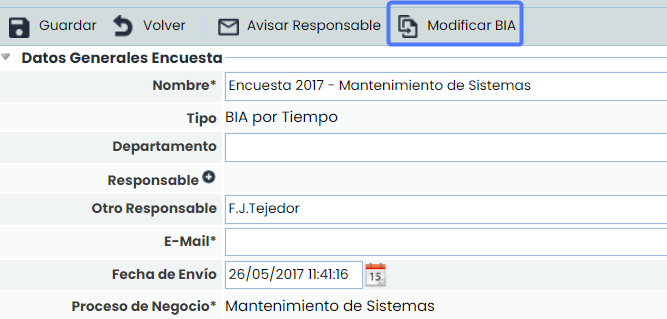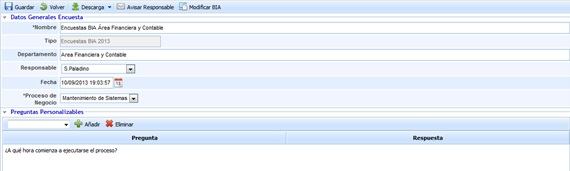
General Data Survey
Allows defining the following information:
-
Name: Allows defining the identifying name of the survey.
-
Type: Indicates the model based on which the survey was conducted.
-
Department: Allows identifying the name of the Department for which the survey results were obtained.
-
Responsible: Provides the possibility to identify the person responsible for the survey.
-
Date: Allows setting the date the survey was conducted.
-
Business Process: Allows defining the business process evaluated in the survey.
Customizable Questions
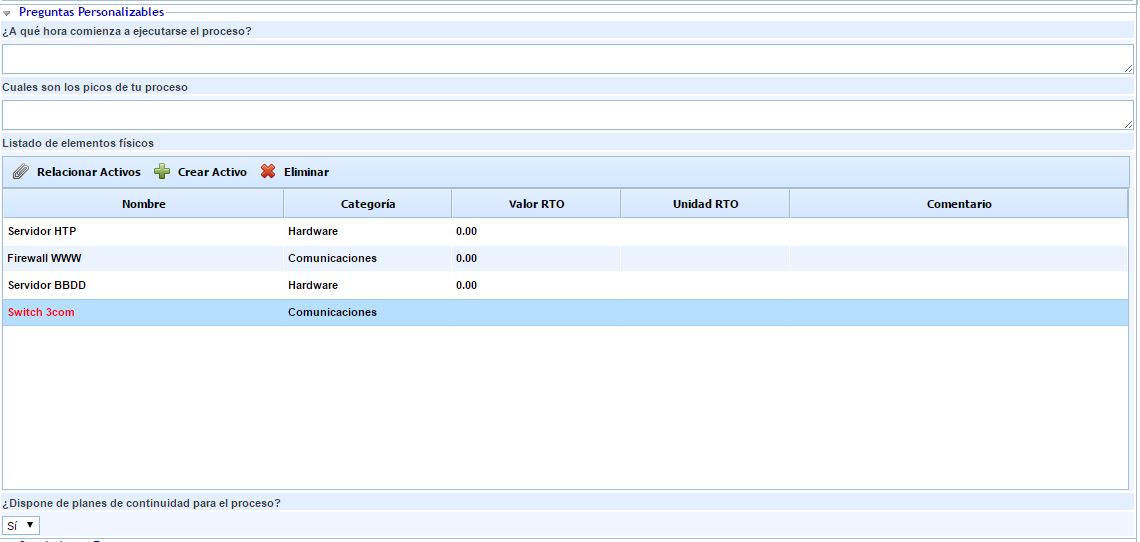
In the BIA Survey, the questions included in the model configured in the 'Settings/Survey Models' section will appear. These questions can be of different types: 'Text', 'Select', 'Table', or 'Table of Items'.
In 'Table'-type questions, records can be added by clicking the 'New' button and removed with the 'Remove' button, as well as editing each of the fields by double-clicking.
For 'Table of Items' type questions, items from the Inventory (Analysis/Inventory) can be included using the 'Link Items' button. Clicking it opens a pop-up window displaying the list of items with the categories configured for the question, allowing the selection of the items to be incorporated into the question and adding them through the 'Associate Items' button.

If the process is in the dependency tree with associated elements, the elements associated in that dependency tree appear by default in the elements table. If, on the other hand, the process is not in the dependency tree, all inventory elements are shown in the elements table. Regardless of the elements shown in the initial load, the 'Show' button allows viewing all inventory elements ('All' option) or only the elements associated with the process ('By Process' option).
New items can also be added by clicking the 'Create Item' button. These items will appear in red to indicate that they are not part of the Inventory.
For all items incorporated into the 'Table of Items' type question, it is possible to specify the recovery time in case of disaster using the 'RTO Value' and 'RTO Unit' fields, as well as adding a comment for each item.
Survey Questions List
For each of the questions defined in the 'Settings/Survey Management' section, it allows setting all the responses provided by the responsible person and the interviewed department.
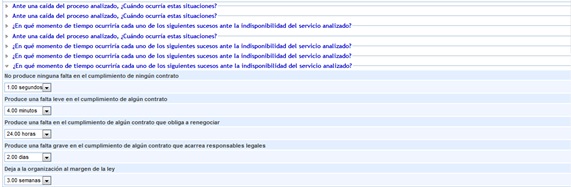
Dimension Assessment
Provides the possibility to assess the dimensions established for the BIA.

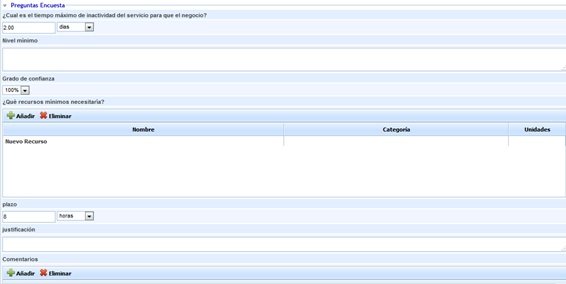
Survey Questions
Allows the user to define more generic points when establishing a BIA, such as the following:
-
Maximum Downtime: Allows defining the maximum service downtime (MTPD).
-
Minimum Level: Allows identifying the minimum levels necessary for service delivery.
-
Confidence Level: Allows indicating the user's confidence level regarding the defined MTPD.
-
Minimum Required Resources: Provides the possibility to identify the resources necessary to deliver the service.
-
Timeframe: Allows defining the recovery timeline for the resources needed to support the service or business process.
-
Justification: Text field to justify the timeframe identified in the previous section.
-
Comments: Allows including any additional comments related to the interview.
NOTE: The survey results can be downloaded in editable .xlsx format. To do this, click the 'Download' button available at the top and bottom of the survey form.
Survey Tracking
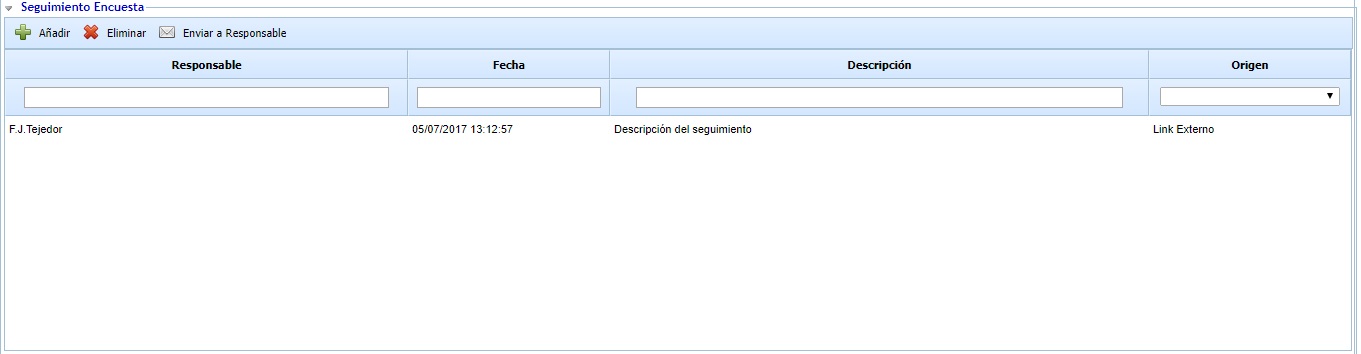
Allows tracking the survey, enabling any comments or observations about it.
In published surveys completed anonymously (via link), it is possible to send the tracking to the person responsible for the publication to notify them. To do this, select the desired tracking and click "Send to Responsible".
BIA Surveys Consolidation
Once the survey is answered, either through the survey publication or direct registration in the survey management option, the data of the created survey can be consolidated.
To do this, enter the survey you want to consolidate, and in the top toolbar, the button “Create BIA” appears if the survey does not have an associated BIA, or the button “Modify BIA” if it already has an associated BIA. Clicking the button generates a BIA associated with the survey or updates the existing BIA if it has already been generated.