
General
This section allows configuring:
-
Auditor Types
-
Visibility of Plan Code and Work Code.
-
Dashboard
-
Field Configuration
General Settings
Auditor Types
-
New: Allows creating a "New auditor type" by clicking on the new button.
-
Delete: Deletes an auditor type that has been previously created. To do this, click on one of the already created ones, which will be the record to delete.
To translate the name of the auditor types into other available languages, it is necessary to click the "Translate" button.
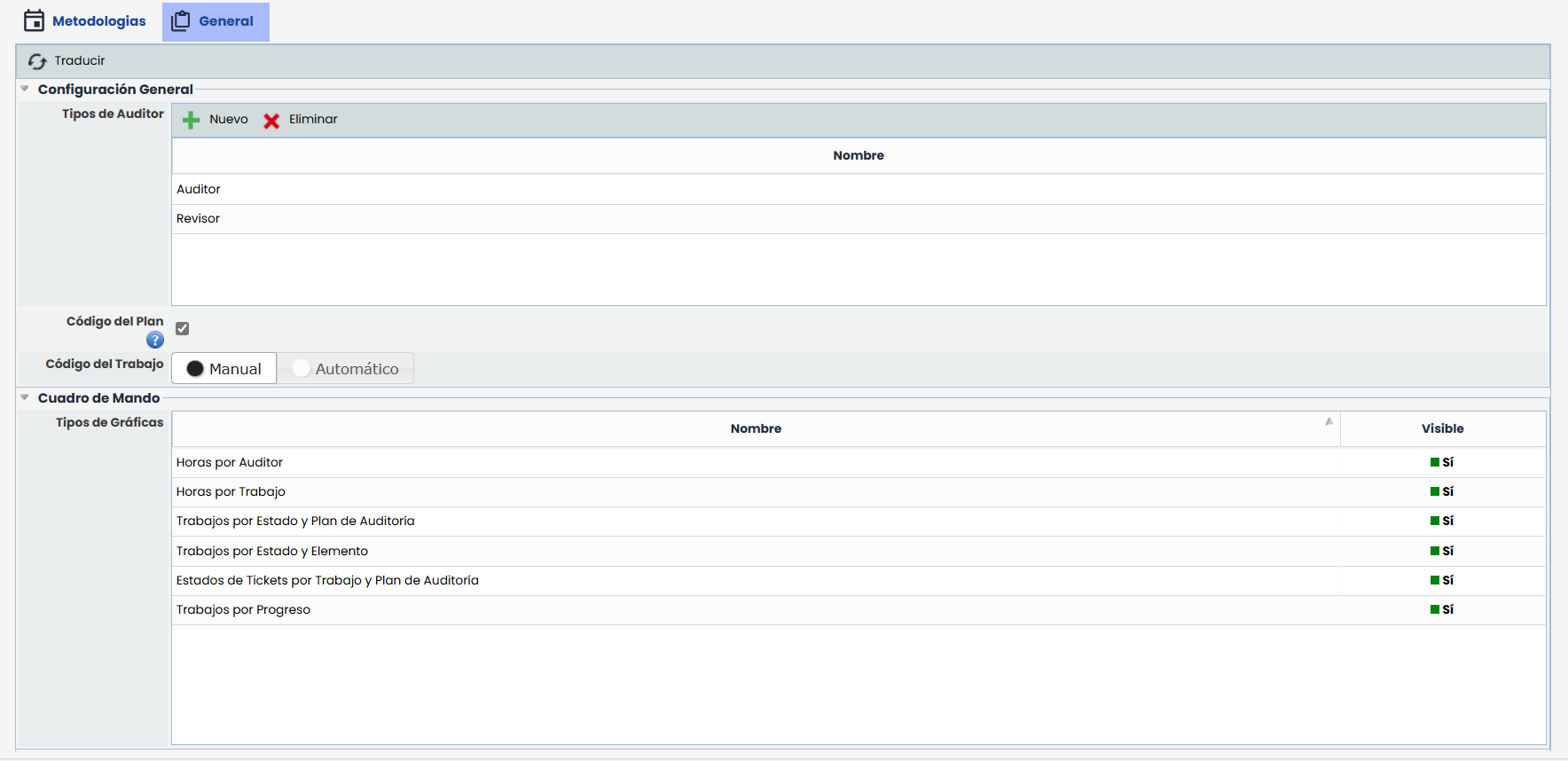
Plan Code
By checking the Plan Code box, the fields "Plan Code" and "Work Code" will be displayed in the corresponding forms, tables, and reports.
When activated, configuration options for the Work Code such as Manual or Automatic are enabled.
Work Code - Manual
In the corresponding forms, the 'Work Code' field will be enabled for editing.
-
No format validation: The system does not verify the format of the entered code.
-
No duplicate validation: It is possible to enter repeated codes.
-
No empty field validation: It is allowed to save work without completing this field.
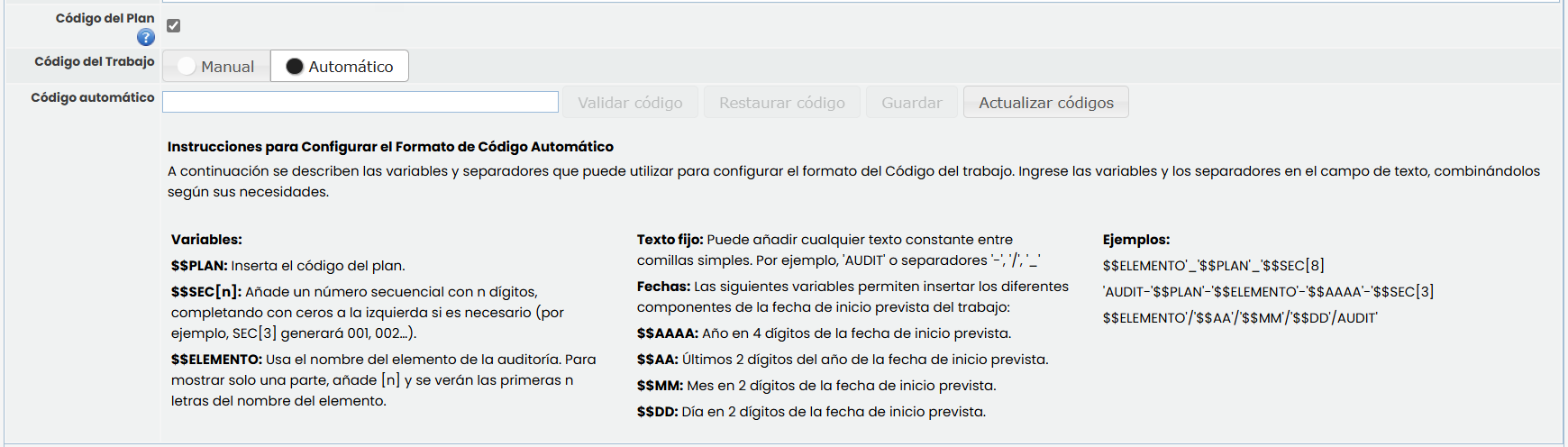
Work Code - Automatic.
-
Validate Code: The "Validate Code" action allows checking if the entered format is correct. By pressing this button, the system analyzes the variables and the structure of the code. If the format is valid, it displays the message "Correct Code". Otherwise, it shows specific error messages to indicate which part of the format is incorrect.
-
Restore Code: If a format has been previously saved and then modified, the "Restore Code" action is enabled. This option allows recovering the previous format without needing to enter it manually, ensuring that the codes follow the previously saved structure.
-
Save: Available only if the entered format is valid. When saving, the system applies the format to all works of the open plans and allows choosing between two options: recalculate the sequential number for all codes or maintain the existing sequential number. Once the mode is selected, the system saves the configuration and displays a message confirming that the codes have been successfully updated.
-
Update Codes: Allows renumbering existing works without modifying the current format. This function is useful for eliminating gaps in the sequence or ensuring that all works have an assigned code. By pressing this button, a confirmation message appears indicating that the action cannot be undone.
Allowed Variables and Their Format
-
Audit Plan Code
-
Description: Inserts the plan code into the automatic work code.
-
Format:$$PLAN
-
Note: If the plan code is empty, it will not appear in the generated code for the associated works.
-
-
Sequential:
-
Description: Generates a sequential number with the number of digits specified in "n".
-
Format:$$SEC[n] (where n is the number of digits).
-
Example:SEC[3] → 001, 002, 003
-
Note: The value "n" must be a positive integer and enclosed in brackets.
-
-
Item
-
Description: Inserts the name of the item associated with the work, optionally with the number of digits indicated in "n". If a work has more than one associated item, the codes are concatenated in the order they are associated, separated by a space.
-
Note: If a work has no associated items, it will be empty in the generated code for that work.
-
Format:
-
Without specifying digits: $$ITEM
-
With digits: $$ITEM[2]
-
-
-
Fixed Text:
-
Description It is a text string included within the code format using single quotes. This text remains unchanged in all generated codes, regardless of the variables used.
-
Example:
-
Format:'AUDIT-'$$SEC[3]
-
Result:AUDIT-001, AUDIT-002, AUDIT-003
In this case, 'AUDIT-' is the fixed text and remains the same in all codes.
-
-
-
Dates
-
Description: Generates the work code using the Start Date of the work.
-
Format:
-
Year with 4 digits: $$YYYY
-
Year with 2 digits: $$YY
-
Month: $$MM
-
Day: $$DD
-
-
Dashboard
In this section, you can show or hide which graphs and reports you want to display in the audit Dashboard. To hide a graph, it must be deactivated in the "Visible" column.
Field Configuration
In this section, you can create and configure new customizable fields of type text, date, and options.

Creation and Editing
To create a new customizable field, you must click the New button, and to edit it, you must double-click on the Name field.
-
Option Type Field:
-
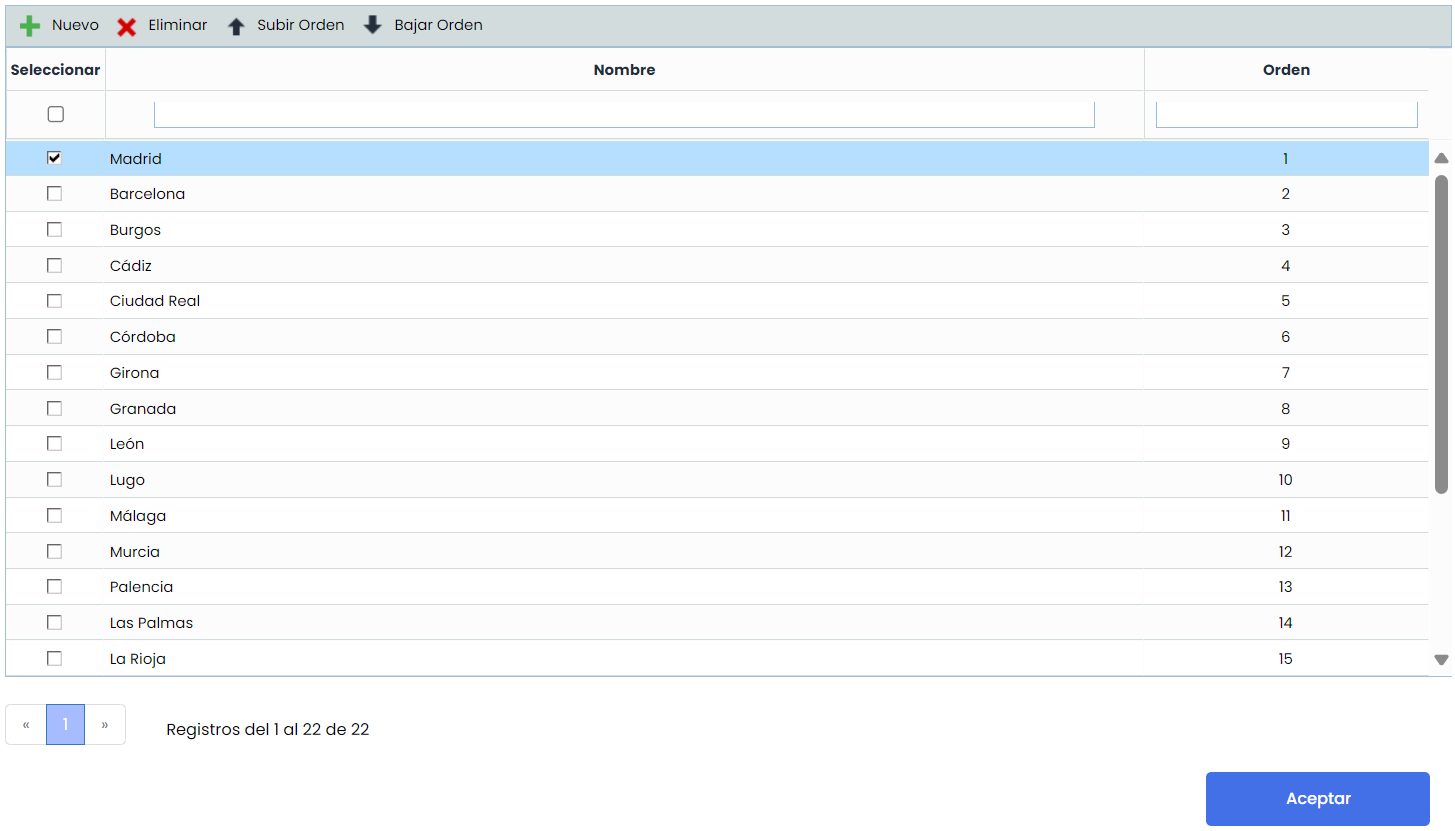
To edit a field of this type, you must double-click on the "Type" field, then on "Options," and a window will open to configure it.
-
Methodologies
This section allows defining different methodologies to evaluate and prioritize the organization's items, as well as planning audit works based on the Risk Analyses defined in other areas of the organization.
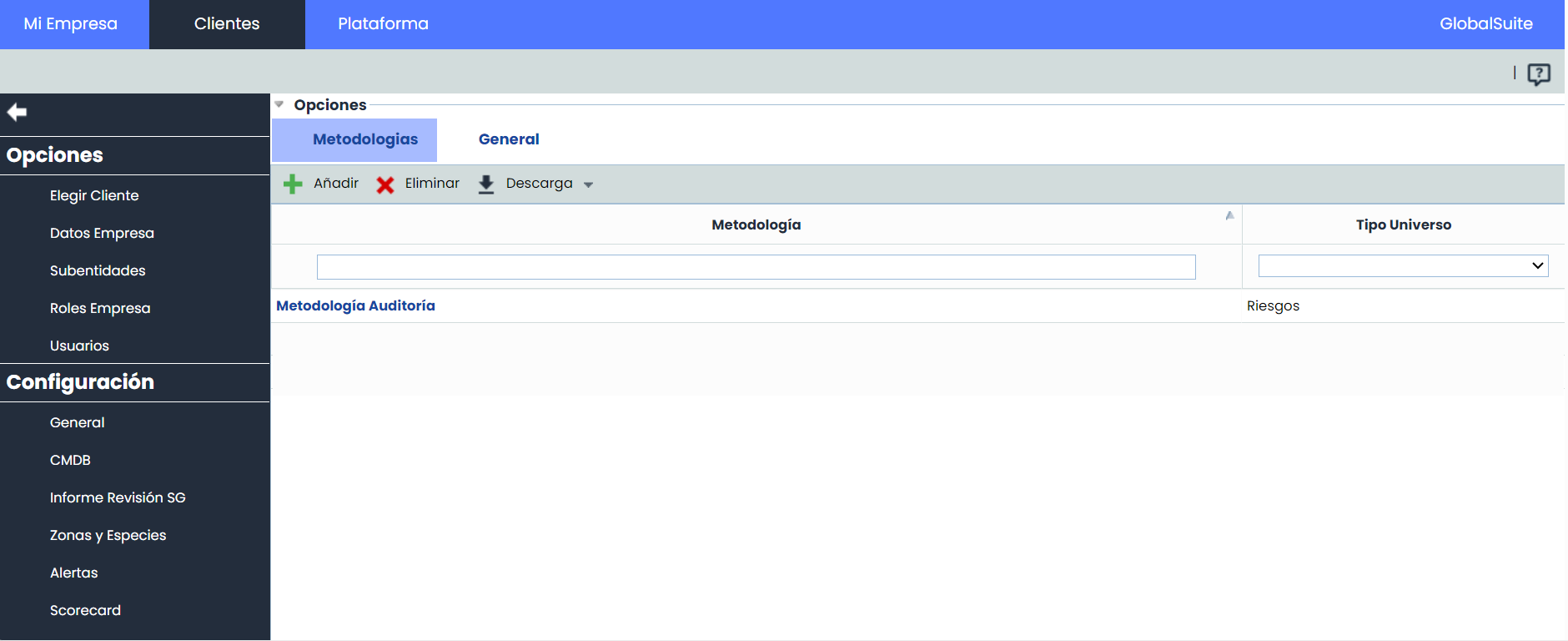
The methodologies option allows the user to parameterize the calculation of existing controls and the criteria for evaluating the items in the organization from the audit area. The tool allows performing the following initial actions:
-
Add: Allows inserting a new row in the methodologies. This occurs by clicking the 'Add' button and can be configured by clicking on it.
-
Delete: Offers the possibility to delete a methodology from the list. To do this, the desired row must be selected, and the 'Delete' button must be clicked.
-
Download: Offers the possibility to download the list of methodologies in an editable format (.xlsx)
By clicking on one of the methodologies, the following parameterization options are provided:
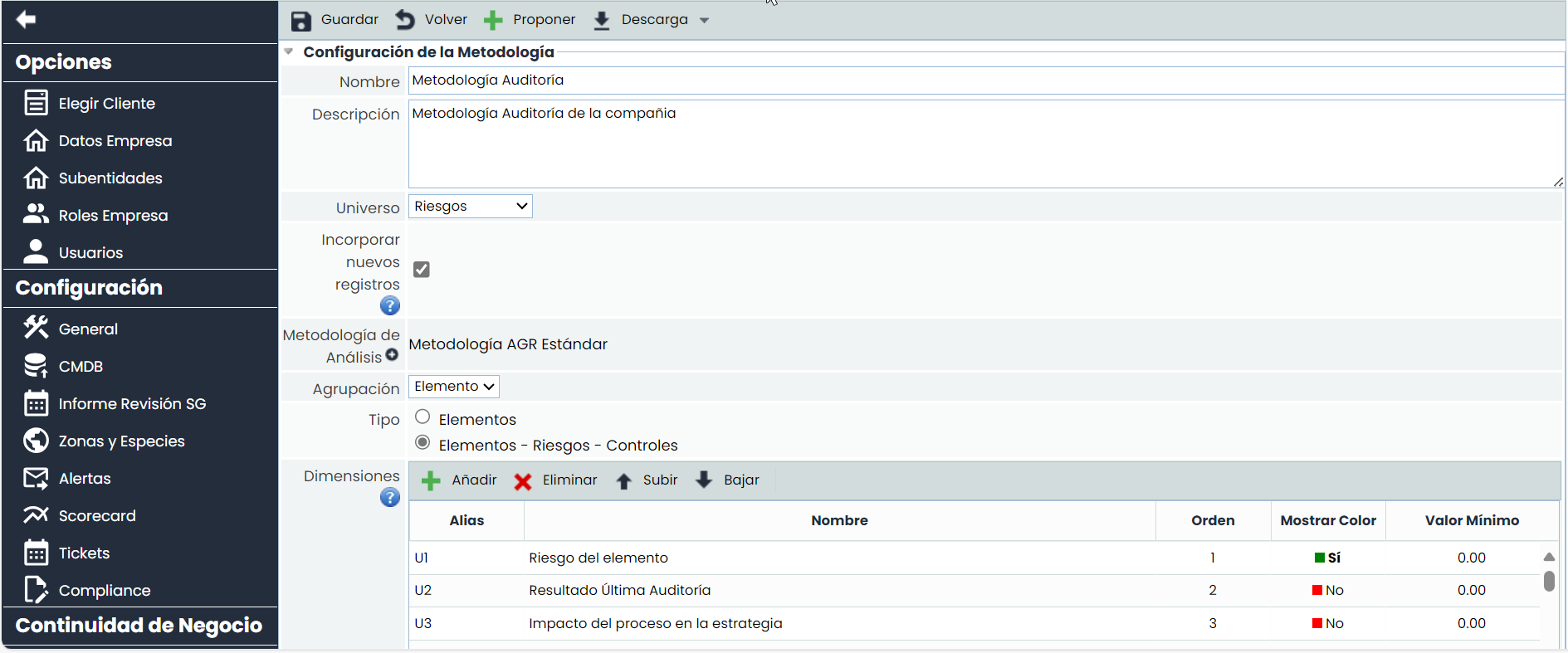
Methodology Configuration
-
Propose Button: Automatically adds a proposed list of basic dimensions within the methodology. It can be modified and modeled as required.
-
Download Button: Allows generating a report with the configured planning methodology.
-
Name: Identifies the name of the methodology. This name is displayed in the list of methodologies.
-
Description: Allows defining in more depth the methodology being defined.
-
Universe: Allows identifying the environment in which the audit methodology will be focused. Currently, the focus is based on Risk Analysis.
-
Incorporate New Records: When this option is enabled, it allows the inclusion of new records of items, risks, and controls independent of those contemplated in the existing risk analyses.
-
Analysis Methodology: Displays a selector to choose the Analysis Methodology on which the planning is based. Once inserted, the dimensions taken will be based on this methodology. Therefore, if it is modified later, it will affect the dimensions that have been entered. It will warn with an Alert message when attempting to change to prevent possible information loss. It will also be possible to select Risk Execution Methodology and Control Execution Methodology.
-
Grouping: Allows identifying the focus or basis on which the audit planning will be carried out. It can be Item or Control.
-
Type: Allows defining the scope of the audit.
-
Items: the scope of the audit will specifically be items. It will be possible to include items from the inventory, regardless of whether they are included in a risk analysis or not.
-
Items - Risks - Controls: the scope of the audit will be items, risks, and controls. It will be possible to include items that belong to a risk analysis.
-
Note
Both types of audits can be combined with the functionality Incorporate new records
-
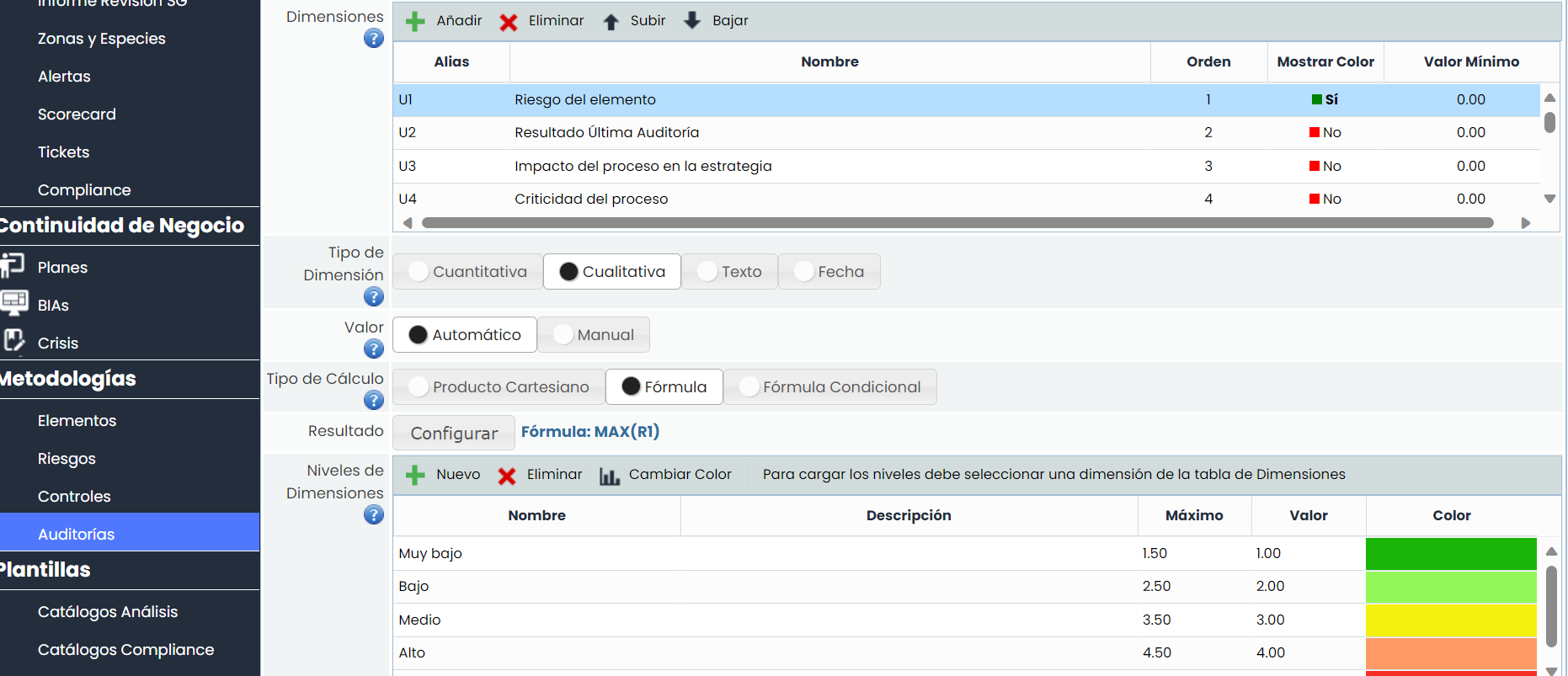
Dimensions: Allows configuring the dimensions to be evaluated in the Audit Plans for each of the processes to be audited. Dimensions can be created and deleted, as well as configured for the order of appearance in the corresponding table with the 'Move Dimension Up' and 'Move Dimension Down' buttons.
-
Alias: Identifier automatically generated by the tool.
-
Name: Displays the name of the dimension. Double-clicking on the cell allows changing its name.
-
Order: Identifies the order in which the dimension will appear in the Audit Plan.
-
Show Color: Allows defining whether we want to highlight the dimension in a color.
-
Minimum Value: Identifies the minimum number on which the formula of the selected dimension is calculated.
-
Type: Identifies whether the dimension is of type Text or not.
-
-
Dimension Type: Offers the possibility to establish the calculation method for the dimensions, allowing the following options:
-
Quantitative: Allows defining that the calculation of the selected dimension is quantitative, allowing a numerical value to be established in the dimension.
-
Qualitative: Allows defining that the calculation of the selected dimension is qualitative, allowing a determined range of values to be established (e.g., High, Medium, Low).
-
-
Value: Allows defining how we want the calculation (Manual or Automatic) of the selected dimension in the upper table to be performed.
-
Calculation Type: In case of selecting an automatic calculation in the previous option, the tool offers the following options:
-
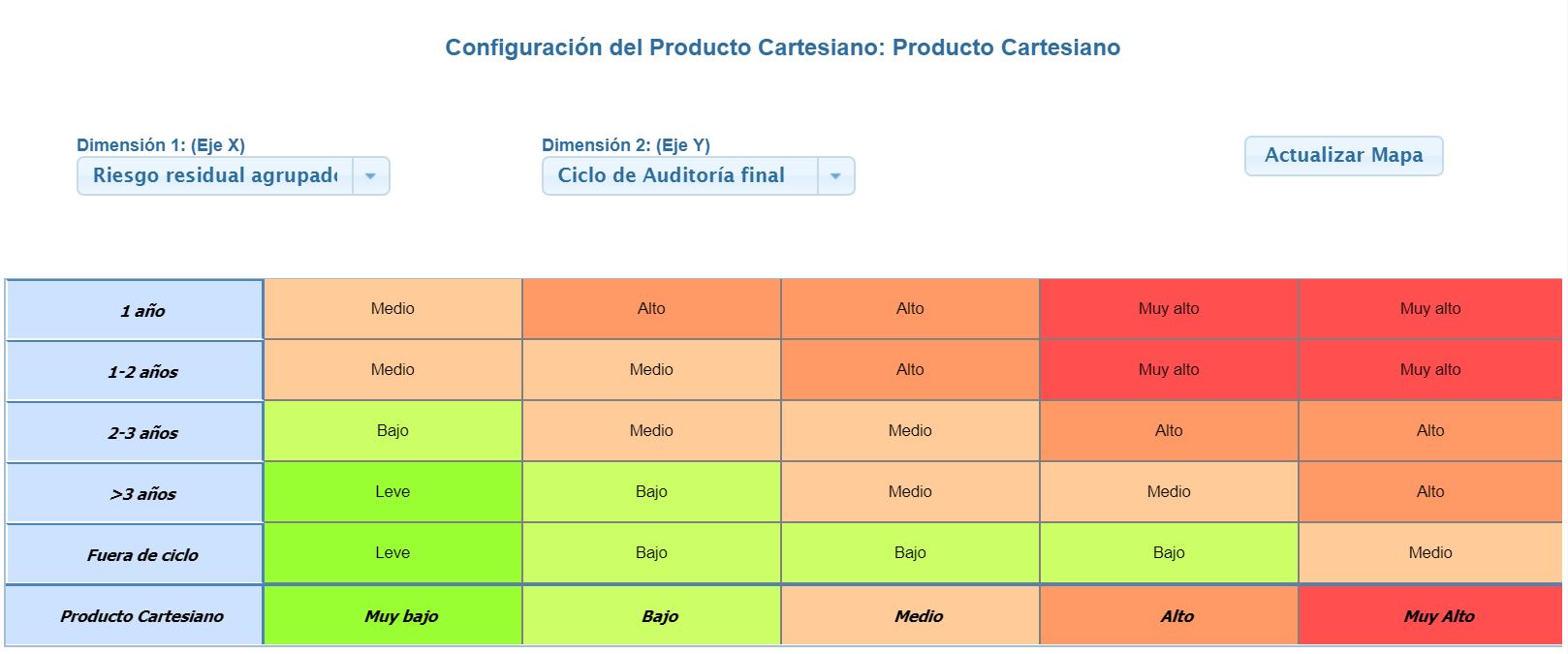
Cartesian Product: Allows establishing the calculation of the selected dimension based on a matrix of two dimensions defined in the 'Dimensions' option. For this, a dimension must be selected on the 'X-Axis' and another dimension on the 'Y-Axis,' and values must be given based on the established levels.
-
Note
The Cartesian product cannot be generated based on dimensions whose calculation is quantitative.
-
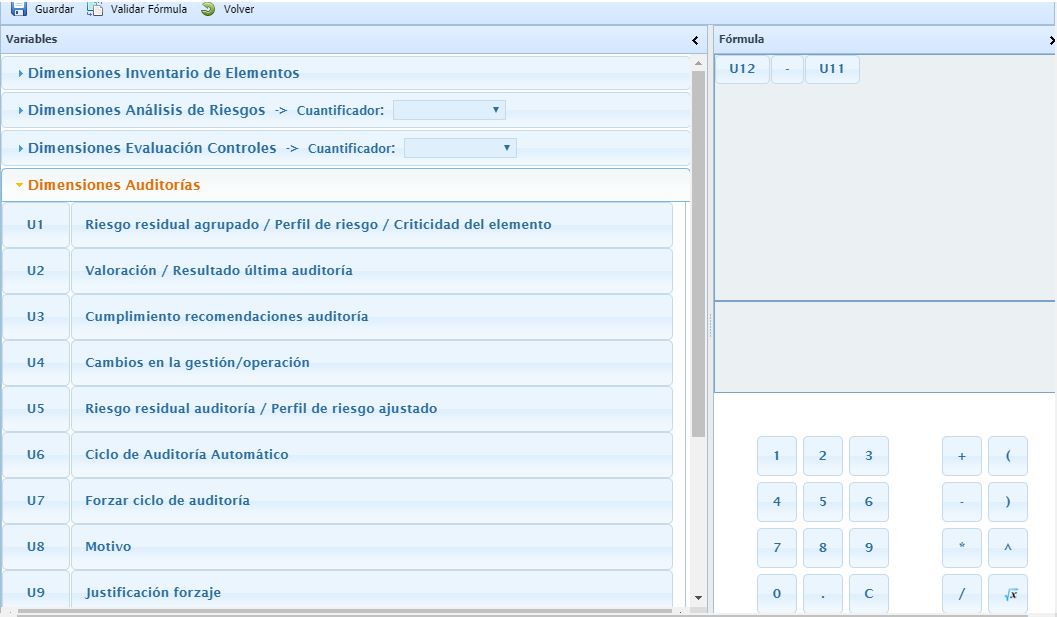
Formula: The option allows defining how the calculation of the selected dimension will be obtained based on a mathematical formula. For this, the tool provides the following options:
-
Inventory Item Dimensions: These are the default dimensions to be introduced in the formulas.
-
Risk Analysis Dimensions: These dimensions can be configured with Quantifiers to configure global values for the formula results. They can be applied through these quantifiers: Accumulated Value, Maximum, Minimum, or Average.
-
Control Evaluation Dimensions: These dimensions can be configured with Quantifiers to configure global values for the formula results. They can be applied through these quantifiers: Accumulated Value, Maximum, Minimum, or Average.
-
Audit Dimensions: In these audit dimensions, GlobalSUITE provides a series of default Dimensions, but these are configurable. It also allows adding new dimensions.
-
-
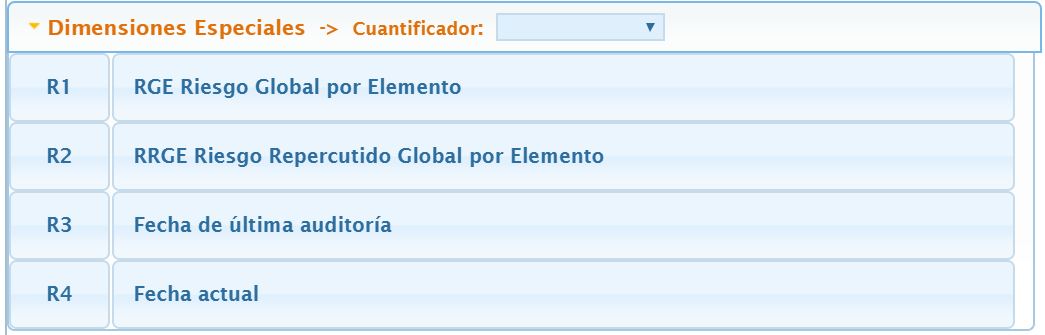
Special Dimensions: These are dimensions that have been added for the audit part, which I will explain in detail.
-
RGE Global Risk by Item: For the calculation of global risk, which serves to calculate residual risk grouped, for example. Quantifiers can be used: Counter, Maximum, Minimum, Sum.
-
RRGE Global Repercussed Risk by Item: For the calculation of global risk,
-
Last Audit Date: Allows comparing dates and thus automatically indicating if the date is exceeded and if it is necessary to perform the audit.
-
Current Date: The comparison of the last audit date is made with this current date value.
-
NOTE: The calculation of automatic dimensions with Formula is performed whenever there is any parameter of the formula with a value (a parameter can be another manual or automatic dimension, or a numeric digit).
If the formula is evaluated, parameters without a value (empty dimensions) will be replaced with a zero value.
-
Conditional Formula: The option allows establishing a conditional calculation between different dimensions established in the audit methodologies.
To configure this section, click the 'Configure' button to access the following screen:
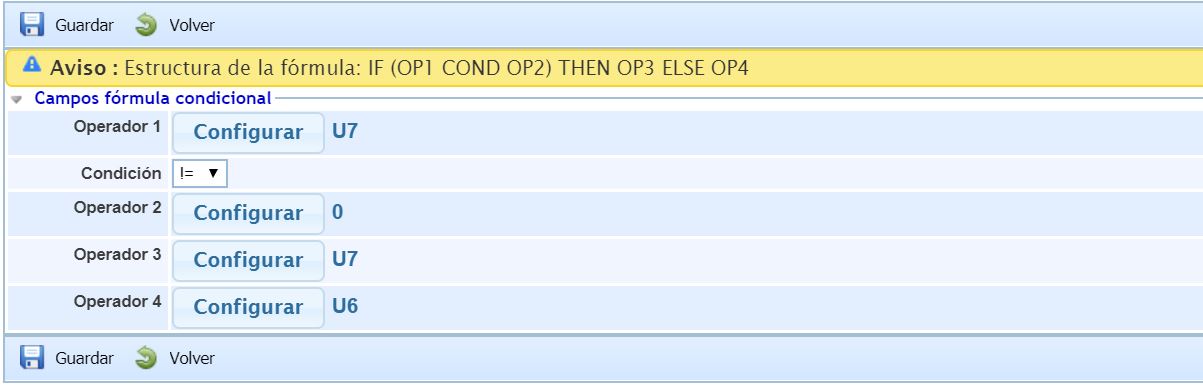
The configuration of the conditional formula is established based on the operators, where operators 1 and 2 are used to set the condition, and it is necessary to select it in the dropdown. The options provided by the tool are:
-
==: Equal to
-
!=: Not equal to
-
<: Less than
-
>: Greater than
-
<=: Less than or equal to
-
>=: Greater than or equal to
Once the condition formula is established, the results to be obtained must be set. If the condition is met, the results shown correspond to operator 3, and otherwise to operator 4.
The user can choose between the different dimensions and calculation options to generate the formula based on which the result of the selected dimension will be obtained.
NOTE: It is necessary to validate the formula before saving it by clicking on the 'Validate Formula' button.
-
Result: Allows defining the values of the selected calculation option in the upper section (Cartesian Product, Formula, or Conditional Formula).
-
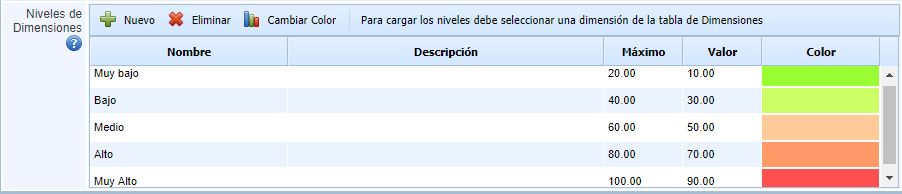
Dimension Levels: Allows defining the valuation levels of the selected dimension. As with the other options, levels can be created and deleted, and the desired color can be parameterized to highlight the levels during the valuation by selecting the level to modify and clicking the 'Change color' button.
NOTE: If the levels are defined for a qualitative dimension, the tool allows defining the calculation range of the selected level and the value on which it will be calculated. If the levels are defined for a quantitative dimension, it allows defining the color in which the numerical values will be highlighted in the asset inventory.
Execution Methodologies
In this section, it is possible to define methodologies that will be used to execute Audit Work, and audit the elements, risks, and controls included in them.
-
Element Execution Methodology: Allows defining dimensions to evaluate the elements included in the scope of the work. These dimensions may refer to those configured in the Element Methodologies configuration.
-
Risk Execution Methodology: It is possible to define which dimensions will be evaluated for each risk to be audited.
-
Control Execution Methodology: In the execution methodology, the dimensions to be audited on the controls will be configured.

It is possible to create more than one execution methodology of each type, defining one as default. The audit work that is created will be assigned the default methodology, although it can be modified before starting its execution.