
Survey Home Page
When accessing a survey, the first screen that appears is the onboarding screen, where the information can be viewed.
If the survey was created through a Publication, the informational message can be replaced by the one indicated in the Comments section of the publication, to
Survey Menu
Survey Actions
Depending on the configuration and the survey model used, the survey will display various buttons in the header of the form:

-
Save: Allows saving the changes made to the survey. When clicked, it checks that all dimensions marked as mandatory in the model are completed.
-
Move to:
-
Previous State: Allows moving the survey to the immediately previous configured state and assigning it to the person responsible for that state. This button only appears if the state is configured as "Rollback" to Yes.
-
Next State: Allows moving the survey to the immediately next configured state and assigning it to the person responsible for that state. This button only appears if the state is configured as "Automatic" to Yes.
-
-
Finish: This button appears when there are no configured states, or the survey is in the last state of the flow, and the option "Consolidate in last state" is not activated.
-
Finish without Consolidating: This button appears when the survey is in the last state of the flow, and the configuration "Consolidate in last state" is marked in the survey model. This button allows finishing the survey without applying the changes to the risk analysis.
-
Finish and Consolidate: This button appears when the survey is in the last state of the flow, and the configuration "Consolidate in last state" is marked in the survey model. When clicked, the survey is finished, and all the information created or modified in the survey is applied to the risk analysis.
-
Consolidate: This button appears when a survey has already been finished (the "Finish without Consolidating" button has been clicked), and the configuration "Consolidate in last state" is marked in the survey model. When clicked, all the information created or modified in the survey is applied to the risk analysis.
-
Back: Allows exiting the survey and returning to the general survey list.
-
Export: When this button is clicked, a report in .xlsx format is generated and downloaded with all the survey information regarding items, risks, and controls and their evaluations at a given moment.
-
Notify Responsible: Allows sending an alert or reminder via email to the person responsible for the survey.
-
Calculate RA: This button allows calculating the automatic dimensions of the methodology based on the manual dimensions. This button will only appear if it has been configured in the survey model. Otherwise, the dimensions will be updated directly after each change to the manual ones.
Survey Information
This section allows the user to view the methodologies and dimensions (Inventory, Risk Analysis, and/or Control Management) based on which the survey of Items, Risks, and/or Controls will be conducted.
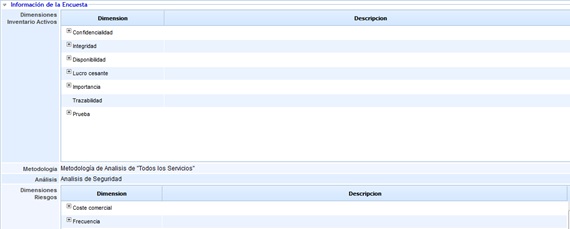
General Survey Data
Allows defining the following information:

-
Name: Allows defining the identifying name of the survey.
-
Type: Indicates the Model based on which the survey was conducted.
-
Department: Allows identifying the name of the Department for which the survey results were obtained.
-
Responsible: Offers the possibility to identify the person responsible for the survey from the employee list.
-
Other Responsible: Allows identifying a responsible person who is not registered in the tool. This field will not appear when the survey configuration has states and responsible persons for each, as they will be entered automatically.
-
Email: Offers the possibility to include the email address so that the responsible person is notified of any modification.
-
Date: Allows setting the date of the survey.
Survey
This option allows the user to evaluate the items, risks, and controls selected in the 'Management/Configure Surveys' section. The tool offers the possibility to evaluate the following parameters:
Note: Depending on the type of survey (Items, Risks, Controls), different tables will appear in the survey.
Items Table
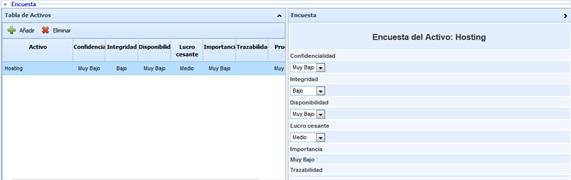
The items table allows evaluating the dimensions of the items selected in the 'Management/Configure Surveys' section. To do this, the desired item must be selected from the table on the left and the established dimensions evaluated in the table on the right. If the user wishes to include items in the survey that are not in the table, new items can be added by clicking the 'Add' button located above the items table.
NOTE: If the survey has been configured with the "Table" format, the questions on the right side will not appear, and the evaluation will be done directly on the items table.
Risks Table
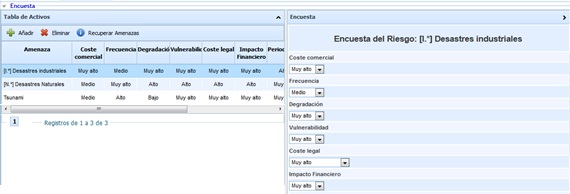
The risks table allows evaluating the risks of the items selected in the items table (above) and defined in the 'Management/Configure Surveys' section. To do this, the desired item must be selected from the table above, the desired risk selected in the table on the left, and the established dimensions evaluated in the table on the right. If the user wishes to include risks in the survey that are not in the table, new items can be added by clicking the 'Add' button located above the risks table. To use the risk catalog parameterized in the tool, the 'Retrieve Threats' button located in the items table must be clicked to select the desired risks from the catalog.
NOTE: If the survey has been configured with the "Table" format, the questions on the right side will not appear, and the evaluation will be done directly on the risks table.
Controls Table
Depending on whether it is a survey of only controls or a survey of risks and controls, the controls table is displayed differently.
For a survey of only controls, the table is displayed as follows:
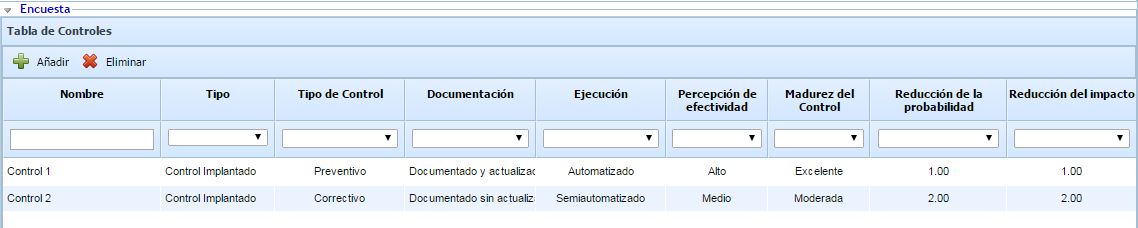
The controls table allows evaluating the dimensions of the controls selected in the 'Management/Configure Surveys' section. To do this, the corresponding modifications must be made to the controls table. If the user wishes to include controls in the survey that are not in the table, new items can be added by clicking the 'Add' button located above the controls table.
For a survey of risks and controls, the table is displayed as follows:
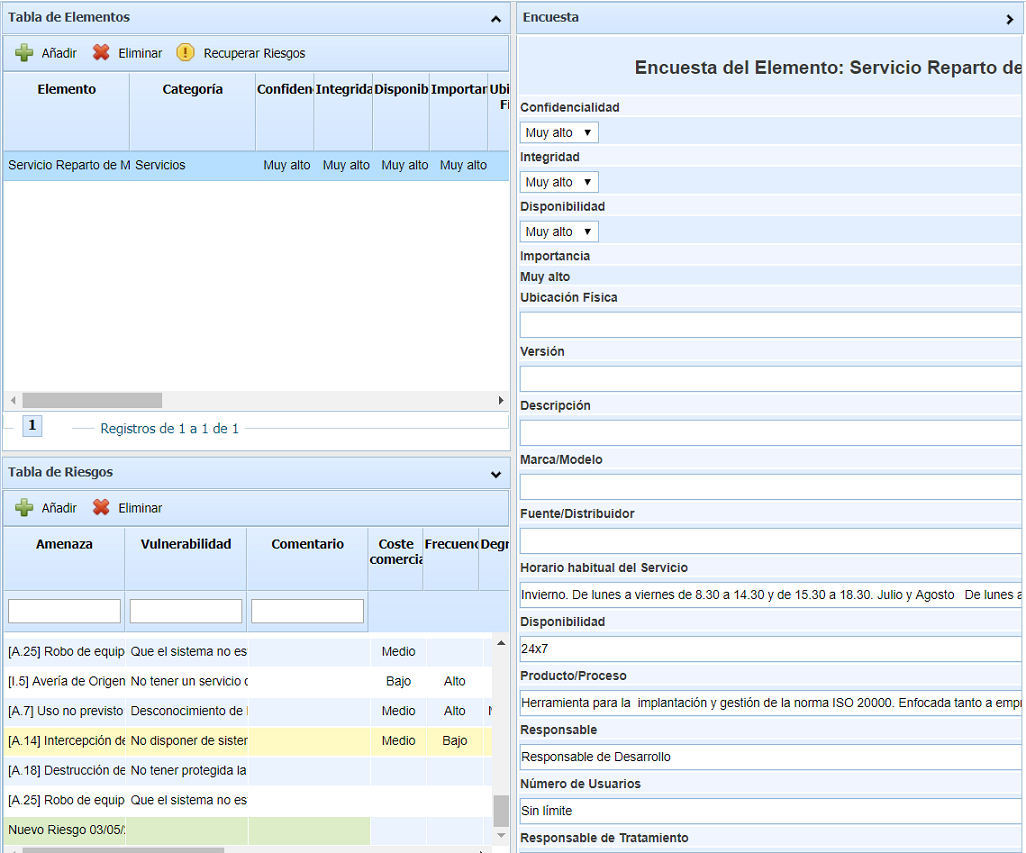
To access the controls table, it is necessary to first select the identified risks. To do this, the desired item must be selected from the table above, the desired risk selected in the table on the left, and the controls evaluated in the table that appears on the right. If the user wishes to include controls in the survey that are not in the table, new items can be added by clicking the 'Add' button located above the controls table. These controls will appear in green, indicating that they are controls incorporated into the survey. Additionally, items, risks, or controls that have been modified in the survey will be highlighted in yellow. Furthermore, the higher-level entity will also be highlighted in yellow. For example, if a risk is modified, the item to which it belongs will also be highlighted, making it easier to identify the changes made to the survey.
For a survey of items and controls, the table is displayed as follows:
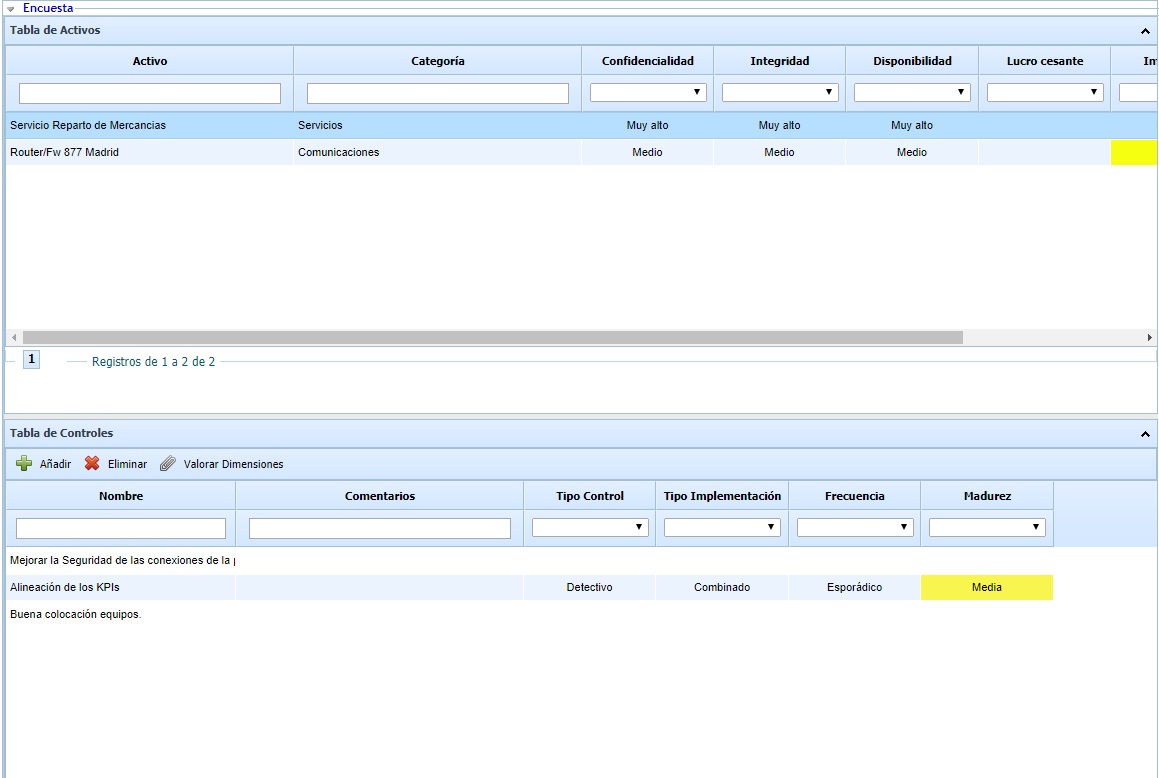
To access the controls table, it is necessary to select the item from the table above for which controls will be identified or evaluated. To include new controls (identified with a green background), the 'Add' button must be clicked, while to disassociate a control from an item, the 'Delete' button must be clicked. To evaluate the dimensions of the controls, a control must be selected, and 'Evaluate Dimensions' must be clicked.
Also, if Control Actions have been included in the survey, when selecting a control, the associated actions will be loaded in the lower table, allowing new actions to be created or existing ones to be modified.

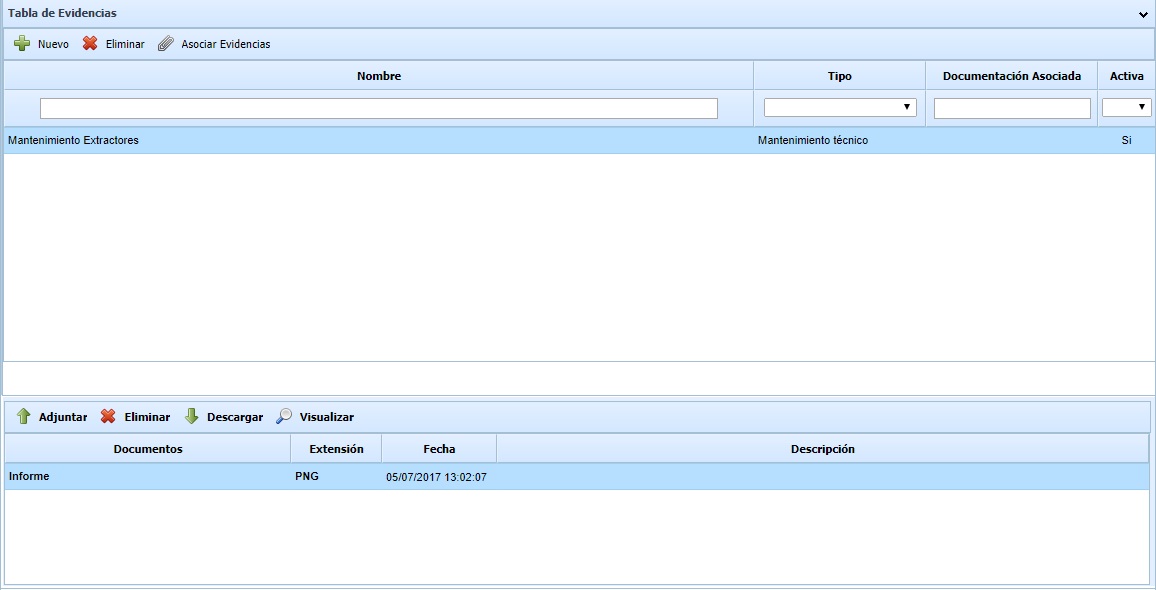
Additionally, if Control Evidences have been included in the survey, when selecting a control, the associated Evidences will be loaded in the lower table, allowing new Evidences associated with the control to be created, reusing one of those already in the survey, or attaching files to them.
Survey Tracking
.jpg?cb=9da4f49dcb501c3232be56395a3bc6fa)
Allows tracking the survey, making any comments or observations about it. Changes made to a survey are automatically recorded.
In published surveys completed anonymously (via link), it is possible to send the tracking to the person responsible for the publication to notify them. To do this, select the desired tracking and click "Send to Responsible".