
The "Pending Downloads" option allows access to reports and files generated in various sections of the application, such as the Document Manager, the Risks module, and the Compliance module, among others. From this functionality, it is possible to manage the downloads of documents generated in the different work areas in a centralized manner.
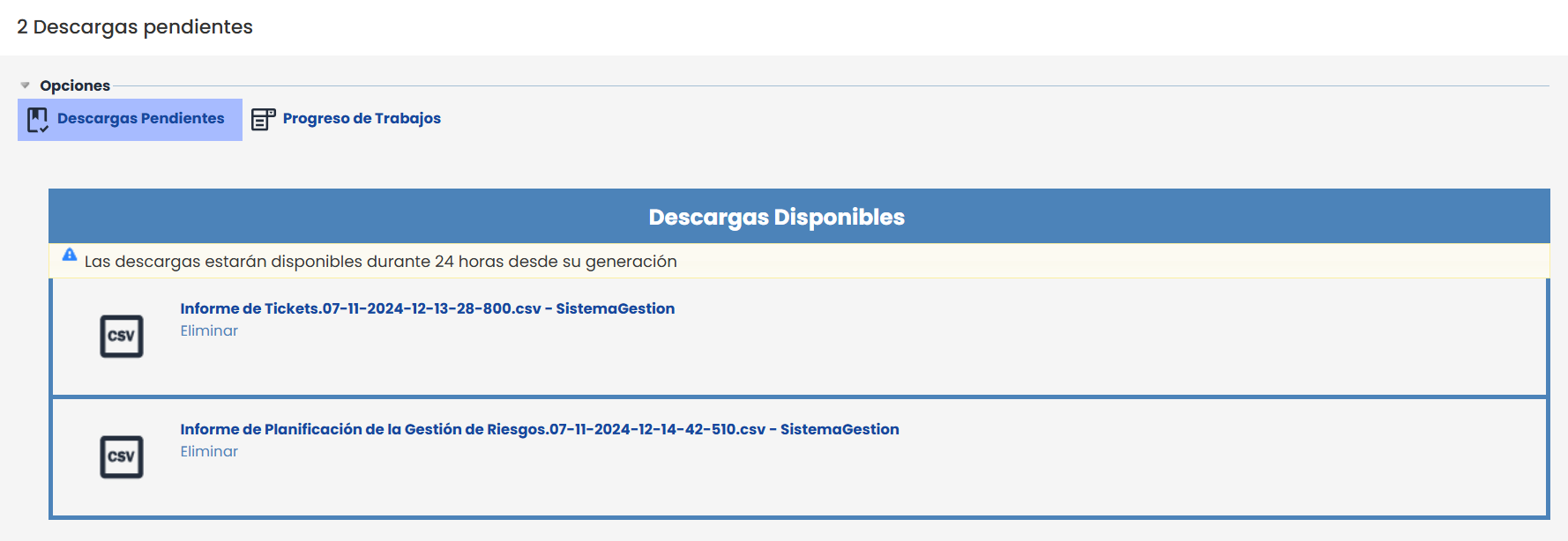
Download
When selecting the download of a report or file, the system displays a message indicating: "The report generation has started. Once it is available, you will be notified and can download it from the Pending Downloads option." Once available, the file can be downloaded directly from this section.
To download a file from the "Pending Downloads" section: Locate the file in the list of available downloads and click on the link with the file name. The download will start automatically, and the file will be saved in the device's default downloads folder.
Delete download
If you do not want to download a file, it can be deleted by clicking on the Delete button located below the corresponding file.
NOTE: Files in "Pending Downloads" are automatically deleted 24 hours after their generation.
CSV Files
This CSV format is a standard that allows the exploitation and transfer of information to other systems, facilitating interconnection and data utilization.
If you want to convert the downloaded report in CSV format to Excel format, you can do so by following these steps:
-
Open the .csv file downloaded from GlobalSUITE® that you want to convert.
-
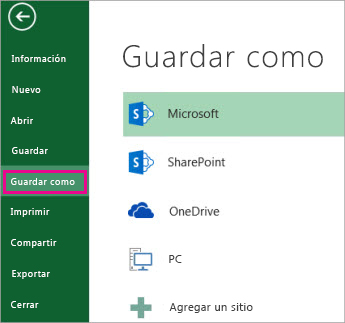
Click on File > Save As.
-
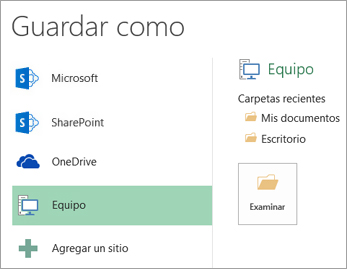
In Locations, select the place where you want to save the file.
-
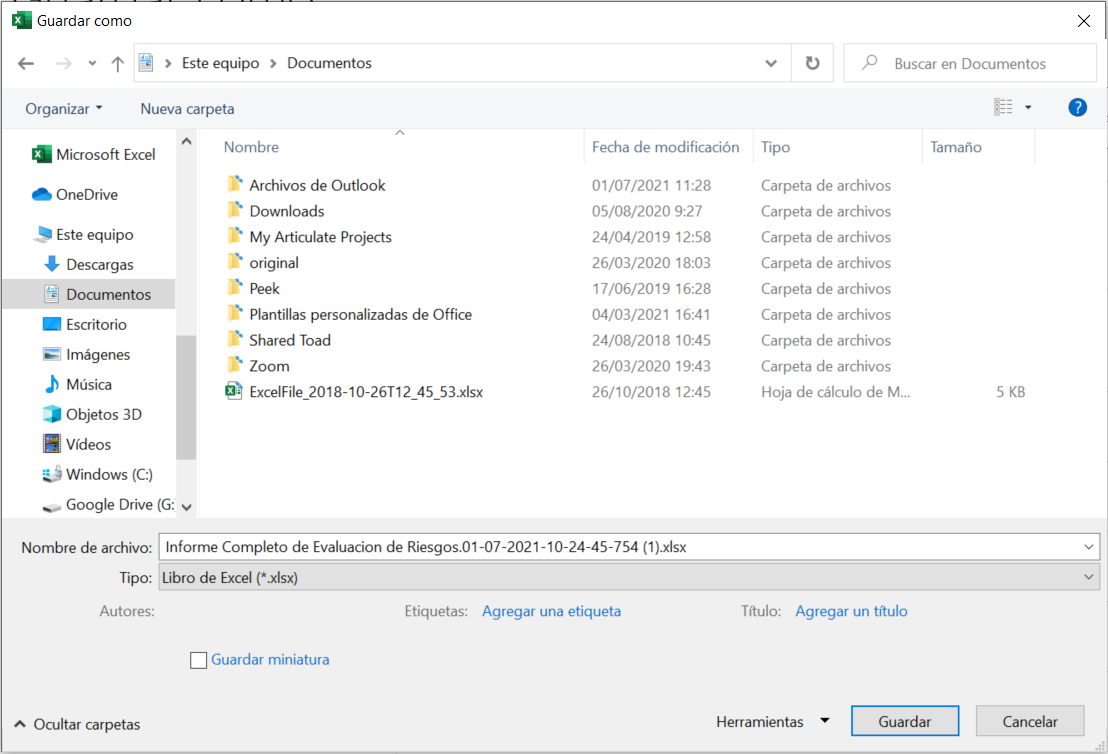
In the Save As dialog box, navigate to the desired location.
-
In the Save as type list, click on the file format " Excel Workbook (*.xlsx) ". Click the arrows to scroll to file formats not visible in the list.