
The My Profile option allows the manager to modify the data corresponding to their user.

Personal Data
GlobalSUITE offers the possibility to define the following personal data:
-
Name: Allows identifying the name of the platform manager.
-
Position(s): Offers the possibility to define the position held in the organization.
-
Phone/EXT: Allows identifying the manager's phone number as well as their personal extension if they have one.
-
e-Mail: Offers the possibility to indicate the manager's corporate email.
-
Language: Allows defining the language in which the user will view the platform. The list of languages available for the user to select will be the same as the languages configured at the company level (see the Company Data option).
Configure Notifications and User Data
Notifications are emails that GlobalSUITE sends automatically, if the checkbox is marked, to alert the user of the approaching expiration of the licenses of their own company or dependent companies in the case of being an organizational user.
All notification emails are sent, by default, from the account notificaciones@globalsuitesolutions.com, an account enabled for sending notifications but not for receiving messages.
The user data section displays the user's name and allows changing it to another one that is not in use within the platform.
It also shows information about the role assigned to the user (see User Types option), the profile assigned within the company (sub-role), as well as information about the organizational structure the user can access (Subentity). This information is for the user's reference, and they cannot modify their assigned user type or profile. These changes can only be made by the organization's administrator users.
If the user wishes to change their password, they can do so by clicking on the link ‘Do you want to change your password?’. The selected password must comply with the platform's password policy, detailed in the Platform Access section.
Two-Factor Authentication
This section allows users to enable or disable Two-Factor Authentication, only if it has been configured as Optional in Settings > Configuration > General > Company Configuration
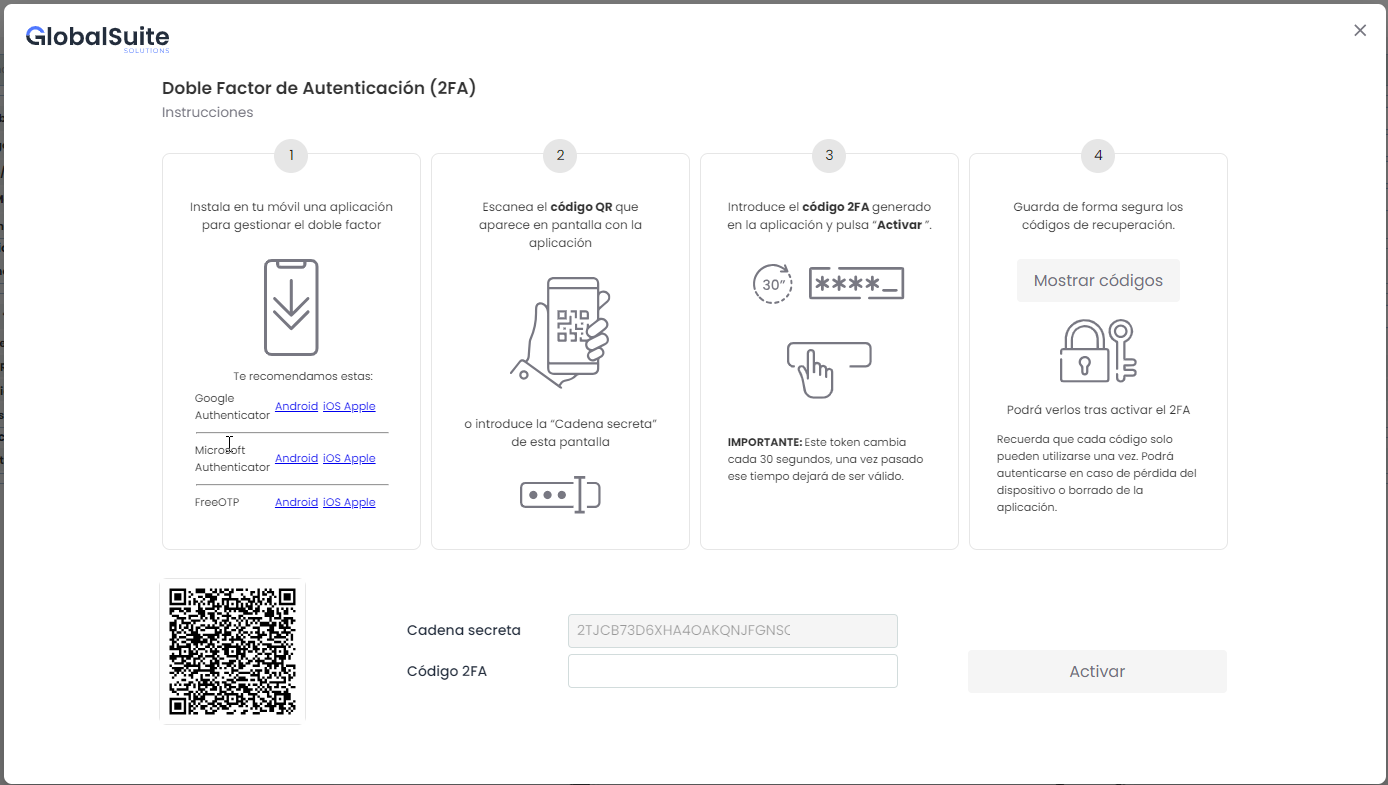
The Activate Two-Factor button must be clicked, and the steps indicated in the pop-up window must be followed. These steps will depend on whether the 2FA is via TOTP or Email:
Two-Factor Authentication - TOTP.
Two-Factor Authentication - Email.
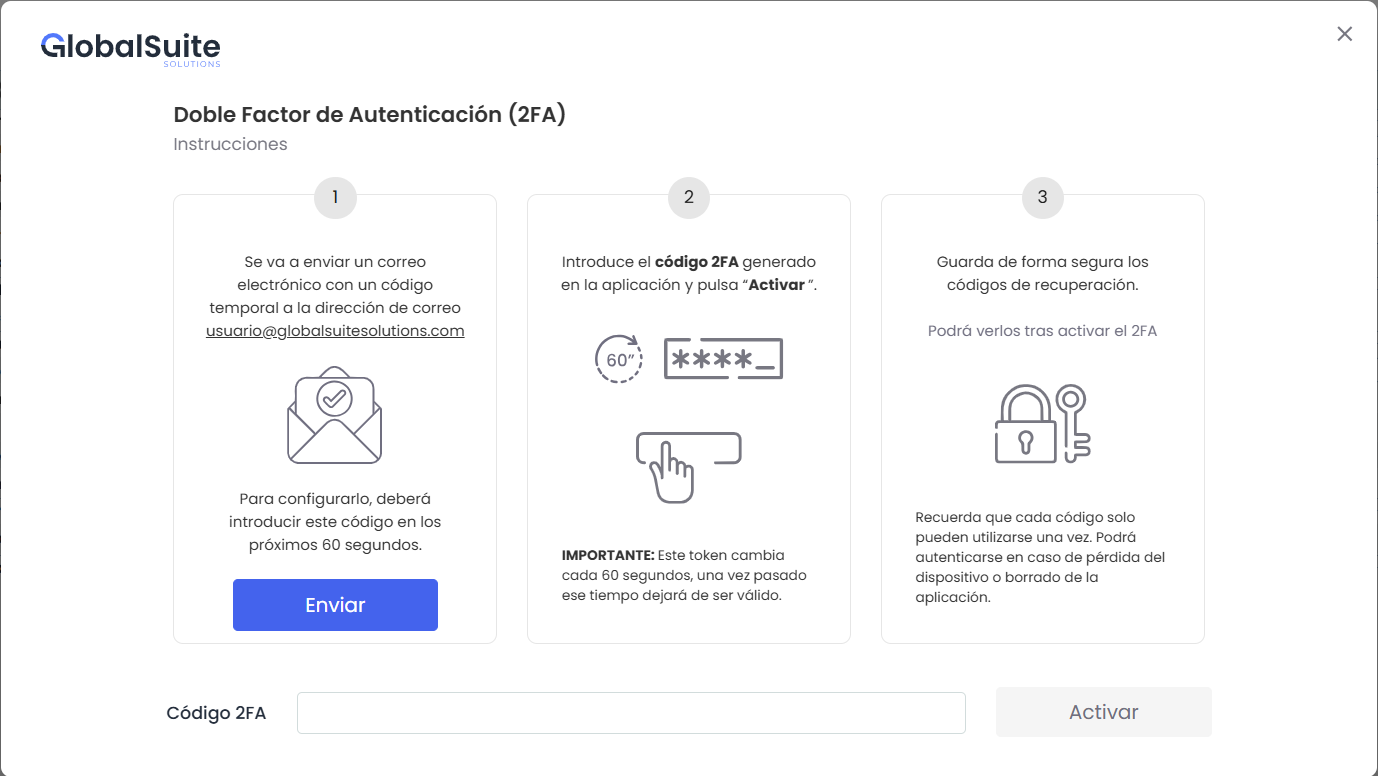
NOTE: This window is the same as the one that appears when a user accesses for the first time if Two-Factor Authentication is configured as mandatory in Settings > Configuration > General > Company Configuration
Disable Two-Factor Authentication.
In both cases, if the intention is to disable it, the Disable Two-Factor button must be clicked. If Two-Factor Authentication was configured as mandatory, after disabling it, it will need to be reactivated to continue.
Time Zone
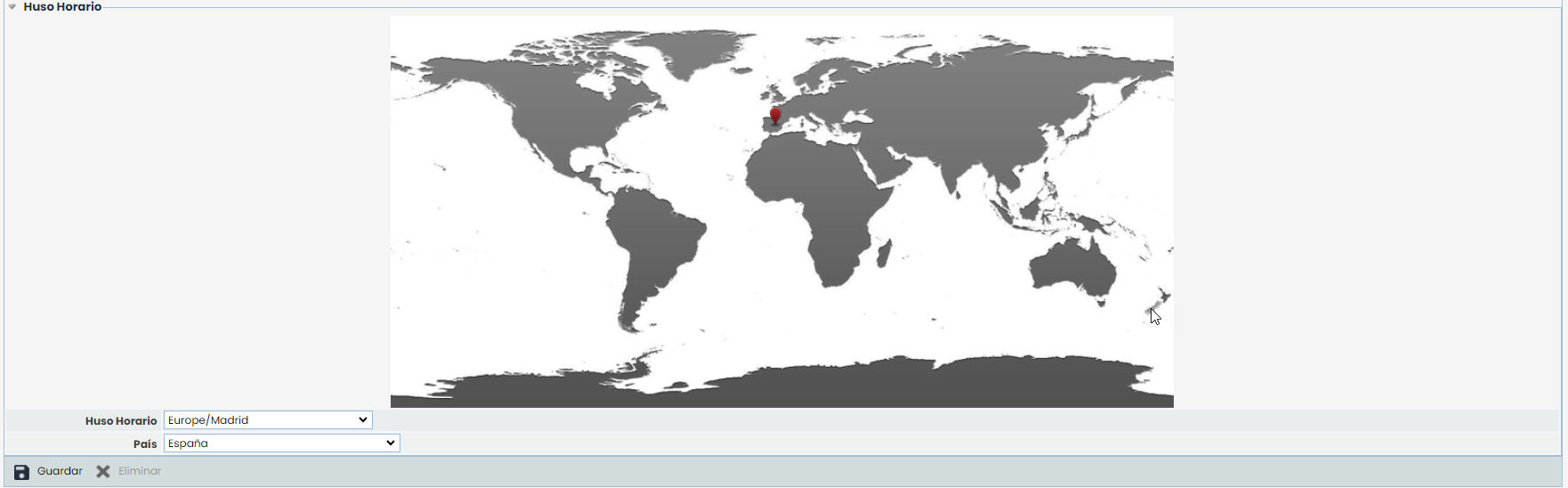
GlobalSUITE allows, through this section, defining the time zone with which to manage the platform. To do this, you can choose between different continents and countries in the dropdowns located at the bottom of the section. Once selected, the ‘Save’ button must be clicked for the changes to be saved.
Depending on the selected time zone, date, time, and temporal fields will be displayed according to that selection. The selection made or the change of the time zone does not affect the data stored in the platform, only their display.