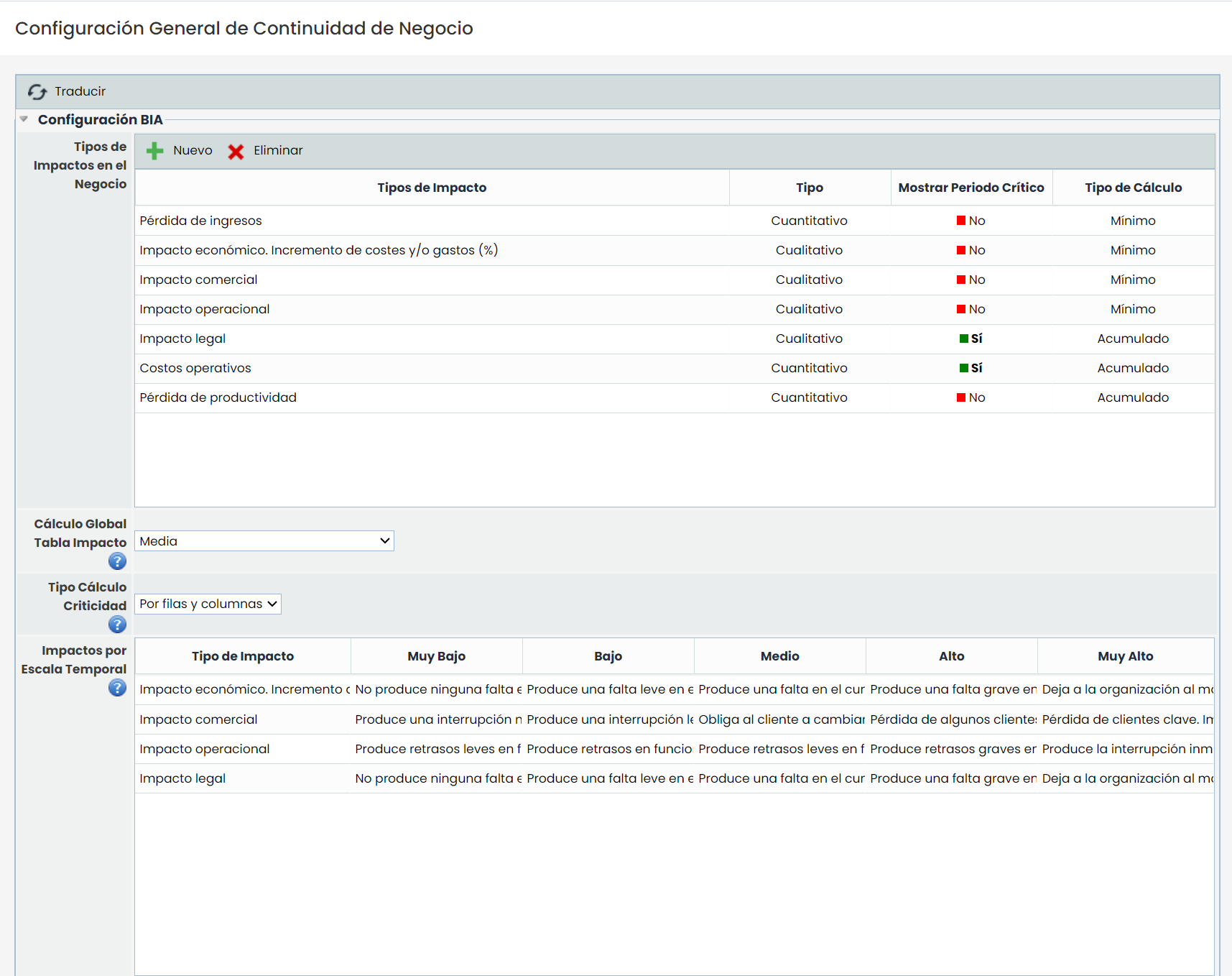
Types of Business Impacts
Types of impact that can affect the organization can be added or removed. The platform administrator can define the scale for each impact independently.
These types of impact can be classified as Qualitative and Quantitative, depending on whether they are to be assessed in the BIA based on the configured impact levels or by introducing numerical magnitudes (such as economic amounts). Additionally, for each type of impact, it can be indicated whether it should be assessed additionally during a critical period or not. Finally, it can be defined how the criticality will be calculated for each of them, using one of the following criteria: Cumulative Value, Maximum, Minimum, or Average.
Global Impact Table Calculation
Allows defining the criterion that will be used to obtain the criticality value of the impact table, which can be: Cumulative Value, Maximum, Minimum, Average, or Weighted Average by assigning weights to each type.
Criticality Calculation Type
This field indicates whether the calculation of the global criticality value of the impact table will be done based on the final values of each type of impact (by rows), using the values calculated for each interruption step (by columns), or with both sets of values (by rows and columns).
Impacts by Time Scale
This table allows defining the criteria for the created types of impact for each level. The criteria defined in the table will appear in the BIAs and BIA surveys, so the user can consult the criterion associated with each evaluation level (Low, Medium, High, etc.). To edit a criterion, the corresponding cell in the table must be selected and double-clicked.
Time Scale Table
Allows the creation of the time scale on which the BIA will be based. Different records can be defined by entering the quantity (only numerical values) and the desired unit (seconds, minutes, hours, days, weeks), with the restriction that there cannot be two units with the same quantity and unit. The table will be automatically sorted with each change.

Levels
This section allows defining the evaluation levels of the different impacts defined in the established time scale. These levels are used in the creation of Surveys, BIAs, and Pre-BIAs. It is possible to assign a numerical value to each level, which will be used in the criticality calculation.
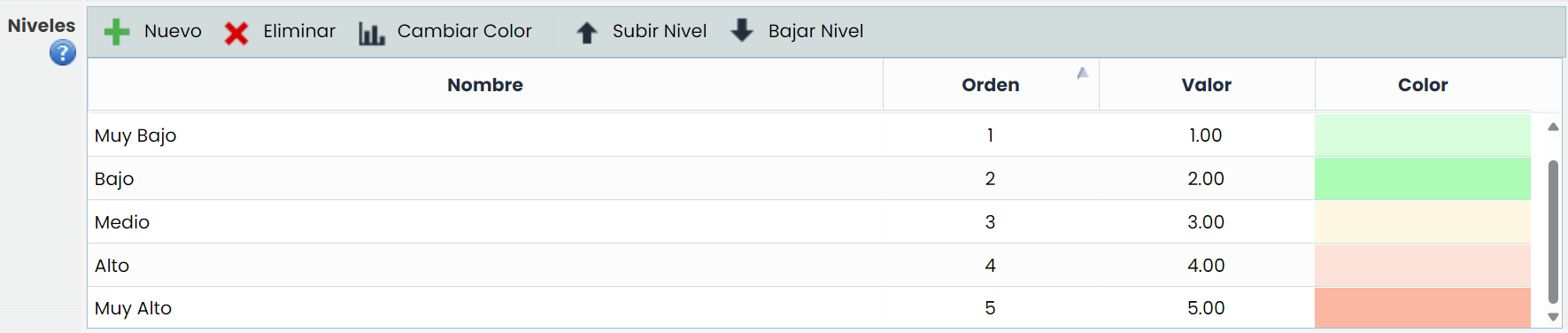
The options available in this section are:
-
New: Allows inserting a new entry in the table.
-
Delete: Enables deleting levels from the table. To do this, select the desired row and press the 'Delete' button.
-
Change Color: Allows changing the color used to highlight the level.
-
Move Level Up: Offers the possibility to move the position in which the level will be displayed in the list upwards.
-
Move Level Down: Offers the possibility to move the position in which the level will be displayed in the list downwards.
Enable Criticality
This section allows the possibility of hiding criticality in the BIAs. If the functionality to obtain and calculate a criticality value for the processes (based on the impact assessment) is not to be used, it can be disabled.
-
If disabled, the field will no longer appear in the impact table or in the various views where it is currently displayed. It will also not appear in the BIA List Reports (CSV Report) or in the BIA form reports (Docx Report).
-
If criticality is enabled, it can still be obtained based on the established calculation criteria and will be displayed in all parts of the tool.
Criticality Levels
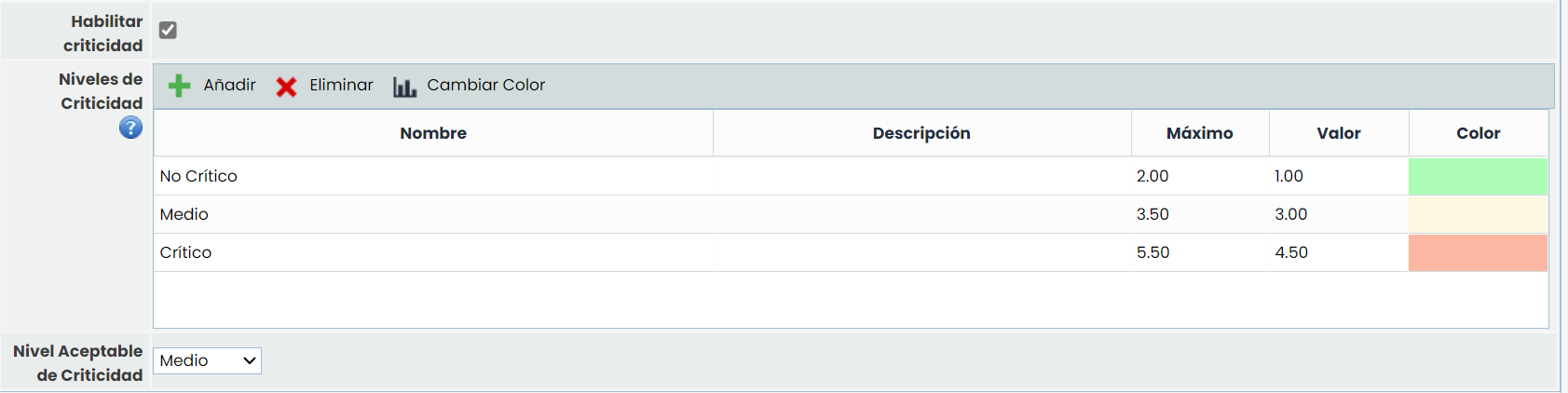
This section allows defining the qualitative levels in which the resulting criticality from the BIA will be expressed. This level is obtained from the calculation of the impact table.
In this section, the following actions can be performed:
-
New: Allows inserting a new entry in the table.
-
Delete: Enables deleting levels from the table. To do this, select the desired row and press the 'Delete' button.
-
Change Color: Allows changing the color used to highlight the level.
For each level, the range of values encompassed in it can be defined by editing the maximum value of each level. The table will be automatically sorted once modified. Each field is edited by double-clicking.
Acceptable Criticality Level: This field allows indicating which level, among those configured in the previous Levels table, corresponds to the Criticality Level accepted by the organization. The indicated Acceptable Criticality Level can be compared with the Criticality Level obtained in each of the BIAs.
NOTE: If criticality is disabled, the Criticality Levels and Acceptable Criticality Level sections will not appear in the configuration.
MTPD and RTO Calculation Configuration
The configuration established in this section directly impacts:
-
Consolidated BIAs
-
Pre-BIAs
-
BIA Surveys
-
The view Analysis > RTO and RPO Calculation
Thus, the criteria defined here determine whether the calculation of the values will be manual or automatic, and if automatic, under which rule they will be generated.
MTPD
Configuration
In the field MTPD Calculation, one of these options can be selected:
-
Manual: the value is entered directly for each service or process.
-
Automatic: the value is calculated based on the impacts recorded in the BIA, following the configured criterion.
-
Configured in each BIA: in each BIA, it is individually defined whether the calculation is manual or automatic.
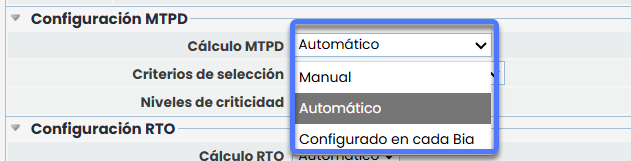
Automatic Calculation Criteria
If the Automatic option is selected, the following criteria are enabled:
-
First Impact: assigns the MTPD when the first impact level matches the scale defined by the user.
-
First Impact Average: assigns the MTPD based on the average of the recorded impacts.
-
First Impact of Type: assigns the MTPD when the first level of a specific type of impact matches the defined scale.
Depending on the chosen criterion, additional fields are displayed:
-
For First Impact or First Impact Average: a dropdown with the configured impact levels (Very Low – Very High).
-
For First Impact of Type: a dropdown with the configured impact types (e.g., economic, legal, reputational, etc.).
RTO
Configuration
In the field RTO Calculation, one of these options can be selected:
-
Manual: the value is entered directly for each service or process (default option for current and new clients).
-
Automatic: the value is calculated based on the impacts recorded in the BIA, following the configured criterion.
Automatic Calculation Criteria
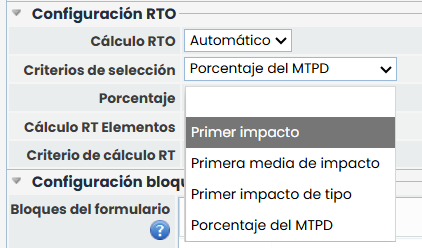
If the Automatic option is selected, the following criteria are enabled
-
First Impact: assigns the RTO when the first impact level matches the scale defined by the user.
-
First Impact Average: assigns the RTO based on the average of the recorded impacts.
-
First Impact of Type: assigns the RTO when the first level of a specific type of impact matches the defined scale.
-
Percentage of MTPD: calculates the RTO by applying a percentage of the MTPD.
Depending on the chosen criterion, additional fields are displayed:
-
For First Impact or First Impact Average: a dropdown with the configured impact levels.
-
For First Impact of Type: a dropdown with the configured impact types.
-
For Percentage of MTPD: a numeric field that allows entering values between 1 and 100.
Blocks and Visibility Configuration
Form Blocks
This section allows editing the title of each block or section of the BIA form.
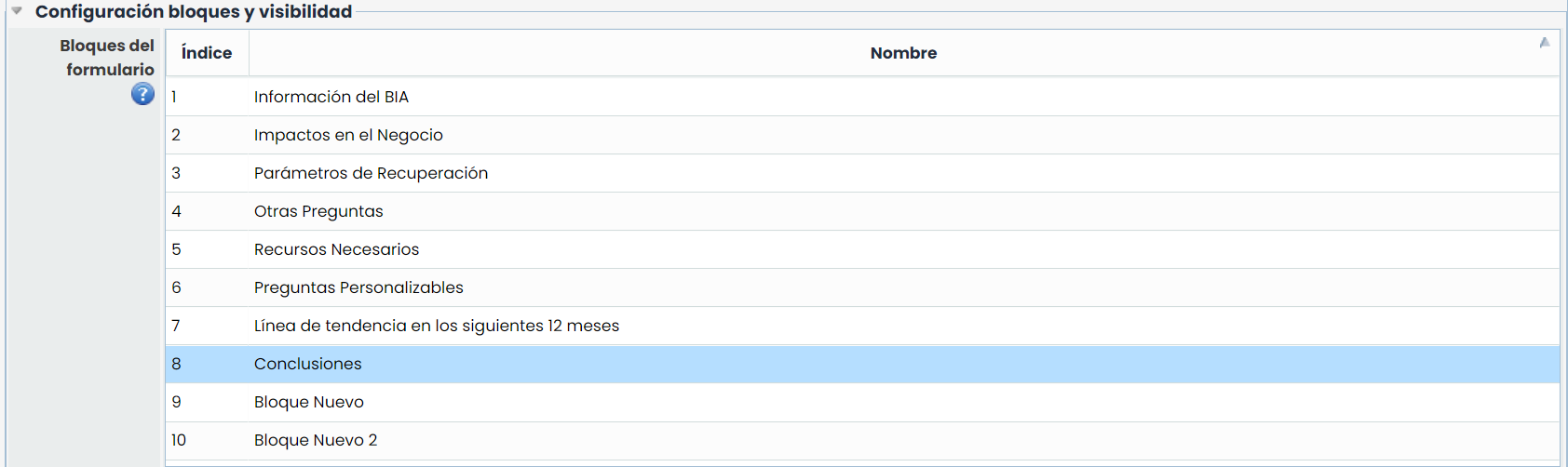
There are a total of 10 possible blocks. The configurable fields and questions of the BIAs will be included in these blocks. Only blocks with an associated field will appear in the BIA form.
Field Visibility and Order
In this table, the visibility of the fixed fields and tables that can be used in the creation of BIAs can be defined. There are mandatory fields: Name, Impact Table, and MTPD.
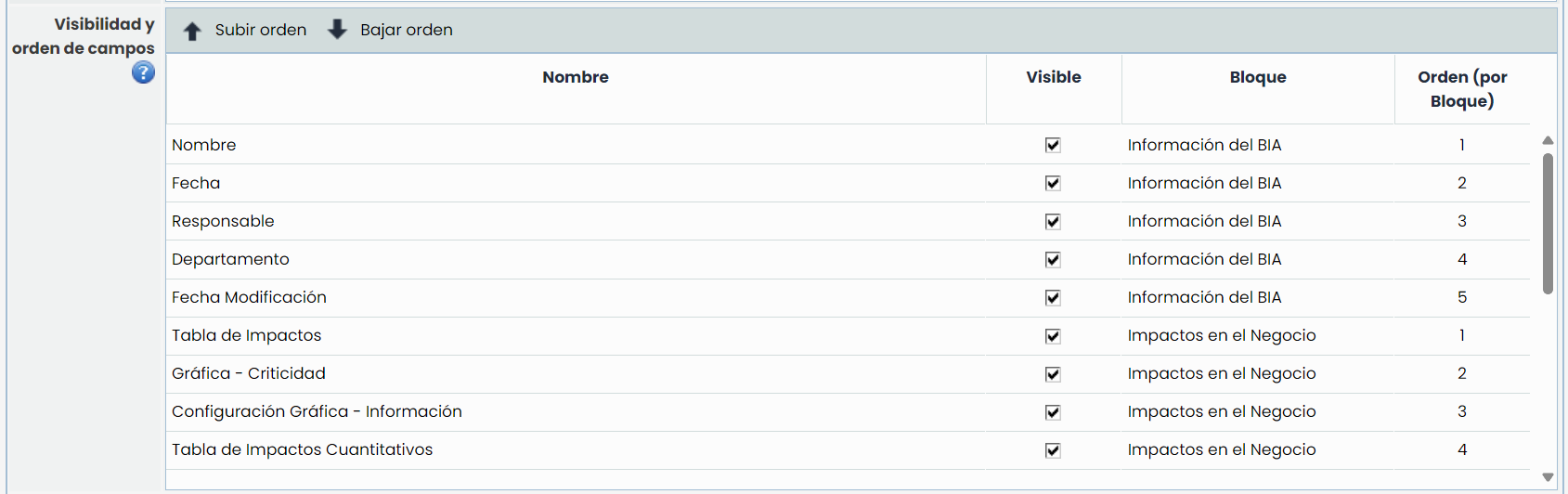
The information displayed in the table is:
-
Name: Displays the field identifier.
-
Visible: Checkbox that allows showing or hiding a field.
-
Block: By double-clicking on this cell, the available block list is displayed, allowing selection of the block in which the field will be displayed within the form.
-
Order (by block): This column indicates the order of each field within each block. When changing a field's block, it will be added to the end of the new block. It is also possible to manually order the fields by selecting one and pressing the "Move Up" or "Move Down" buttons.
NOTE: If a field is hidden in the general BIA configuration, it will also be unchecked in the Survey Models.
Custom Questions
This section allows defining a list of questions to obtain the required information for the creation of BIAs.
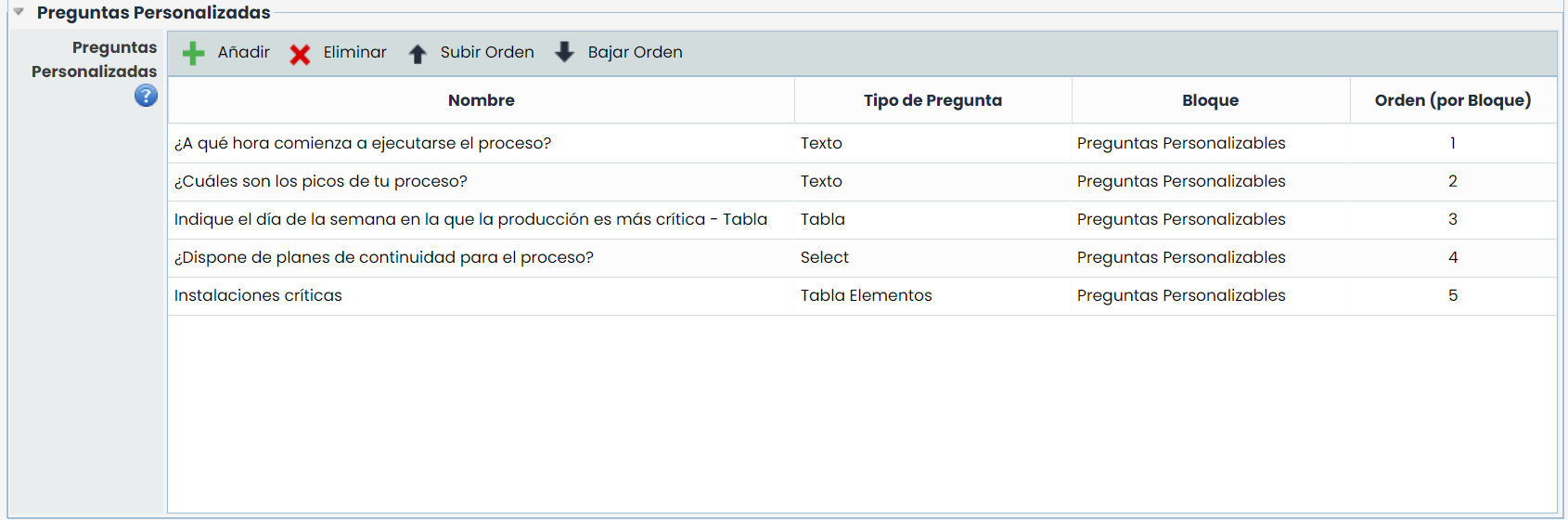
The information that allows defining the table is:
-
Name: Allows defining the question to be asked.
-
Question Type: Offers the possibility to parameterize the type of question, allowing options such as 'Text', 'Select', 'Table', or 'Table Items'.
-
Block: By double-clicking, the available block list is displayed, allowing selection of the block in which the question will be displayed within the form.
-
Order (by block): This column indicates the order of each question within each block. When changing a question's block, it will be added to the end of the new block. It is also possible to manually order each question by selecting it and pressing the "Move Up" or "Move Down" buttons.
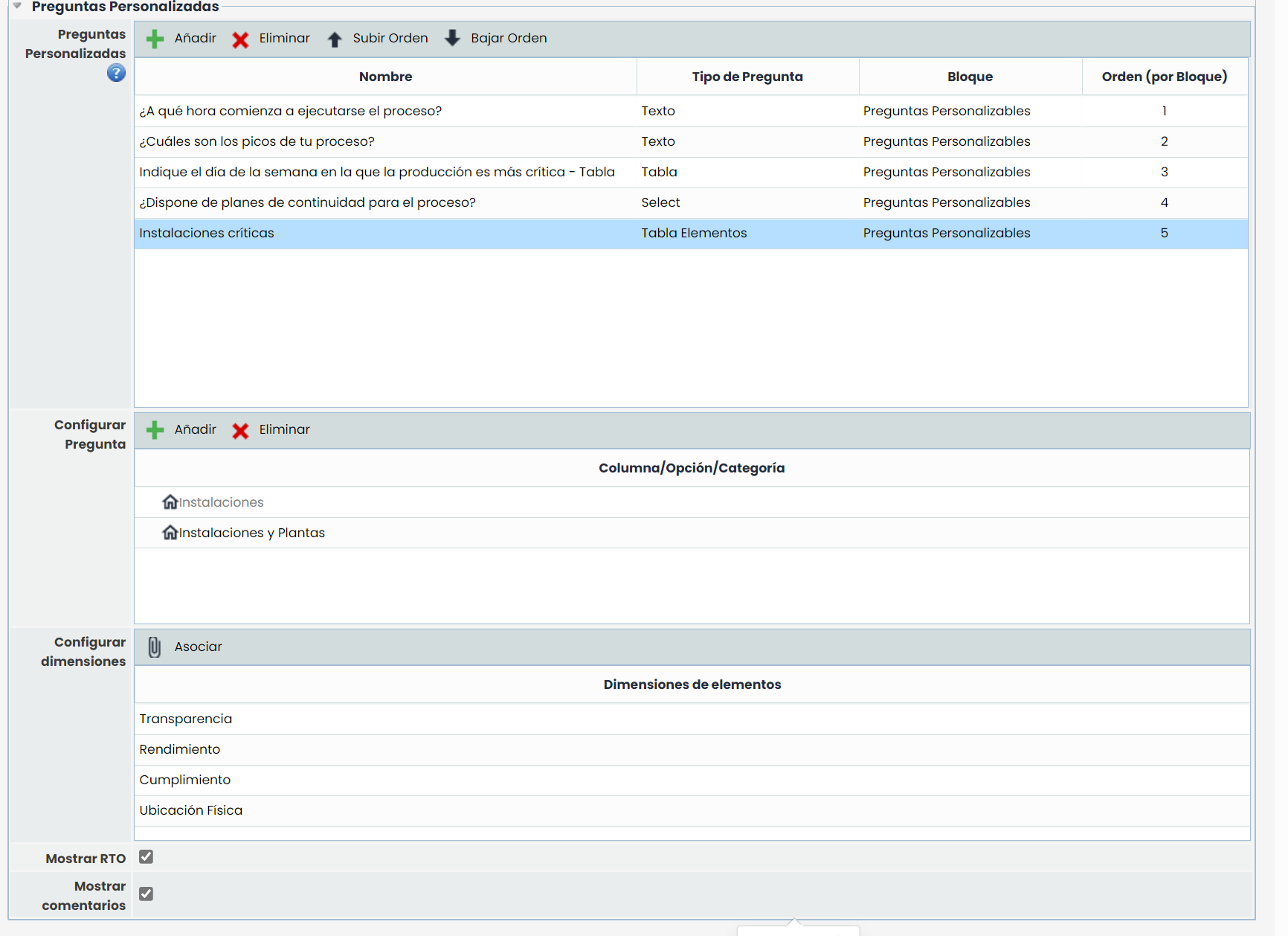
To insert a question type into the table, the 'New' button must be pressed. To delete a question type, the desired row must be selected, and the 'Delete' button pressed.
If the question is configured as 'Select', 'Table', or 'Table Items', a table is displayed at the bottom to define the desired parameters. Depending on the question type, the following is allowed:
-
'Select' Question Type: Possible options that can be selected in the dropdown list can be defined.
-
'Table' Question Type: The columns that the table will have can be defined.
-
'Table Items' Question Type: The categories available for recording items can be defined. The asset categories correspond to the categories defined in the Settings > Methodologies > Items option.
Configure Dimensions
In this section, the visibility options for manual inventory dimensions can be configured.
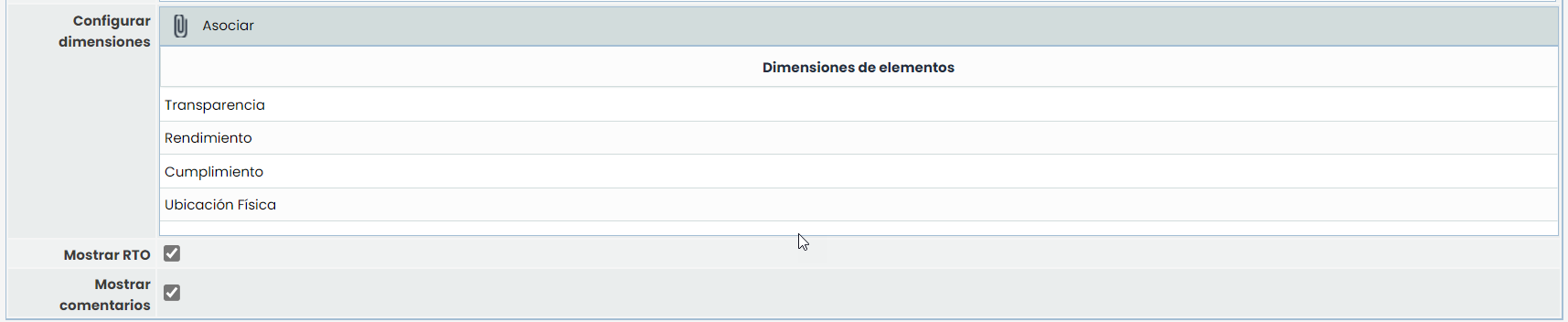
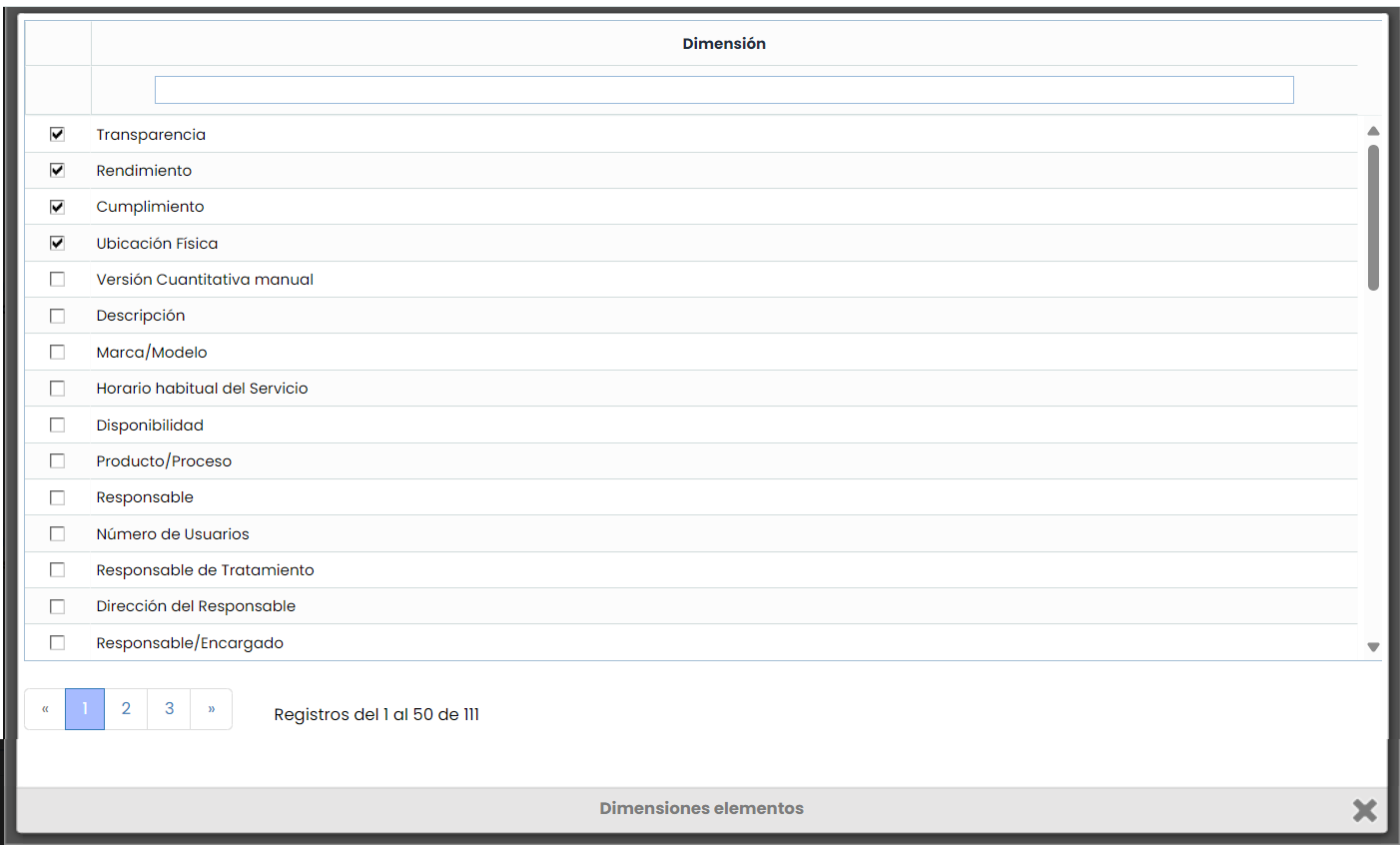
By clicking "Associate," a window will open with the available dimension options (as configured in Settings > Methodologies > Items), which can be associated or disassociated as appropriate.