
This option allows defining groups of people who are critical to the organization, such as Emergency Teams or Disaster Recovery Teams.

To create a group of critical people, you must click the 'New' button, and a new entry will appear in the table. To delete a created group, you must select the row or rows you want to delete and then click the 'Delete' button.
The 'Download' button allows you to download the list of HR groups in an editable format (.xlsx) or in .PDF format.
The 'Show' button allows filtering the critical people groups displayed in the table. Each option allows:
-
By Entity: Displays all the Critical HR of the entity you are working with. This is the default view when entering the option.
-
My Committees: Displays the Critical HR where the user belongs.
-
All: Displays all defined Critical HR, both from the entity you are working with and from the entities below it.
To define the details of a group of critical people, you must enter the form by clicking directly on its name.
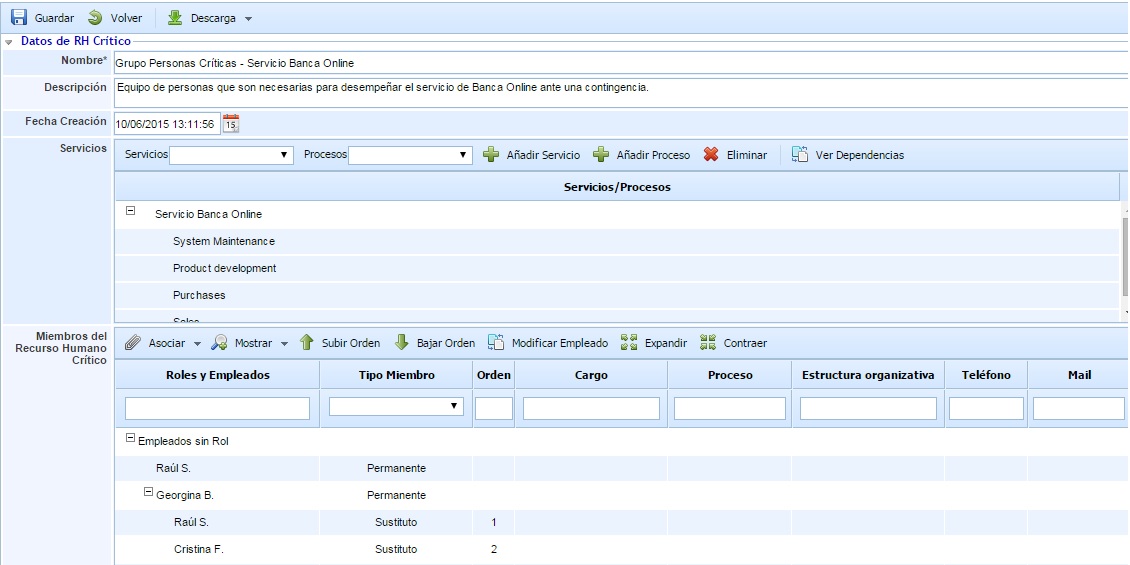
The form allows performing the following actions:
-
Save: Allows saving all changes or modifications made in the form.
-
Back: The tool returns to the previous screen, where the list of all Critical HR is displayed.
-
Download: Allows downloading the information of the Critical HR in an editable format (.docx).
The form consists of the following information:
-
Name: Descriptive name of the group of critical people that will appear in the initial table of the option.
-
Description: Allows providing a more detailed description of the group's function.
-
Creation Date: Identifies the creation date of the group.
-
Services: Allows associating the Critical HR with the organization's services and business processes. To associate a service, you must select the desired service from the dropdown and click the 'Add Service' button. To associate a process, you must select an already inserted service and a process from the dropdown, and click the 'Add Process' button. If you want to delete a service or process from the table, you must select the service or process in the table and click the 'Delete' button.
-
Members of the Critical People Group: This table allows associating the Critical HR with the employees who compose it. The following section details its functionality.
Members of the Critical People Group
The committee members table allows associating employees registered in GlobalSuite with the Critical HR. This table allows associating permanent employees, substitutes, and guests with the group.

The available options to establish the employees of the Critical HR group are:
-
Associate Employees: Clicking on this option opens a window with all the roles and employees defined in the 'Roles and Responsibilities' option. Employees not associated with any role also appear. Using the selection boxes on the right, employees can be associated with the group. Once selected, you must click the 'Load Roles/Employees' button to add them to the table.
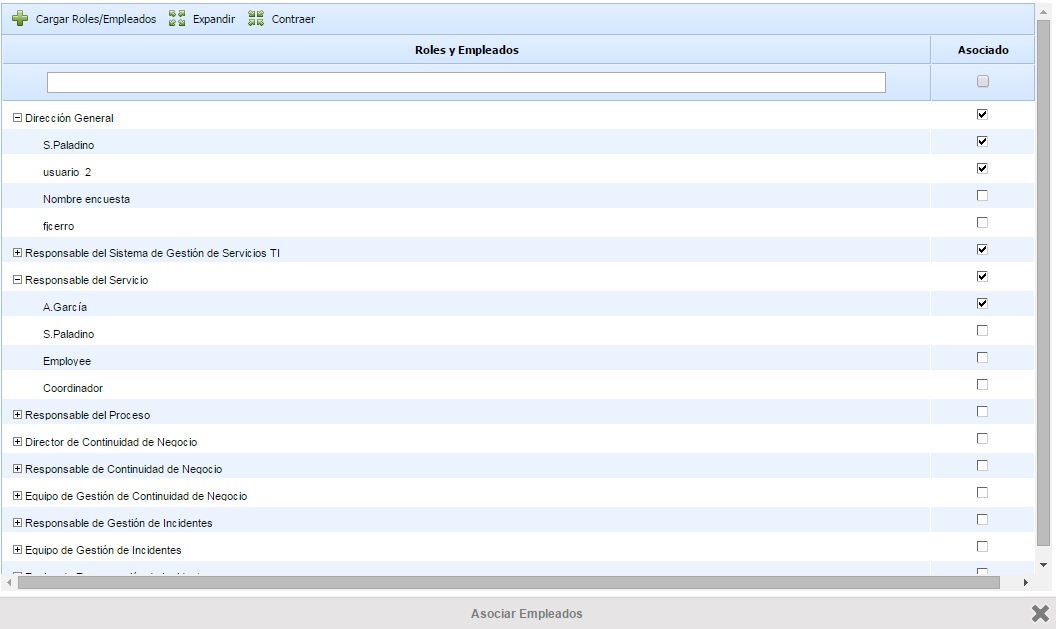
Employees added to the Critical HR group are registered, by default, as 'Permanent' employees. You can change the type in the 'Member Type' column, defining an employee as 'Substitute' or 'Guest'.
-
Associate Substitutes: This option allows associating substitute employees with a 'Permanent' type employee (substitute employees cannot be associated with 'Substitute' or 'Guest' types). To do this, select the employee and click the 'Associate Substitutes' button, displaying a table with all the organization's employees, allowing one or more substitute employees to be selected.
-
Show: This button allows filtering the table to show/hide substitute employees associated with permanent employees.
-
Move Up/Down: These buttons allow ordering the substitute employees associated with a 'Permanent' employee. To do this, select a substitute employee and click the corresponding button depending on whether you want to move them up or down.
-
Modify Employee: This option allows modifying the identifying data of an employee selected in the table. A pop-up window appears with all the fields of the employee form.
-
Expand/Collapse: These buttons allow displaying all employees or collapsing the elements so that only the roles are shown, respectively.