This tutorial explains, step by step, how to perform the initial configuration of the Continuity System in GlobalSuite®, aligned with the requirements of the ISO 22301 standard.
This guide details the phases to define the scope of the system, establish the organizational structure, and identify the roles and responsibilities within the management system.
Additionally, it describes how to select the services and business processes that will be part of the Continuity System, associate employees and competencies to each role, and prepare the necessary structure to develop the continuity, recovery, and crisis management plans within the platform.
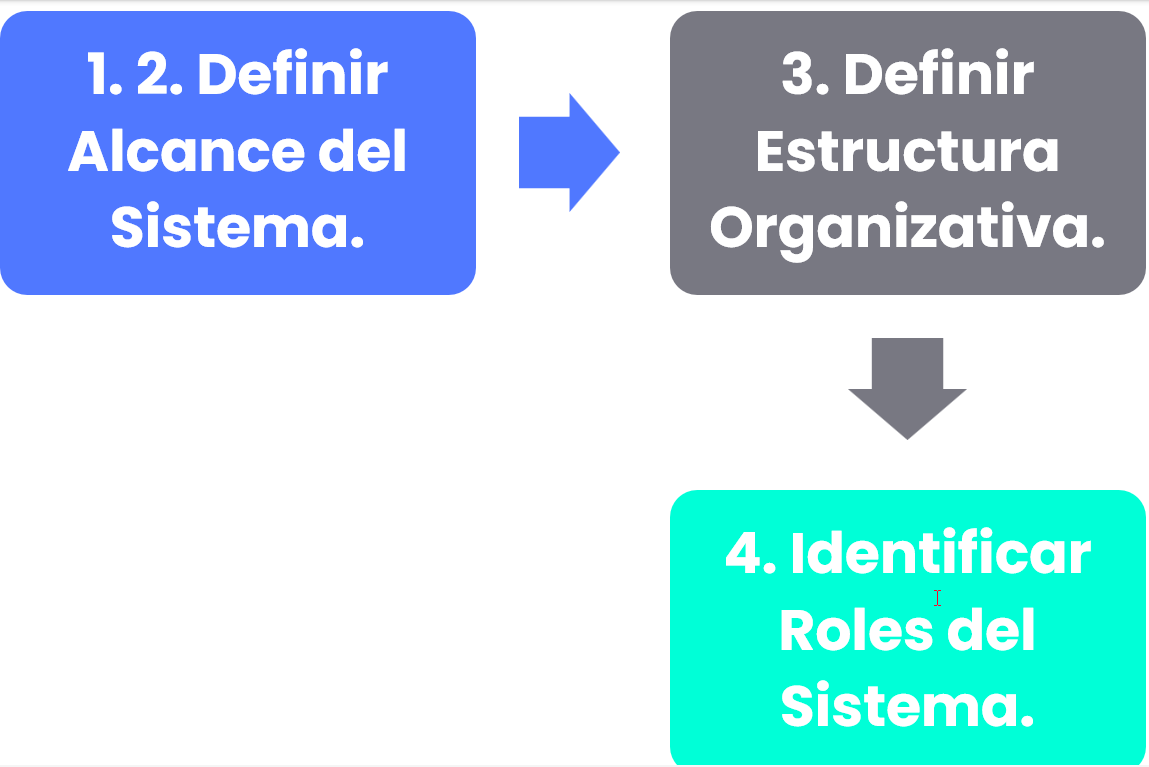
Phases for the initial configuration of the Continuity System
Introduction
The GlobalSuite® Business Continuity license allows considering aspects of the ISO 22301 standard for business continuity management systems. With this, we can perform a comparison to determine the status against the standard and define action plans to close the gap.
Throughout the module, options can be defined such as: compliance, which allows defining the status of a company regarding one or several regulations, disaster scenarios and crisis scenarios, continuity plan, BIAS and PRE BIAS, crisis management plans, recovery plan, and the testing program.
Services and Business Processes
View guide: How to define and manage services and processes in GlobalSuite®?
Scope of the Continuity System
The definition of the scope of the Continuity System is carried out in the option Home > Options > Scope
This option allows formally establishing the scope of our Continuity System by selecting the services we will include within it.

When accessing the Scope option, all the scopes defined in the entity are displayed.
The creation of a new scope is done by clicking on the “ New” button. To register the corresponding information for the scope, you must click on the link in the name of the scope itself. At this point, a form is displayed that allows defining all the corresponding information.

Similarly, it is possible to delete previously defined scopes or download the list of them on this main screen.
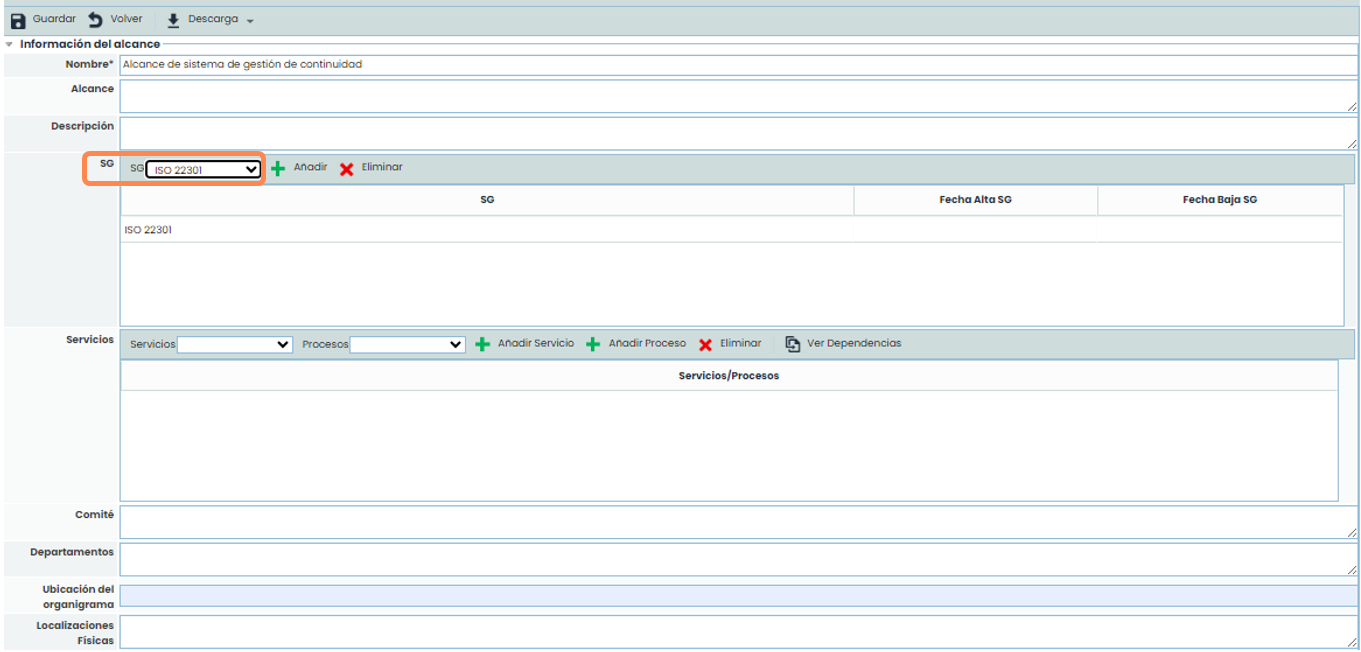
The scope form allows defining all the information related to the Business Continuity scope.
In the section called “ SG” it is necessary to select, at a minimum, the option “ ISO22301” as the Management System. This is important to configure the platform properly, as the scope form is updated to allow a specific definition of the Continuity System (see next step).
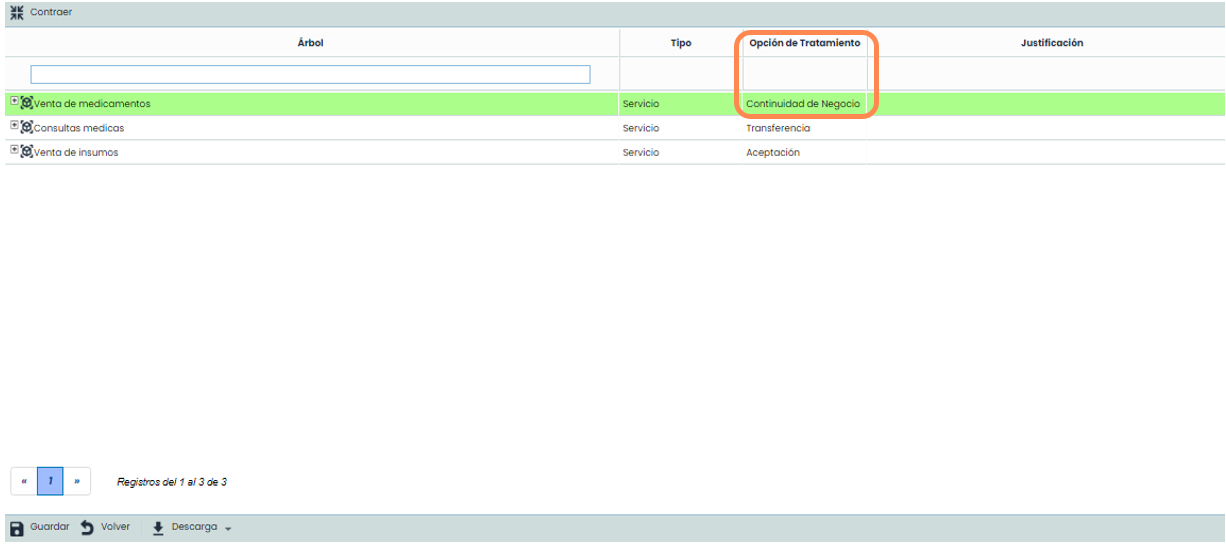
At the bottom of the scope form, the tree of services and processes configured in the entity appears. GlobalSuite® allows selecting which services are included within the Continuity System, from the total list of services. This is important because GlobalSuite® will only consider the services and processes associated that are selected in the scope.
To select the services within the scope, you will have to choose in Treatment Option: Business Continuity.
In this way, all the processes associated with the service can automatically be used for, for example, the Business Impact Analysis (BIA) or the Recovery Plans.
Organizational Structure
To access the Organizational Structure option, you must go to Home > Options > Organizational Structure
Here, GlobalSuite® allows defining the organizational structure of a company.

To correctly configure this hierarchy, it is necessary to previously define the levels of the company's organizational structure. To do this, you must go to the option Settings > Configuration > General and configure the desired levels.
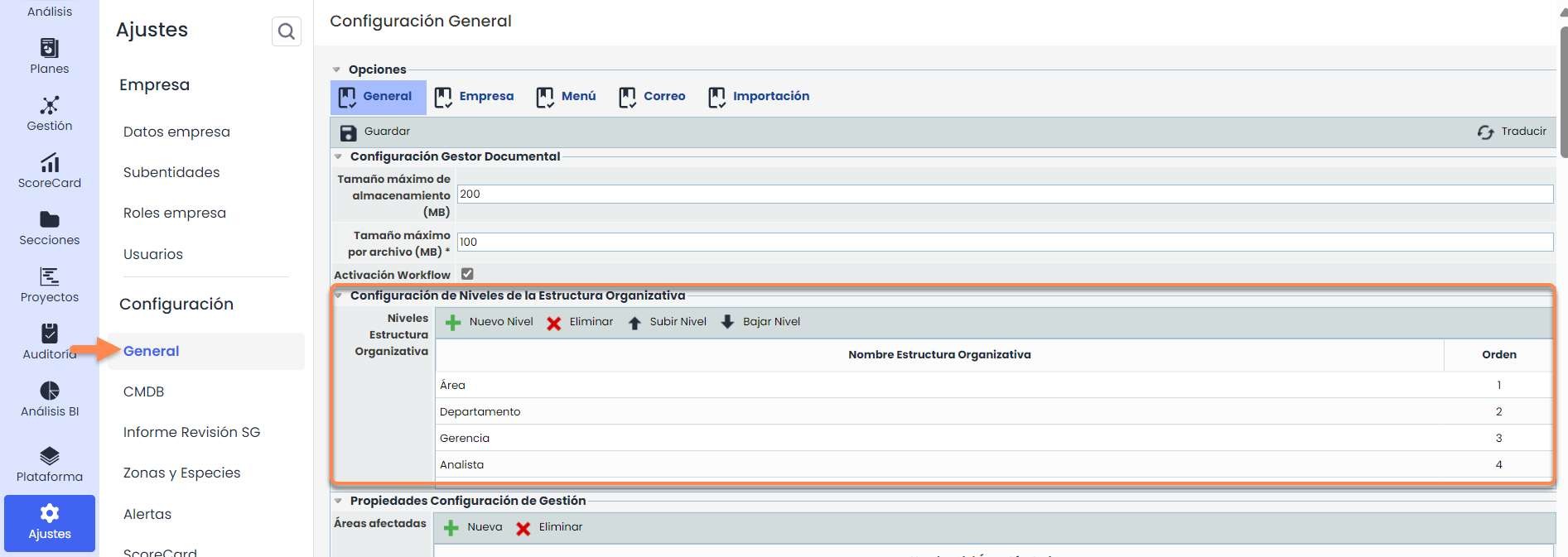
Once the levels are defined, the Organizational Structure option allows performing the following actions:
-
New: Add a new business unit. You must select the dependent business unit of the new option and click the “ New” button.
-
Delete: You must select in the table the business unit you want to delete. The dependent business units of this one will also be deleted.
-
Change Dependent: Allows changing a business unit (and its dependent units) to another different business unit.
-
Associate Responsible: Allows defining an employee of the Management System. You must select the business unit and click the button. All employees defined in GlobalSuite® will appear.
-
Change Responsible Level: Allows promoting or demoting an employee as the main responsible for the business unit.
-
Download: Allows downloading the organizational structure in Excel and PDF.
-
Expand: Allows expanding all levels of the structure to observe all its dependencies.
-
Collapse: Allows minimizing all levels of the structure to only observe the first level of its hierarchy.

Roles and Responsibilities
To access the option, you must go to Home > Role Management . Once inside, GlobalSuite® allows associating the different employees that are part of the entity to the different roles of the Continuity System.
Additionally, it allows associating the competencies required for each of the roles defined in the entity, being able to associate these competencies to different roles simultaneously.
Finally, it also allows defining the functions and obligations to be performed by each of the roles, which can also be associated with multiple profiles simultaneously.
Through this methodology established by GlobalSuite®, the platform allows describing the different job profiles, associating the employees who perform them, the necessary competencies for each role, and all related functions and obligations.
The roles that appear in the Roles and Employees tab are configurable through the Configure Roles button.
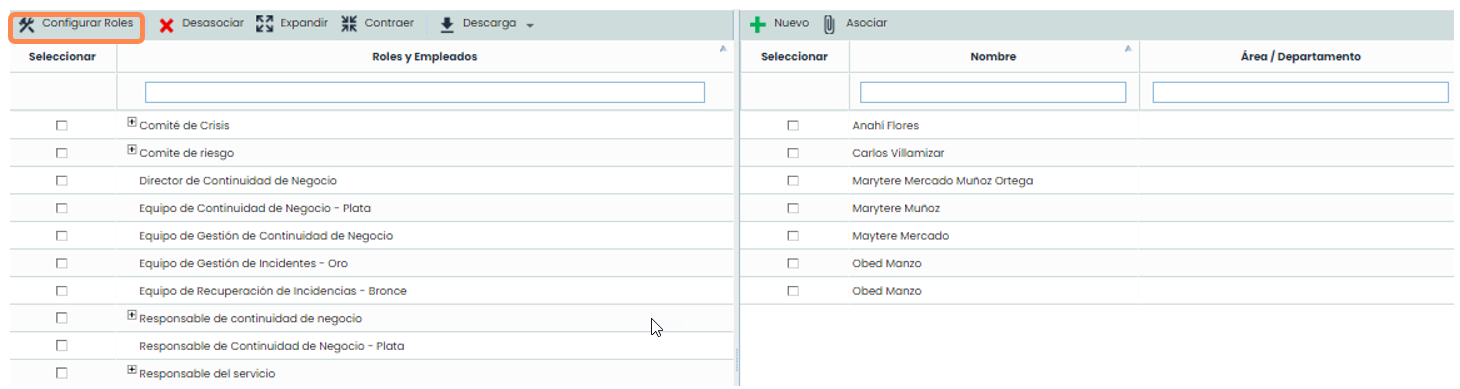
By clicking on the button, a new browser tab opens corresponding to the Settings > Configuration > General . Specifically, in the section of Role and Responsibility Configuration, the list of roles can be created, deleted, and modified through the marked options.

The list of employees that appears in the table on the right corresponds to the employees registered in Management > Employees
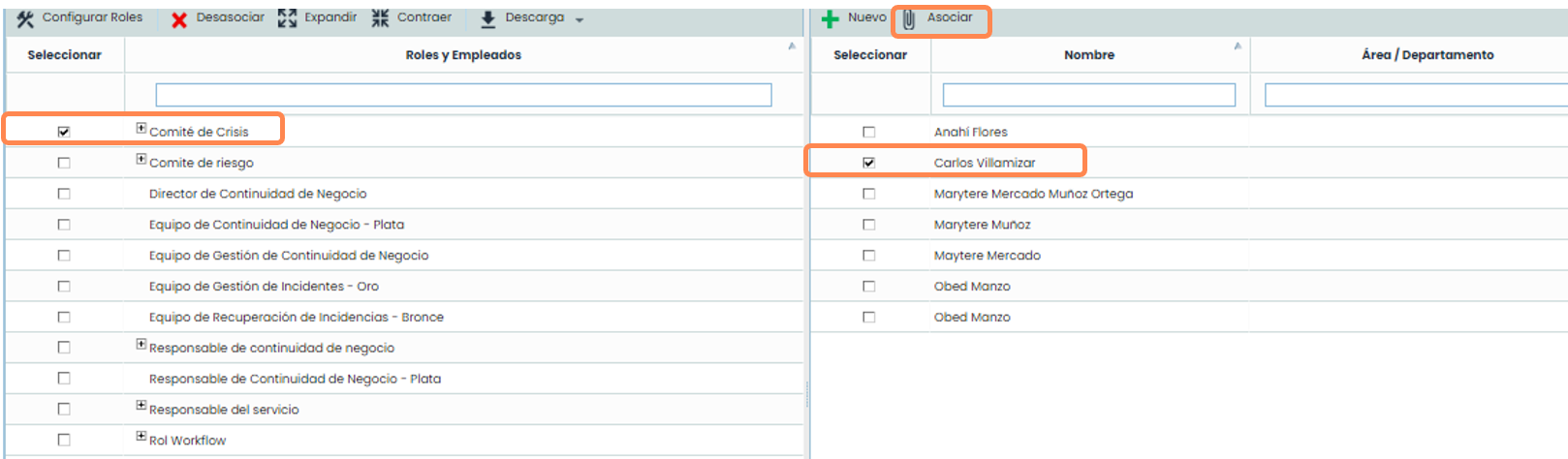
To establish the relationships between roles and employees, you just need to click within the select box in the employee table, that is, from the table on the right, and then the select box located in the table on the left for the role to which it will belong. Once the check is made in both boxes, you must click the associate button, so the screen will automatically refresh, and the employee's name will appear at a lower level than the established role in the entity.
Once employees are related to the roles of the entity, the next step is the definition and linking of the competencies associated with each role. This is done in Home > Competencies and Functions > Roles and Competencies .
To define competencies, it is necessary to click the “ New” button, generating a new line in the list of competencies, which can be edited. GlobalSuite® allows defining as many competencies as deemed necessary.
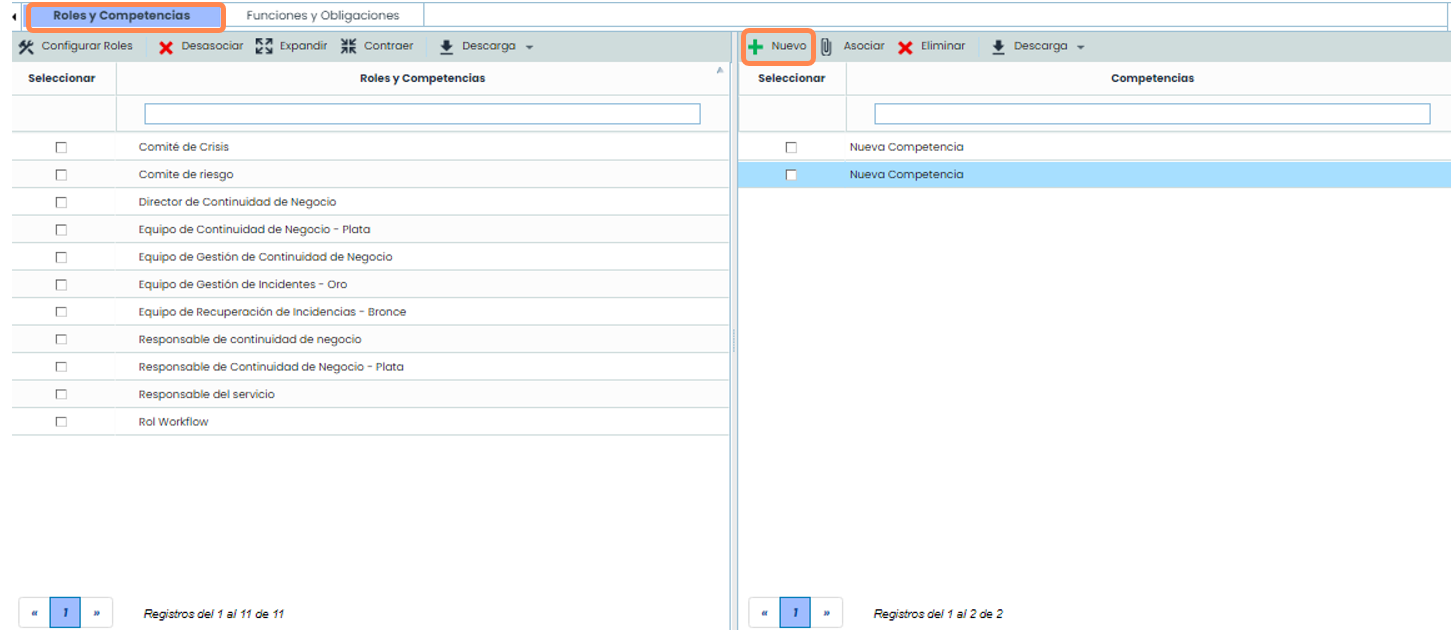
Once the list of competencies necessary for the roles of the entity is defined, the linking of competencies and roles is carried out through the same mechanism used to establish relationships between employees and roles previously seen.
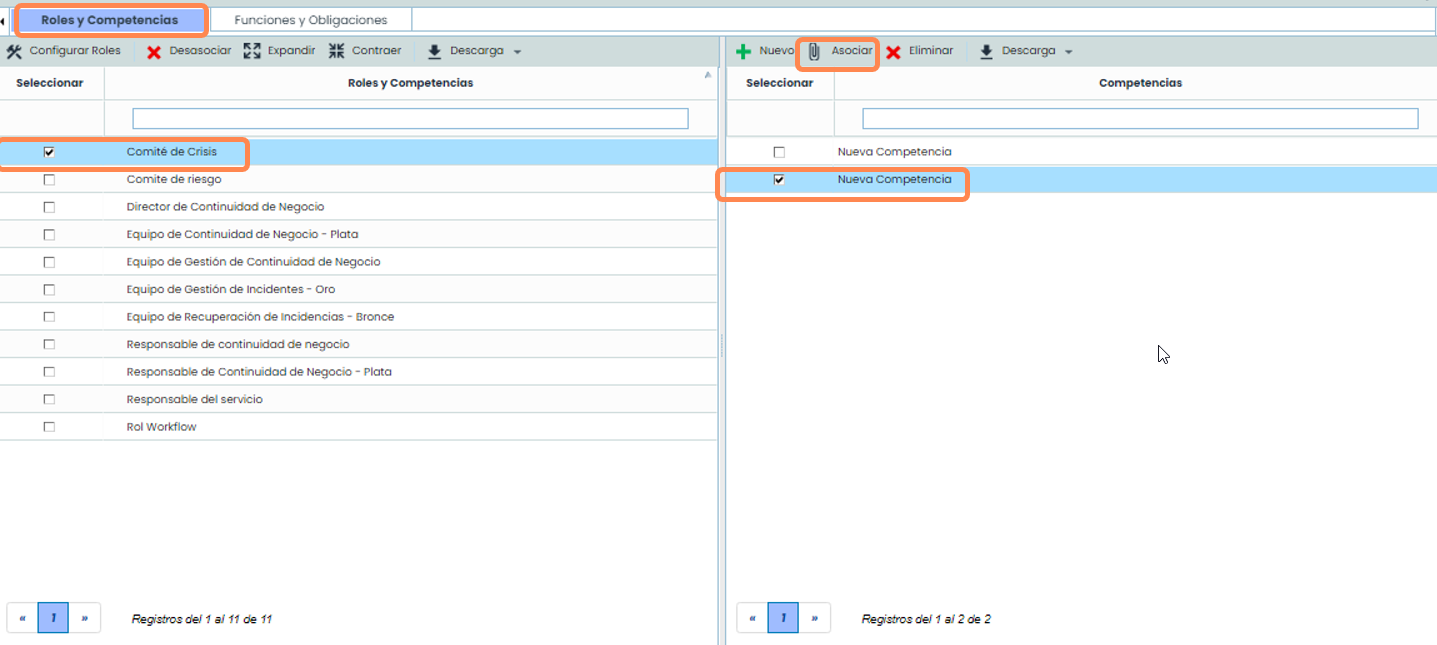
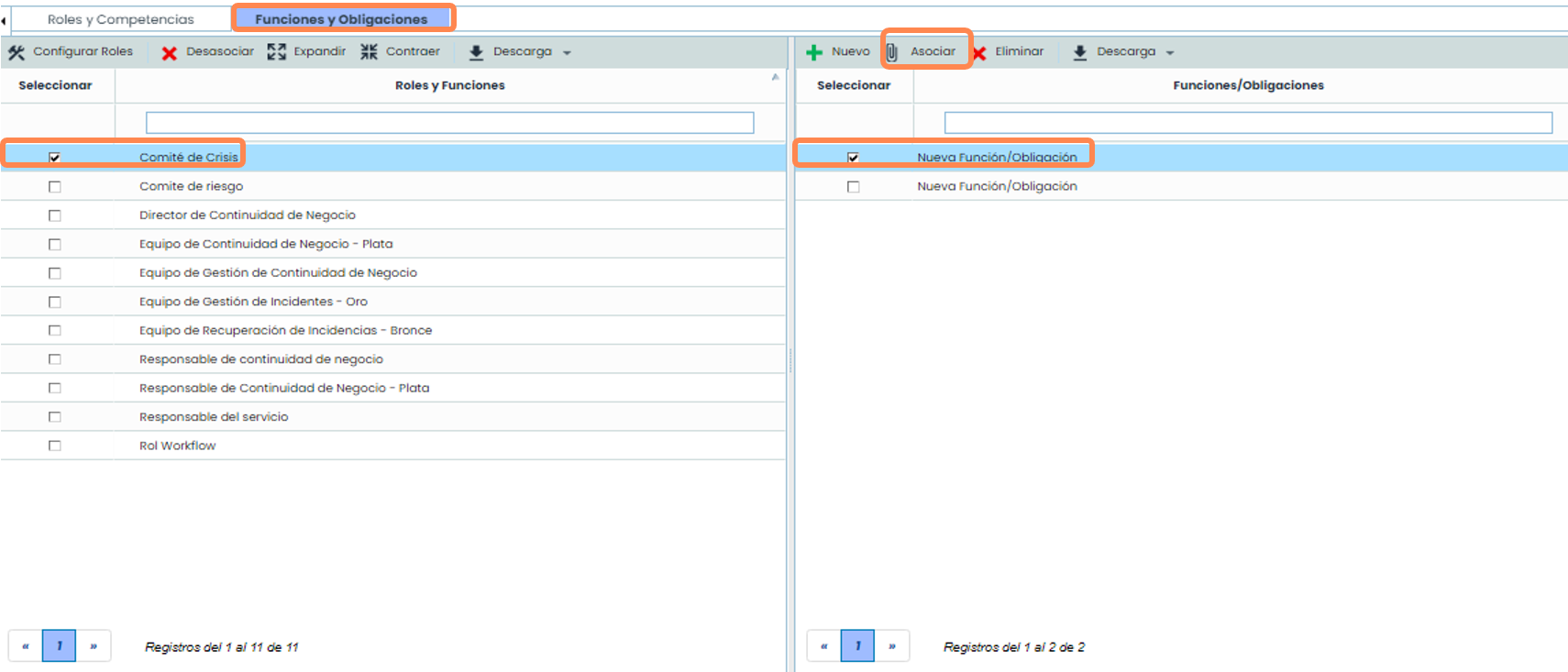
Once the list of functions and obligations necessary for the roles of the entity is defined, this is carried out in Home > Competencies and Functions > Functions and Obligations .
The linking of functions and roles is carried out through the same mechanism explained earlier. Therefore, it is necessary to check the function to select from the table on the right, as well as select with a check the corresponding role from the table on the left, and then press the associate button, and in this way, they will be linked.