This tutorial shows how to configure and use dynamic reports in Excel applied to the DORA regulation in GlobalSuite®, using predefined templates and default-configured ticket fields and aliases.
Example of Report Generation in Excel for the DORA regulation
1️⃣ Download the predefined template
-
Go to Settings > Templates > Reports
-
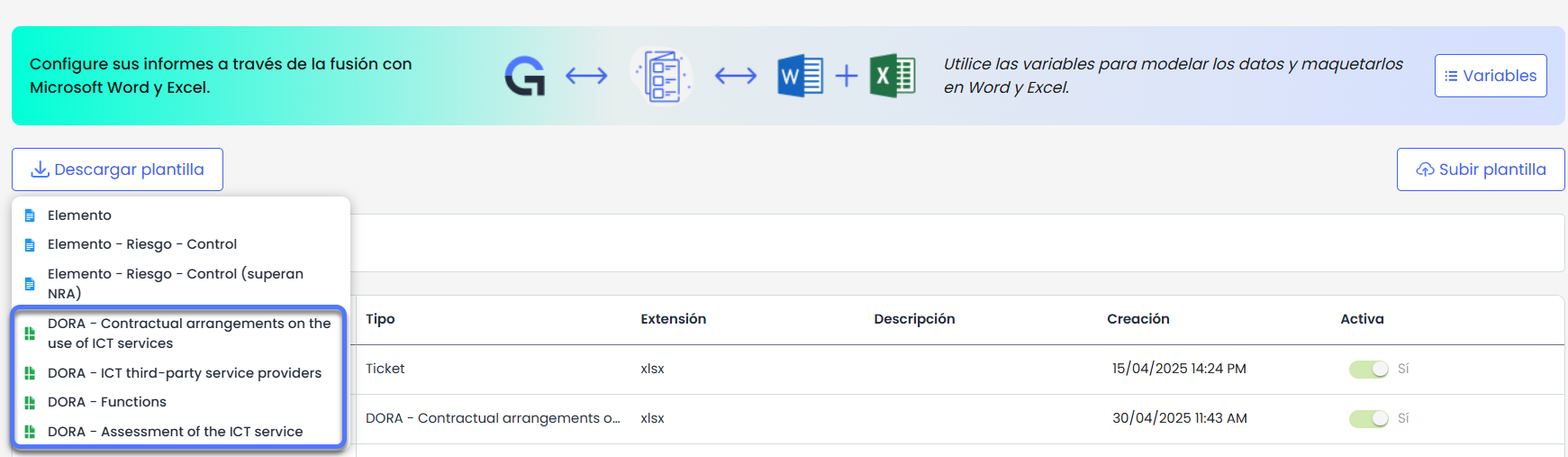
Click the Download Template button.
-
Select the predefined template related to DORA that you want to use. In this case, we will download the template called “Contractual arrangements on the use of ICT ”.
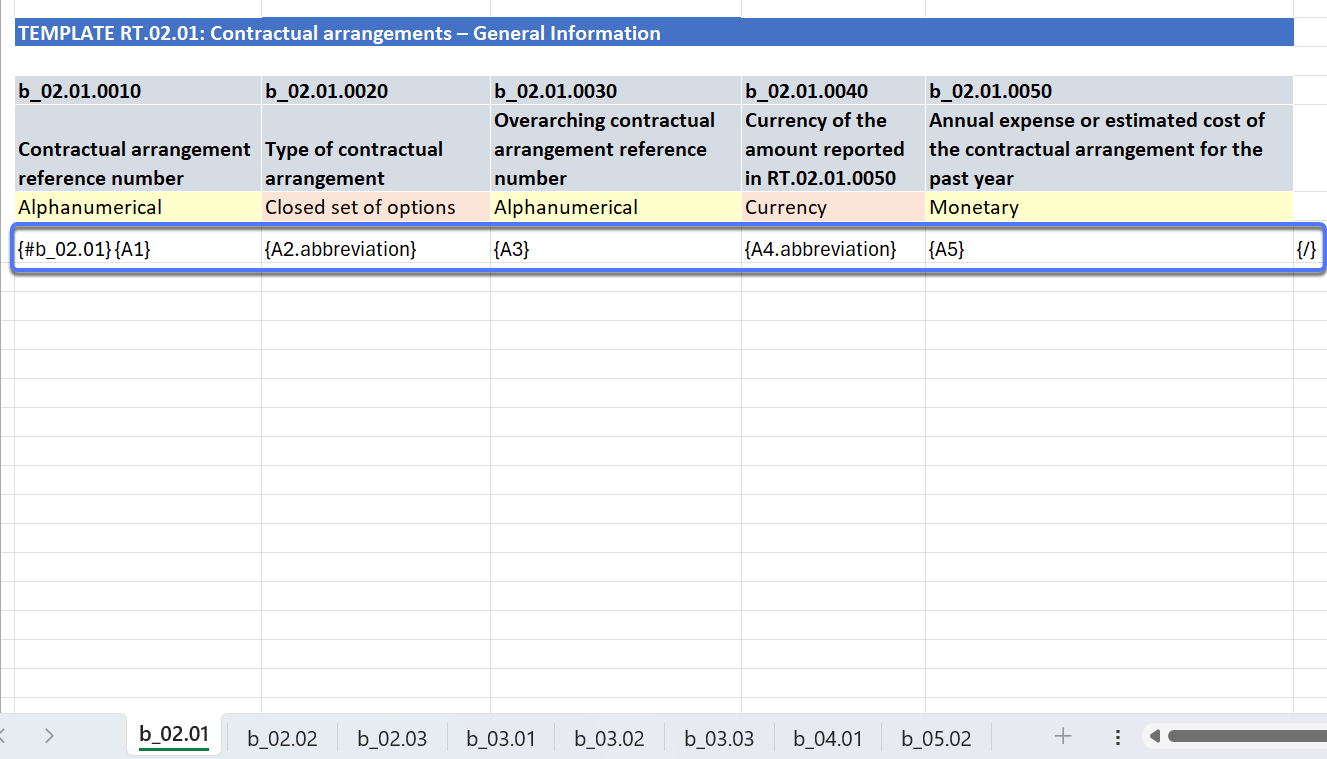
DORA templates include the Field Aliases already configured by default for the regulation.
2️⃣ Upload the template to GlobalSuite
-
Once the template is downloaded to your device, in the same section click Upload Template.
-
Upload the Excel file you downloaded.
⚠️ Important for reports not related to DORA
To generate Excel reports for other types of tickets (not related to DORA), it is necessary to manually configure the Report Aliases in the fields you want to display in the reports.
This configuration is done from:
Settings > Configuration > Tickets , editing each specific field where you can define its corresponding alias.
📌 Remember:
-
Aliases must be unique values, alphanumeric, and have a maximum length of 5 characters.
-
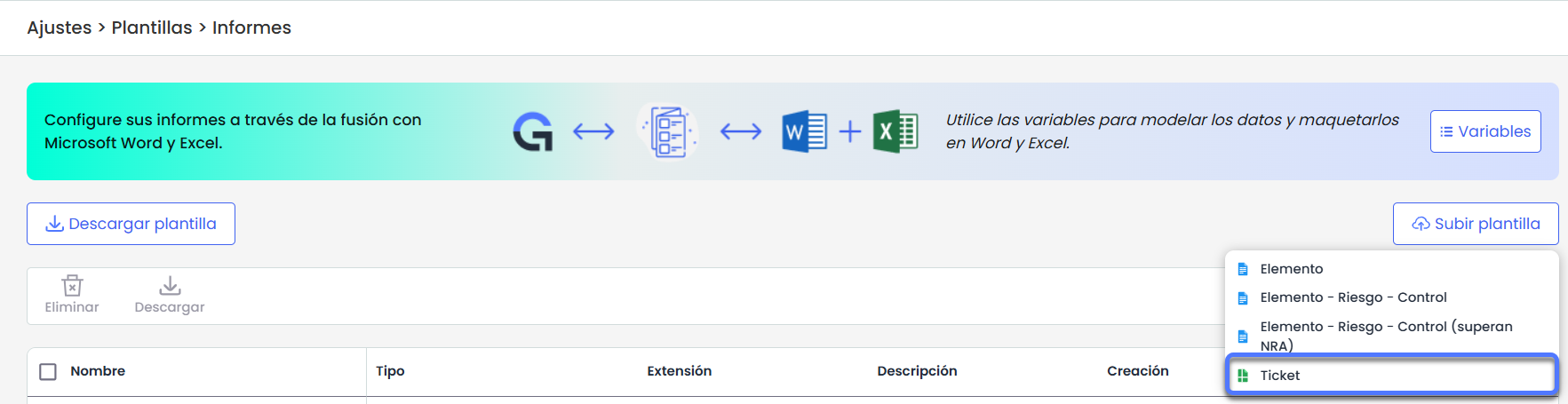
When uploading the template, you must select the Tickets option, as these reports are linked to that type of structure.
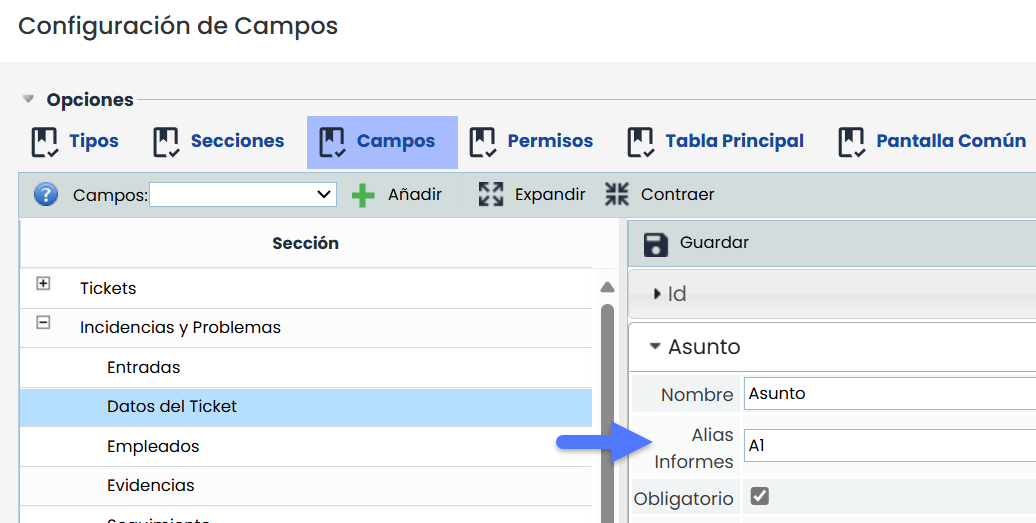
In the Excel templates uploaded later, you must use exactly the same alias configured in the field so that the system can identify and correctly replace it with its value in the report.
This way, you ensure that the data is displayed dynamically and consistently in the generated Excel file.
Variables
To consult the complete list of available variables and the field types that can be displayed in the reports, you can access the following link: Excel Variables
3️⃣ Template configuration in GlobalSuite
-
The template will be displayed in the table of available templates.
-
Click on the file name (link) to edit its configuration.
-
In the editing window:
-
Change the template name, if desired.
-
Add a description to identify its purpose.
-
Define the ticket type where the report download will be available.
For DORA, in this case, it will be the type Contracts.
-
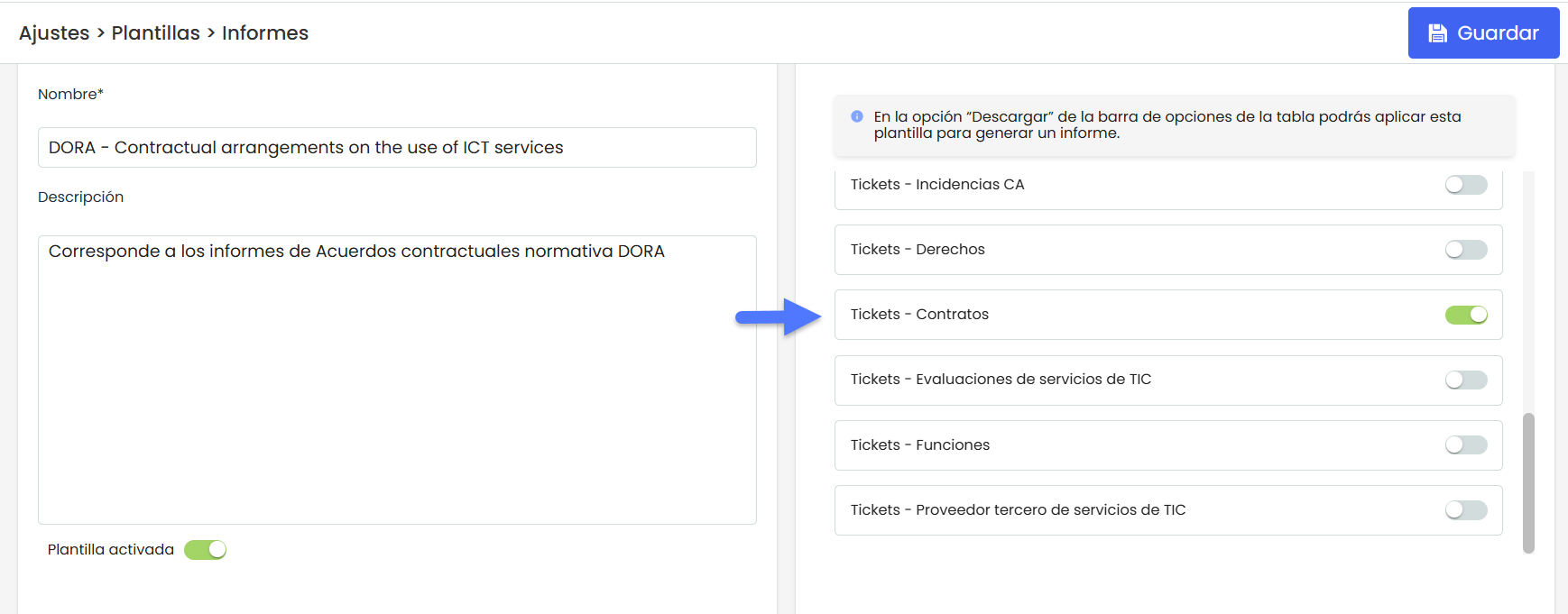
It is essential to select the correct ticket type, as the reports list tickets by type.
4️⃣ Report generation from the corresponding module
-
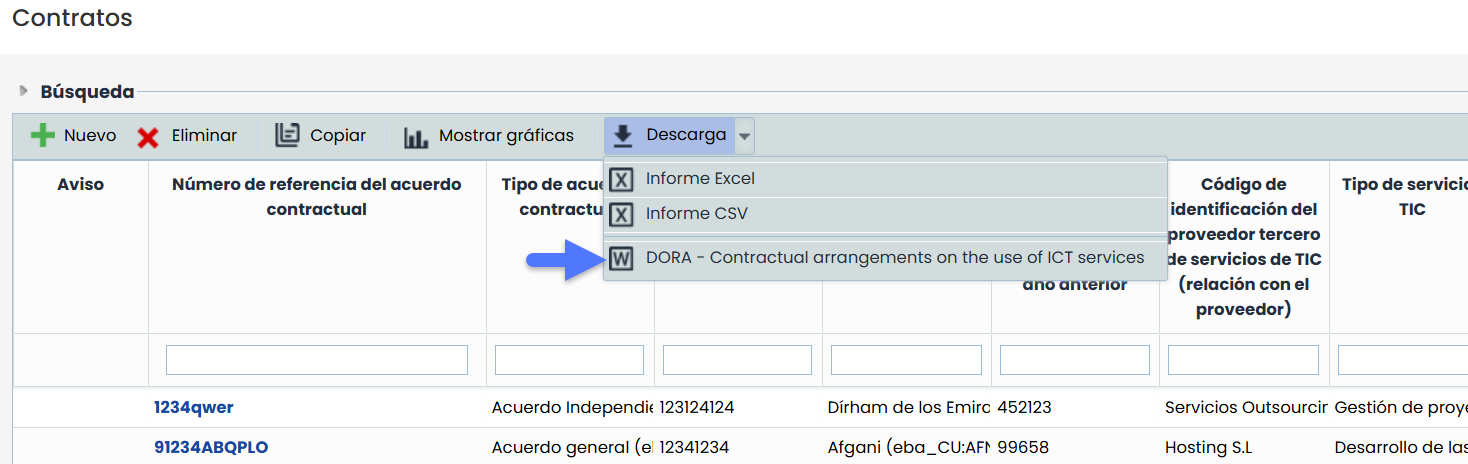
Go to Management > Contracts. (or the ticket option you enabled in the previous step)
-
You will see the option to download the Excel report based on the configured template.
-
By clicking on Download, a file will be generated with the system's dynamic data, according to the fields defined in the template.