
The Common Screen section allows configuring which ticket fields will be displayed in the standard table used in multiple areas of the tool to associate tickets with other modules. This table is also used in fields of type Tickets - Input and Tickets - Output.
Create the view
To configure the view of the Common Screen, the first step is to select, from the top dropdown, the type of field you want to include.
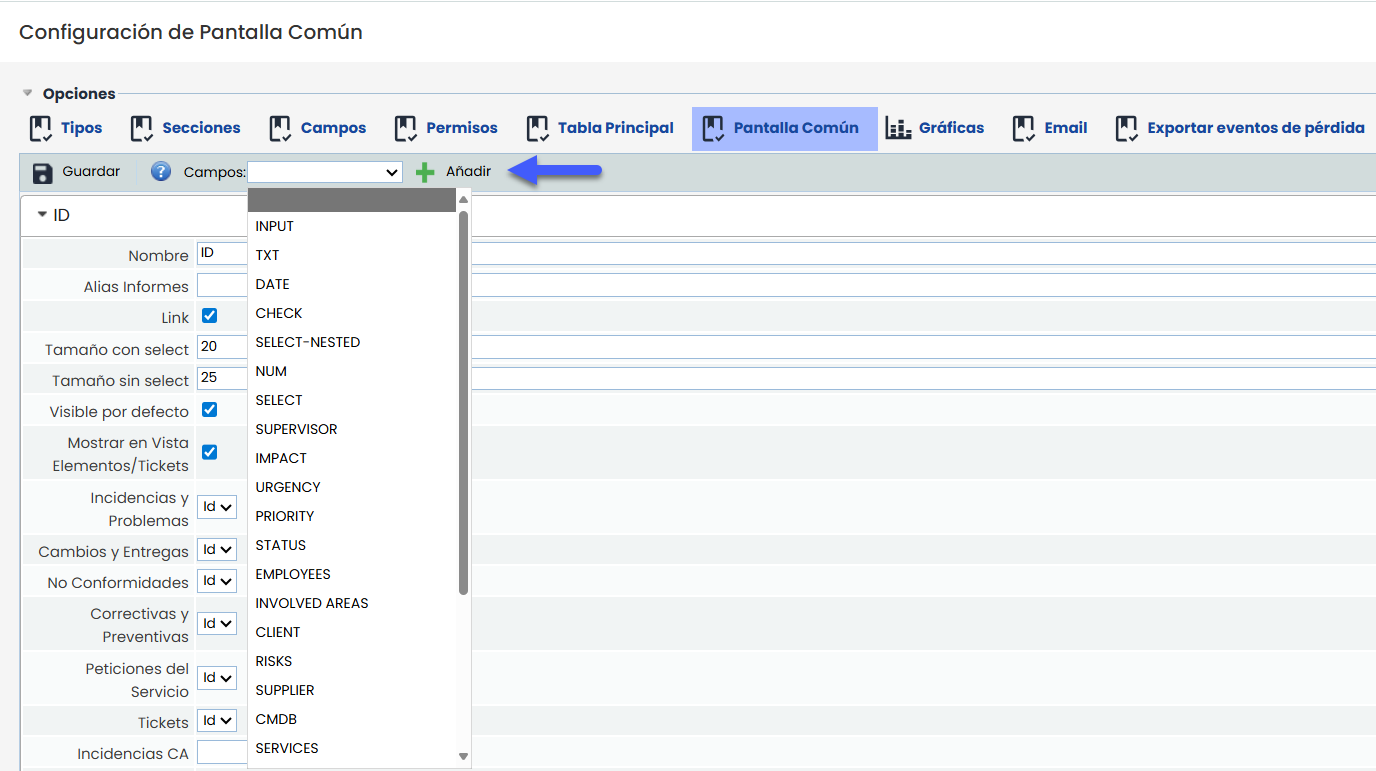
Once selected, simply click the “Add” button to incorporate it into the configuration. This action enables a new block with the specific options for the field, where its behavior and display can be adjusted.
Field configuration
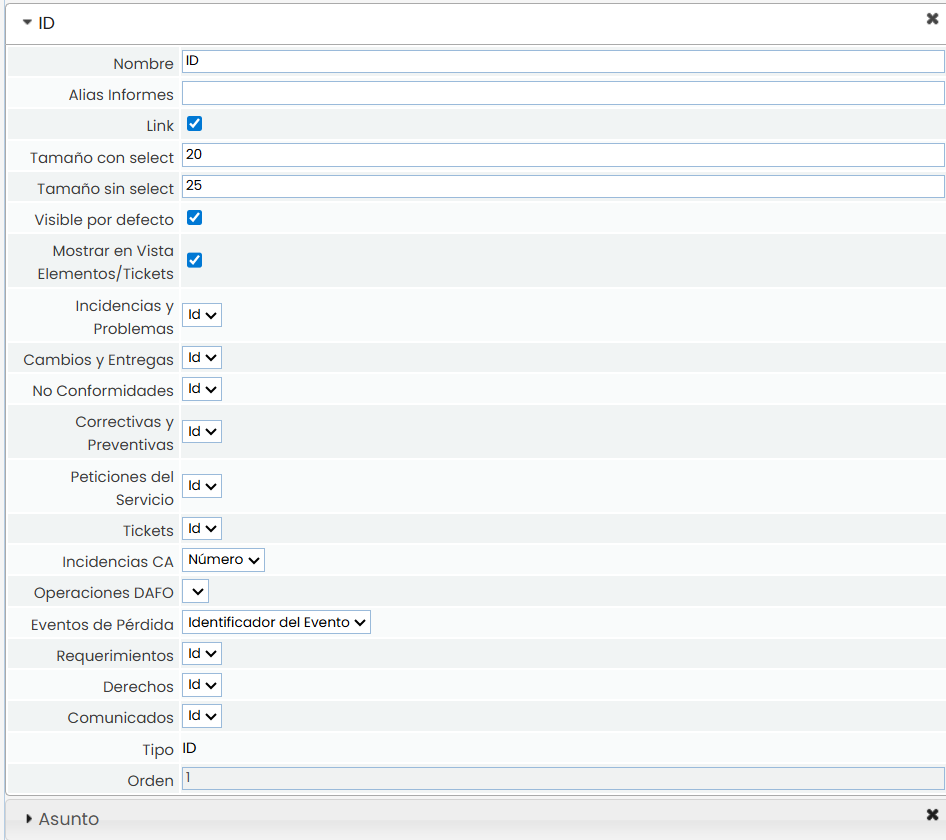
Once a field is added, it is possible to define:
-
Name: label with which that field will be displayed in the table.
-
Link: allows converting the field into a link to the ticket form.
-
Size with select: column width when used in components with selection functionality.
-
Size without select: column width when used as a view-only table.
-
Visible by default: defines whether the field will be initially visible or appear hidden.
-
Show in Items/Tickets view: activates the display of the field in the consolidated view by Items and Tickets. This option is subject to the following restrictions:
-
Only one single INPUT field can be marked as visible in this view. It will be used as the ticket subject in the consolidated view. If no INPUT field is configured, the subject will not be displayed.
-
Only one single ID field can be marked, which will be used as the ticket identifier in the view.
-
Only one single DATE field can be marked, which will be used as the ticket date. This configuration is done individually for each ticket type.
-
Only one single field of type OWNER, EMPLOYEES, or SUPERVISOR can be marked. It will be displayed as the responsible for the ticket. If more than one is configured in the form, you must select which one to apply through this screen.
-
Association by ticket type
At the bottom, the available ticket types are listed. For each of them, it is possible to select the specific field that will be used to represent the configured information.
For example: The "ID" field of the common screen can display:
-
The ID field in tickets of type Incidents and Problems.
-
The Event Identifier field in tickets of type Loss Events.
This configuration ensures a consistent display, even though each ticket type has different forms.