
.jpg?cb=7204c267cfedc6632547f0b97abad17e)
The workflow option allows the organization to parameterize the flow of states associated with the tickets.
.jpg?cb=81b6368d96b0af394fc2c751878d8e5b)
Once the option is accessed, a functionality is displayed that allows establishing the different workflows required by the organization. For this, the following options are offered:
-
New: Allows the user to insert a new entry in the table.
-
Delete: Offers the possibility to delete an entry in the workflows table. To do this, the desired row must be selected and the 'Delete' button pressed.
-
Change Name: Allows the user to modify the name of the workflow.
-
Download: Offers the possibility to download the list of workflows in an editable format (xlsx) or in PDF.
By selecting a workflow from the table, a screen is accessed that allows configuring the workflow. In the upper left part, the states that are part of the workflow are displayed.
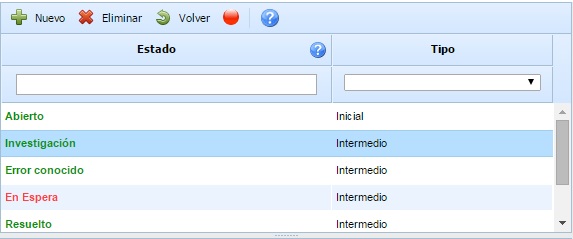
The table allows defining the different states that make up the selected workflow. The table displays the following information:
-
Status: The column allows viewing the different defined statuses. To insert a new status, the 'New' button located at the top of the table must be pressed. If you want to delete a status from the table, the desired row must be selected and the 'Delete' button pressed.
-
Type: This column allows defining the type of status. To associate a type, you must double-click on the cell and select the type from the dropdown. The default types are as follows:
-
Initial: First status of a ticket. This type is only allowed to be associated with a single status in the table.
-
Intermediate: The intermediate type is a status following the initial type. As many intermediate types as required can be associated.
-
Final: This type is associated with the closure of a ticket. As many final types as required can be associated.
-
The states appear in green or red depending on whether the state is valid or invalid, respectively. To define a valid state, the following conditions must be met (these conditions are displayed when hovering over the question mark icon):
1. It has at least one employee associated as the state manager who has access to the tool. For this, there are two possibilities:
a. Assign a company role that has at least one employee who is a user of the tool. b. Assign a superior entity role that has at least one employee who is a user of the tool.
2. It has associated previous and subsequent states that allow advancing in the workflow. Depending on the type of state, the following must be met:
a. Initial type state: It must have at least one subsequent state (if the workflow has more states). b. Intermediate type state: It must have at least one previous state and one subsequent state. c. Final type state: It must have at least one previous state.
At the top right, there is a table that contains the sections of the ticket form. This table is associated with the status table, so once a status is selected, the table displays the specific section configuration for that status.
.jpg?cb=946ef0662c53dcb1588f503bbb5f1337)
The purpose of this table is to configure which sections are visible for each of the workflow states, thus allowing certain sections not to be displayed when the ticket is in a certain state. There are two columns that allow the following configuration:
-
Visible: Allows you to indicate whether the section is visible in the ticket form when it is in the selected status. By default, all sections are visible for all statuses. If you want to disable a section, you need to click on "Yes," which will automatically change to "No."
-
Expanded: For those sections that are visible, it allows you to indicate whether the section is displayed expanded or collapsed in the ticket form. By default, all visible sections are displayed expanded. If you want to collapse a section, you need to click on "Yes," which will automatically change to "No."
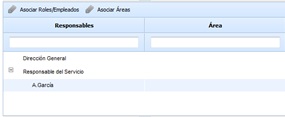
The roles and employees table offers the possibility to assign to each state the profiles or employees who will be able to manage the state. The options provided by the tool are as follows:
-
Associate Roles/Employees: Provides the ability to assign profiles and resources responsible for management based on a status.
-
Associate Areas: Allows you to define the areas affected by a status.
NOTE: Depending on the roles and areas defined for a status, when managing a ticket, only those roles and/or areas defined in the workflow can be selected.
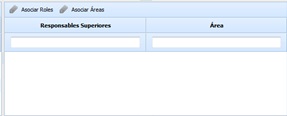
The Associate Roles table is a functionality associated with companies that have the Subentities functionality, offering the possibility to associate Roles from higher entities responsible for managing the ticket. The options provided by the tool are as follows:
-
Associate Roles: Offers the possibility to assign, based on a state, the roles of the superior entity responsible for management.
-
Associate Areas: Allows defining the areas affected by a state.
.jpg?cb=679568404515de7d0d10f0fbab0d2c9d)
The 'Previous State' table offers users the possibility to define, based on a selected state, the states from which it can derive. The management provided by the tool is as follows:
-
States: Allows selecting, from the displayed list, which is the state prior to the one selected in the upper table.
-
Add: Once the state is selected in the dropdown, it allows inserting it into the table and associating it with the selected state.
-
Delete: Allows deleting a state inserted in the table. To do this, the desired row must be selected and the 'Delete' button must be clicked.
.jpg?cb=9a93fcd9621b8986e03f9e4dd83a00c8)
The 'Next State' table offers users the possibility to define, based on a selected state, the subsequent states that can be defined when managing the ticket. The management provided by the tool is as follows:
-
States: Allows selecting, from the displayed list, which is the state following the one selected in the upper table.
-
Add: Once the state is selected in the dropdown, it allows inserting it into the table and associating it with the selected state.
-
Delete: Allows deleting a state inserted in the table. To do this, the desired row must be selected and the 'Delete' button must be clicked.
NOTE: Once the workflow is established, it must be associated with the corresponding ticket, for which the associated flow will be applied, as shown in the following image.
.jpg?cb=28335b777b19a5c7a19bf54d825fefe3)