
The Ticket option will allow managing all those open tags from customers, suppliers, or internally. It should be noted that the origin of the tickets that can be managed from the tool can be opened manually, uploaded through an Excel document using the import option, or, on the other hand, generated automatically by customers from the customer portal.
.jpg?cb=2ce3062cbd038be5d482760573877e36)
-
New: The way to proceed to manually generate tags is through the “New” option. Once generated, access to the generated tag will be made by clicking on the subject or ID.
-
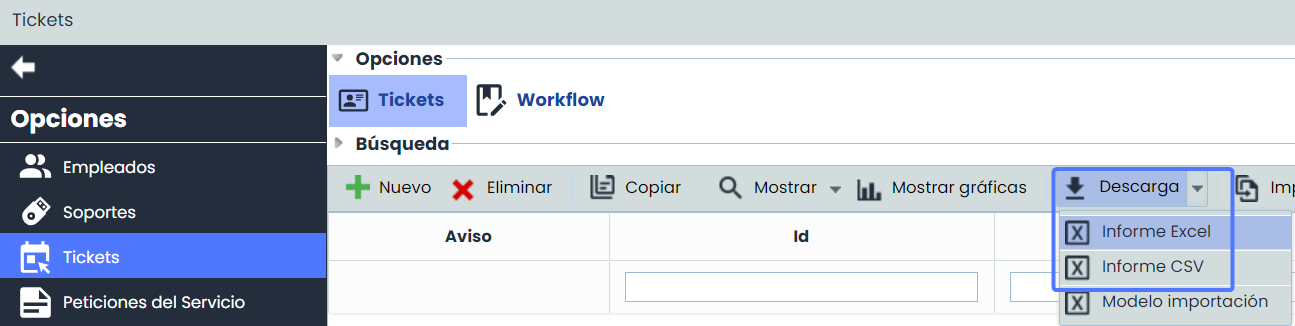
Download: Allows downloading the list of Tickets represented in CSV format. This report will be available in Pending Downloads.
-
Automatic tags: These tags will be generated through the Customer Portal and will appear on the main Tickets screen, with the fields provided by the Portal already defined and detailed by the customer.
Once a Ticket is available, whether generated manually or automatically, it will proceed to be defined as detailed below, requiring at least the fields identified with (*):
.jpg?cb=8acb62adb97d9091629b94c66b4be58a)
Ticket Data
-
Id: Corresponds to the name or identifier of the tag that has been generated.
-
Subject: In this field, the title of the event that has been communicated is defined.
-
Description: This is one of the most important points, as it is through this field that the event that has been communicated or generated will be specified in as much detail as possible.
-
Registration date: Date of communication of the event.
-
Type: Once the event has been analyzed, this field will classify the type of tag, that is, whether what the customer has opened is considered an incident, problem, RFC, service request, event, false positive, or claim.
-
Status: Remaining open until classification is performed.
-
Services: In this field, the services affected by the specific event will be associated.
As indicated in the notice, if this ticket has been opened from the customer portal, the fields previously defined are the ones available to the respective customer.
To ensure the proper definition of tickets, GlobalSuite allows you to record event information in a series of fields complementary to those previously identified:
-
Customer/Origin: If the ticket has been opened from the portal, this field will be completed automatically. If it is opened manually, the solution allows you to establish the origin of the event.
-
Contact: If the ticket has been generated from the customer portal, the contact will correspond to the person responsible for generating the event. This contact field is editable, allowing another user to be specified to inform about the status of the events they have opened.
If generated manually, this field will indicate who to contact to inform about the status of the event.
-
E-mail: The email to which the status of the event can be communicated is indicated.
-
Alert changes: By selecting this option, GlobalSuite will send information about status changes and classifications made for the event to the email indicated in the field above.
-
NOTE: If a mailing group has been created in the 'Home/Business Relations' section, the tool allows sending alerts to a specific group. To do this, the desired company must be selected (it must be created in the 'Home/Business Relations' section), and it must be determined whether to alert a Contact or a Group. If a Group is selected, the tool offers the possibility to choose the group to notify about ticket changes.
.jpg?cb=b7e53c8471e403d055165a9fb1eafac2)
-
Impact: Allows establishing a qualitative value, based on a quantitative level, to determine the level of damage caused by the event in question.
-
Urgency: Allows establishing a qualitative value to determine the speed with which the event must be resolved.
-
Priority: This value is automatically generated by GlobalSuite, calculating the arithmetic mean of the values established in the impact and urgency fields.
In addition to recording information, the solution also allows you to:
-
Employees: Allows defining the employees who will be in charge of the treatment of the event. These employees must have been defined in the employee management option. (Refer to employee management).
.jpg?cb=5311c1d2ed249243511f2317eaba3535)
-
Follow-ups: Within the option, any modification or change made to the event in question can be identified.
.jpg?cb=649adaddf26b96dcf2b0b74f122a3225)
Any follow-up of the event that is recorded can be sent via email to all those who need to be informed. As indicated, it is necessary to specify the email addresses and use the Send email option.
On the other hand, if the event has been generated from the customer portal, it will be reported through this medium, selecting the corresponding follow-up from the Portal column. Once saved, it will generate the notice automatically.
-
Evidence: To define as completely as possible, the solution allows attaching any type of file. If such documentation is not attached, it is also possible to provide a description in the Evidence field.
After analyzing the event, it is classified based on the typology. Once the classification is made and the change is saved, the following notice will appear:
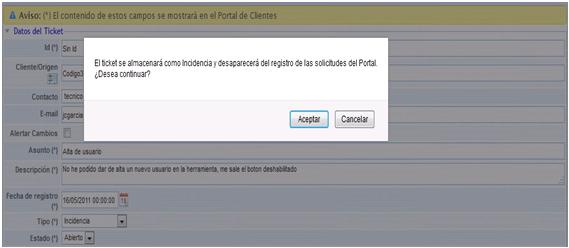
NOTE: Accepting the notice entails the disappearance of the specific event from the Ticket option and its relocation based on its typology, for example, in the case of the image, its new location will be the Incidents option within the Management tab.