
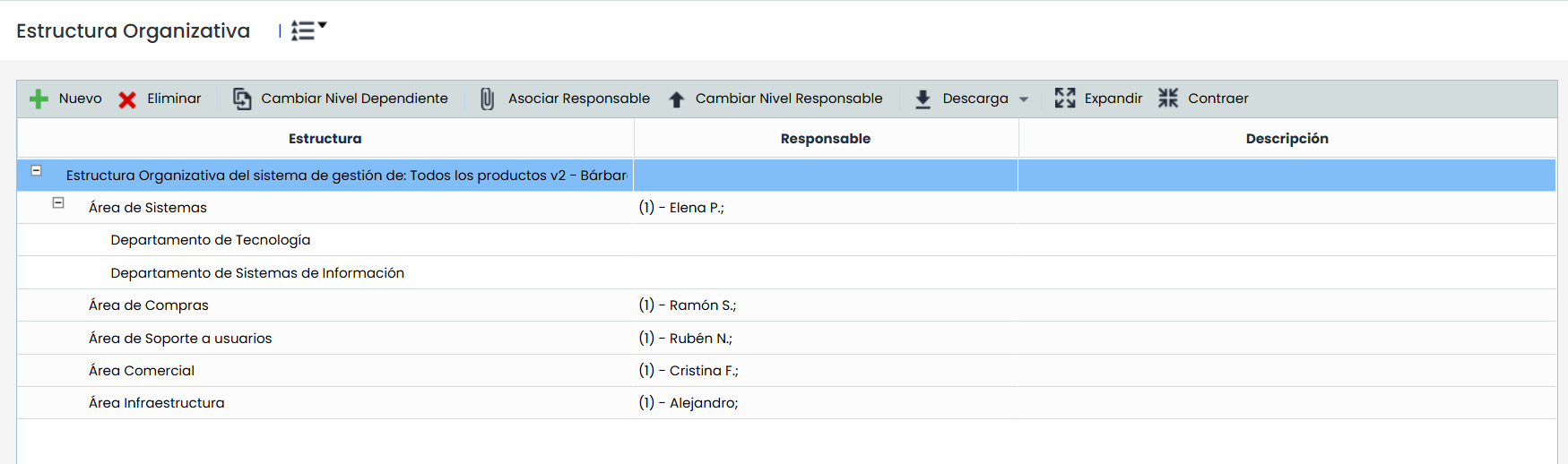
This option allows defining the departmental organizational chart of the organization. The information displayed in the table columns is as follows:
-
Structure: Displays the name and dependency tree of the different divisions/areas/departments (as named in each organization) defined in the organization.
-
Responsible: Displays the individuals responsible for each of the departments or areas defined in the structure.
-
Description: Displays a more detailed description of the function or objective of each department or area within the organizational structure.
The options that can be performed on the table are as follows:
-
New: Allows inserting a new entry into the table. To generate dependencies, the required row must be selected, and the 'New' button must be clicked, which will create a new entry at the lower level.
NOTE: Only as many levels/dependencies as defined in the 'Settings/Configuration/General' option can be generated.
-
Delete: Offers the possibility to delete an entry from the table. To do this, the desired row must be selected, and the 'Delete' button must be clicked.
-
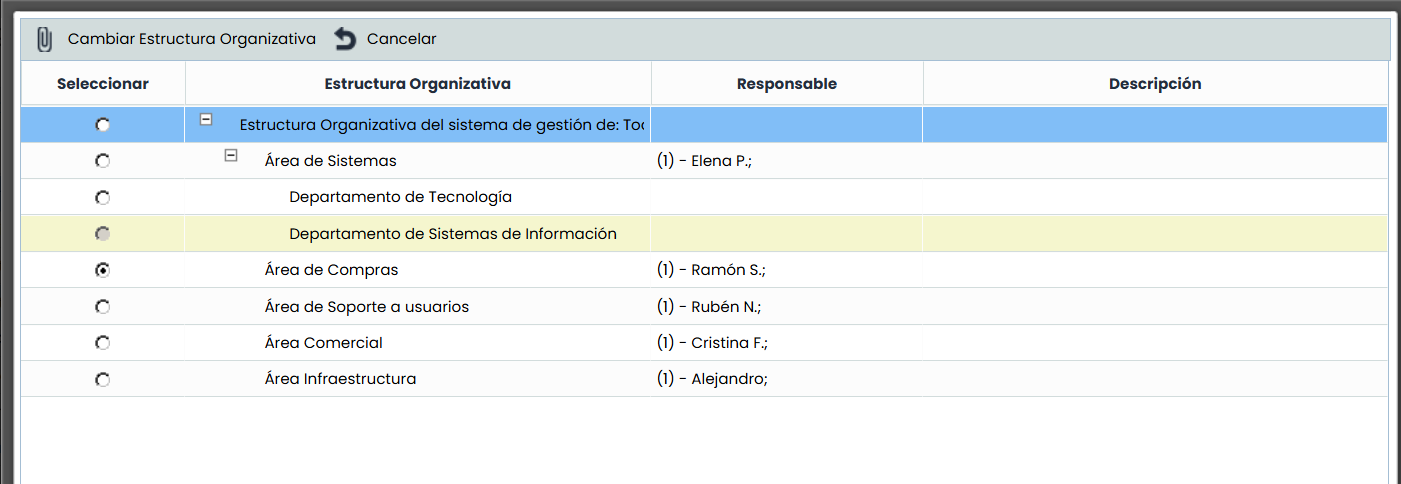
Change Dependent Level: Allows modifying the dependency of a specific area/department, placing it elsewhere within the organizational structure. To do this, the level to be modified must be selected, and the 'Change Dependent Level' button must be clicked. Subsequently, a window is displayed that allows defining the new level where the area/department will be located, as shown in the following image.
-
Assign Responsible: Allows defining the individuals responsible for an area or department. To do this, the desired row must be selected, and the 'Assign Responsible' button must be clicked, displaying a window with the list of employees registered in the tool. In this window, the corresponding employees must be selected, and the 'Assign Employees' button must be clicked.
-
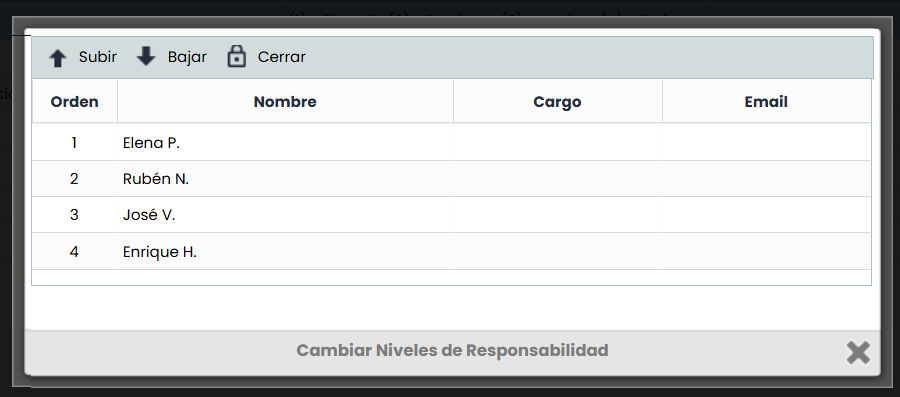
Change Responsible Level: Allows modifying the order of responsibility of the employees assigned to an area/department. To do this, the level to be modified must be selected, and the 'Change Responsible Level' button must be clicked. Subsequently, a window is displayed that allows defining the new order of each of the responsible individuals using the 'Move Up' and 'Move Down' buttons, which allow moving the responsible individuals within the table.
-
Download: Offers the possibility to download the organizational structure in an editable format (xlsx) or PDF.
-
Expand: Allows expanding the entire organizational structure.
-
Collapse: Allows collapsing the organizational structure to the highest-level options.