
This option allows displaying the critical human resources identified in the different Critical HR groups created in the "Critical HR" option of the Analysis menu.
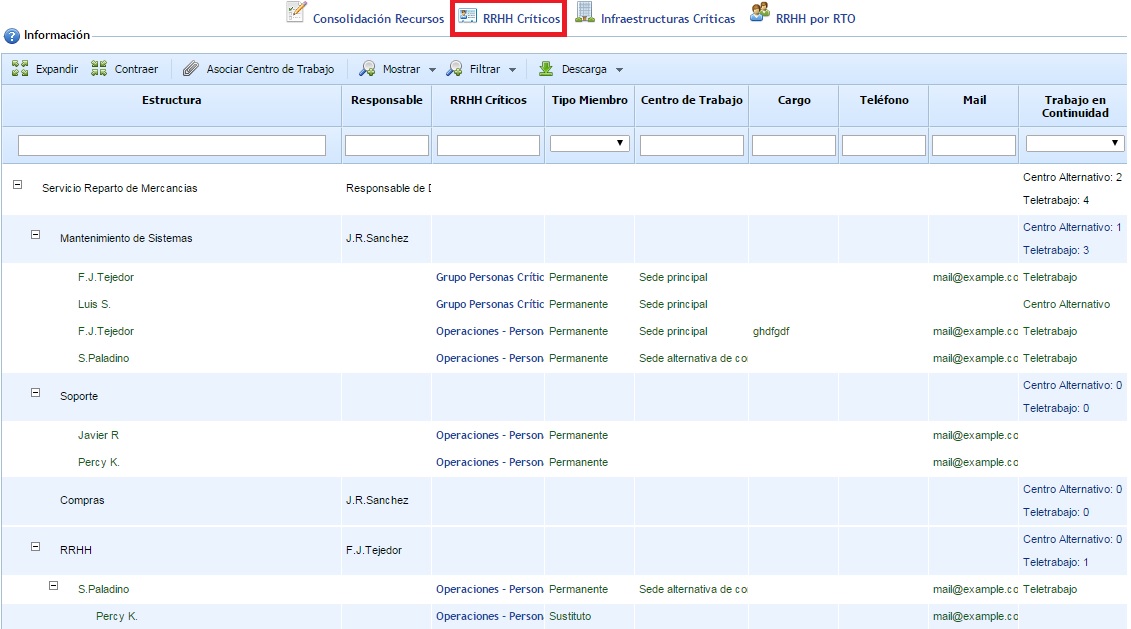
When entering the option, the organization's service and process tree is displayed. Associated with each process are the people related based on the generated critical human resources groups. By default, the main people are shown, but substitutes can be displayed through the "Show Substitutes" option. You can view the details of the critical human resources group to which an employee belongs by clicking on the link in the table itself.
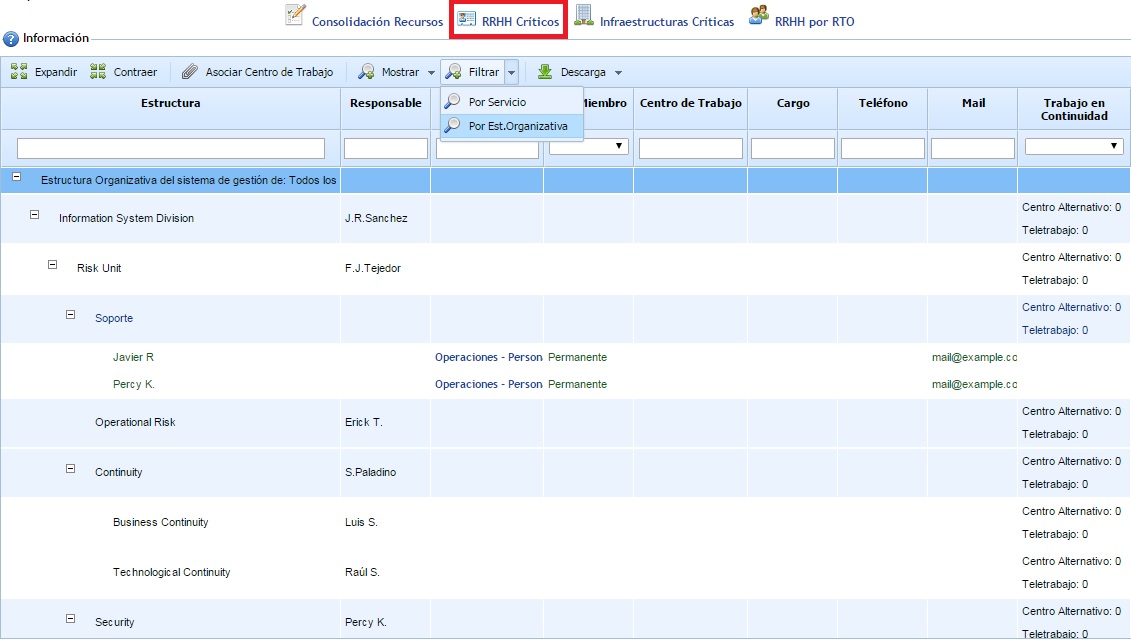
The "Filter - By Org. Structure" option allows displaying the Critical HR associated with the processes, also locating each process within the Organizational Structure (Department, Area, Management, etc.) of the organization as defined in the "Organizational Structure" option of the "Home" menu.
Through the "Associate Work Center" button, it is possible to assign a work center to each of the employees identified as critical. To do this, you need to select an employee and click on the indicated button; after doing so, a window appears that allows assigning an infrastructure to the employee. This information is used by the tool to determine how many people need to be relocated to an alternative infrastructure in case a primary infrastructure (or Work Center) faces a contingency.
Note: The Work Centers that appear in the window are generated in the "Infrastructures" option located in the "Analysis" menu.
Finally, note that this option includes the 'Expand' and 'Collapse' buttons to manage the complete structure (by default, it is displayed expanded), as well as allowing the result to be downloaded in an editable document format (.xlsx) and .pdf format.