
The CMDB (Configuration Management Data Base) option is a functionality that allows for comprehensive configuration management of the elements within the organization that help deliver the organization's services.
CMDB
When accessing the CMDB section, a list is displayed with all the configuration items stored in the Database.
The columns displayed by the platform by default can be customized by right-clicking on the row of column names.
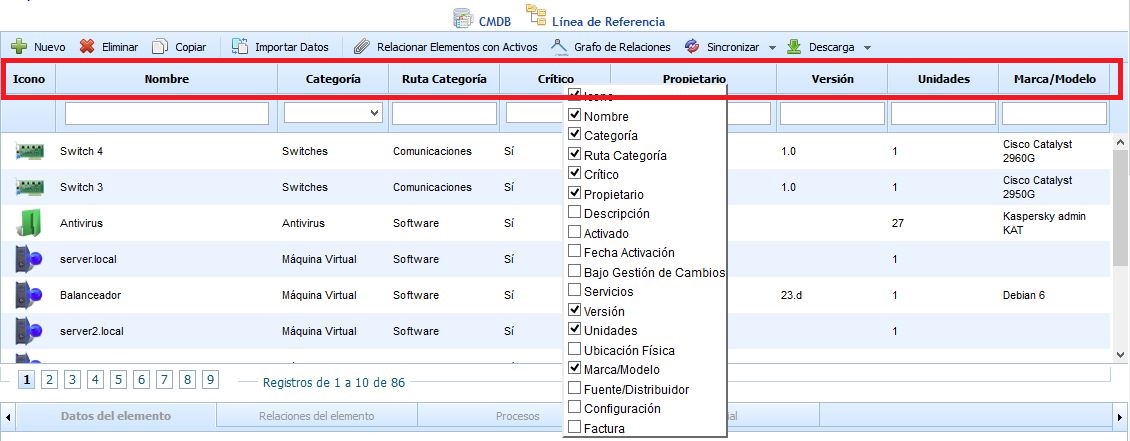
The options provided by the tool are as follows:
-
New: Allows adding a new item to the database.
-
Delete: Allows deleting one or more items stored in the database. To do this, select the desired row(s) and click the "Delete" button.
-
Copy: Enables creating a new item with all the attributes of the selected item, except for the services and files that have been uploaded.
.jpg?cb=e0f467c23563ecd65b93355b3c021533)
-
Import Data: GlobalSuite allows importing client databases in CSV format. The required data are Name, Category, Critical, Owner, Description, Activated, Activation Date, Under Change Management, Version, Units, Physical Location, Brand/Model, Source/Distributor, Configuration, and Invoice. These data are the same as those specified in the form. Once the file is prepared, it must be selected through the "Browse" option and then use the "Continue" button.
-
Relate Items with Assets: Allows incorporating the desired configuration items into the "Analysis/Inventory" option to perform risk analysis on those assets.
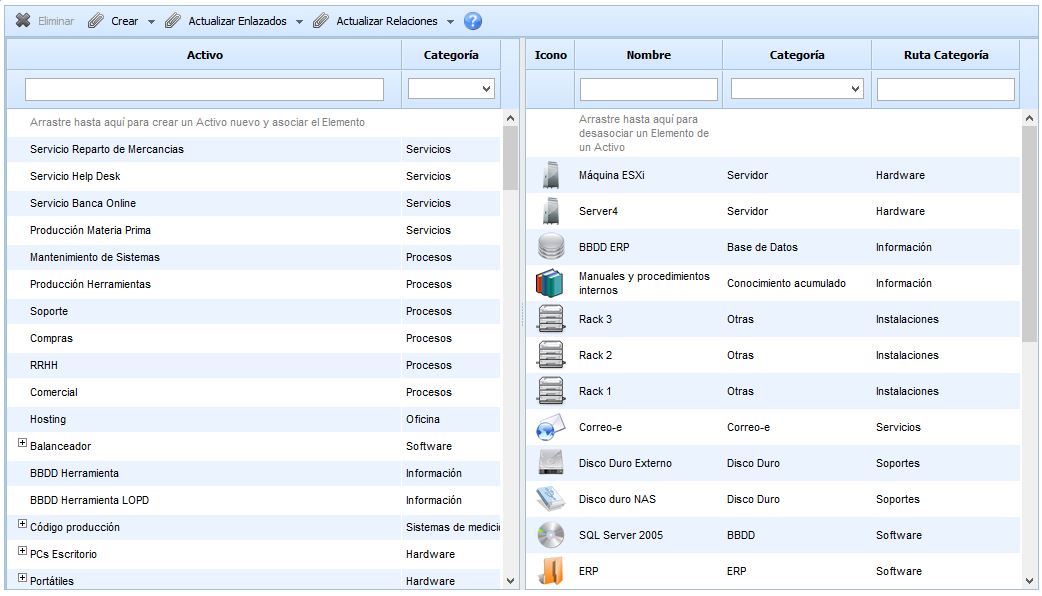
To do this, the configuration item must be selected in the right column and dragged to the left column. The list of assets displayed in the left column is the same as the one shown in the "Analysis/Inventory" section.
In the header of the "Relate Items with Assets" window, the following options are available:
-
Create
-
Assets from CMDB: An Asset is created in the Inventory for each CI that does not have linked assets (that are only in the CMDB).
-
Items from Inventory: A CI is created in the CMDB with the asset name as the main field of the CI, and its category.
-
-
Update Linked
-
CMDB Items: Updates the main field and category information of the CIs that have only one associated Asset with its data.
-
Assets: Updates the name and category of the Assets that have only one linked CI with its data.
-
-
Update Relationships
-
Dependency Tree from CMDB: Dependencies between assets are updated by adding and removing dependencies based on the associated CIs. If two CIs with a mapped Asset(s) have a relationship marked as "Dependency Relationship," a dependency is created between the associated assets. If two Assets with mapped CI(s) have a dependency, and the corresponding CIs are not related, the dependency between the assets is removed.
-
CMDB from Dependency Tree: Relationships between CIs are updated by adding and removing dependencies based on the associated Assets. If two Assets with mapped CI(s) have a Dependency, a "Dependency Relationship" type relationship is created between the associated CIs. If two CIs with mapped Asset(s) have a "Dependency Relationship," and the corresponding Assets have no dependency between them, the relationship between the CIs is removed.
-
NOTE: Assets belonging to categories associated with a "Type" in the category configuration found in the "Analysis Methodologies" option cannot be created/updated.
-
Relationship Graph: Allows visualizing the relationships of the selected item graphically.
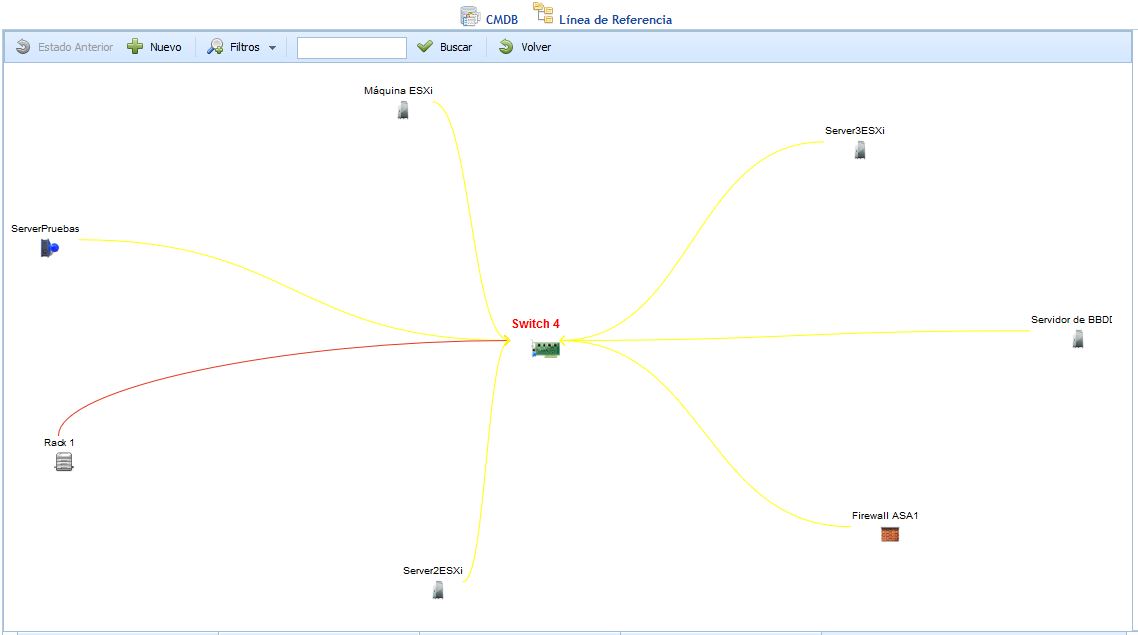
Within the relationship graph option, the following actions can be performed:
-
New: Allows adding a new configuration item to the graph.
To relate the new item to any of the items shown in the graph, the desired item must be selected, right-clicked, choose Insert Relationship, and click on the item to be related.
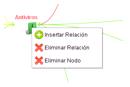
To delete the relationship established between two items, the desired item must be selected, right-clicked, choose Delete Relationship, and click on the item to be unlinked with the right button.
If the item is to be permanently deleted from the Database, it must be selected with the right button and click on Delete Node.
NOTE: Any modification made to the relationship graph will be stored in the list of CMDB items.
-
Filters: Allows filtering to visualize the different relationships of the selected item. Level 1 shows the relationships of the item with the most direct ones. Level 2 shows the relationships of the selected item with the most direct ones and the relationships of the latter with their own, etc. The Related filter shows all the CMDB items that are related to each other, and the All option shows the list of all CMDB items, whether related or not.
-
Search: Allows searching for a configuration item in the graph.
-
Back: Allows returning to the window with the list of configuration items.
-
Download: Allows downloading the list of items and their attributes in an editable format (.xlsx)
Once in the list of configuration items, GlobalSuite allows describing its characteristics by selecting the desired row, defining the following points:
Item Data
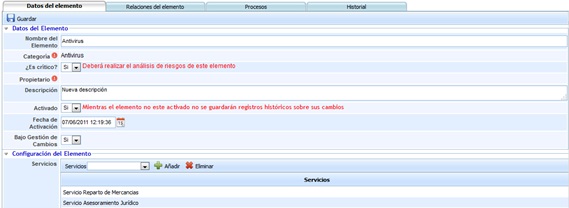
The Item Data section allows detailing the specific information of the selected item in the table.
The form allows defining each of the fields described below:
-
Item Name: Descriptive name of the configuration item. This name will be displayed in the initial CMDB table.
-
Category: Indicates the category or subcategory to which the asset belongs. To define the category or subcategory, double-click on the cell, which generates the following screen:
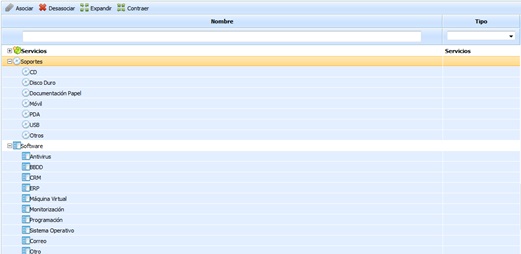
The options provided by the tool are as follows:
-
Associate: Allows associating a category/subcategory to the asset by selecting the desired row and clicking the 'Associate' button.
-
Disassociate: Offers the possibility of removing a category/subcategory from an asset by selecting the desired row and clicking the 'Disassociate' button.
-
Expand: Allows expanding the list of categories/subcategories.
-
Collapse: Allows collapsing the list of categories/subcategories.
-
Is Critical: Offers the possibility of defining whether the item is critical for a service, which allows alerting that a risk analysis must be performed on it in the 'Analysis/Risk Analysis' section.
-
Owner: Indicates the resource responsible for managing the item. To select a resource, click on the red exclamation mark, which displays the following screen:
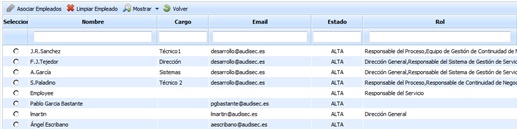
The options provided by the tool are as follows:
-
Associate Employee Allows, once the desired resource is selected in the lower table, associating the employee with the CMDB item.
-
Clear Employee Offers the possibility of removing an employee association. To do this, select the desired resource and click the button.
-
Show Allows filtering the list of employees, showing the list of all employees registered in the tool (Active and Inactive) or only those employees who are active in the system (default filter).
-
Back Offers the possibility of returning to the 'Item Data' screen.
-
Description: Allows making any additional notes about the item.
-
Activated: If the item is activated in the CMDB, any changes made to it will generate a history in the 'History' section. If not activated, changes will not be stored in the CMDB.
-
Activation Date: Indicates the date on which the item is considered activated.
-
Under Change Management: Allows defining whether the item is involved in the Change Management process, a necessary process in the ISO20000 Standard.
-
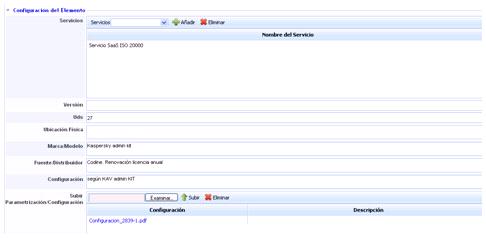
Services: Allows identifying the service(s) that depend on the proper functioning of the item.
-
Version: Determines the version of the item.
-
Units: Indicates the units of the item.
-
Physical Location: Determines the physical location of the item.
-
Brand/Model: Allows identifying the specific brand and model of the item.
-
Source/Distributor: Allows including the supplier/distributor that provides the item.
-
Configuration: Allows identifying the specific configuration of the item that is not included in the general fields.
-
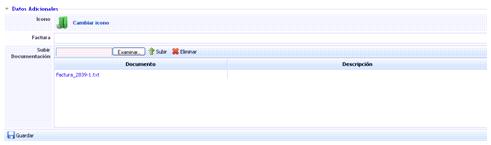
Upload Parameterization/Configuration: Allows uploading a file with the specific configuration of the item if it is not desired to include it in the previous field, for example, the established Firewall rules, etc.
-
Icon: Allows selecting an icon to identify the item in the CMDB table.
-
Invoice: Determines the invoice number for the purchase of the item.
-
Configuration: Allows uploading a file or invoice related to the item.
Item Relationships
The Item Relationships tab allows establishing the different relationships between items stored and activated in the CMDB.
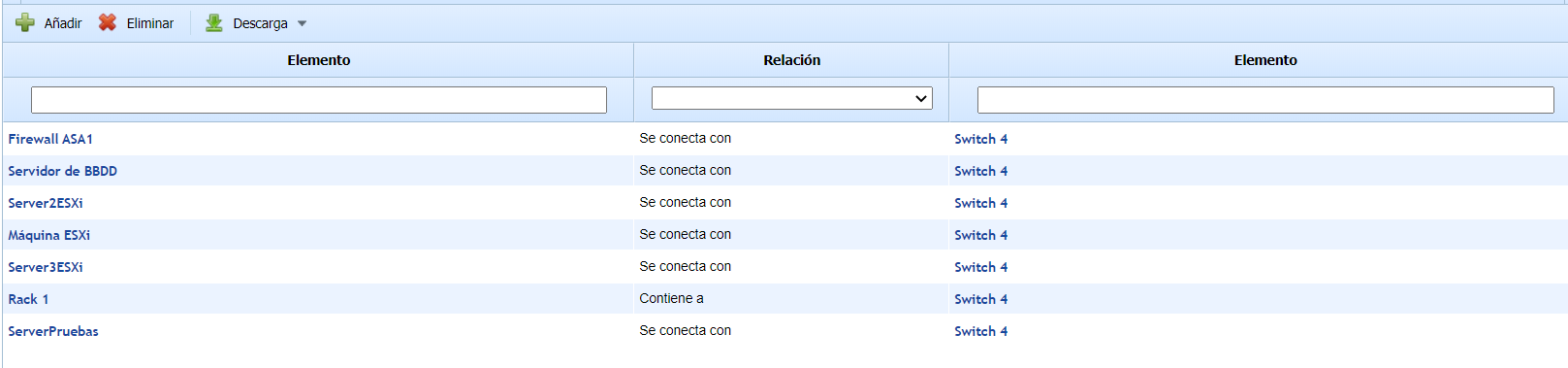
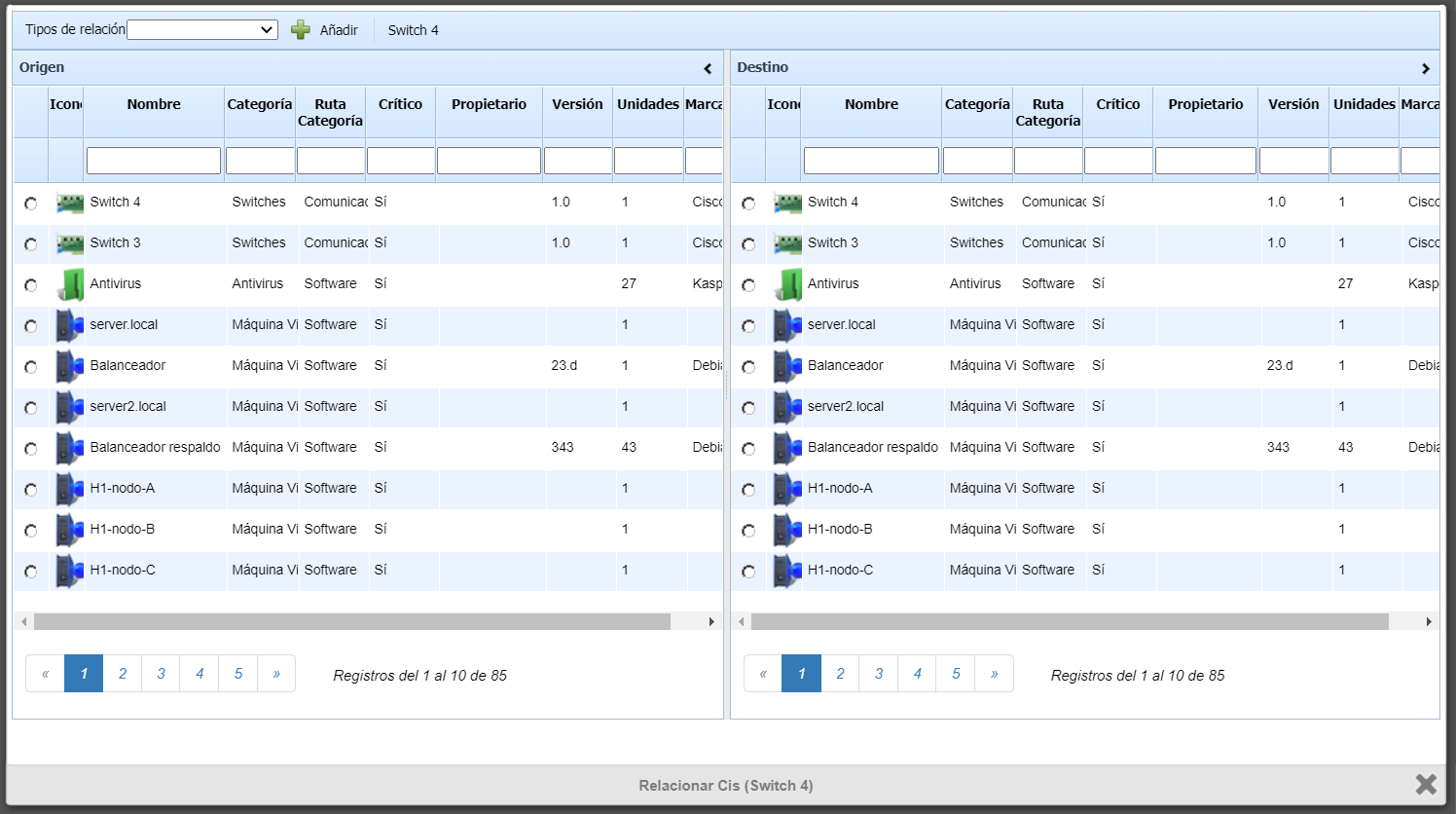
To add a new relationship, click the 'Add' button, which opens a pop-up window to select the two items to be related, one of which must be the item selected in the table.
The type of relationship linking both items must be chosen, and the "Add" button clicked, which will introduce the new relationship into the table.
To delete a created relationship, the desired row(s) must be selected, and the 'Delete' button clicked.
If the user wishes to download the list of relationships for a single item, they must click the 'Download' button, which provides a file in editable format (.xlsx) or in .PDF format.
NOTE: The item's relationships can be modified in the 'Settings > Configuration > CMDB' section.
Processes
The processes section specifically shows those that have occurred and have the selected item as the affected resource.
To do this, the automatic control of incidents, problems, and changes must be established in the 'Home/Configuration' section, and the corresponding tickets registered in GlobalSuite.
.jpg?cb=1b6999a2084b2290610dcf58ae26cc99)
History
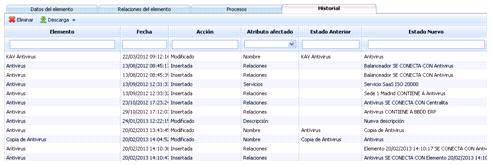
The History section shows an ordered list of the modifications the item has undergone since it was activated, allowing the following actions:
-
Delete: Allows deleting a stored modification. To do this, the desired row(s) must be selected, and the 'Delete' button clicked.
-
Download: Provides a file with the history in editable format (.xlsx) or in .PDF format.
Baseline
The Baseline option allows the user to generate and store a file with the state of the configuration items at the time of creation. This allows tracking changes in the configuration and relationships of the item after the creation of RFCs.
The options provided by the tool are as follows:
-
New: Clicking the button accesses a form that allows defining the following fields.
-
Date: Identifies the creation date of the baseline.
-
Name: Allows defining a descriptive name for the baseline.
-
Description: Allows making any additional notes about the baseline.
-
RFCs: Allows identifying those change requests generated in the 'Management/Changes and Deliveries' section that caused the creation of the baseline.
-
Configuration Items: This table shows all stored and activated configuration items.
-
To generate the baseline on them, all can be selected by checking the box located above the table, or individually selecting those items for which the Baseline is to be generated.
Once all values are defined, click the 'Save' button, which generates a new entry in the Baseline table.
-
Delete: Allows deleting one or more already created baselines. To do this, the desired row(s) must be selected, and the 'Delete' button clicked.
-
Download: Provides a file with the list of baselines in editable format (.xlsx) or in .PDF format.