
The adaptation plan is related to the 'Gap Analysis' option, allowing adjustments to the deviations detected during the analysis phase of regulatory requirements.
Adaptation Plans List
When accessing the option, the tool displays a list of those adaptation plans that have been established.
To define a new adaptation plan, the evaluated catalog in the 'Gap Analysis' option must be selected from the dropdown and the 'New' button must be clicked, which generates a new entry in the table. To delete an adaptation plan, the desired row or rows must be selected, and the 'Delete' button must be clicked.
If we click on the name of the adaptation plan, we access a list with different actions to be carried out to correct the deviations from the initial analysis. The task list only shows those milestones defined as 'Not Implemented' or 'Partially Implemented' in the 'Gap Analysis' section.
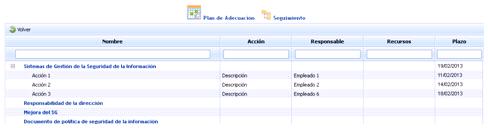
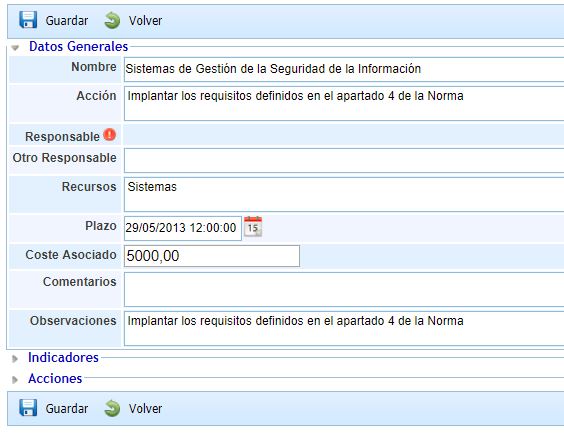
By clicking on each task, the following form is displayed where we can set the following parameters:
-
Name: Identifies the name of the adaptation task.
-
Action: Allows for a more detailed description of the task to be performed.
-
Responsible: Identifies the person within the organization responsible for verifying the completion of the adaptation task or its actions. This responsible person can be selected from the set of Employees (see section in the Management tab).
-
Other Responsible: Identifies the person within the organization responsible for verifying the completion of the adaptation task or its actions, allowing it to be defined textually.
-
Resources: Allows identifying the resources that will be involved in completing the task.
-
Deadline: Identifies the maximum deadline by which the task must be completed.
-
Associated Cost: Allows defining whether the implementation of the task involves any associated economic cost.
-
Comments: Allows adding any additional comments to the task.
-
Observations: Allows adding any additional observations to the task.
-
Indicators: The indicator field shows those indicators that have been associated to perform a better evaluation of the task. To associate indicators, the dropdown must be accessed, the desired indicator selected, and the 'Add' button clicked.
To delete an associated indicator, the desired row or rows must be selected, and the 'Delete' button must be clicked.
NOTE: The management of indicators is developed in the 'ScoreCard/Indicators' section.
-
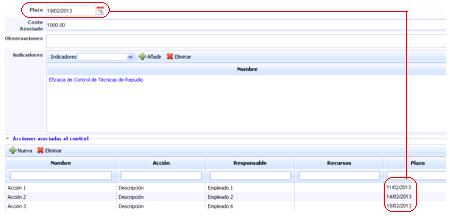
Actions: Allows setting intermediate actions to implement the defined task. To add an action, the 'New' button must be clicked, which generates a new entry in the table. To delete an associated action, the desired row or rows must be selected, and the 'Delete' button must be clicked.
Each action allows completing fields such as Name, Action, Responsible, Other Responsible, Deadline (which must not exceed the time set for the total completion of the task), End Date, Status, Resources, or Description.
Monitoring
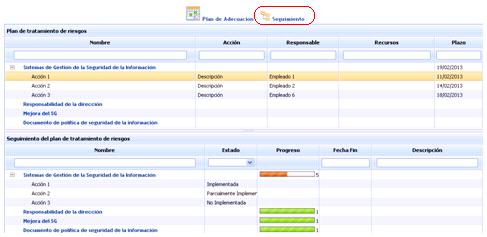
The adaptation plan tracking option allows the user to monitor the progress in the implementation of the tasks defined in the previous 'Adaptation Plans' option.
When accessing tracking, the following table is displayed:
-
Risk treatment plan: On one hand, the parameters defined in the Adaptation Plan section, such as the task list, responsible persons, completion deadline, etc., are displayed informatively. When one of these elements is expanded, the degree of implementation of the defined tasks can be established. To do this, the desired cell in the status column must be double-clicked, and the progress level selected. By default, the tool proposes the levels Not Implemented, Partially Implemented, and Implemented, but they can be parameterized in the 'Settings' section. As they are filled in, the 'Progress' column will be recalculated automatically.