
How to access the platform?
Access to GlobalSuite® is done through https://sg.globalsuite.es/ in the case of the General Cloud distribution mode. If the acquired mode is Dedicated Cloud or On-Premise, the URL will be the one defined during the contracting process.
To access the platform, you must enter the username and password that you received in the email provided during the contracting process or the one your organization has.
Unknown Attachment
Forgot your password?
In the link Forgot your password? you can obtain a new password in case of forgetting it if the user has local authentication to the product. In case of access through AD, LDAP, or ADFS, you must contact your organization's administrator.
Unknown Attachment
To restore the local password, you will need to provide the username and the associated email account so that an email with the new access data can be sent to you.
Whether it's your first time accessing GlobalSuite or a password restoration, the system will prompt you to modify it:
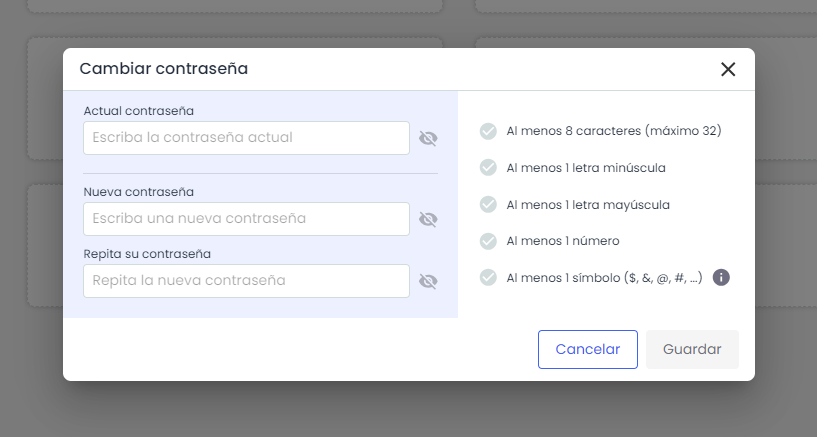
The passwords entered must comply with the following secure password policy for local users:
-
Expiration: passwords will have a maximum expiration of 180 days (6 months).
-
Complexity: Must have at least 13 characters and contain lowercase letters, uppercase letters, numbers, and symbols ($, &, @, ., #).
-
History of recent passwords: When requesting a password change, the new one must be different from the current one and must not match the last five passwords used.
-
User lockout: After a number of consecutive failed attempts during the authentication process, the user will be temporarily locked out.
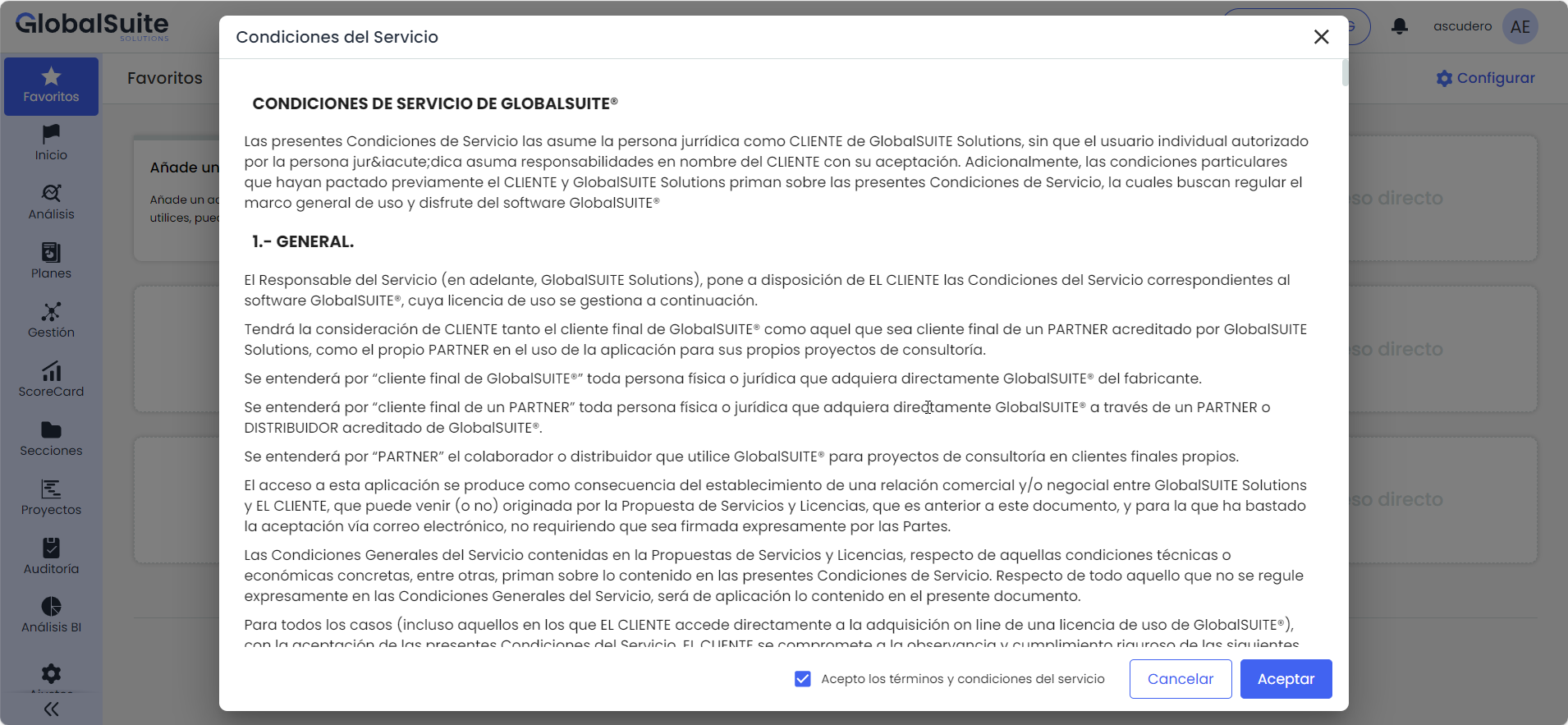
If it's the first access to the platform, or if there has been a change in access policies, the system will prompt you to accept them in order to continue:
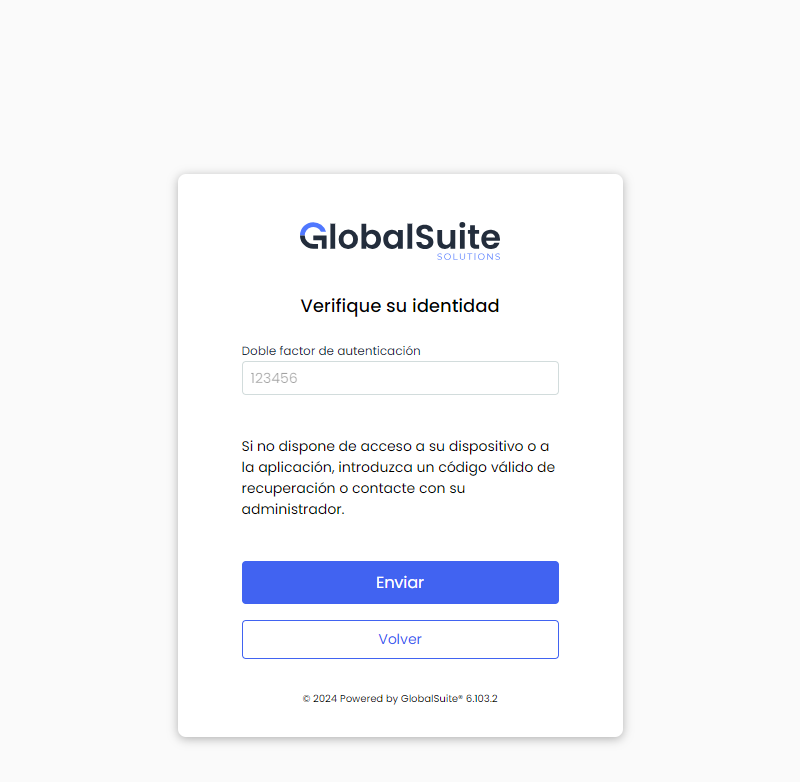
Once authenticated successfully, you will access the initial screen of the GlobalSuite platform, from which you can access the various options of the selected Management System.
If the platform access is the first one performed after a version update, the following message will appear in the bottom right corner:
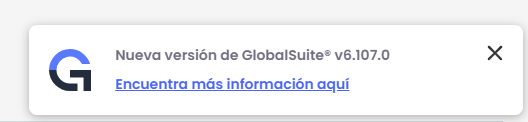
Where, through a link, you can access the GlobalSuite® Change Log to review the changes and improvements incorporated.
Access via SAML SSO
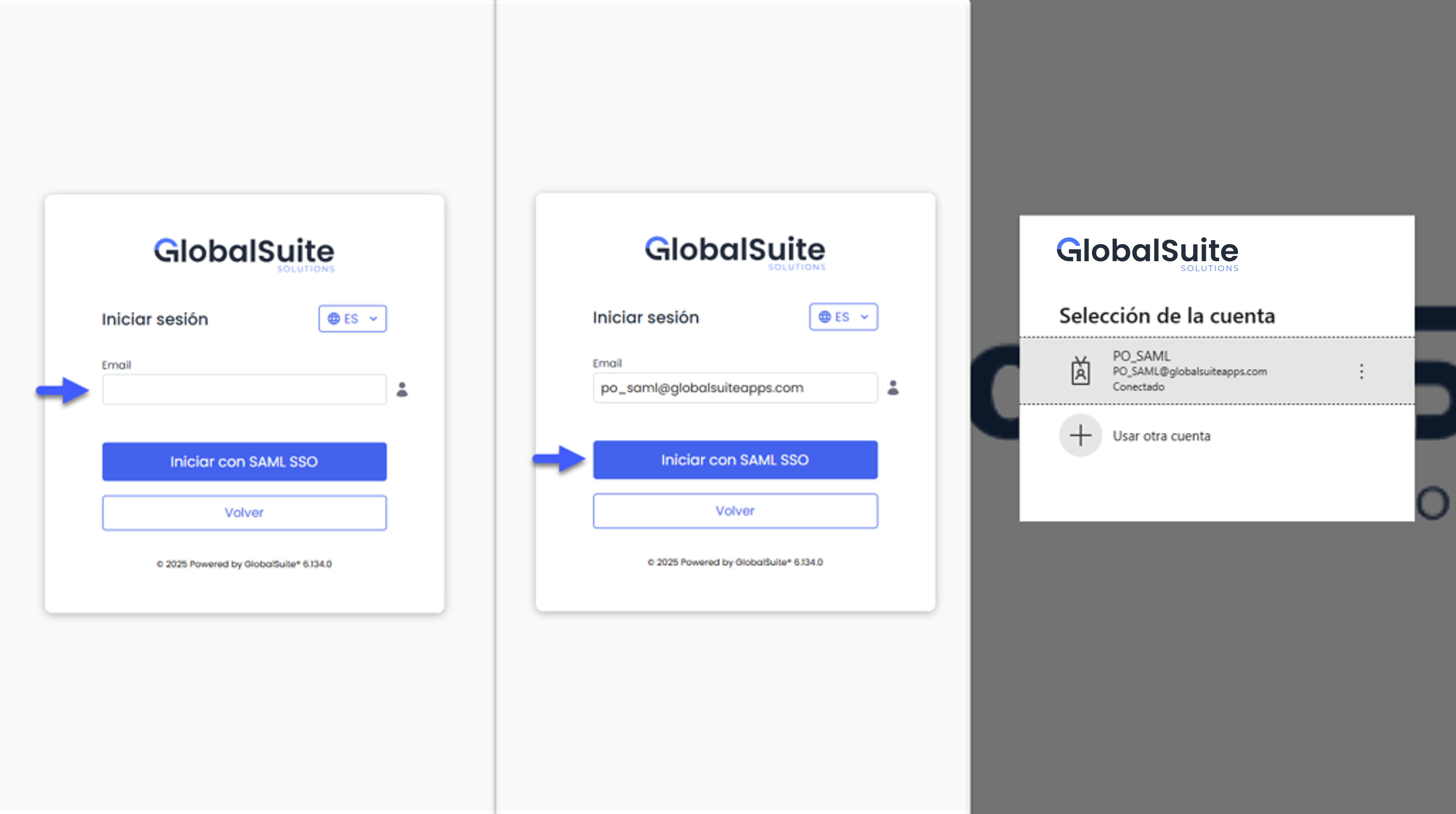
If the organization has enabled login via SAML SSO, the access screen will display the option “Login with SAML SSO”.
When selected, only the user's email address will be requested. GlobalSuite® will automatically identify the configured connection and perform authentication without needing to enter the local password or use a specific URL.
If there are multiple accounts associated with the same email address, the system will log in with the primary user and allow you to select which of the associated accounts to operate with.
If it's the first time a user accesses and does not yet have an account created, the field Connection Alias will be displayed, allowing identification of which Management System the user should be created in. This alias is defined when creating the connection in the environment in Settings> Connections
How to Access the Portal of the Customer Support Center GlobalSuite®?:
To facilitate access to our Support Portal, we have included a shortcut at the bottom of the tool. This shortcut will allow you to quickly access our Support Portal, where you can register questions, requests, or issues related to the service.
To use the shortcut, simply click on the link located at the bottom of the tool. Once you click on the link, a browser window will automatically open, taking you to the Support Portal.
