
General Survey Configuration
-
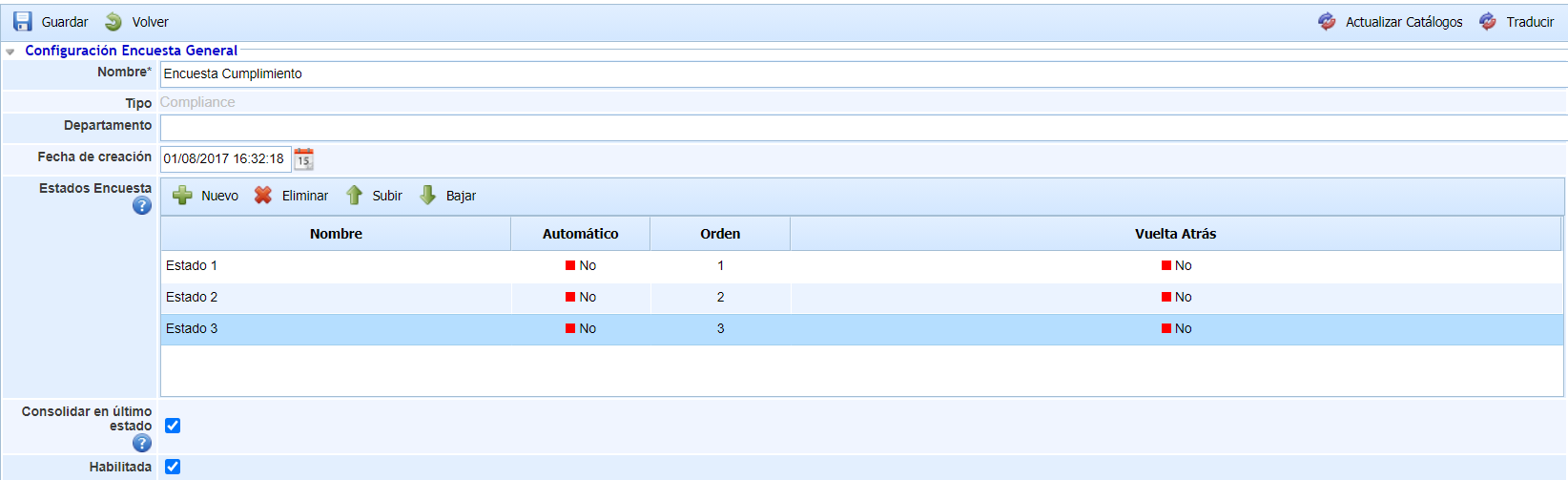
Name: Allows indicating the name of the survey model. This name will be displayed in the initial survey list.
-
Type: Displays the type of survey. It is an informational data.
-
Department: Allows indicating the department responsible for managing the survey.
-
Creation date: Identifies the creation date of the survey model.
-
Survey States: This table allows defining a set of states for the survey. These states can be assigned to employees when configuring the survey, so they will be responsible for the survey depending on the state it is in. For each state, it is possible to define:
-
The name of the state.
-
Whether the state is Automatic or not, so that if a state is automatic, the surveys will move to the next state once completed without any user intervention. If the state is not automatic, it will be necessary to manually change the state of a survey.
-
The order of the states through the "Move Up" and "Move Down" buttons.
-
Whether the state allows returning to the previous state. By selecting Yes, the person responsible for completing the survey can return it to the previous state.
-
Whether the surveys can return to the previous state or not for the state, through the "Rollback" field.
-
-
Enabled: Allows indicating that the survey is enabled for use in GlobalSUITE.
It is possible to translate the fields of the survey template into the other available languages through the "Translate" button at the top right. This button will allow us to select another language and define the name of the configurable fields in that language. Currently, the survey states.
Compliance Survey
-
Catalog: Allows selecting the catalogs on which the compliance survey will be conducted. To do this, you must select the "Included" column.
-
Questions: By selecting the row of one of the catalogs, the questions for each of the catalog's requirements or controls are customized. When clicking on the catalog, a list of controls or requirements of the catalog is displayed at the bottom along with a column on the right side to indicate the question about the control. When clicking on the question, a new table is displayed on the right side where you can indicate the questions that will be associated with that control or requirement. The customization of the questions is carried out with the following buttons:
-
Add Question: Allows adding a new question about the control or requirement.
-
Add Answer: Allows associating an answer to a previously created question. To do this, you must select the question for which the answer will be created.
-
Delete: Allows deleting the answer to a question or the question itself, depending on the row previously selected in the table.
-
Percentage: Allows indicating the weight given to each of the questions and each of the answers for calculations, both for graphical representations and for the consolidation of results.
-
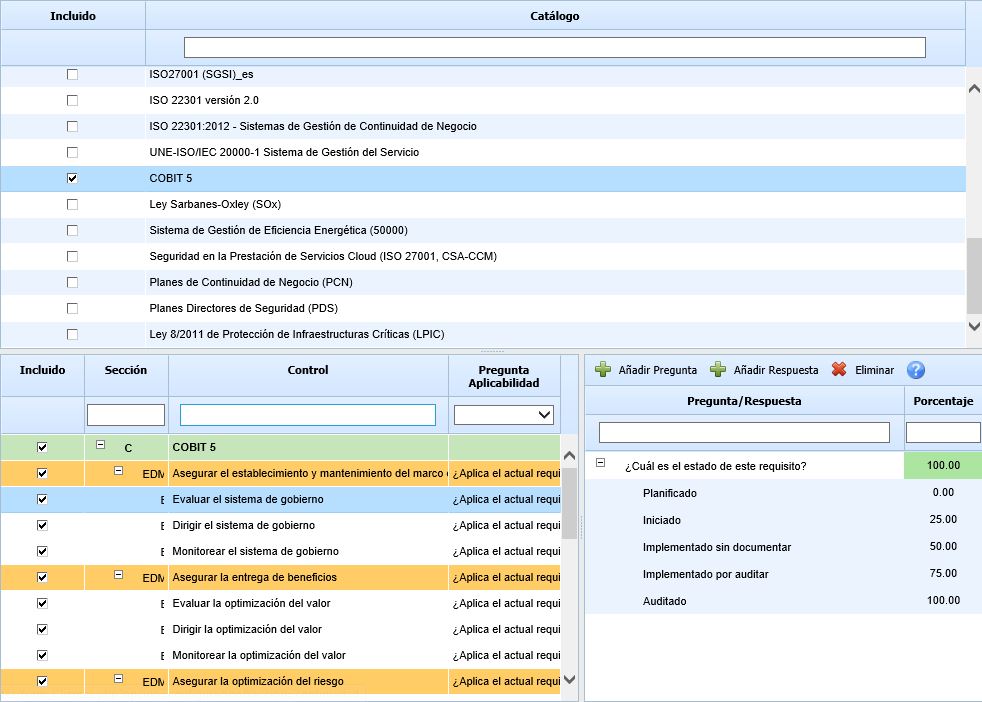
Using the "Update Catalogs" button, the survey model will be updated with the existing requirements in the catalogs defined in Settings> Compliance Catalogs.