
The 'Training and Education' option in GlobalSUITE® allows determining the organization's training and education program.
.jpg?cb=9ce3f04f6e1f9be51fa21a7951ee0674)
On the main screen, all planned training is displayed, whether it has been carried out or not. Apart from the list of courses completed or to be completed, GlobalSUITE provides the following tools:
-
New: Allows creating a new course.
-
Delete: Allows deleting defined courses. To perform this deletion, it is necessary to select the course to be deleted beforehand.
-
Download: Allows downloading the list of courses created or managed from GlobalSUITE.
.jpg?cb=5f70db9f4629c51638a7f9e52263e9bb)
Apart from the options mentioned above, the main screen displays additional information showing the status of the different courses.
-
Estimated Completion Date: Sets the date on which the course was expected to be completed.
NOTE: If the current date exceeds the estimated completion date and the course has not been completed, the date will appear in red.
-
Completed: Indicates whether each of the courses has been completed or not.
-
Completion Date: If completed, this column will display the date. Otherwise, it will appear empty.
To access one of the registered courses, it is necessary to click on the course for which you want to view the information.
Once accessed, the following options are available to complete all the necessary information about the course:
Detected Training Need
.jpg?cb=c3f969e9327bc3b0e71d02235c9347b5)
-
Name: Sets the name of the course to be completed or already completed.
-
Type of Training: Allows determining whether the course is conducted internally or externally.
-
Planned Date: Indicates the date planned for the course.
-
Description: Allows providing any additional information that clarifies what the course entails.
Course Participants
.jpg?cb=2495c858be6426a11b4815b3e2ca79e0)
-
Participants Table: Allows determining which employees have completed or will participate in the selected course.
GlobalSUITE provides the following tools to determine which employees will participate in the course:
-
Participants: Allows selecting all employees who have been registered and are being managed from the Employees option in GlobalSUITE.
-
Add: Allows including a new employee or participant who has been previously selected from the options shown in the participants dropdown.
-
Delete: Deletes any employees who have been registered as participants in the course.
-
New Participant: This option allows including a new employee in the course who is not being managed from the 'Employees' option in GlobalSUITE.
.jpg?cb=bdf58cdb31270c24587d9f6465868658)
Once a new participant is included, it is necessary to set their position and role within the course:
.jpg?cb=8a0df7356c6b40a06601b73f3293476a)
-
Position: Sets the position the course participant holds within the organization. This field is editable.
-
Course Role: Allows defining the role within the course. For this option, GlobalSUITE provides two options via a dropdown: Student and Teacher.
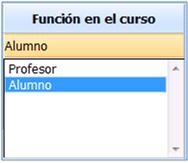
NOTE: To set the role each participant holds in the course, it is necessary to double-click on the Role column in the course.
Documentation
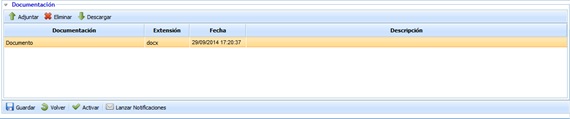
Allows including any documentation related to the test plan. To do this, click on the 'Attach' button and select the desired file. If you want to delete a file, select the desired row and click on the 'Delete' button. Finally, by clicking on the 'Download' button, the tool offers the possibility to download the file.
Training Follow-ups
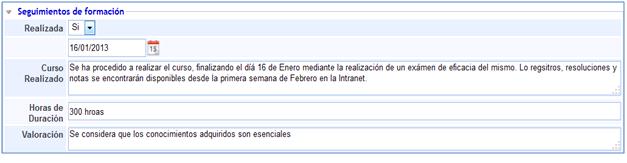
This section allows defining the characteristics of the course if it has been completed, or otherwise, any clarification justifying its non-completion.
-
Completed: Allows determining whether the course has been completed or not.
If completed, it allows determining the completion date.
-
Completed Course: Allows including any additional information specifying or clarifying how the course was conducted.
-
Duration Hours: Sets the duration of the course.
-
Evaluation: Records how the course turned out and the appreciation of the completed course.
For cases where the course has not been completed, the options displayed by GlobalSUITE are different from those mentioned above, providing the following tools to clarify the reasons behind the deviation from the completion date.

-
Modifications: Indicates whether the course content or characteristics have been modified due to the delay in the completion date.
-
Reasons: Allows determining the reasons why the course was not completed on the estimated date.
NOTE: These fields are intended to specify the causes of a deviation or delay in the estimated completion date. If the course has not been completed because the indicated date has not yet arrived, these fields should not be completed.