

The sections option allows the user to define the parts that will compose the Business Continuity Plan, being able to perform the following options within the table.
-
New: Allows inserting a new section into the table.
-
Delete: Offers the possibility to delete an entry from the table. To do this, the desired row must be selected and the 'Delete' button pressed.
-
Move Up: Allows positioning the selected section to a higher position.
-
Move Down: Allows positioning the selected section to a lower position.
-
Assign Permissions: Allows the user to define the role(s) that will have access to this section of the business continuity plan.
By clicking on the button, the following screen is displayed where the following milestones can be defined:

-
Add: Once the desired role is selected in the dropdown, it allows associating it with the section.
-
Delete: Allows deleting an existing association. To do this, the desired row must be selected and the 'Delete' button pressed.
-
Edit Section: Allows the user to define the content of the section. To do this, the section to be modified must be selected and the button pressed, displaying a form that allows editing the content.
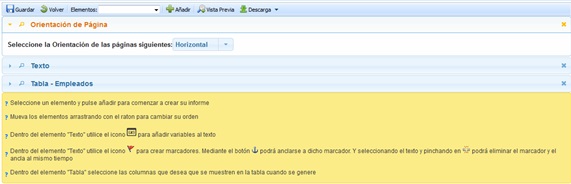
The options provided by the tool are as follows:
-
Save: Allows saving all the modifications made to the section.
-
Back: By pressing the button, the tool returns the user to the list of sections in the Business Continuity Plan.
-
Elements: Allows defining which elements the section will contain, being able to use the following:
-
Text: Free text field where the user can incorporate the desired information.
-
Page Orientation: Allows defining the orientation in which the section will be created, being able to choose between Vertical or Horizontal.
-
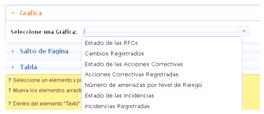
Chart: Allows incorporating different charts existing on the platform into the section, as shown in the image.
-
-
Page Break: Allows inserting a page break in the section.
-
Table: Allows incorporating an existing table from the platform into the section, being able to choose between different table models (Continuity, Availability, etc.). For each inserted table, it is possible to configure the information to be displayed, add filters, and sort the information under different criteria.
-
Add: Once the desired element is selected, it allows adding it to the section structure by pressing the 'Add' button.
NOTE: As many elements as desired can be incorporated. The displayed elements are generated in the order they are added. To modify the order of the elements, they must be dragged to the desired position.
-
Import: Allows importing existing elements from other already constructed reports.
-
Preview: Allows generating a preview of the section to check the result according to the added elements.
-
Back: By pressing the button, the list of defined business continuity plans is displayed.
-
Download: Offers the possibility to download the list of sections in editable format (.xlsx) or PDF.