
From the employees option in the Management tab, GlobalSuite® allows you to register and manage all the employees of the organization.
On the main employees screen, the employees registered in the tool are displayed. By default, the table shows a set of specific columns indicating the main data of the employee. The default columns can be modified by the user by right-clicking on the columns. When performing this action, a list appears with all the columns that can be added to the table, allowing the selection of the desired columns.
The options available in this table are as follows:
-
New: Allows you to insert a new entry (employee) into the table.
-
Delete: Allows you to delete a record from the table. To do this, you must select the desired row or rows and press the "Delete" button.
-
Import Data: This option allows you to perform a bulk upload of employees from an Excel file. When pressing the button, the tool requests an Excel file that must contain a set of columns with the information of the employees to be imported. Although the tool accepts Excel files with different column orders (allowing you to select those you want to import), a valid Excel template is also provided in the "Download" button.
-
Download: Offers the possibility to download the list of clients in an editable format (xls) or in PDF format, as well as the Excel template for importing employee data.
-
Synchronize: This option is enabled for companies that have configured synchronization with the Directory Element. If synchronization is activated, the tool allows you to register the employees from the Directory Element as employees in the tool, updating the information if there are changes in the Directory Element. If you want more information about the synchronization of GlobalSUITE® with the Directory Element, please contact your distributor.
-
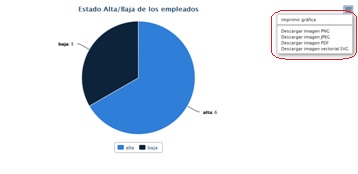
Show Chart: Allows you to generate a chart with the employees registered and deregistered in the tool.
Personal Data
On the main screen, you can include any type of information you consider necessary for the correct registration of employees.
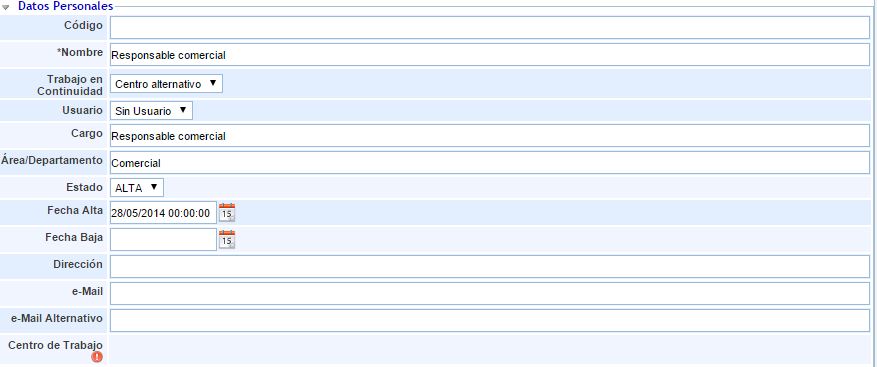
For the Business Continuity service, it allows you to indicate for each employee how they will perform their work in a contingency/continuity situation (Telework or Alternative Center) through the "Continuity Work" field.
Phones
This option allows you to establish the user's contact numbers.

The information provided by the table is as follows:
-
Phone: Allows you to include a contact number in the table.
-
Type: Offers the possibility to establish the type of contact, allowing you to choose between mobile, landline, personal cell phone, or work phone.
-
Priority: Allows you to define the priority of calling or contacting the user.
Organizational Structure

This option allows the user to associate an organizational unit with the user. The options available in the tool are as follows:
-
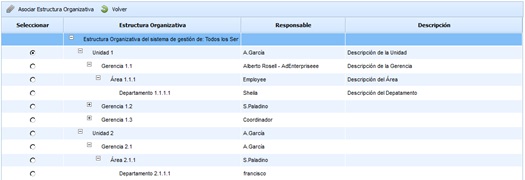
Add Organizational Structure: Allows you to define the unit associated with a user. To do this, you must click on the button and select the unit in the option shown in the following image.
-
Delete: Offers the possibility to disassociate an organizational unit. To do this, you must select the desired line and click on the 'Delete' button.
-
View in Organizational Structure: Allows the user to view the dependencies of the associated unit, as shown in the following image.

Relationships
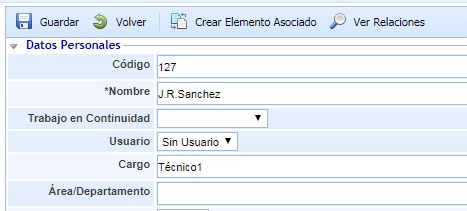
This option allows you to view the employee's relationships with the most important aspects of the Management System. In this way, if an employee leaves the company, you can see in which options they are associated or have responsibility to make the necessary changes in these options. To do this, you would need to click the View Relationships button, and a pop-up window will open where you can see the relationship with the following options of the tool.
-
Continuity Plan Manager
-
Recovery Plan Manager
-
Responsible for Recovery Plan tasks
-
Belongs to a Critical HR group
-
Belongs to a Decision Committees group
-
Responsible in Services
-
Responsible in Processes
-
Responsible for Element (Assets of any category)
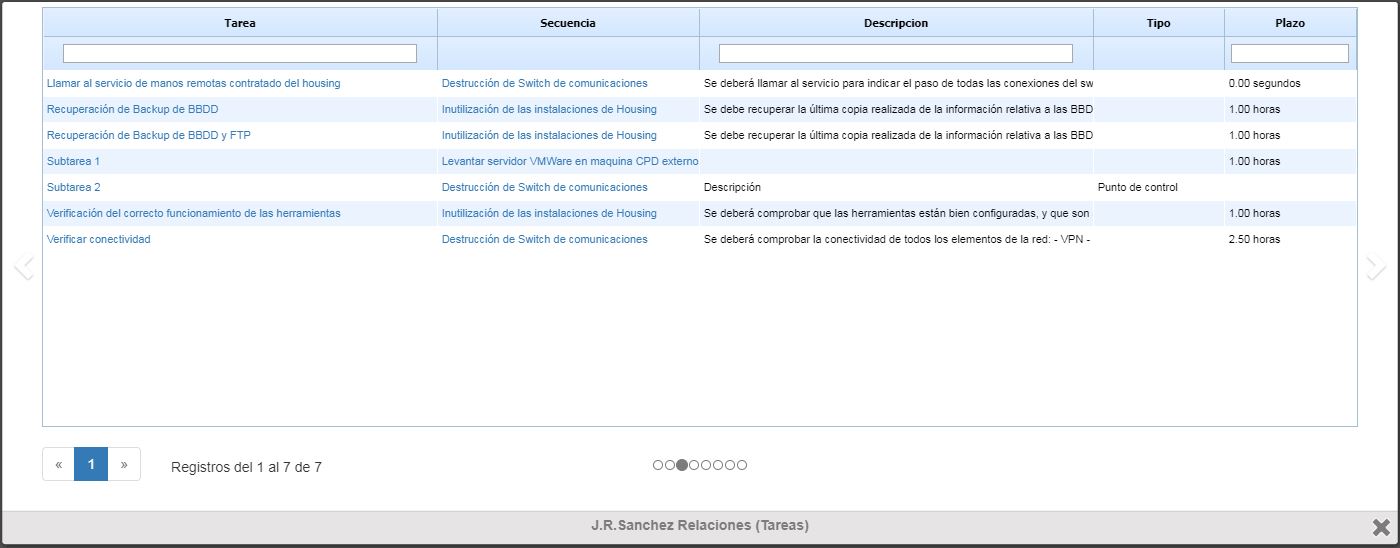
Within the pop-up window, to view the aforementioned options, you can click on the arrow located on both sides of this window. You can also navigate through this option by clicking on the circles located below the table. Each circle corresponds to a table.
Roles and Permissions
In this option, you can include which Roles each employee performs, which will be registered in their corresponding option in the Home tab, and what permissions they have, including permissions for access to information, any support they have at their disposal to perform their work, as well as the possession of keys or access permissions. As a final option, the solution allows you to include in the "Others" field any other type of permission the employee in question may have.
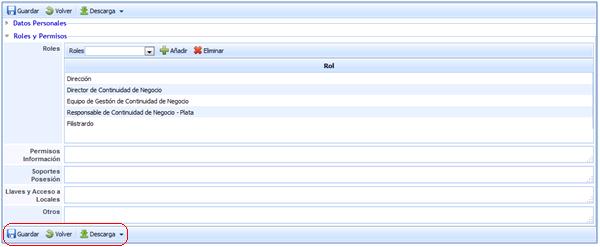
It should be noted that once any information contained in this section is included or modified, it is necessary to proceed with saving it.
Finally, GlobalSUITE allows you to download all the defined information of the employees so that you can have it available in any other location you consider.
Dimension Assessment
This section of the form allows you to evaluate the employee in the dimensions configured for the inventory of elements.

The dimensions that appear are configurable in 'Settings - Analysis Methodologies - General Configuration'. You can indicate which dimensions are visible and which are not. If no dimension is visible, this section will not be displayed in the employee's form.