
The synchronization of Active Directory or LDAP can be performed in two different places within the tool.
1. In the Settings section, Users option
2. In the Management section, Employees option
Users
At the top of the table in the Users option under the 'Settings' section, you can see the Synchronize->Connect Active Directory button.
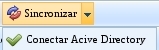
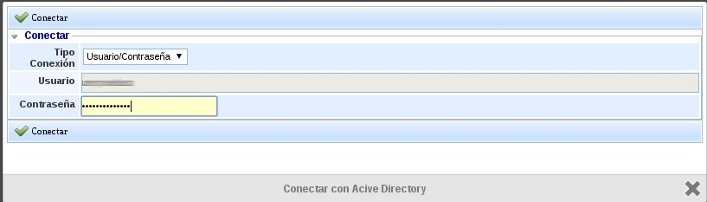
Once the button is clicked, a pop-up window will appear to enter the username and password to connect to the Active Directory.
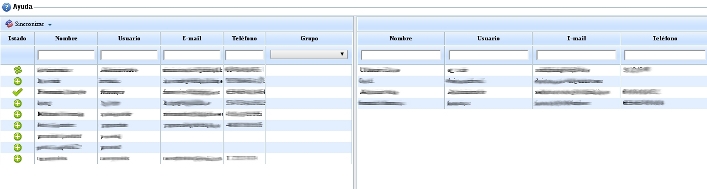
Once authenticated with the Active Directory, two tables will appear: the one on the left will show the Active Directory users defined in the Configuration; and on the right side, the users who have the Management System in GlobalSuite. Additionally, there is a Help section where the correct functioning of the synchronization is explained. The status of the Active Directory user in relation to the system is divided into New, Modified, or Synchronized; represented by a +, two arrows forming a circle, and a tick respectively.
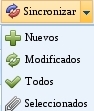
If you click on the Synchronize button, the option to synchronize new users, modified users, selected users, or all users is allowed. In case an error occurs during synchronization due to duplicate users or exceeding the user limit, an alert will be displayed through a pop-up screen. Once synchronized, the Users screen will reappear, where the correct synchronization of the users can be verified.
Employees
At the top of the table in the Employees option under Management, you can see the Synchronize->Connect Active Directory button.
.jpg?cb=f8dd9d244b4428fddf97556392eba2cc)
Once the button is clicked, a pop-up window will appear to enter the username and password to connect to the Active Directory.
.jpg?cb=4d2e799fae5d6d7af6556d9a64c23cc7)
Once authenticated with the Active Directory, two tables will appear: the one on the left will show the Active Directory users defined in the Configuration; and on the right side, the employees who have the Management System in GlobalSuite. There is also a Help section where the correct functioning of the synchronization is explained. The status of the Active Directory user in relation to the system is divided into New, Modified, or Synchronized; represented by a +, two arrows forming a circle, and a tick respectively.
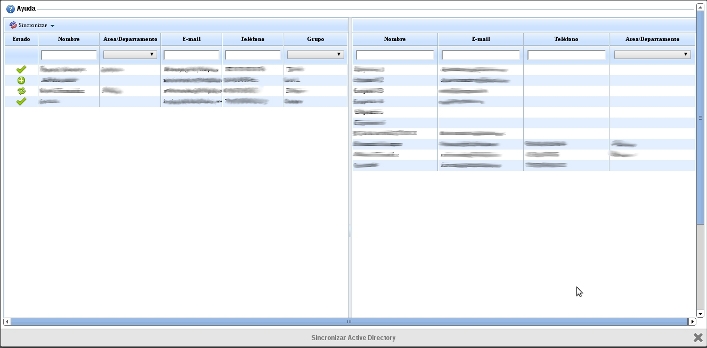
If you click on the Synchronize button, the option to synchronize new employees, modified employees, selected employees, or all employees is allowed.
.jpg?cb=834416bfd501d3766aaca27e1aae2ee9)