
The 'Project Management' option in GlobalSuite allows the user to manage the progress in the implementation of a specific project. To associate a project with a company, you must select it in the Settings > Model Management section.

Once the project is defined, the following start options are offered:
-
New: Allows you to insert different tasks into the selected project from the first row of the table.
-
Delete: Allows you to delete different tasks from the project. To do this, you must select the desired row or rows and press the 'Delete' button.
-
Complete: Allows you to define when a task has been completed.
-
Create History: Allows you to create a historical file with the project's progress at the time of its creation.
-
Open Histories: Offers the possibility to open stored project histories.
-
Download: Allows you to download the project in an editable format (.xlsx) or in PDF.
-
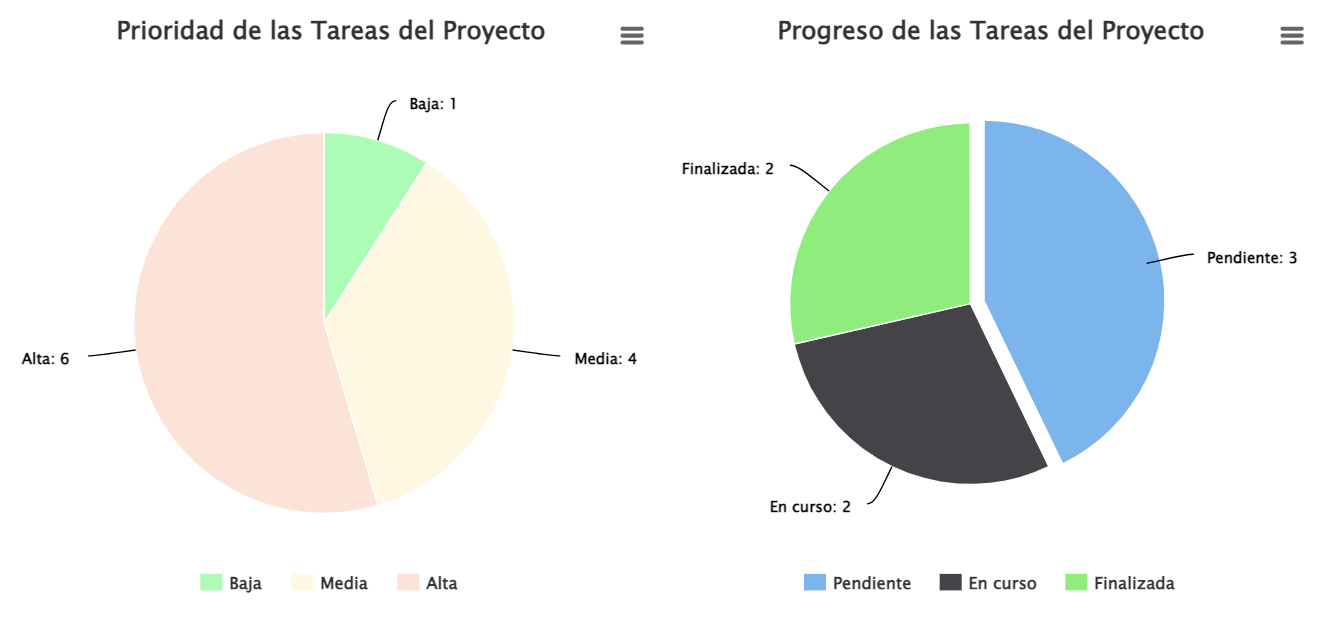
Show Graphs: Offers the possibility to visualize different aspects of the project in graphical format, as shown in the following image:
-
Progress Percentage: Visually displays the percentage of project progress based on task completion.
The project table has a series of columns that provide the following information:
-
Name: Identifies the name of the different tasks generated, where the first level identifies the project name and the remaining levels, with unlimited nesting possibilities, the tasks established to complete the project.
-
Type: Identifies the type of the generated task.
-
Responsible: Displays the person responsible for completing the task.
-
Days Remaining: Identifies the days left for the task to be executed within the defined timeframes. The calculation is based on the start/end date values.
-
Start Date: Displays the start date of the task.
-
End Date: Displays the end date of the task.
NOTE: Each task can be modified by clicking on its name.
Project (First Level):
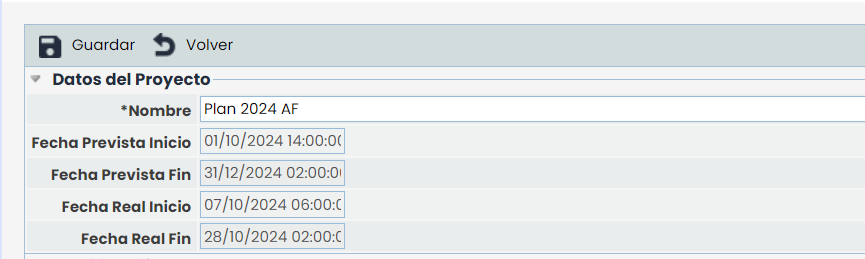
If you click on the project name, a form is displayed where you can define the following points:
Project Data
Offers the possibility to set the project name as well as the start and end dates, based on which all defined tasks will be calculated.
Planning
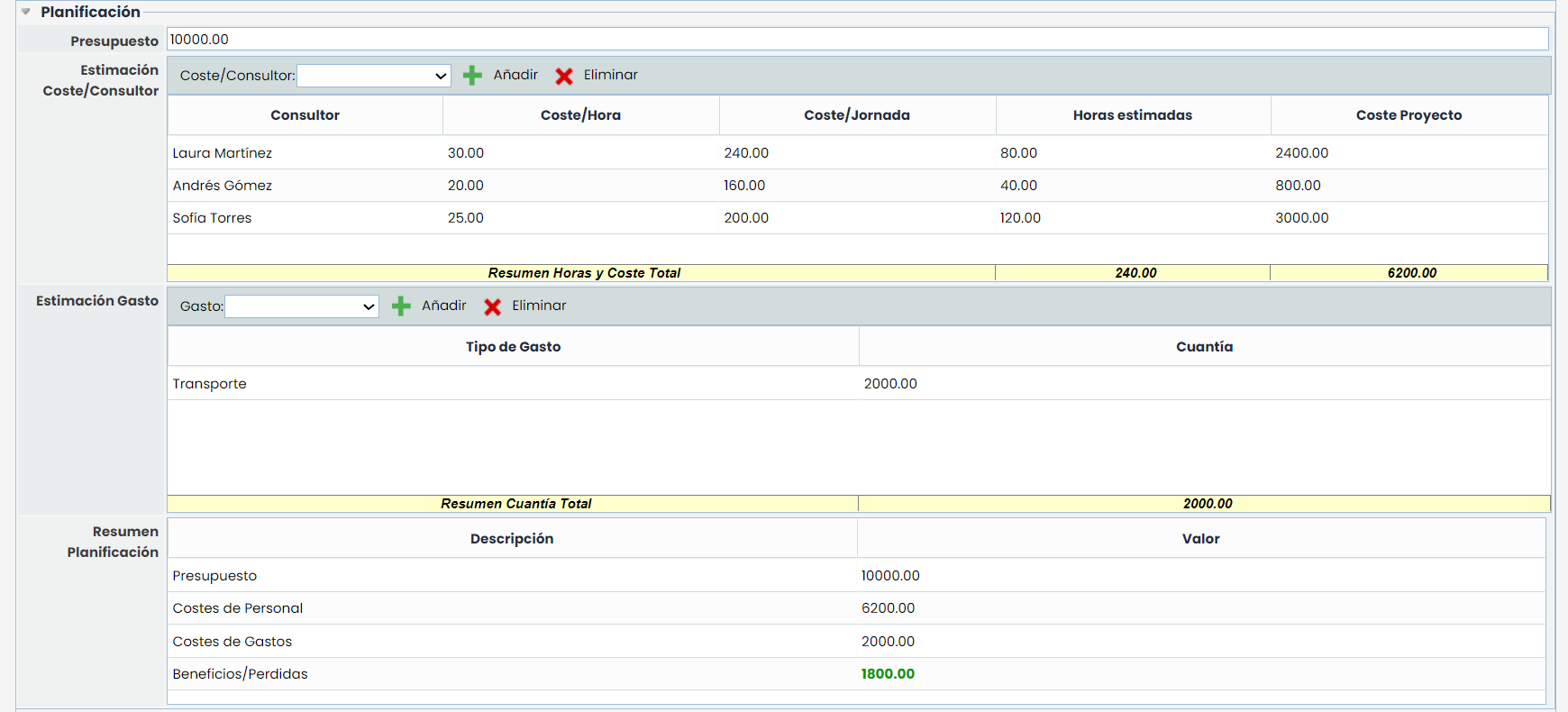
The planning section allows you to define the costs associated with the project, with the following parameters:
-
Budget: Allows you to define the budget associated with the project.
-
Cost/Consultant Estimation: Offers the possibility to define the cost of the consulting team associated with the project, allowing you to define the costs/hour and the estimated working hours, with the tool automatically calculating the cost/day and consultant project.
-
Expense Estimation: Allows you to define the types of expenses specified in the 'Settings / Projects' option, and the economic amount that the concept represents in the project.
-
Planning Summary: Provides a summary of the information identified in this section, highlighting the project's profits or losses.
Summary
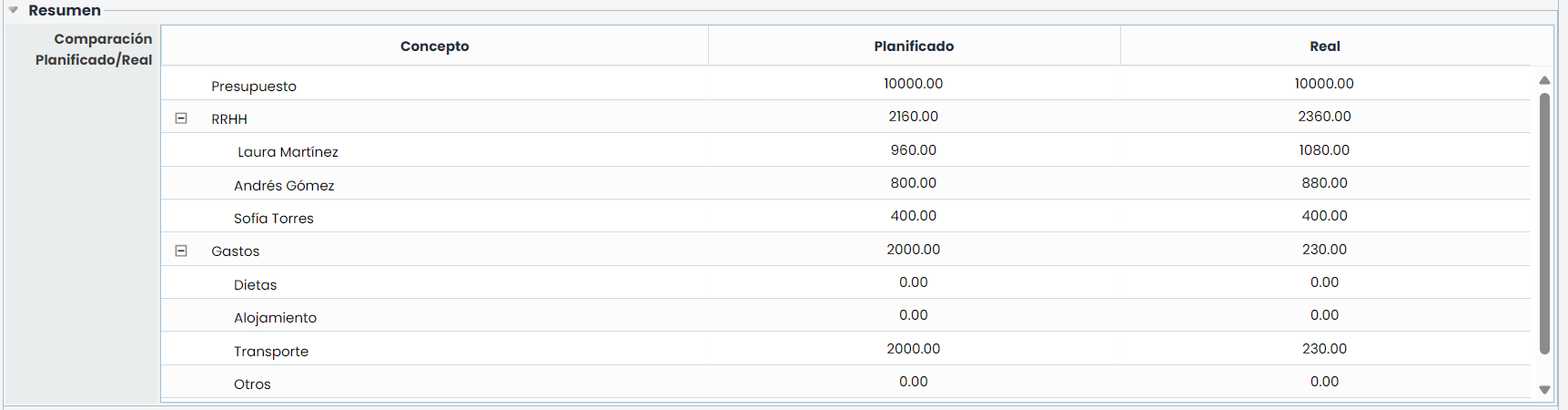
This option shows a detailed summary of the information defined in the previous section, highlighting the project's profits or losses.
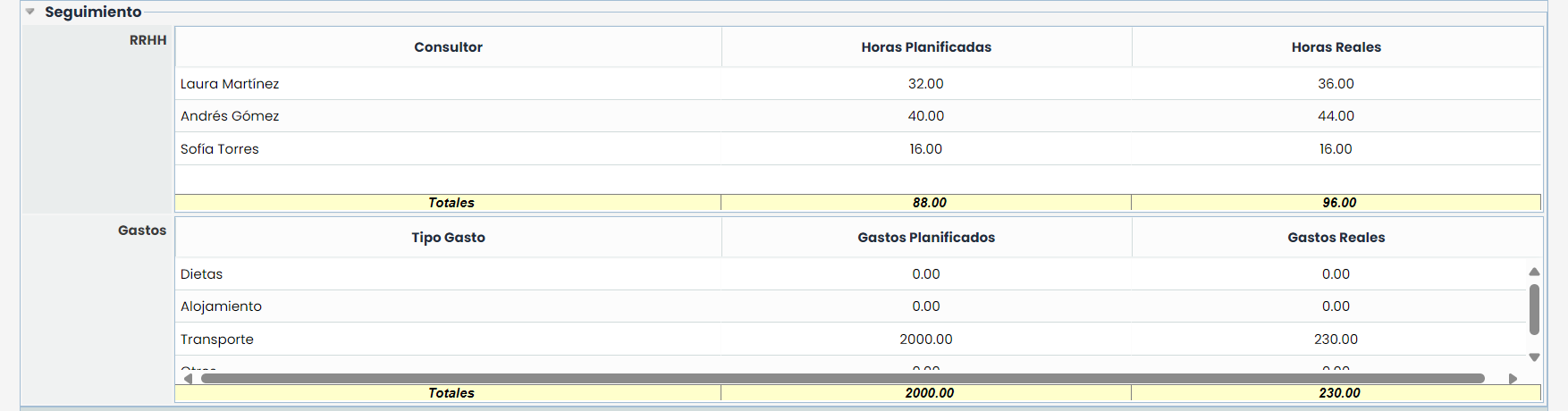
Monitoring
Centrally displays the hours dedicated and expenses associated with the tasks assigned to the consultant.
Tasks (Levels):
When clicking on a task, the modification options are as follows:
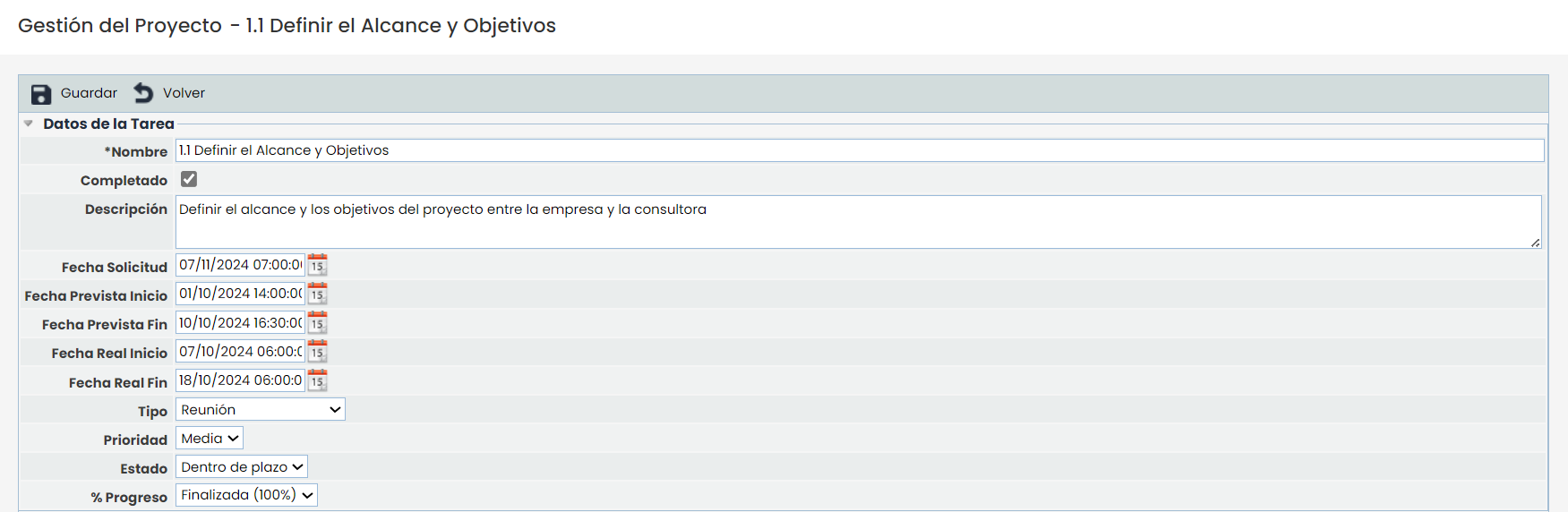
Task Data
-
Name: Allows you to modify the task name.
-
Completed: The option indicates whether the task has been completed or not.
-
Description: Allows you to provide a more detailed description of the task.
-
Request Date: Offers the possibility to define the date by which the task should be completed.
-
Estimated Start Date: Allows you to define the estimated start date of the task.
-
Estimated End Date: Allows you to define the estimated end date of the task.
-
Actual Start Date: Defines the actual start date of the task.
-
Actual End Date: Sets the actual end date of the task.
-
Type: Allows you to indicate the type of the task.
-
Priority: Allows you to assign a priority level based on the states defined in 'Settings / Configuration'.
-
Status: Allows you to assign a status based on the fields defined in 'Settings / Configuration'.
-
% Progress: Allows you to assign the percentage of task progress. Based on the percentages defined in 'Settings / Configuration', the total/global progress will be updated.
Responsible
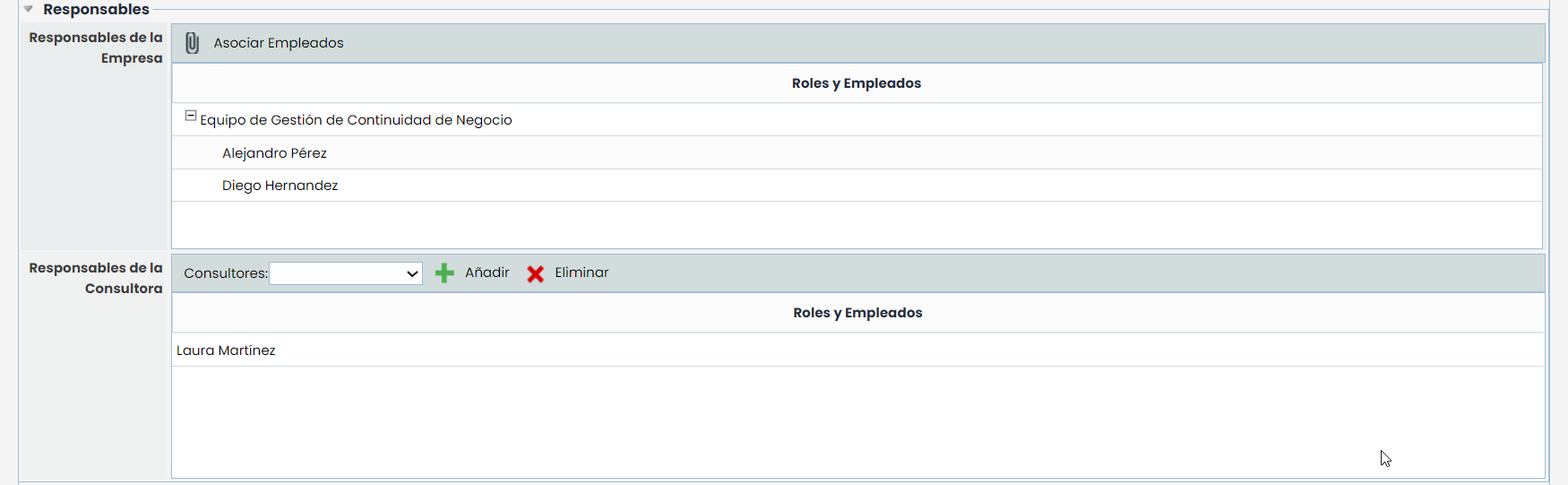
This section allows you to indicate the users responsible for performing the task, distinguishing between the following:
-
Company Responsible: Offers the possibility to identify who will be the company responsible for the defined task. To do this, you must click on the 'Associate Employee' button and, once selected, click on the 'Load Roles/Employees' button.
-
Consultant Responsible: Offers the possibility to define the consultant responsible for the defined task. To do this, you must select a resource from the dropdown and click on the 'Add' button. If you want to remove a resource associated with a task, you must select the desired row and click on the 'Delete' button.
NOTE: The consultants responsible have been defined in the 'Settings / Associated Consultants' section.
Documentation
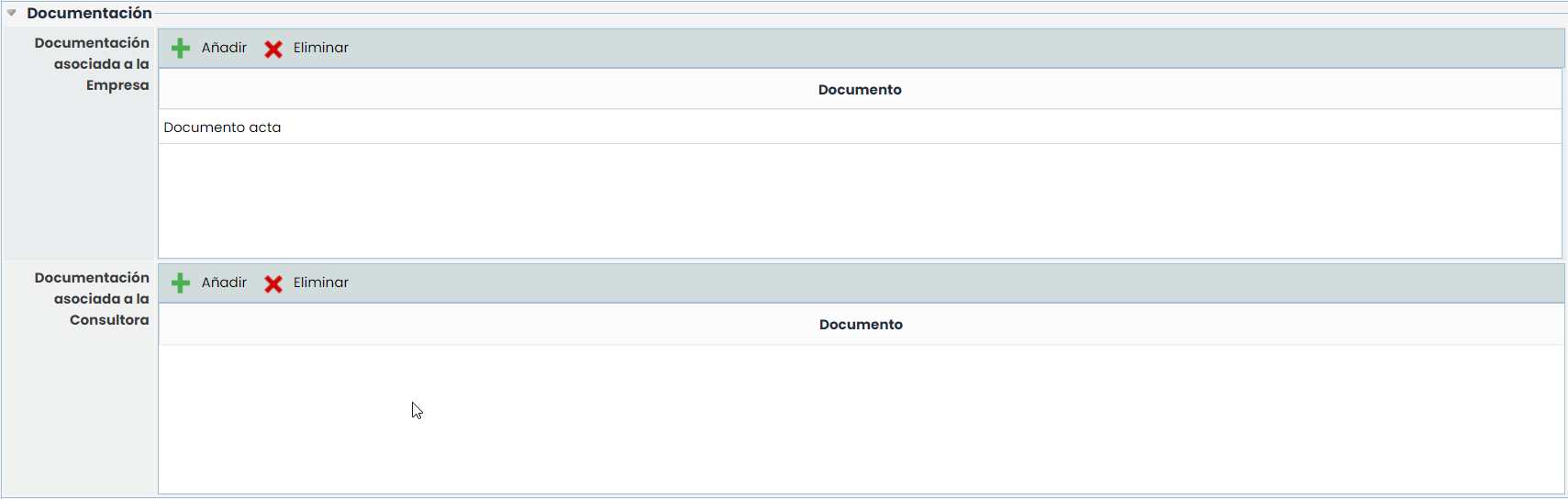
This section offers the possibility to identify and associate documentation related to the task to be performed. To do this, you must click on the 'Add' button, which generates a new entry in the table. To modify the document name, you must double-click on the desired cell. If you want to delete an associated document, you must select the desired row and click on the 'Delete' button.
Monitoring
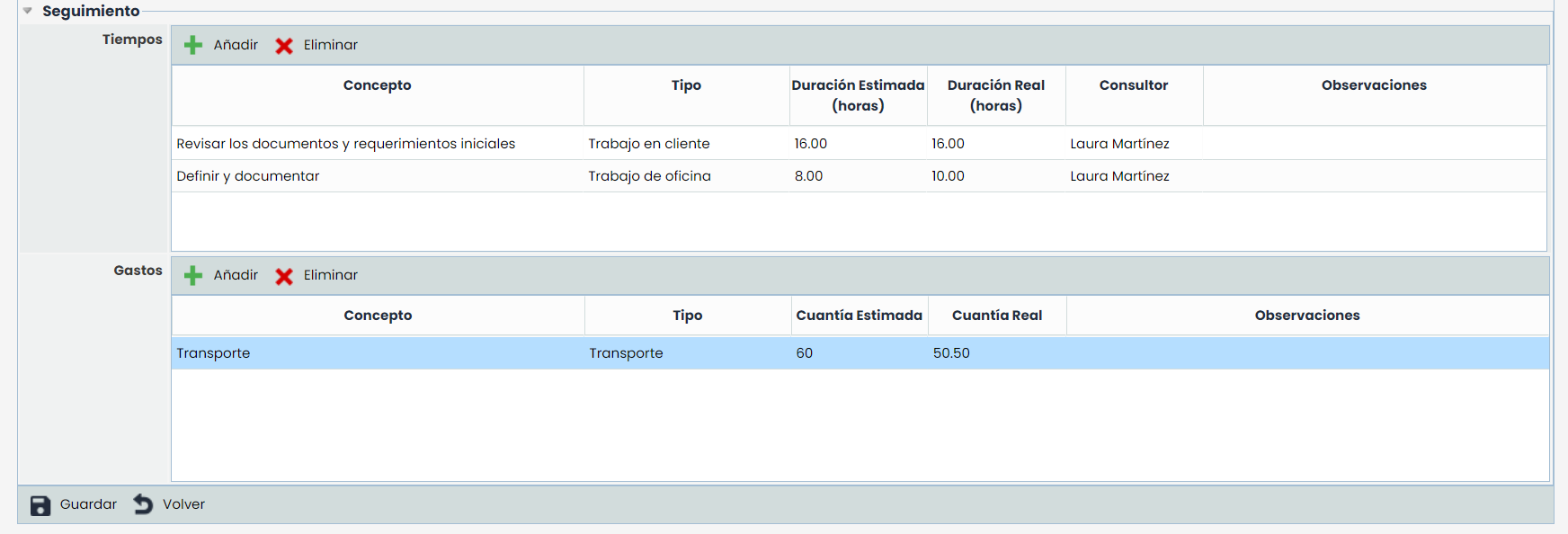
This option allows you to allocate the following concepts to the selected task, such as:
-
Times: Allows you to allocate the time spent on performing the task, defining the concept name, associated type, hours spent, associated consultant, and observations.
-
Expenses: Offers the possibility to allocate the expenses associated with the task, defining the concept name, associated expense type, economic amount, and observations.
NOTE: The times and expenses associated with a task will be reflected in the Project (First Level) section.