
This tutorial explains how to configure the email server (SMTP) in GlobalSuite®, allowing the platform to send automatic notifications, alerts, and communications to users.
The objective is to detail the configuration of the server parameters, connection options, and validation through the sending test, available for administrators.
Configure an email server
The email configuration at the Company level can be performed by the Administrators: Platform, Enterprise, and Configuration.
To perform it, it is necessary to access the Configuration option, General, from the section Settings > General > Company.
We will uncheck the “Default Configuration” checkbox to enable the text input fields of the form.
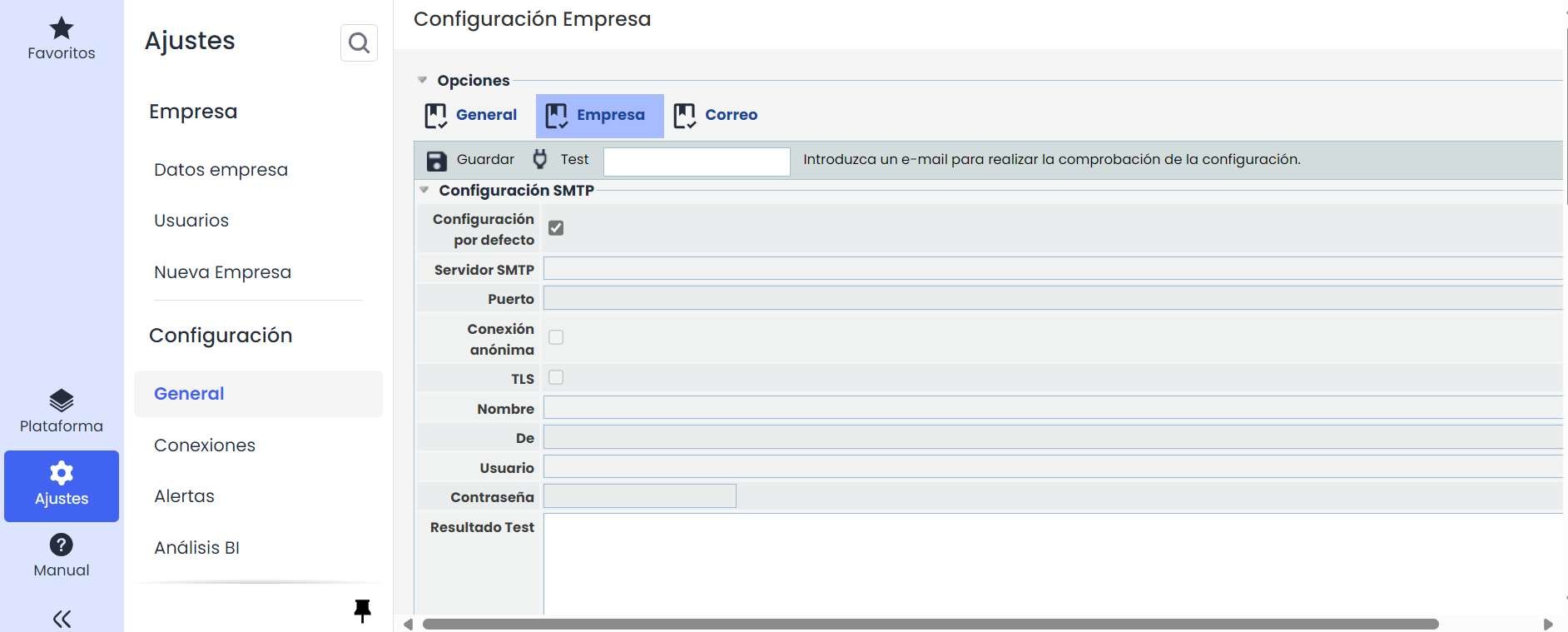
The necessary data to perform the configuration are as follows:
|
SMTP Server (IP or FQDN) The GlobalSuite machine must have connectivity to this IP |
|
|
Port |
|
|
Sender |
|
|
Account |
|
|
Password (Only in the case of a specific mailbox and can be entered by the client during the initial installation) |
|
In case the connection is made anonymously, the user and password fields can be omitted, which will be automatically disabled when the “Anonymous Connection” checkbox is checked.
Once the form is completed, click on the “Save” button so that the new configuration is registered.
The form allows us to perform an initial sending test by entering a valid email address in the “test” input and then clicking on the “Test” button. The test result can be viewed in the “Test Result” text area.
If the “Default Configuration” checkbox is checked, the application configuration will be the one registered at the Platform level (Platform – Email). This can only be modified by the technicians of the GlobalSuite® Customer Support Center.