
Within the Work Report view, it is possible to review the results of the audit execution, and to prepare and extract the final report.
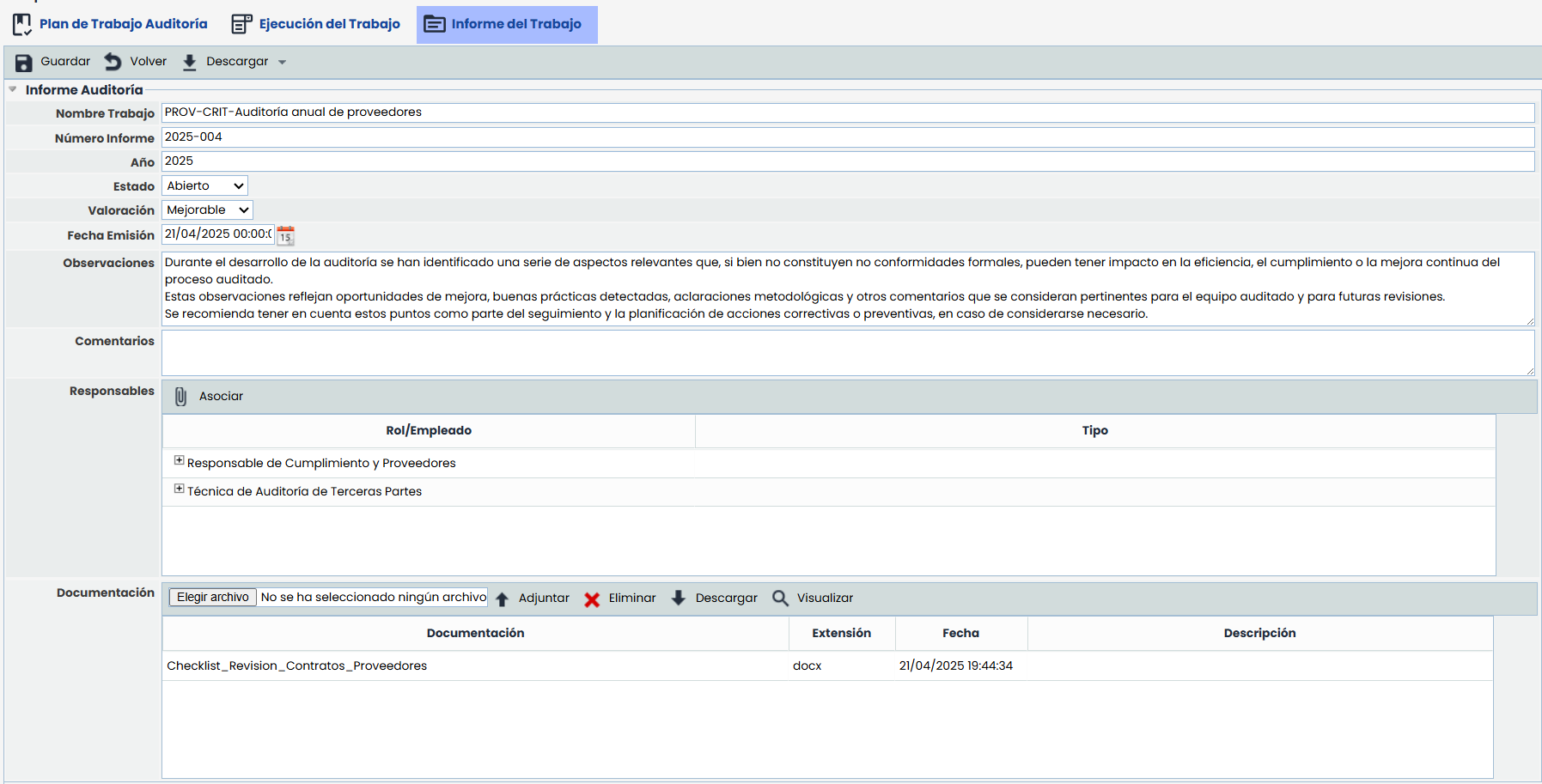
Audit Report
-
Work Name: Identifies the name of the audit work.
-
Report Number: Displays the report number, which identifies the audit work.
-
Year: Allows displaying the year to subsequently have a list of audit reports by year.
-
Status: Allows identifying the status of the work report. The possible statuses are Open, Validation, or Closed to identify each of the phases of the Audit Report.
-
Assessment: This field shows the grade or assessment of the elements audited in the work, based on the following options: Good, Acceptable, Not Rated, Needs Improvement, Poor.
-
Issue Date: This is the date on which the audit work report is generated.
-
Observations: Allows including observations and relevant data to justify the work report.
-
Comments: Enables adding any additional comments to the work report.
-
Responsible Parties: This option allows associating those responsible for preparing the Work Report, at the level of roles or specific roles and individuals. By clicking Associate, a window will open with the list of roles and employees in the system, to associate them.
Documentation
Additionally, in this section, it is possible to attach one or more documents used in the work.
-
Select File - Attach Documents are added directly by clicking the 'Select File' button and then clicking Attach.
-
Delete Similarly, to delete them, click on one of them and then click Delete.
-
Download Allows downloading the added documents.
-
View: For PDF files and images, it is possible to preview them in a pop-up window without needing to download them.
-
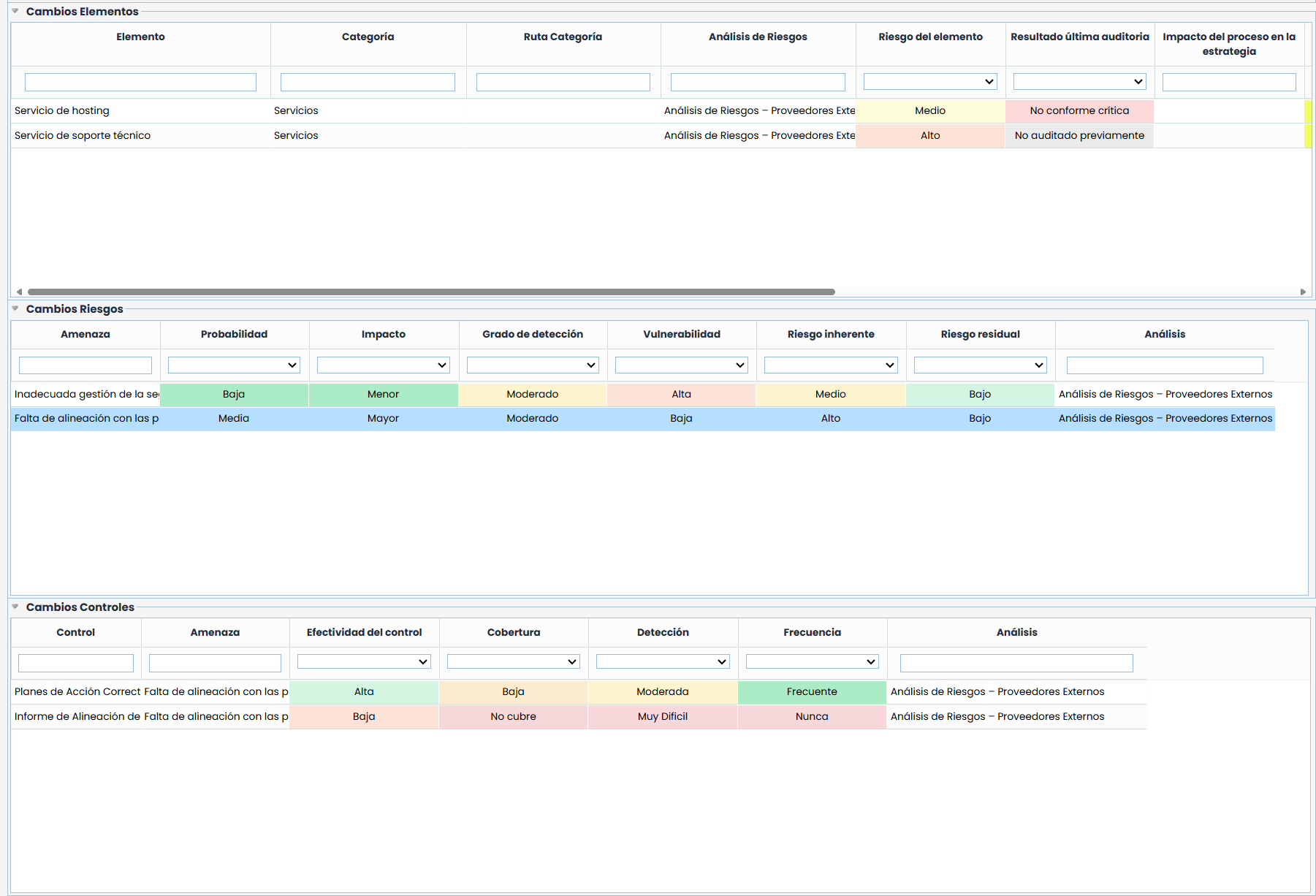
Changes
-
Element Changes: Displays a summary of the proposed changes to the elements evaluated during the audit. This section allows identifying the differences from the current inventory and recording the proposed modifications.
-
Risk Changes: Displays a summary of the proposed changes in the risk assessment, so that the differences from the risk analysis are identified and shown in the report.
-
Control Changes: Allows identifying the proposed changes in the controls applied to those risks.
-
Tickets: Displays the tickets registered during the execution phase, as well as allowing new ones to be created during the report preparation phase. This allows handling the audit work findings as Requirements or Non-Conformities within the platform itself.

-
Registered Hours
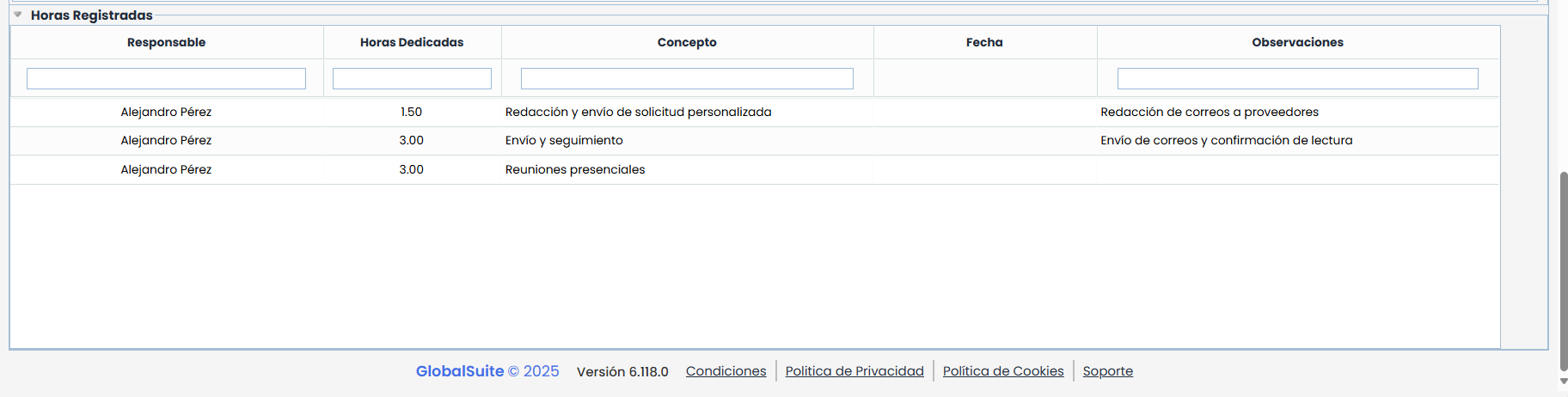
This table allows visualizing the time dedicated to the work by the different responsible parties, combining manual records and those linked to project tasks. It is an informative table, without editing actions, and it updates in real-time.
-
The included columns are:
-
Responsible
-
Dedicated Hours
-
Concept
-
Date
-
Observations
The table will display:
-
The records made manually through the Register Hours functionality, only when they have complete hours loaded.
-
The records associated with project tasks, as long as they have a responsible party and a real (complete hours) duration. In these cases, the Date column will remain empty.
Viewing permissions vary depending on the type of user:
-
The Platform Administrator, Enterprise Administrator, Audit Administrator profiles, and the work responsible can see all records.
-
Other users can only see their own records.