
This tutorial explains, step by step, how to create, configure, publish, and manage Business Impact Analysis (BIA) surveys in GlobalSuite®. These surveys allow collecting key information from process owners to determine critical parameters such as MTPD, RTO, RPO, among others.
1️⃣ Create the BIA survey template
To conduct BIAs through surveys sent to various organization stakeholders, the first step is to create the survey template to be used.
You can create as many templates as needed and configure them according to the specific requirements of each BIA analysis.
-
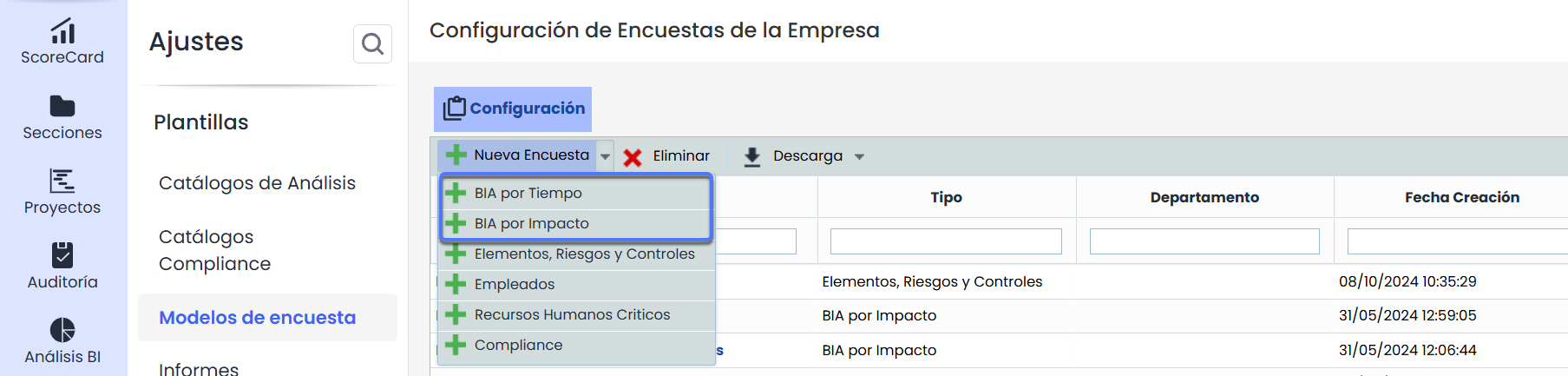
Go to Settings > Templates > Survey Templates .
-
Click the "New Survey" button.
-
Select the template type:
-
Time-based BIA: The impact will be assessed based on defined time and temporal scales.
-
Impact-based BIA: The impact will be assessed based on configured impact levels.
-
Complete the form
Once the survey template is selected, within the template, you can configure the necessary fields for the survey.
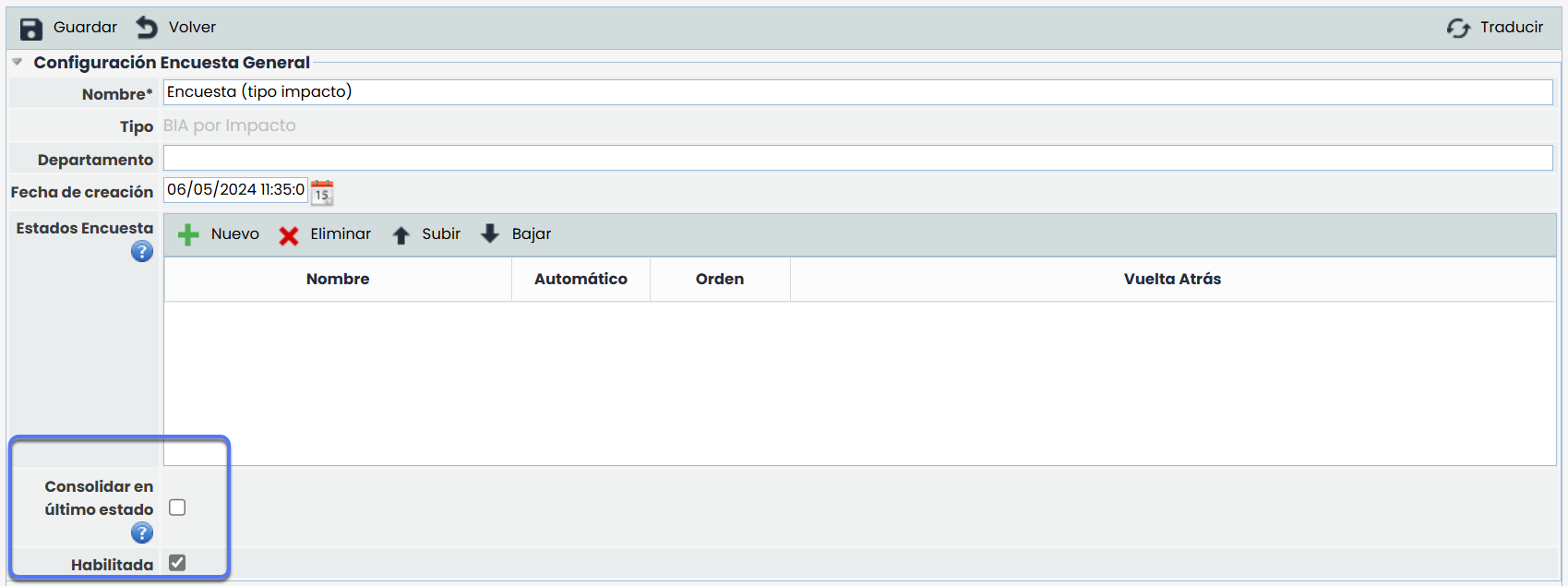
General Survey Configuration
In this section, you can define the name, department, or creation date of the template. Additionally, it will be possible to define states for the survey, determine if surveys will consolidate in the last state if they have them, or enable or disable the template using the Enabled checkbox.
BIA Information
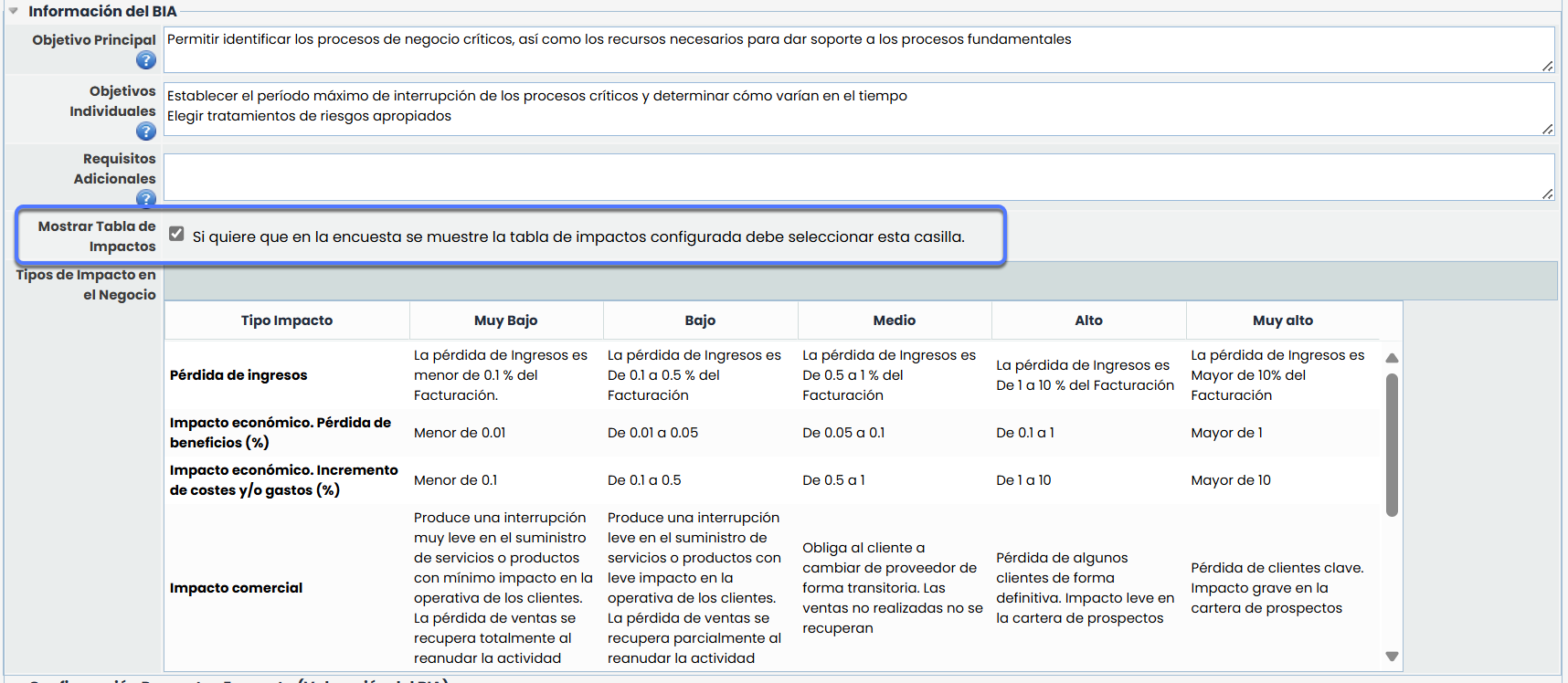
In this section, information about the objectives and requirements of the surveys will be added. This data will be informative for the people filling them out.
Additionally, there will be an option to display the impact table in the survey using the Show Impact Table checkbox. This way, the different configured impact types and their levels will be displayed in the survey.
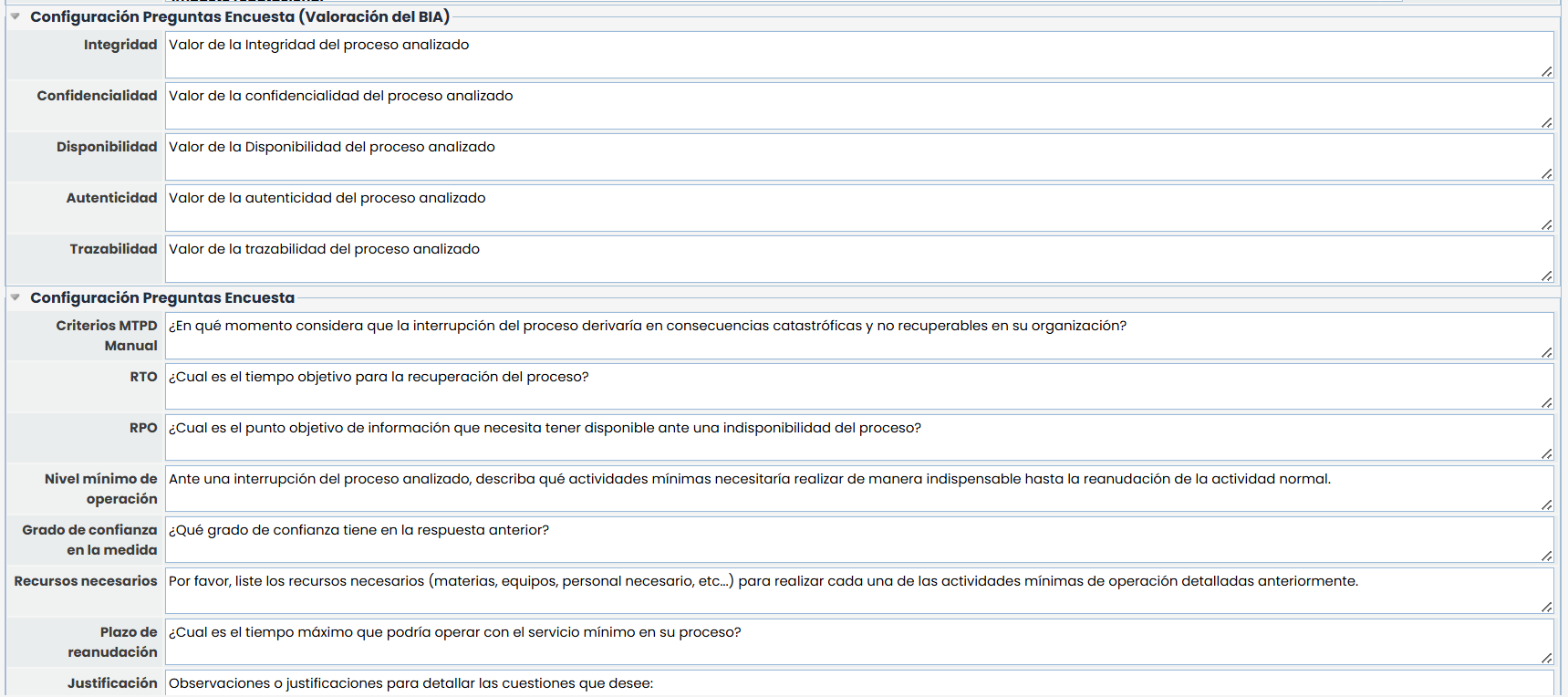
Survey Questions Configuration (BIA Assessment) and Survey Questions Configuration
It is essential to pay special attention to the dimensions of the Inventory of Items and the recovery parameters (RTO, RPO, MTPD, among others) when configuring the survey questions.
To facilitate the employee's response, it is allowed to include textual questions associated with each option, both for those related to the inventory and those specific to the BIA analysis.
Field and Question Configuration
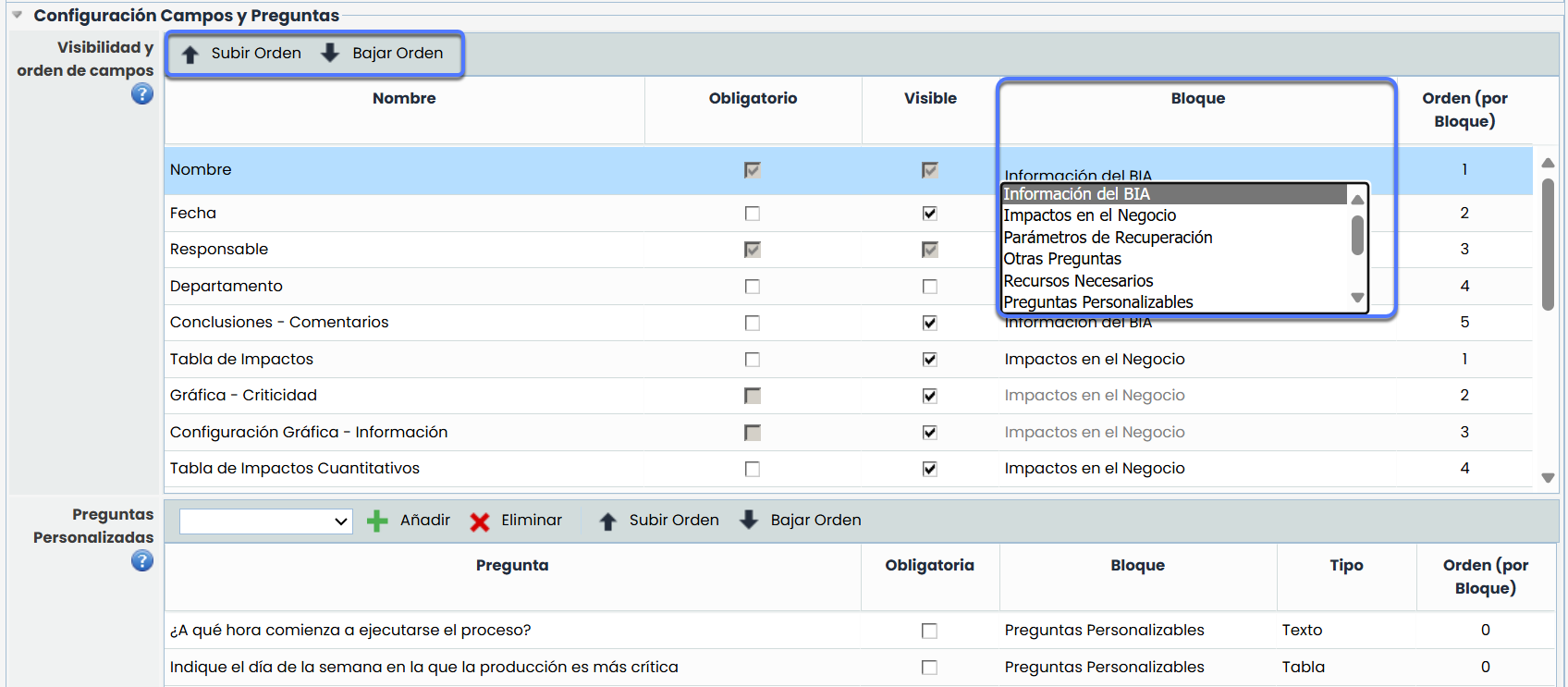
You can configure the visibility, mandatory status, and order of the fields and questions within each block by selecting the corresponding block from the Default BIA Block column in GlobalSuite. Predefined fields and blocks are not editable, although they can be hidden by checking or unchecking the Visible checkbox.
Additionally, in the section Settings > Business Continuity > BIAs , it will be possible to add, delete, and order the customizable questions configured within each BIA block.
Attachments
Documents can be added that will be available on the survey's landing page, in the Additional Information section.
Additionally, these documents will also be available from the survey, in the Attachments section, where they can be downloaded at any time by the recipient.
Note
This action can also be performed from the Survey Configuration section. (Step 2)
2️⃣ Configure the BIA survey
Once the survey template is created and configured, the next step will be to select the business process to be evaluated.
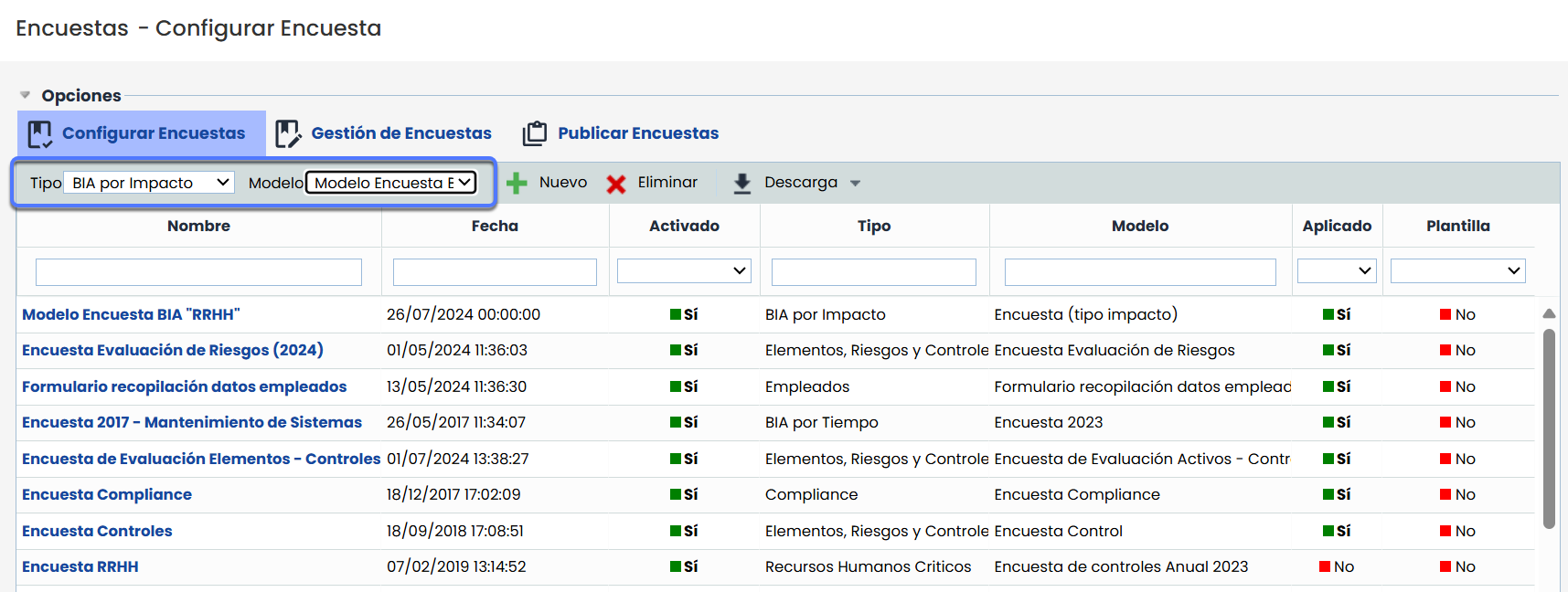
On the main screen, all existing configurations will be displayed, including relevant information such as the survey type, the templates used, and other associated data.
Additionally, in the Enabled column, you can check if each configuration is enabled to proceed with the sending process.
-
Go to Management > Surveys > Configure Surveys .
-
Filter by survey type and select the template.
-
Click "New" to start the configuration.
Complete the form
Once you access the configuration form, you will find different sections that allow you to customize the content and scope of the BIA survey.
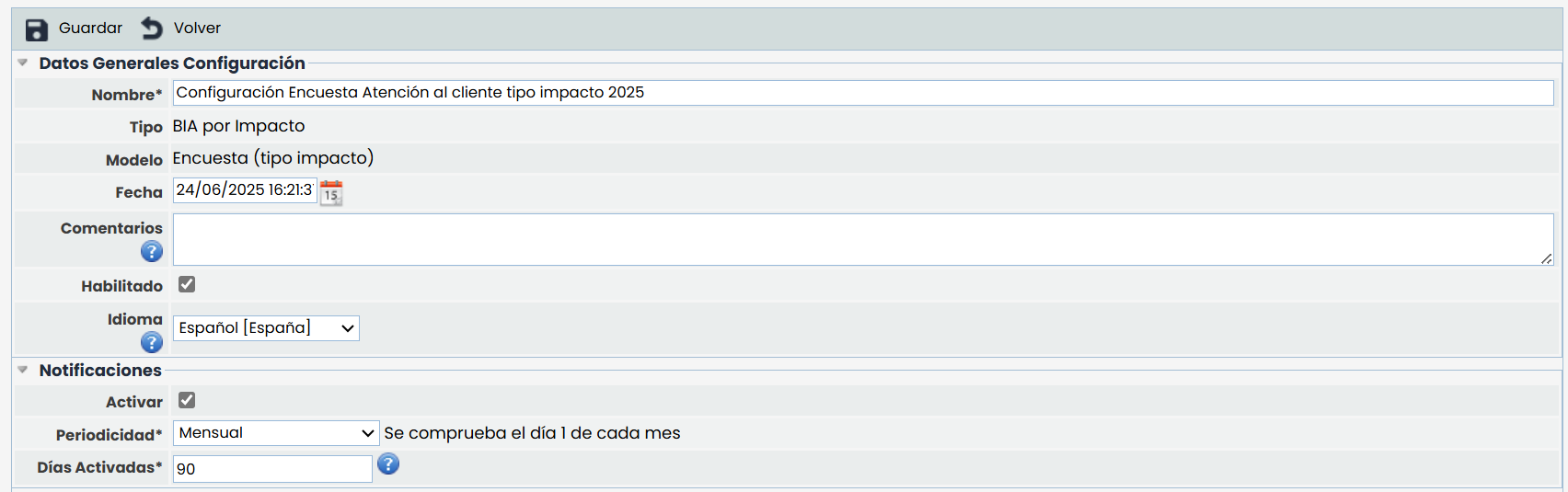
General Data
In this section, you can edit basic information such as:
-
The configuration name.
-
The creation or reference date.
-
Enable or disable the configuration for use in subsequent steps.
-
Select the language in which the surveys will be sent.
-
Enable notifications.
BIA Configuration
Here you must select the business process you want to include in the survey. The form will display a list of processes defined in the organization, from which you can choose the appropriate one.
Additionally, you will have the option to add subprocesses related to the selected business process. This will allow individual surveys to be published later for each associated subprocess.

Attachments
Documents can be added that will be available on the survey's landing page. They will also be available from the survey in the “Attachments” section.
3️⃣ Publish the BIA survey
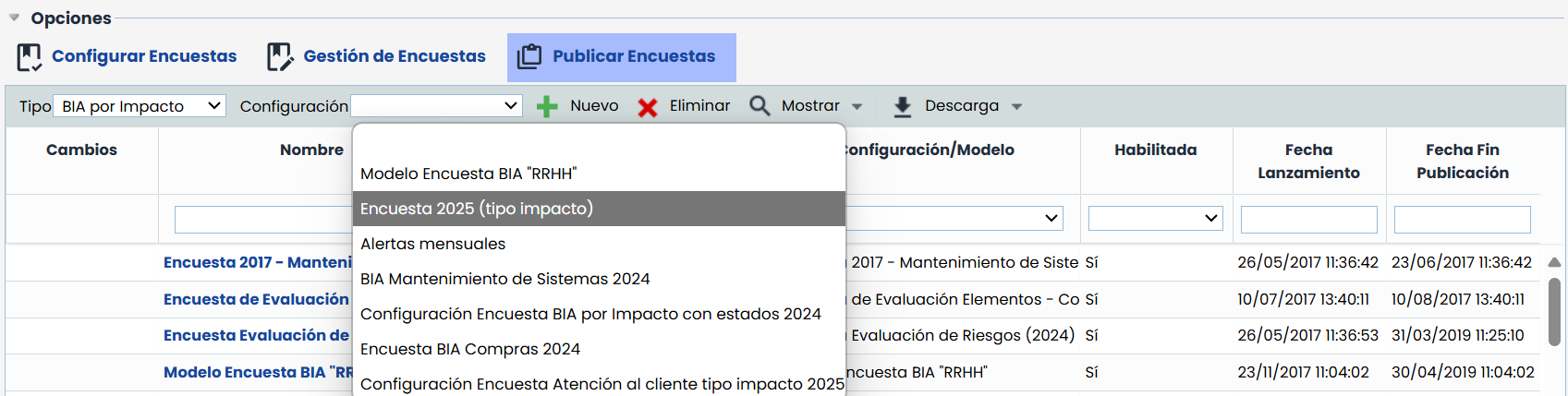
To send the survey to recipients, go to the Publish Surveys option, where you can configure the publication process.
As in the configuration step, you must select the survey type and the corresponding template, and then click the “New” button to start a new publication.
In this section, you can also download the information displayed on the screen in Excel or PDF format from the “ Download” button.
Complete the form
Once a new publication is created, the form must be completed with the key data to manage the survey's sending.
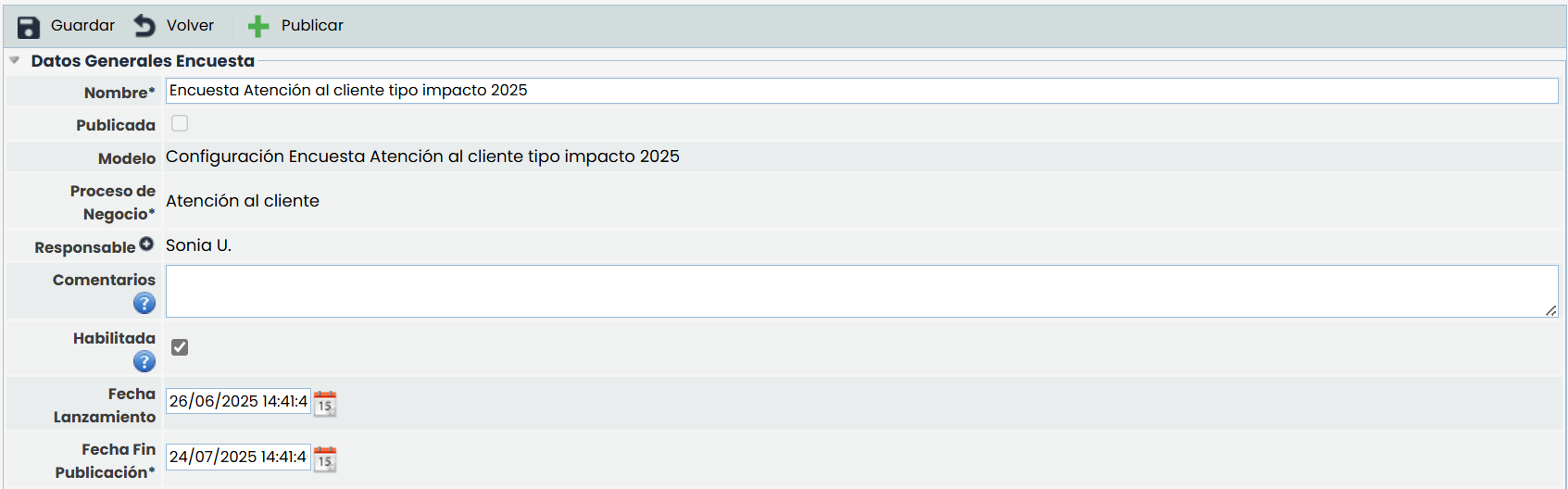
General Survey Data
In this section, you can define the main attributes of the sending:
-
Responsible: Person in charge of managing the survey and receiving the recipients' responses.
-
Closing Date: Deadline for users to complete the survey.
-
Enabled: This field must be activated for the survey to be available and sent.
Notifications
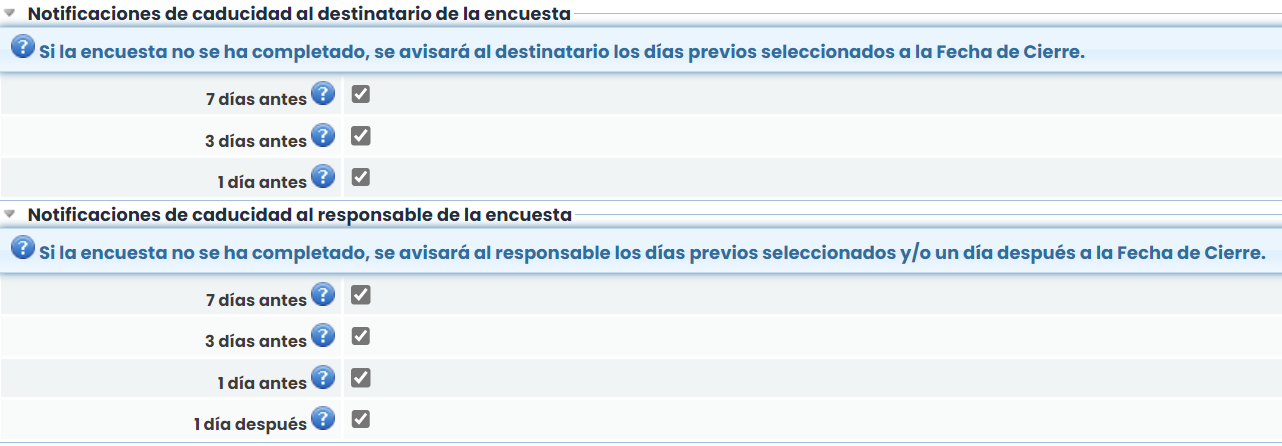
During the survey's publication, it is possible to configure different types of automatic notifications to facilitate the follow-up and participation of those involved. There are two main types: Expiration notifications to the recipient and Expiration notifications to the responsible.
Associated Recipients
Once the previous fields are completed, the next step is to select the recipients of the survey. These individuals will receive an email with a direct link to access the survey.
To access the link, recipients will not need to have a user account in GlobalSuite®.
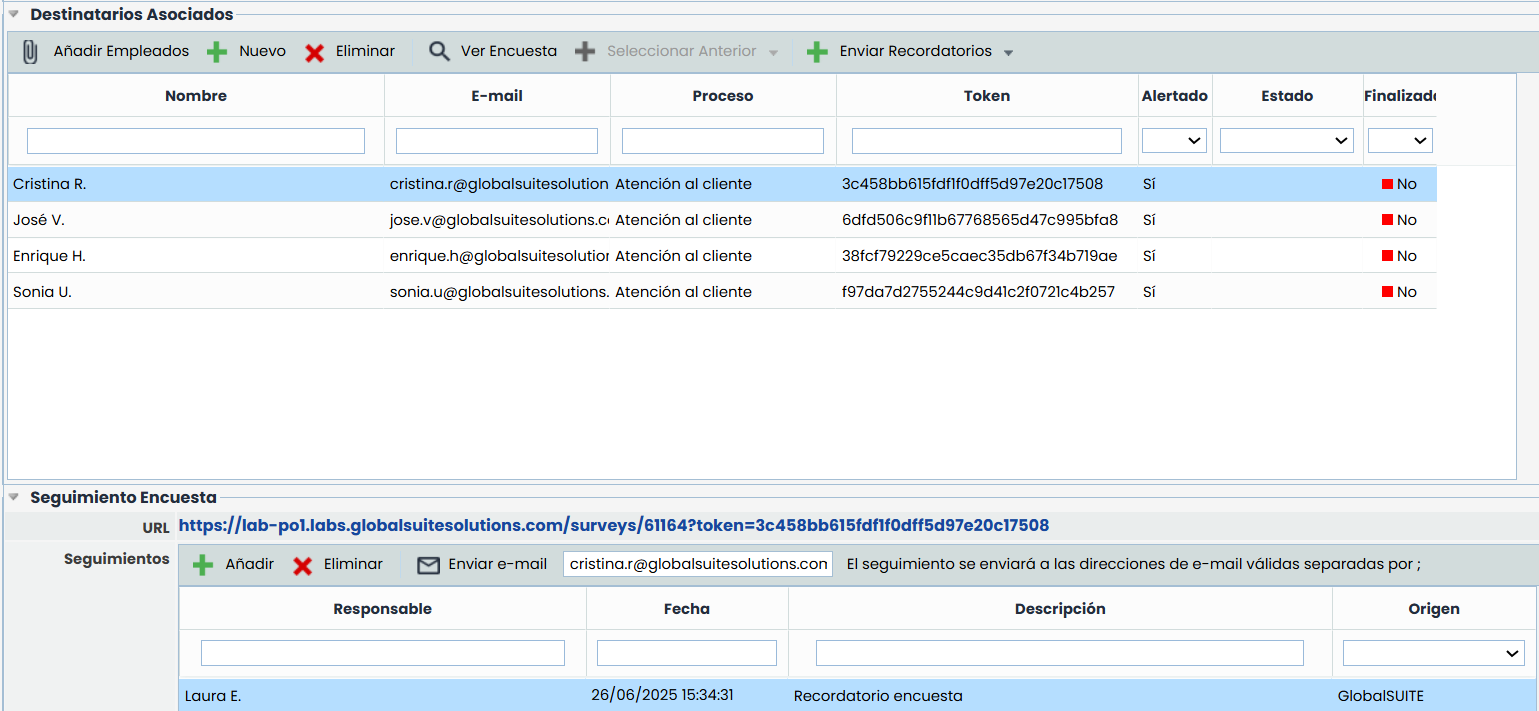
To add recipients, you can:
-
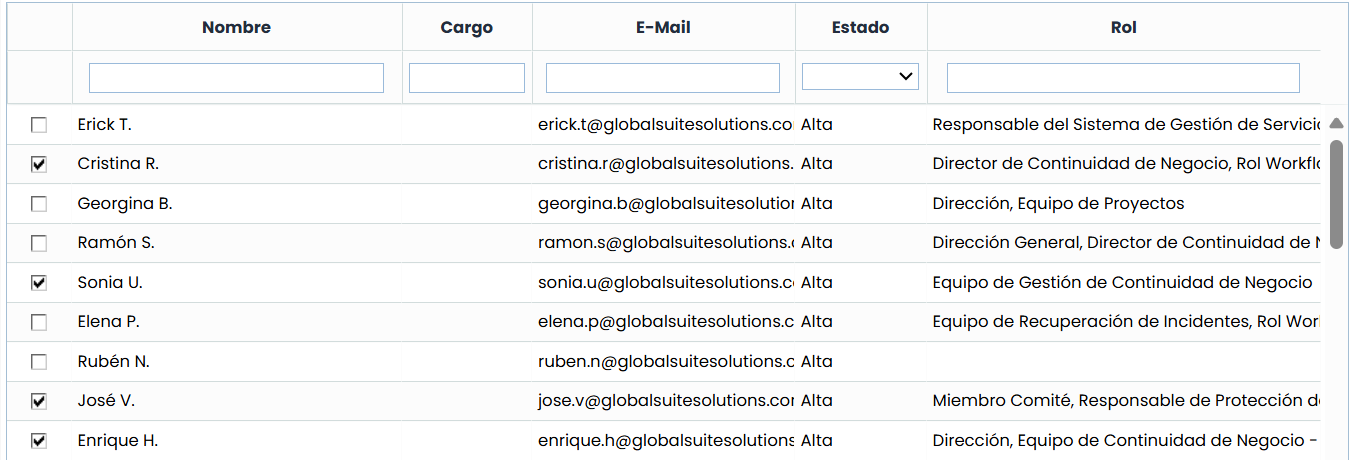
Select an existing employee using the “Add Employee” button.
-
Create a new recipient with the “New” button. Manually enter the data. Check the option to create the employee in the system if needed.
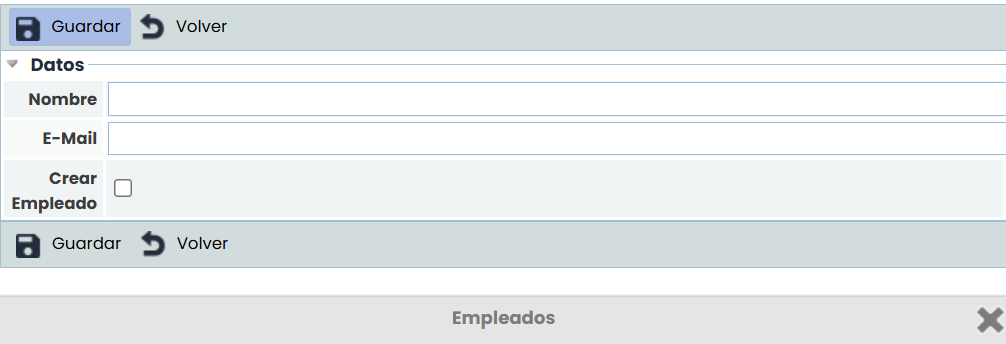
Additionally, from the recipient table, it will be possible to:
-
Send reminders via email to recipients using the “Send Reminder” button.
-
Retrieve recipients from a previous survey using the “Select Previous” button.
Publish
Once the publication is configured and the recipients are defined, it will be necessary to click the “Publish” button.
By doing so, GlobalSuite® will automatically send an email to each recipient with the direct link to complete the survey.
Additionally:
-
By selecting a recipient from the publication screen, you can view the specific link they received, allowing the responsible person to directly access the survey if necessary.
-
At the bottom of the screen, a tracking table will be displayed, where it is possible to check the status of each sending (e.g., if the survey has been opened or completed by the recipient).
4️⃣ Manage BIA surveys
This option allows you to consult and manage all surveys generated from the publication made in the previous step.
-
When a survey is published, the system automatically creates an individual record for each recipient, so this section will display as many records as there were sendings.
Additionally, from this same option, it is also possible to:
-
Create surveys manually, without the need to have published them previously.
The creation process is similar to the one used in the previous steps.
-
Access each survey to consult or edit the data saved so far by the recipient.
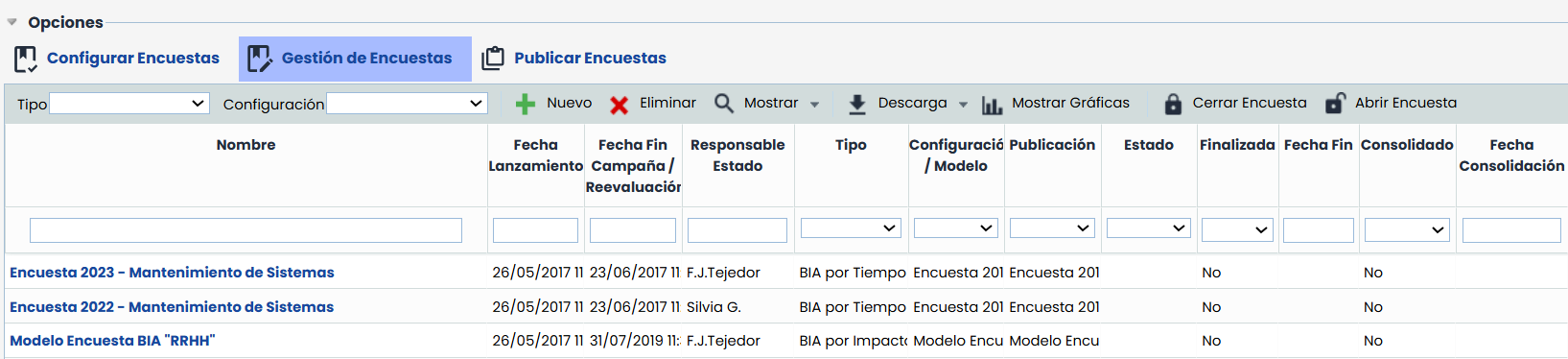
5️⃣ Create/Modify BIA
Once the survey has been answered, either after its publication or through its manual creation from the Survey Management option, it is possible to create or modify the BIA with the collected data.
To do this:
-
Access the survey record from which you want to create or modify the BIA.
-
In the top toolbar, one of the following buttons will be displayed:
-
“Create BIA”, if the survey does not have an associated BIA.
-
“Modify BIA”, if the survey has an associated BIA.
-
By clicking the corresponding button, a new BIA associated with the survey will be created or the existing one will be updated, incorporating the information collected in the survey.
