
The Audit option allows you to set the schedule for audits to be performed, all those that have been carried out, as well as establish all the points of the Management System that will be audited and the report generated from the audit.
On the main screen of the Audit option, the audits that are approved and planned are displayed by default, while closed ones do not appear. To view them, you need to click the "Show" button and select "All".

In addition to identifying the audits mentioned above, it also provides a series of options identified below:
-
Controls: In this dropdown, all the management systems maintained with GlobalSuite will appear. This allows for the automatic determination of all the milestones required for compliance with the standard on which the audit is conducted.
-
New: Allows you to create a new audit to define all the necessary information for each of them.
-
Delete: Allows you to delete defined audit plans.
-
Generate reports: This option generates a report in Word format, where the information defined in the Planning tab, as well as the data corresponding to the audited company and the audit data, will be established.
Within each of the audits generated in this option, there are 3 different tabs: Planning, Controls, and Audit Report, which allow managing any information derived from the audit in question.
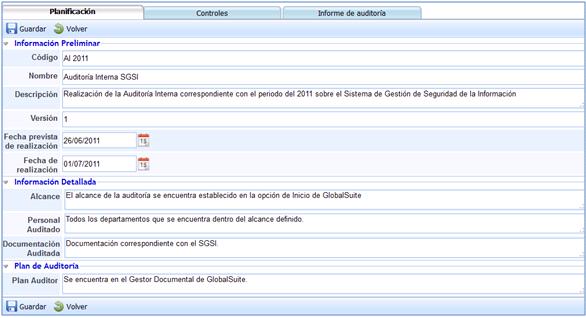
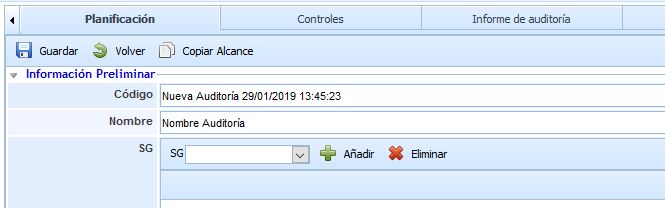
In the Planning tab, a new button has been included in the menu:
-
Copy scope: Its function is to copy the information that has been modified in the "Scope" field of this tab to the same field in the "Audit Report" tab.
Within the Planning tab, the following options are presented, organized by sections:
Preliminary Information
-
Code: Allows you to establish the coding that determines which audit corresponds to the one defined in this option.
-
Name: Allows you to assign a specific name to the audit in question.
-
Description: Allows you to define any additional information deemed necessary to determine the audit.
-
Version: Allows you to establish the version of the information defined in the audit.
-
Planned date of execution: The date on which the corresponding audit is expected to be carried out.
-
Execution date: Allows you to set the execution date.
Detailed Information
-
Scope: Allows you to determine the scope to be audited of the corresponding standard.
-
Audited personnel: Allows you to establish which departments and personnel will be audited.
-
Audited documentation: Allows you to determine or reference all the necessary documentation to be considered for conducting the audit.
Audit Plan
This field allows you to determine either the name of the audit plan or its location.
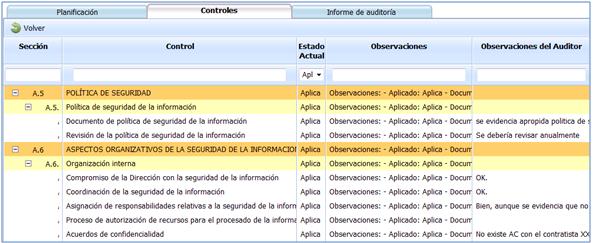
Within the Controls tab, all those controls or milestones that represent the criteria that must be met to demonstrate compliance with the standard being audited will appear.
All controls appear automatically, depending on the Management System selected when generating the corresponding Audit. In the controls identified in this tab, you can make references, in the field Auditor's Observations, to all the recommendations or observations made during the audit.

The Audit Report tab allows generating the corresponding report for the conducted audit. It is structured into three different sections: Audited Company Data, Audit Data, and Evaluations. These sections allow recording all the information needed to properly generate the corresponding report for the conducted audit.
Audited Company Data
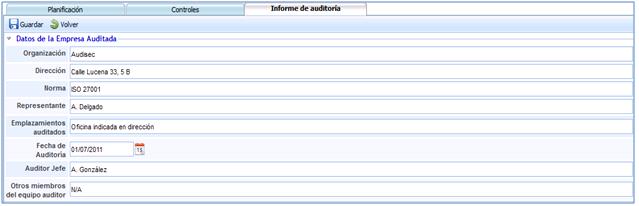
The information that can be recorded from the Audited Company Data section:
-
Organization: Allows you to establish the name of the organization to which the audit is conducted.
-
Address: Allows you to establish the address or addresses of the locations where the audit is conducted.
-
Standard: Allows you to indicate the standard on which the audit is conducted.
-
Representative: Allows you to determine who is the responsible or interlocutor of the management system being audited.
-
Audited locations: Allows you to establish all the locations where the audit is conducted.
-
Audit Date: Allows you to set the date on which the audit is conducted.
-
Lead Auditor: Establishes the auditor in charge or responsible for the conducted or to-be-conducted audit.
-
Other Members of the Audit Team: Allows you to determine if there were any other auditors participating in the conducted audit.
Audit Data
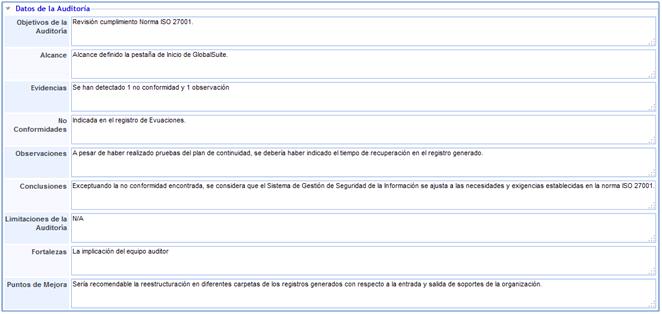
The Audit Data section allows determining both the input data, which sets the scope of the audit, as well as all the data obtained after its execution. Considering all the above, GlobalSUITE presents the following tools:
-
Audit Objectives: Allows you to establish the purpose or goal of conducting the audit.
-
Scope: Allows you to determine what will be reviewed during the audit.
-
Evidence: Allows you to summarize or list the deviations or non-compliances detected during the audit.
-
Non-Conformities: Allows you to indicate, detail, or summarize all the non-conformities, both minor and major, detected during the audit.
-
Observations: Allows you to indicate, detail, or summarize all those specific deviations detected during the audit.
-
Conclusions: Allows you to determine or establish any decisions or considerations of the auditor regarding the conducted audit.
-
Audit Limitations: Allows you to establish if there is any part of the Management System that cannot be audited or is excluded from the audit for any reason.
-
Strengths: Allows you to highlight all the strong points or noteworthy aspects evidenced during the audit.
-
Improvement Points: Allows you to record all the recommendations or improvement points made by the auditor regarding the audited management system.
Evaluations
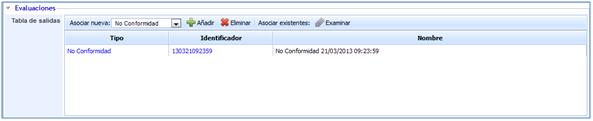
From the evaluations section, it is possible to link to the generated audit report, manage the deviations and improvements identified or detected during it.
NOTE: In the example audit used in the images, a non-conformity was detected, which has been opened from the evaluations section where it will be managed, directly linking to the GlobalSUITE Management option.
Audit Consolidation
This option allows you to view a summarized version of the different audits associated with the entity and sub-entities.
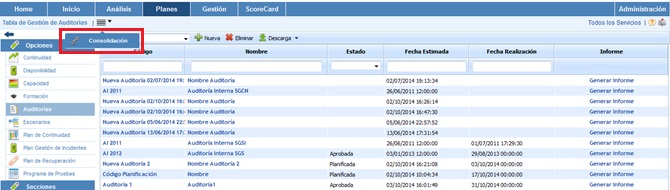
Below is the functionality provided by each of the available tables.
-
Services Table: Allows the user to filter the audits associated with the selected Services.
.jpg?cb=57612fb94f9c179aa3dbbcd3ca29e303)
-
Sub-Entities Table: Offers the possibility to filter the audits defined in the selected sub-entities.
.jpg?cb=c059dbe77c277e1dd4f2bbff5027fb9a)
-
Tag/Value Table: Allows you to view the audits associated with a specific tag.
.jpg?cb=ba30930d030225474c4a662bed08a785)
Once the necessary filters have been established, the query must be generated. To do this, the following options are available:
-
Consolidate: Once the button is clicked and based on the established filters, it allows you to view a summarized version of the compliance audits in the lower table.
-
Back: Offers the possibility to return to the initial list of audits.
The results are displayed in the lower table 'Consolidation Results'
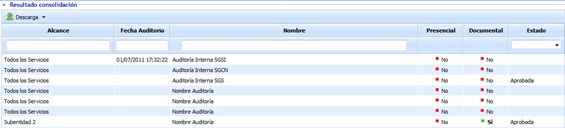
The information provided by the table is as follows:
-
Scope: Offers the possibility to view the entity or sub-entity associated with the audit.
-
Audit Date: Allows you to view the date on which the audit was conducted.
-
Name: Allows you to view the name established for the audit.
-
On-Site: Allows you to view whether the audit was conducted on-site or not.
-
Documentary: Offers the possibility to view if there is documentary evidence of the audit.
-
Status: Allows you to view whether the audit is planned, approved, completed, etc.