The 'Capacity' option in GlobalSUITE allows defining the Capacity Plans deemed necessary for the organization.
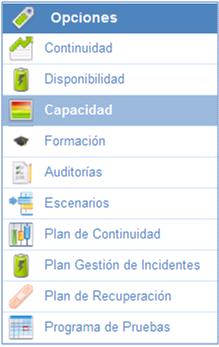
The main screen provides a list of all continuity plans generated in the solution.

Apart from the list of capacity plans, GlobalSUITE provides the following tools:
-
New: Allows generating continuity plans.
-
Delete: Allows deleting the defined continuity plans. To perform this deletion, it is necessary to select it beforehand.
-
Download: Allows downloading the list of generated continuity plans.
To access each of the defined capacity plans, simply click on the name of the one you wish to access.
General Data
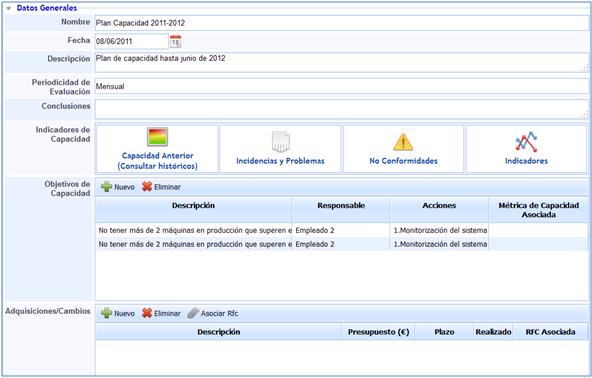
In the options provided by the general data of the capacity plan, it is possible to define all the necessary information to fully establish a capacity plan.
-
Name: Allows determining the name of the defined capacity plan.
-
Date: Allows determining the date on which the Capacity Plan is approved and put into operation.
-
Description: Allows determining any detail deemed necessary for the Capacity Plan.
-
Evaluation Periodicity: Establishes how often the Capacity Plan should be reviewed.
-
Conclusions: Allows defining any conclusion related to the Capacity Plan.
-
Capacity Indicators: The tool provides different options that allow measuring capacity through various GlobalSUITE options.

-
Previous Capacity (Consult history): Represents and provides access to capacity plans that have been previously defined through a Capacity Plan history.
-
Incidents and Issues: Automatically identifies all incidents and issues related to capacity.
-
Non-Conformities: Automatically identifies all non-conformities related to capacity.
-
Indicators: Automatically identifies all indicators that allow measuring the defined capacity objectives.
-
Capacity Objectives: Allows establishing the different objectives to be achieved regarding capacity.
Within this option, GlobalSUITE allows defining the following fields:
-
Description: Allows establishing the capacity objective to be achieved.
-
Responsible: Establishes the person in charge of managing and reviewing the fulfillment of the capacity objective.
-
Actions: Allows establishing the actions or methodology to follow to meet the defined objective.
-
Associated Capacity Metric: Defines if there is any metric that allows tracking the capacity objective.
-
Acquisitions/Changes: Determines, based on the defined objectives, all acquisitions and changes considered necessary to meet those defined objectives.
Within this option, GlobalSUITE allows defining the following fields:
-
Description: Allows establishing the definition of the actions to be carried out to meet the set capacity objective.
-
Budget: Corresponds to the associated cost of the acquisition or change to be carried out.
-
Deadline: Establishes the date by which the corresponding acquisition or change must be implemented.
-
Completed: Allows establishing whether the acquisition or change has been carried out.
-
Associated RFC: Allows associating the change record if the acquisition has been carried out.
By default, the Acquisitions/Changes field will appear empty. Acquisitions and changes appear once the proposed capacity objective has been selected. The procedure is as follows:
1. Selection of the specific objective. Once selected, it will appear in orange by default.
2. Once selected, all acquisitions and changes deemed necessary to meet the capacity objective will automatically appear.
3. There will be different acquisitions and changes depending on each of the determined capacity objectives.
-
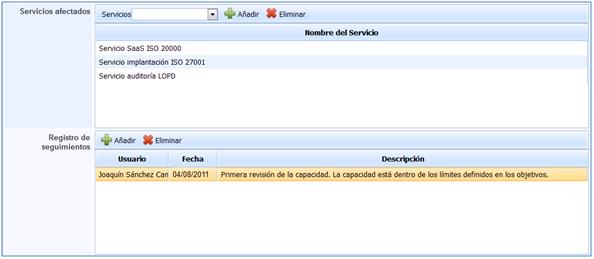
Affected Services: Allows determining the services affected in case of non-compliance with the defined capacity objectives.
As with the Acquisitions/Changes field, the affected services vary depending on the defined capacity objectives. By selecting each objective, these services can be displayed.
-
Tracking Records: Allows determining all tracking actions carried out during the period in which the plan is in effect.