
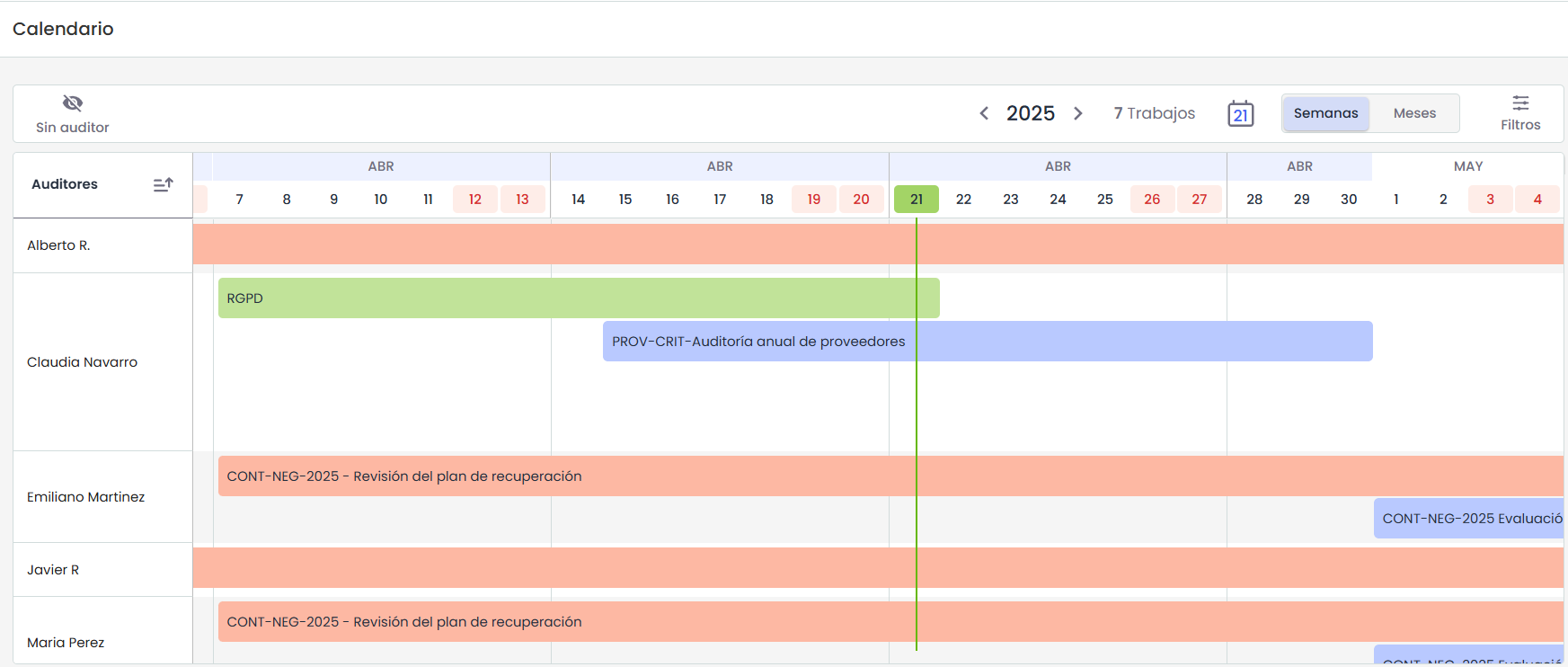
The Auditors Calendar allows a graphical visualization of the weekly planning of tasks assigned to different auditors. It is organized in a table-like view, where rows correspond to auditors and columns to the days of the week.
Calendar
When opening the calendar, the default view is set to Weeks format, where all days of the year are displayed, including weekends. The header shows the days of the week, and a visual division allows for easy identification of week and month changes, facilitating the reading of the planning.
From the toolbar, it is possible to change the scale to Months format. When selected, the view adapts to show the durations of tasks within each month, allowing for a more general visualization of the work plan.
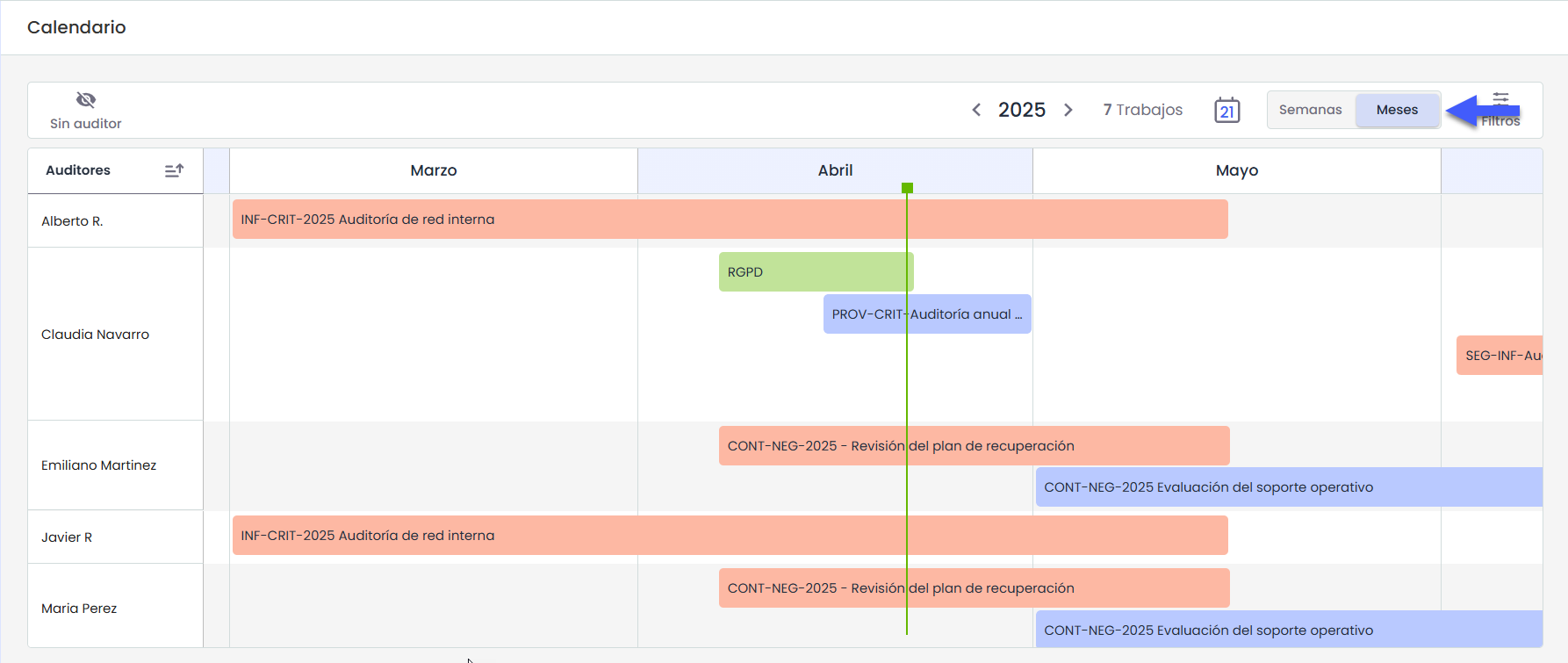
In both views, the calendar highlights the current day with a vertical green line, enabling quick identification of the current date.
Auditors
Each row of the calendar represents an auditor. Only auditors with at least one task assigned in the selected year will be displayed. If an auditor has no planned tasks during that period, they will not appear in the view.
Tasks
Tasks are visually arranged by auditor, according to their start and end dates. If a task has no end date, it will be displayed with a standard duration of one week.
When multiple tasks overlap in dates, they are organized one on top of the other, expanding the space assigned to the auditor in the calendar. In these cases, the task that starts first is always positioned above the rest.
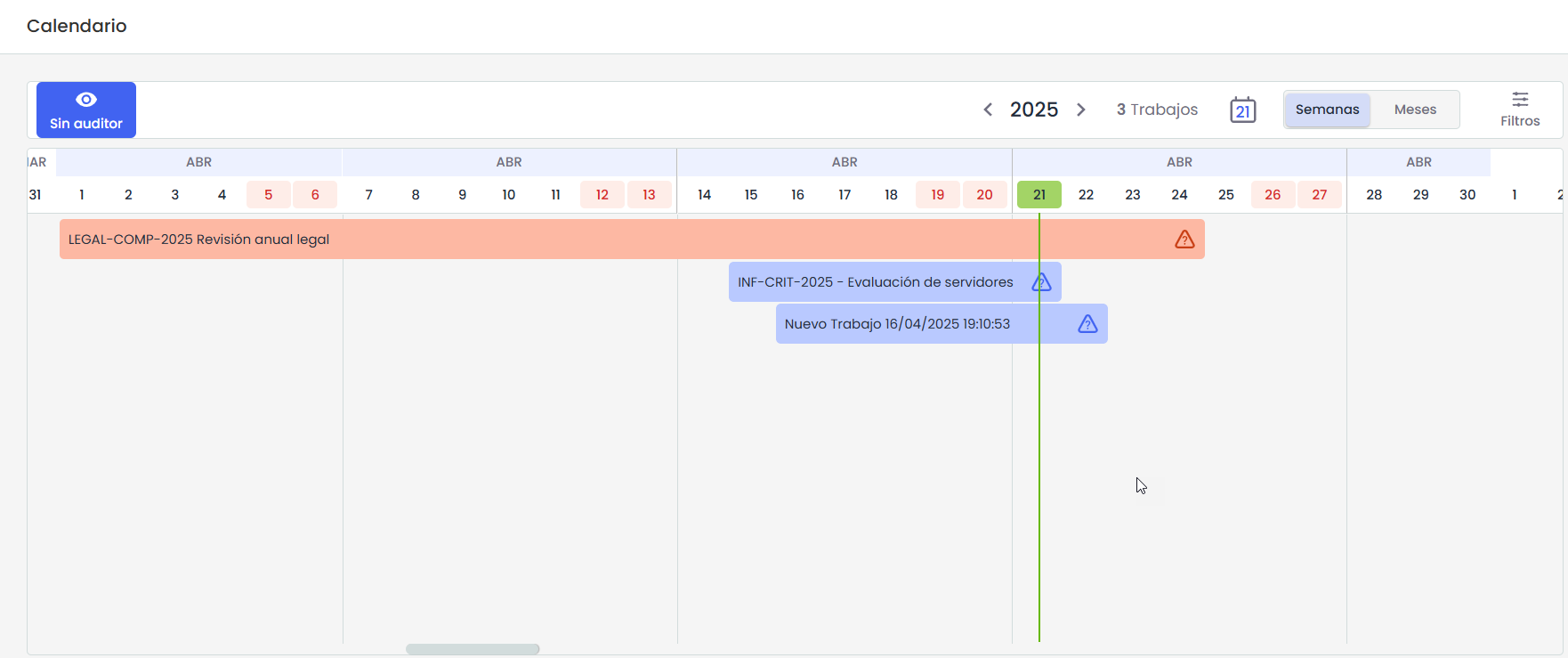
If a task has incomplete information, such as missing an end date or an assigned auditor, a warning icon will be displayed directly in the calendar view to indicate that there is pending data to complete.
Colors by status:
-
Draft: Gray
-
Open: Blue
-
In progress: Red
-
Closed: Green
Navigation
The calendar allows navigation within a full year. From the toolbar, the desired year can be selected, and the view will automatically update to show only the tasks corresponding to that period.
Within the selected year, it is possible to scroll horizontally to navigate through the different days and weeks of the calendar.
The system will only display auditors with tasks assigned in the selected year.
Task details
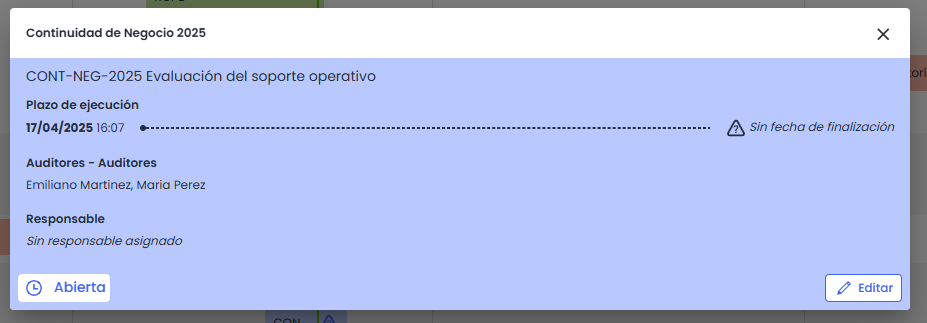
Clicking on a task in the calendar opens a pop-up with detailed information about it. This view shows the execution period, assigned auditors, and the person responsible for the task.
If the task has incomplete data, a warning icon is also displayed within the pop-up, clearly indicating which information is missing. This allows the user to quickly identify the pending fields, even from the task details.
Options:
-
“No auditor” view
The calendar includes a special view called "No auditor", which shows a single row with tasks that have not yet been assigned to any auditor. This view allows for quick identification of pending tasks and facilitates their reassignment directly from the calendar.
-
Go to today
In the toolbar, there is a calendar-shaped icon that shows the current date. Clicking on it automatically shifts the view to the current day, regardless of where you are in the calendar. -
Filters:
The calendar includes a filter bar located at the top, which allows refining the visualization of the displayed tasks according to different criteria. The currently available filters are: Auditors, Plans, Tasks, Task status
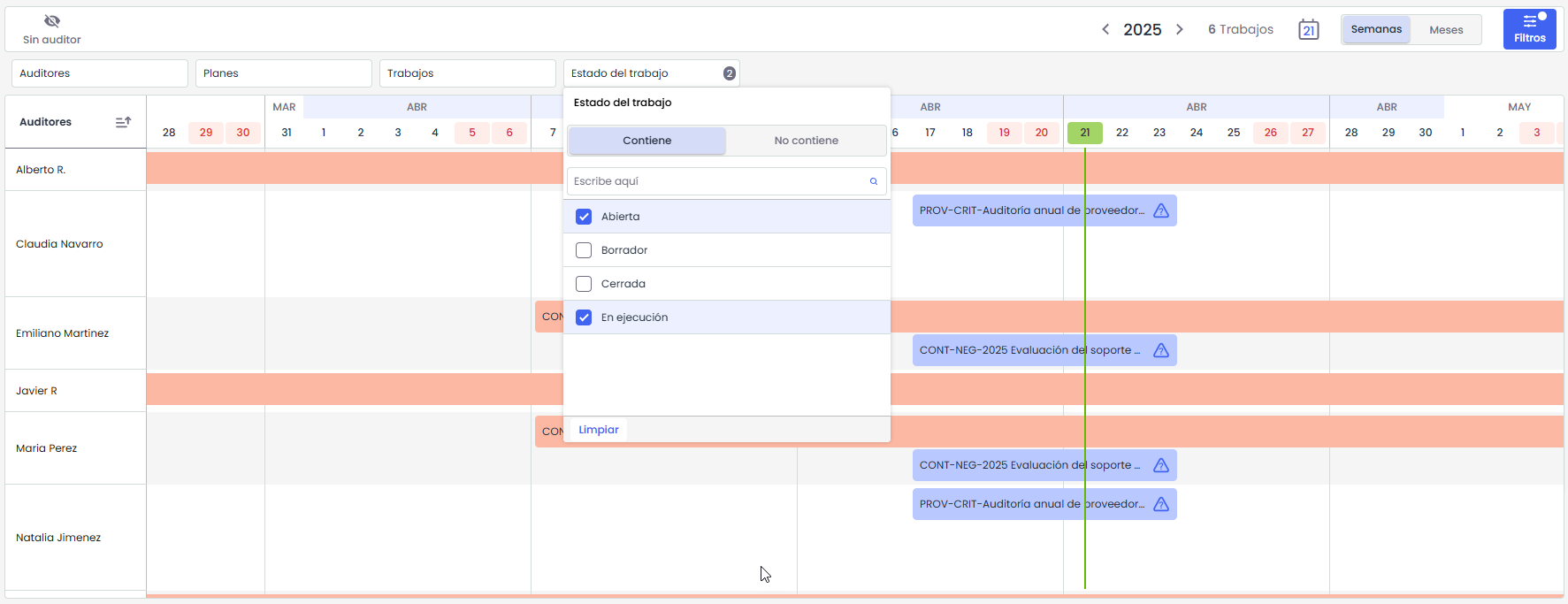
Clicking on any of the filters displays a menu where conditions such as "Contains" or "Does not contain" can be selected, along with a list of available options for that field. Each option can be individually selected using a checkbox, and a search field is also included to facilitate locating values in extensive lists.
The applied filters directly affect the calendar visualization, showing only those tasks that meet the selected criteria.