
To configure the fields, both in the main table and in the main form, go to Settings> Suppliers .
To adjust the visible dimensions, access Settings> Element Methodology
Main Table
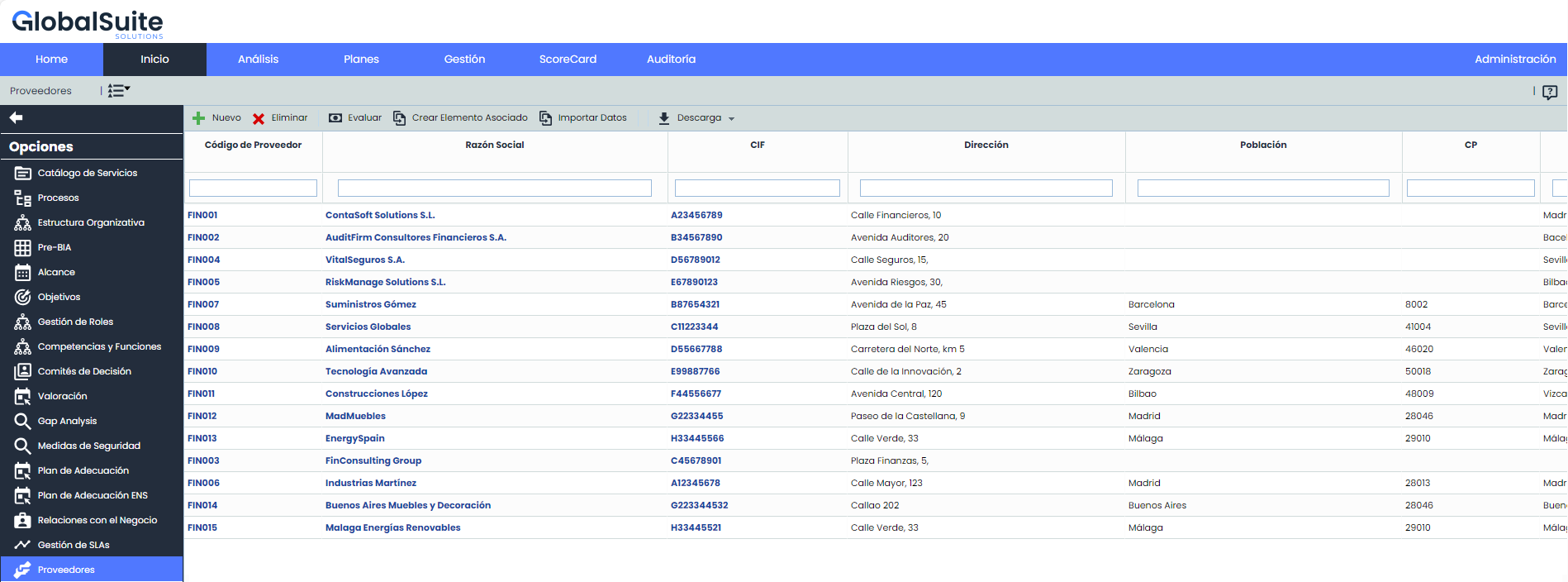
The 'Suppliers' option allows the platform user to have a database with all the necessary suppliers for the provision of services involved within the scope.
On the initial screen, you can see the list of stored suppliers. The options provided by the tool are as follows:
-
New: Allows you to create a new supplier.
-
Delete: Allows you to delete an existing supplier. To do this, select the desired row and click the 'Delete' button.
-
Evaluate: Allows you to perform an evaluation of the supplier.
-
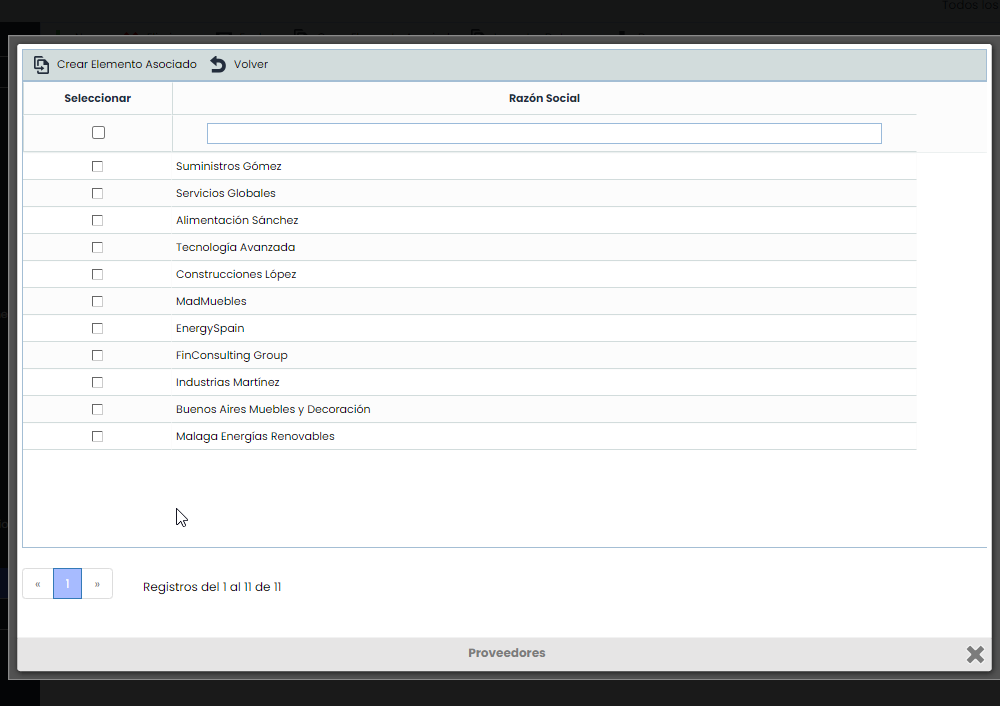
Create Associated Element: This option allows you to create an element associated with the suppliers.
Form
When you click on the option, a pop-up window will appear where you can select one or more suppliers to create an associated element for them.
-
Import Data: The software allows importing supplier databases in CSV format. The required data are Code, Tax ID, Company Name, City, Province, Country, Comment. These data are the same as those specified in the form. Once the file is prepared, it must be selected through the 'Browse' option and the separation method indicated.
-
Download: Allows downloading the supplier list in editable format (.xlsx) or in PDF format.
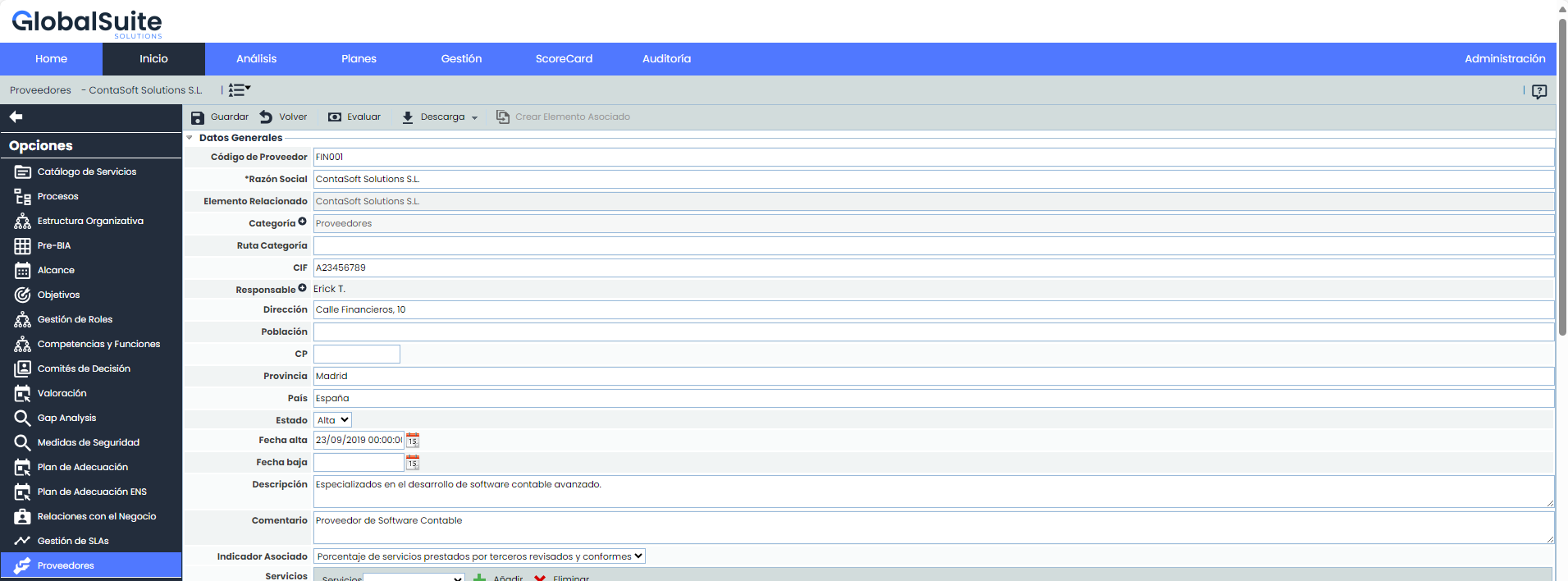
Once you have accessed the supplier's record, the tool allows you to perform the following actions:
-
Save: Allows you to save the changes made in the form.
-
Back: The tool returns to the previous screen with the supplier list.
-
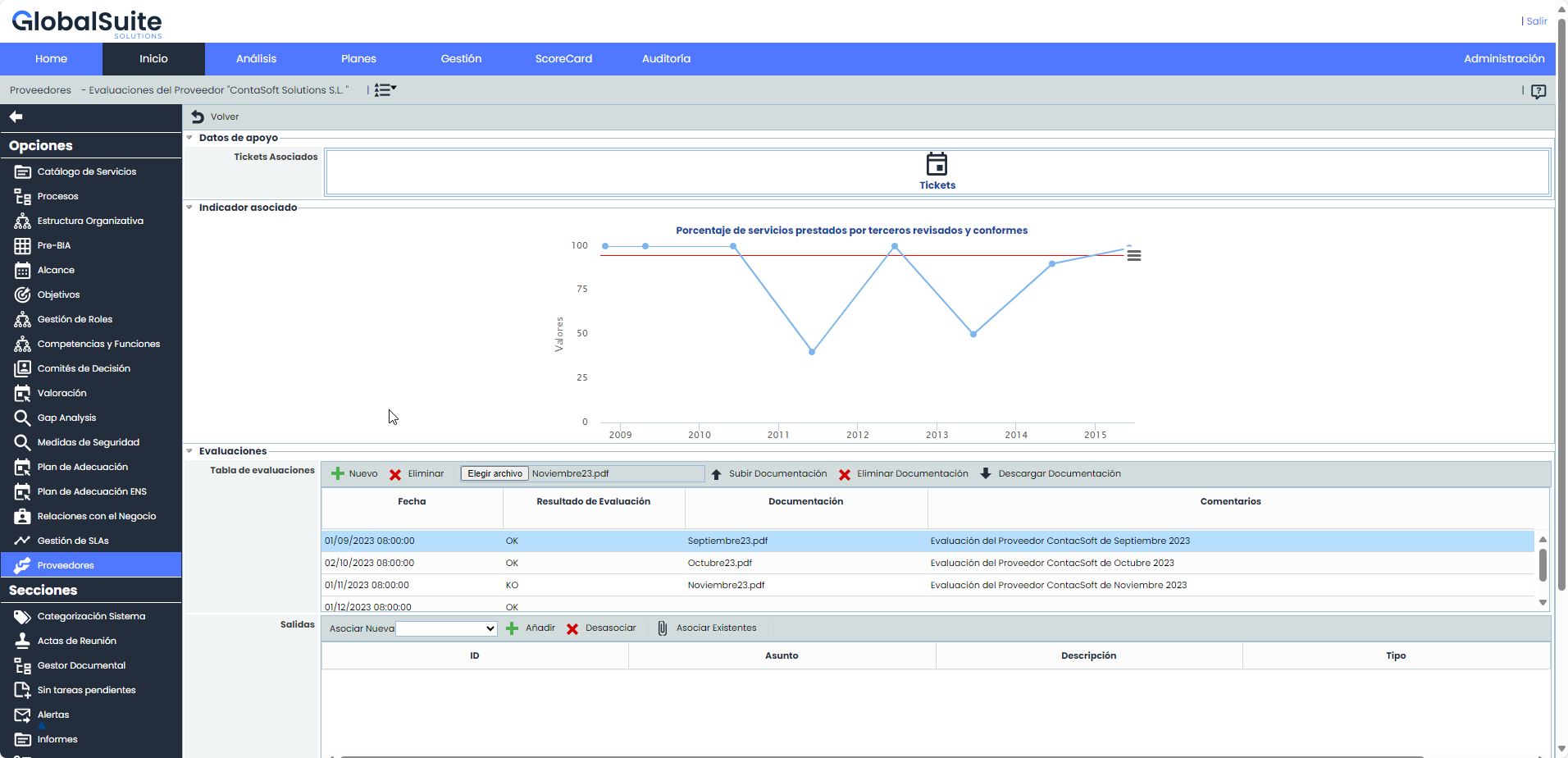
Evaluate: Allows you to perform an evaluation of the supplier. Once you have accessed the form, you can define the following parameters:
-
Incidents, Problems, and Non-Conformities: This section allows you to view the Incidents, Problems, and Non-Conformities related to the suppliers.
-
''Associated Indicator: Displays the indicator associated with performing a better evaluation of the supplier.
-
Evaluation Table: Allows you to establish different evaluations of the supplier. To do this, click the 'New' button, which generates a row that allows you to define the evaluation result. Evaluations can be removed from the list by selecting the desired row and clicking the 'Delete' button. Additionally, you can associate documentation ('Upload Documentation') that justifies the evaluation and make a comment about it.
-
Output Table: If the evaluation results are not as expected by the user, the 'Outputs' field allows opening different tickets (incident, corrective action, etc.) to manage the supplier's compliance.
-
-
Download: Allows downloading the supplier list in editable format (.xlsx) or in PDF format.
The supplier form allows you to define the following fields:
-
General data such as the Supplier Code, Tax ID (Tax Identification Code), Company Name, Address, City, Postal Code, Province, Country, and Description.
-
Status: Allows you to indicate whether the supplier is active and therefore their support is needed for the provision of services; or if they are inactive and no longer relied upon.
-
Comment: Text field that allows you to indicate any additional notes related to the supplier.
-
Associated Indicator: Allows associating an indicator generated in the 'ScoreCard/Indicators' section.
-
Contracts with the supplier: Offers the possibility to indicate the contracts established with the supplier. To do this, click the 'New' button and complete the columns for Product/Service, Contract Start, Contract End, and the medium in which it is generated. If you want to delete an entry, select the desired row(s) and click the 'Delete' button.
-
Affected Services: Allows identifying the services in the catalog that depend on the supplier for their proper development. To do this, select the service from the dropdown and click the 'Add' button. If you want to delete an associated service, select the desired row(s) and click the 'Delete' button.
-
Contacts/Interlocutors: Allows identifying both the people in the organization responsible for the relationship with the supplier and the supplier's interlocutors. To insert a new interlocutor, simply click the 'New' button, and a row will be generated where you can define the following fields:
-
Name: Identifies the contact's first and/or last name.
-
Position: Identifies the position held by the contact in the organization.
-
Phone: You can indicate their contact number.
-
E-mail: Allows you to indicate the personal email of the contact.
-
Comment: Text field that allows indicating any additional notes related to the contact.
-
-
SLAs associated with the supplier: Associating an SLA with a supplier provides access to its description form.
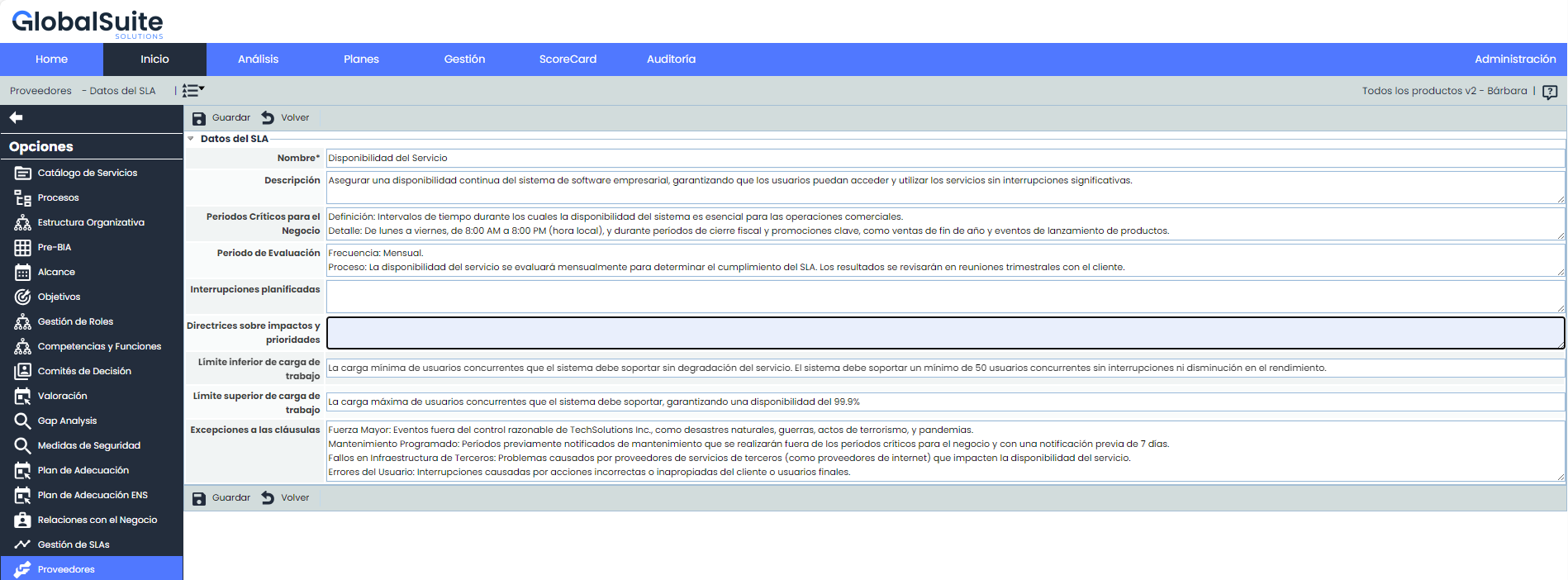
The fields that can be defined are as follows:
-
Name: Refers to a descriptive name of the SLA.
-
Description: Allows detailing and providing a broader description of the SLA.
-
Critical Periods for the Business: Allows indicating if, due to the nature of the service, there is a more sensitive time period where SLA compliance may be affected.
-
Evaluation Period: Allows establishing the period in which the supplier's SLA should be evaluated.
-
Planned Interruptions: Allows indicating if there is any planned interruption in the service that should not be considered in the SLA evaluation.
-
Guidelines on Impacts and Priorities: Allows defining if there are priorities when taking actions to reduce the impact of SLA non-compliance.
-
Lower Workload Limit: Refers to the lower value obtained from the calculation of the acceptable service level for the SLA to be correct.
-
Upper Workload Limit: Refers to the upper value obtained from the calculation of the acceptable service level for the SLA to be correct.
-
Exceptions to Clauses: Existing exceptions within the SLA agreed upon with the client.
-
Upload Contracts/SLA: This field allows uploading any file related to supplier management, such as the contractual agreement, confidentiality clauses, etc.
-
Follow-up Records: Allows recording different follow-up actions regarding the supplier by clicking the 'Add' button. If you want to delete a follow-up action, select the desired row(s) and click the 'Delete' button.
Dimension Assessment
This section of the form allows assessing the supplier in the dimensions configured for the asset inventory.

The dimensions that appear are configurable in 'Settings - Analysis Methodologies - General Configuration'. You can indicate which dimensions are visible and which are not. If no dimension is visible, this section does not appear in the supplier's form.
Supplier Propagation
This option allows propagating the suppliers defined in the parent company to the sub-entities that depend on it.
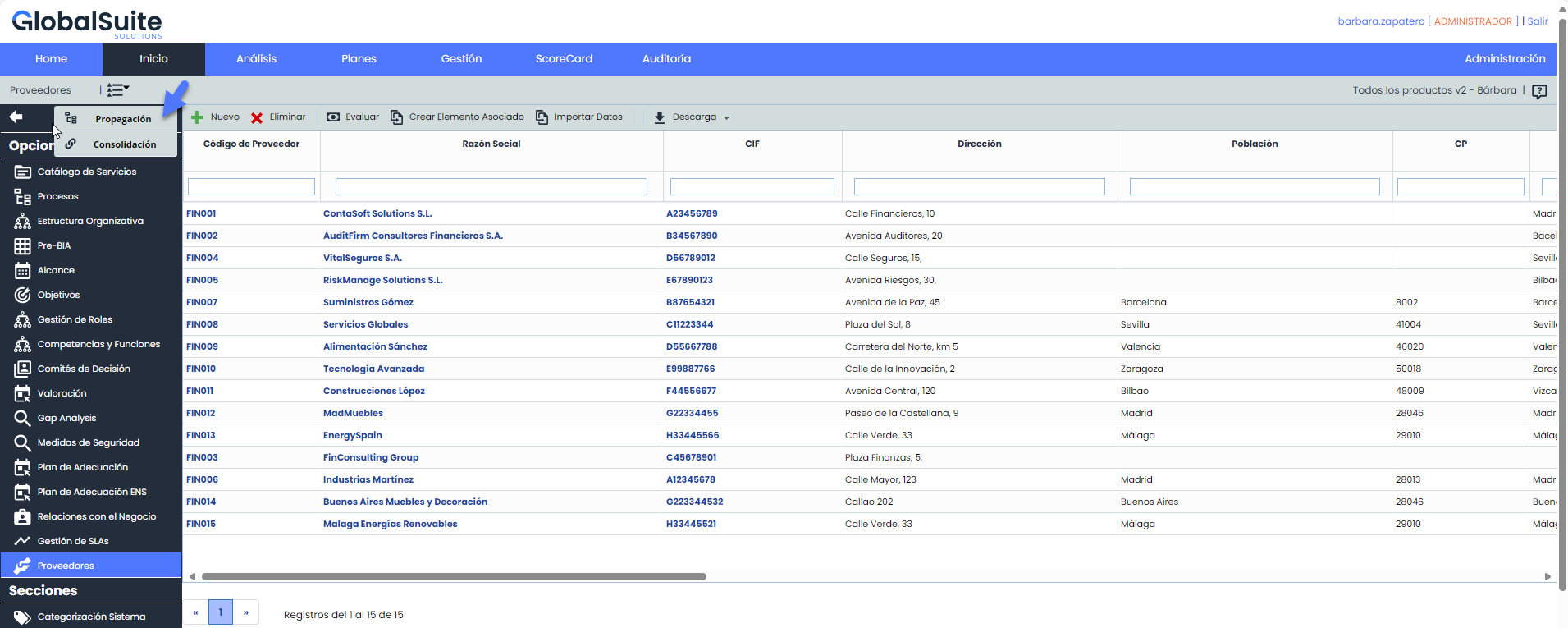
Once the option is accessed, the following tables are displayed:
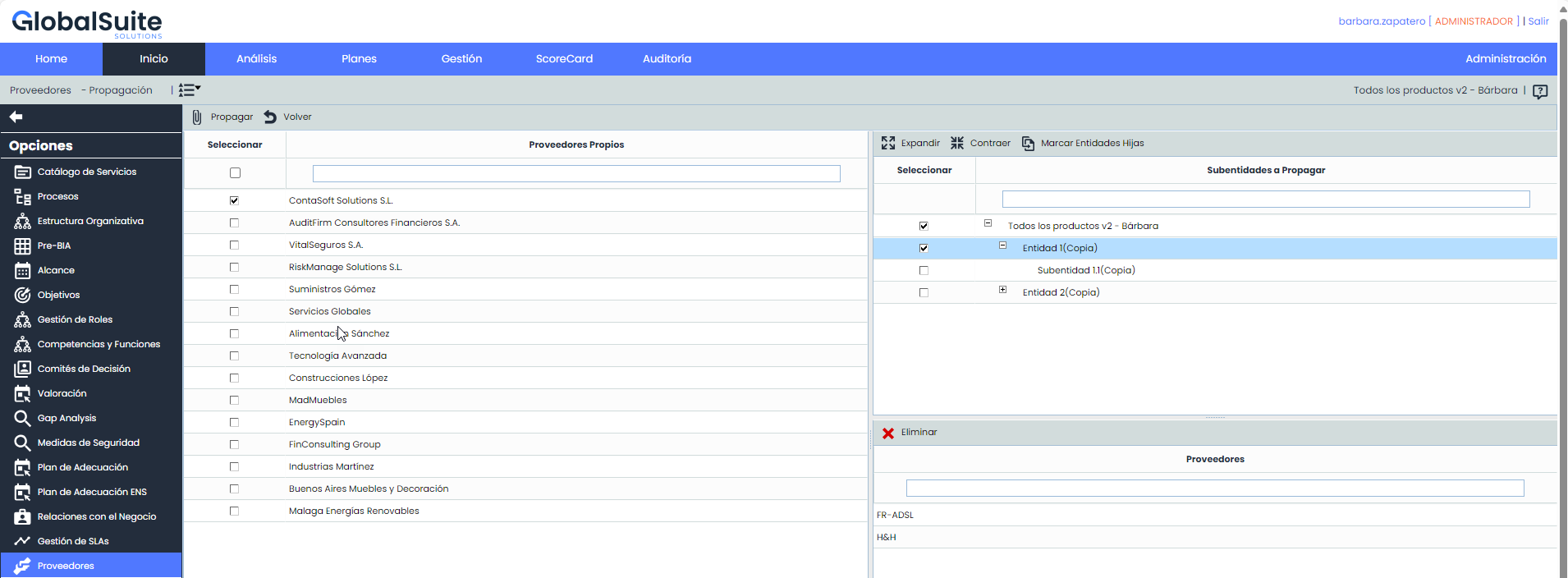
Left Table: Displays the list of suppliers defined in the parent company. The options provided by the table are:
-
Propagate: Once the desired suppliers are selected, it allows propagating them to the selected sub-entities.
-
Back: Offers the possibility to return to the initial supplier screen.
Top Right Table: Displays the list of sub-entities to which suppliers from the parent company can be associated. The table options include expanding or collapsing the list of sub-entities.
Bottom Right Table: Once the sub-entity is selected in the top table, it shows the suppliers associated with it. The tool offers the possibility to delete an associated supplier; to do this, select the desired row and click the 'Delete' button.
Supplier Consolidation
This option allows summarizing the different suppliers associated with the entity and sub-entities.
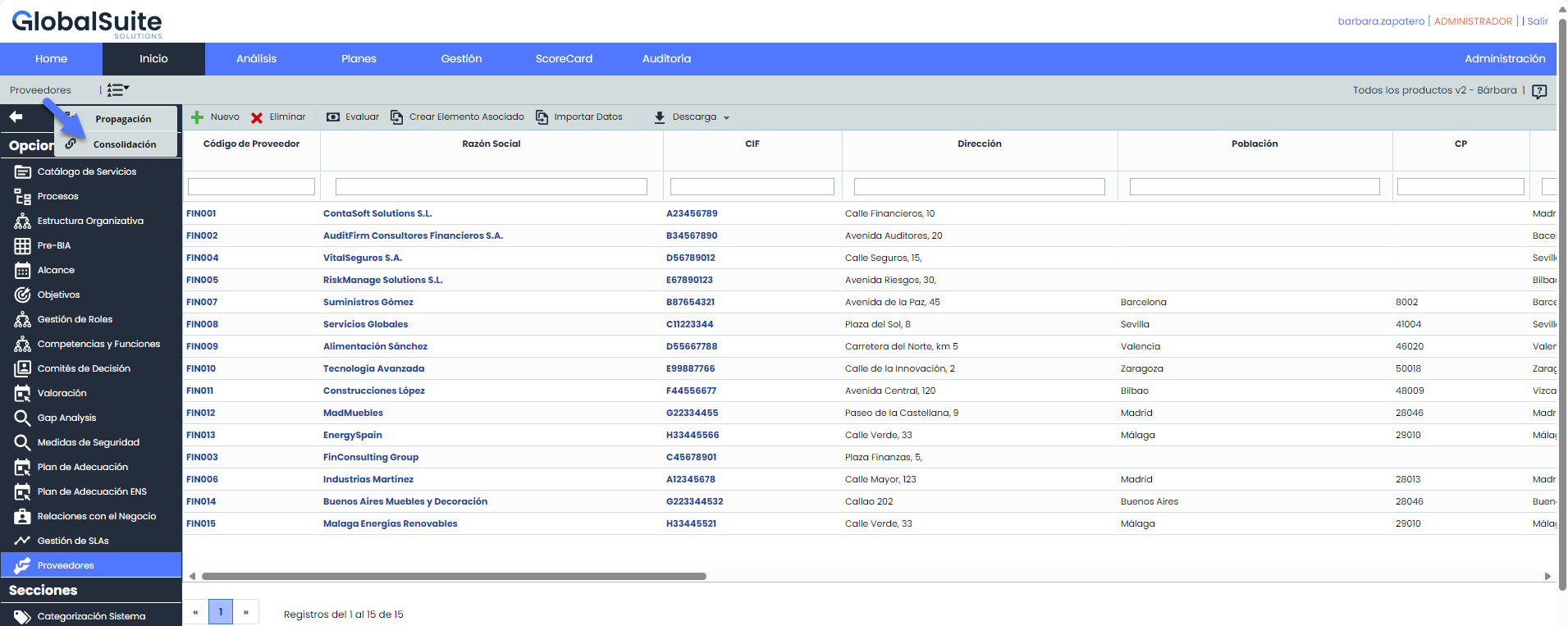
Below is the functionality provided by each of the available tables.
-
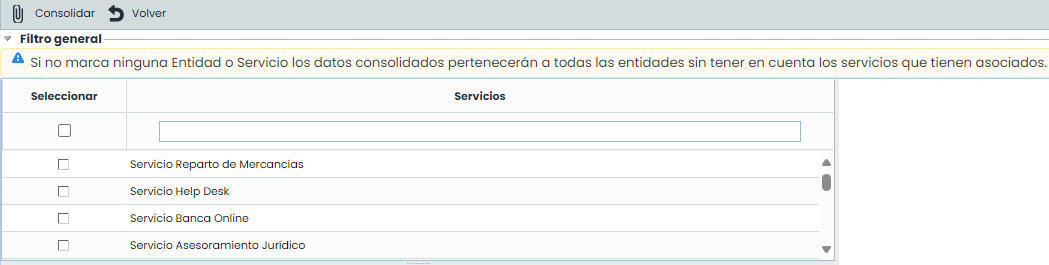
Services Table: Allows the user to filter suppliers associated with the selected Services.
-
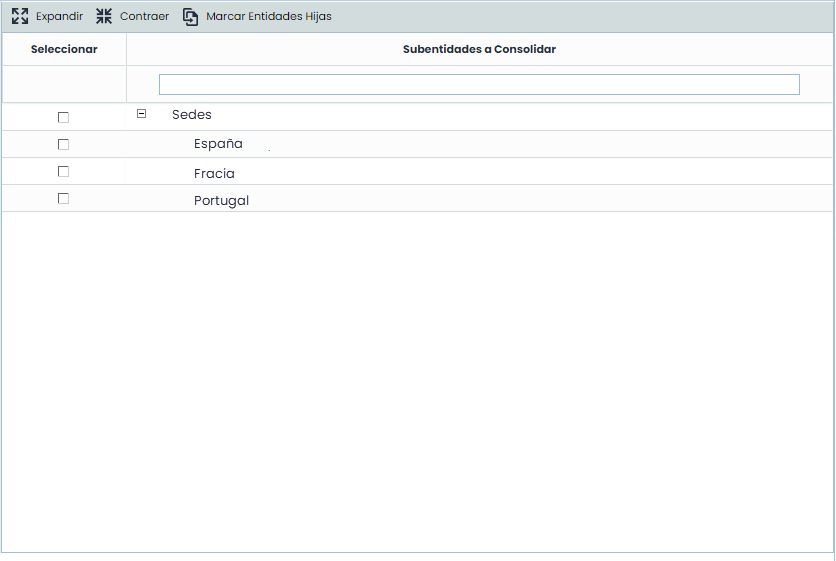
Sub-entities Table: Offers the possibility to filter suppliers defined in the selected sub-entities.
-
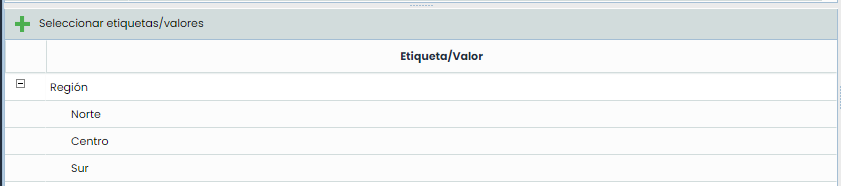
Tag/Value Table: Allows viewing suppliers associated with a specific tag.
-
Specific Filters: Offers the possibility to view suppliers by filtering by a date range of the last follow-up performed or the supplier's status.

Once the necessary filters have been established, the query must be generated. To do this, the following options are available:
-
Consolidate: Once the button is clicked and based on the established filters, it allows summarizing the suppliers in the lower table.
-
Back: Offers the possibility to return to the initial supplier list.
The results are displayed in the lower table 'Consolidation Results'
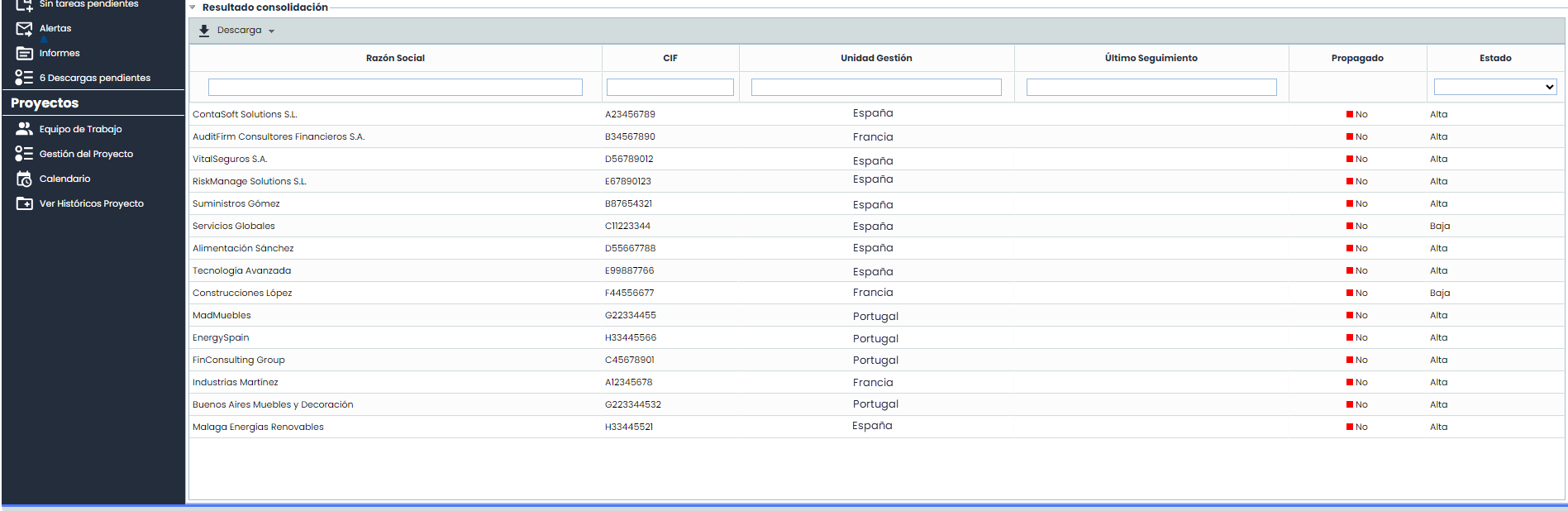
The information provided by the table is as follows:
-
Company Name: Allows viewing the name defined for the supplier.
-
Tax ID: Allows viewing the supplier's tax identification code.
-
Management Unit: Offers the possibility to view the entity or sub-entity to which the supplier is associated.
-
Last Follow-up: Displays the date of the last follow-up performed on the supplier.
-
Assessment: Offers the possibility to view the supplier's evaluation status.
-
Propagated: Indicates whether the supplier has been propagated to the sub-entities.
-
Status: Allows viewing whether the supplier is still part of the service provision or has been deactivated.