
The 'Compliance Catalogs' option offers the possibility of having regulatory compliance catalogs (security, quality, environment, etc.) already generated in the tool or creating a custom catalog. These catalogs will be necessary for the 'Gap Analysis' option.
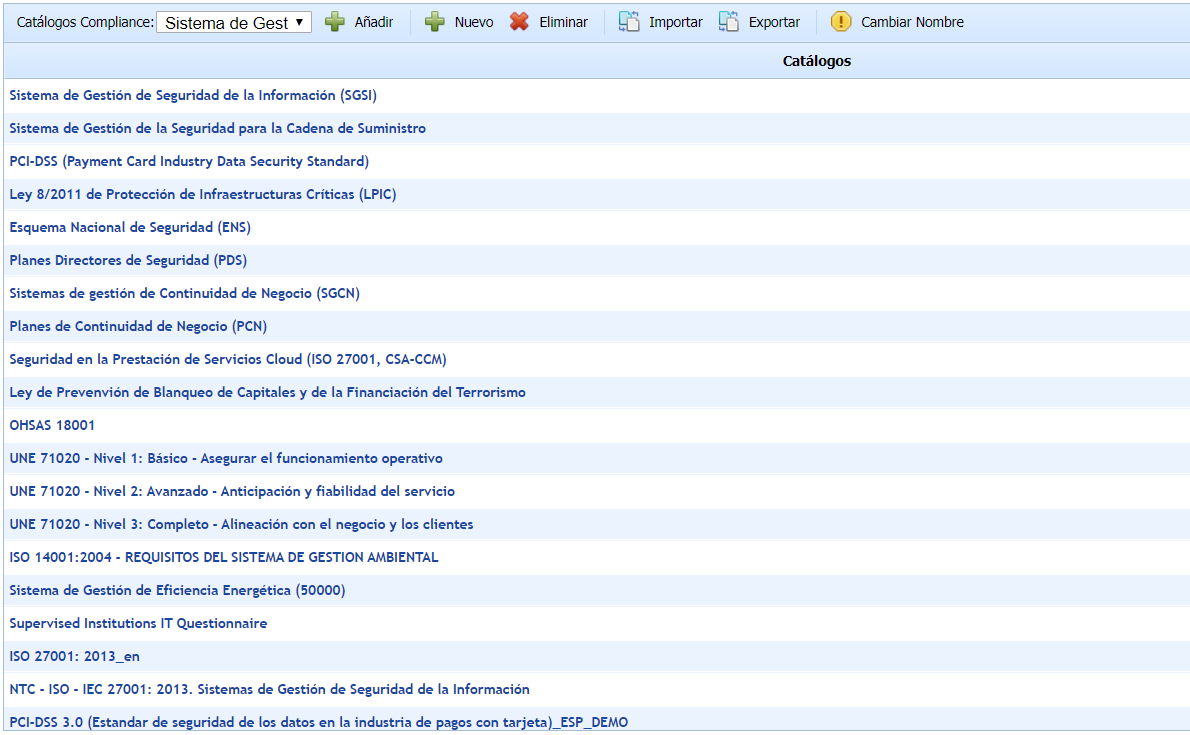
The compliance catalogs list has the following options:
-
Add: Allows adding a catalog to the table.
-
New: Allows creating a new catalog.
-
Delete: Allows deleting an existing catalog. To do this, select the threat line and press the 'delete' button.
-
Import: GlobalSUITE allows importing catalogs already created in XML format.
-
Export: GlobalSUITE allows exporting catalogs to XML format.
-
Rename: Allows renaming a catalog from the list.
In addition to the options presented above, the solution organizes the catalogs through two different columns:
-
Catalogs: Determines the catalog that has been loaded in Compliance.
-
Automatic: Allows selecting a service associated with the company. If a company for that service has been created, the catalog will automatically be associated with that company.
To modify a compliance catalog, click on the catalog name. When accessing a catalog, it is possible to configure both its requirements structure and the states that will be used to evaluate its compliance. Both configurations are explained in the following sections.
Requirements Configuration
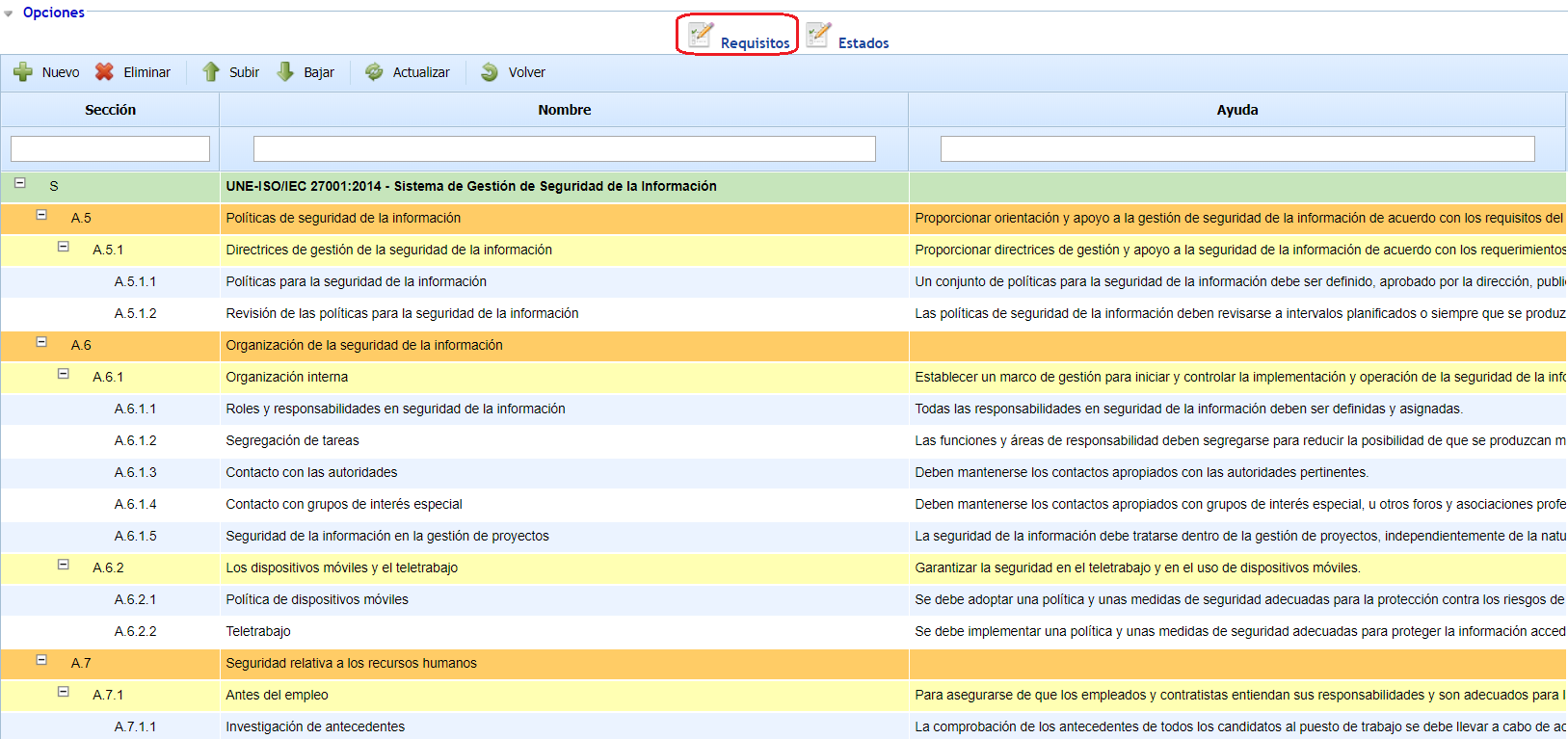
When accessing the catalog, the requirements structure is displayed in a tree format. The table allows the following options:
-
New: Allows inserting new rows into the catalog. To do this, select the row where you want to generate a new row and press the 'New' button; this action allows creating a new row dependent on the selected row. You can create as many dependencies as needed, with no limit on levels.
-
Delete: Allows deleting an existing row. To do this, select the line and press the 'delete' button.
-
Move Up: Offers the possibility to move an entry in the table to higher positions. To do this, select the desired row and press the button.
-
Move Down: Allows moving an entry in the table to lower positions. To do this, select the desired row and press the button.
-
Update: Allows updating the compliance evaluations of this catalog, which are active in the Compliance option. The information that will be updated, based on the "Section" code, is:
-
New requirements
-
Deleted requirements
-
Changes in the name or help of the requirement
-
Order change
-
-
Back: The tool returns to the previous screen showing the list of catalogs.
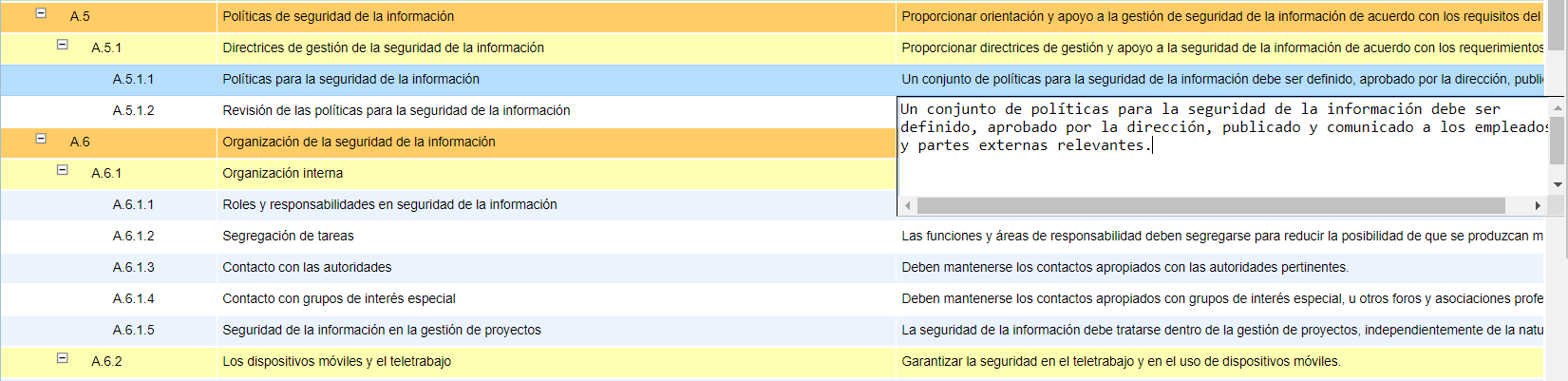
All catalog entries are editable by the user. To do this, double-click on the corresponding cell to enable editing.
States Configuration
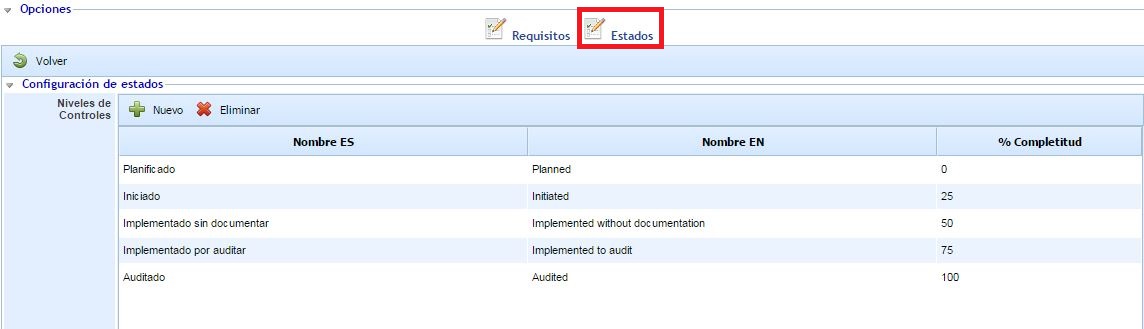
When accessing the "States" option, it is possible to configure the set of states that will be available to analyze the requirements of the compliance catalog we are configuring. These levels will be available by default for the catalog in both the "GAP Analysis" and "Compliance" options, although they can be individually modified within each option.
Using the "New" and "Delete" buttons, desired states can be created and deleted. The table allows editing the name of each level in both Spanish and English, so that each user, depending on the language configured in their profile, will see the levels in one language or the other.
Finally, the "% Completeness" column allows indicating the associated compliance percentage for each level. This percentage is used by the tool to calculate the compliance charts associated with the "GAP Analysis" and "Compliance" options.