With survey automation and notification settings you will save time in all asset, risk and control assessments that your company has. You can schedule the sending of these surveys and GlobalSuite® will send the survey with a defined frequency to the person responsible for answering the assessment. If you have monthly and/or annual assessments, you will only need to configure the frequency and track via the notifications received. Save time in operations to focus efforts on the conclusions of the results obtained.
With automatic launch, you can configure several types of alerts to remind the risk and control response owner and help in monitoring it. They are two functionalities that can be configured individually, but with a joint configuration you can maximize their power.
NOTE: Remember that GlobalSuite® surveys can be directed to any element of the organization (software, processes, areas, suppliers, etc.) and may have risks associated and controls that mitigate these risks, so you can forget about sending spreadsheets where responses cannot be consolidated. With this feature you can delegate even more of your process to GlobalSuite®.
How to automate risk and control assessment through the GlobalSuite® Surveys option and survey and notification scheduling options?
In a first step, we will configure and automate the launching of surveys. This launch can be automated for surveys with an external link or surveys with an internal link. External-link surveys can be answered by employees who do not have access to GlobalSuite®. This will also lead to significant time savings in configuring the application since the person receiving the email with the link will be able to access it. The external link survey is secured with a token.
If you prefer to use the internal link option, you can choose a application user who will receive this survey.
In this complete example, you will be able to see the automation with an external link.
How to configure the Survey Template?
First, remember that you will need a survey model that will be configured under Settings > Survey Models. In this option you will need to choose the Element Type, Risk and Control survey.
Once the model is configured and created, you will proceed to Configure the Survey. In this option the goal is to say which elements, risks and controls (you can also apply to individual elements or only to controls, the configuration will be the same regardless of the chosen model). From this option you can choose which Risk Analysis to apply, which Elements, Risks and Controls and you can choose to whom you want to send this information. With this configuration the survey will be sent according to the defined frequency. To do this, follow these steps:
Go to Management > Surveys > Configure Surveys and select the survey type and the Model that will be chosen.
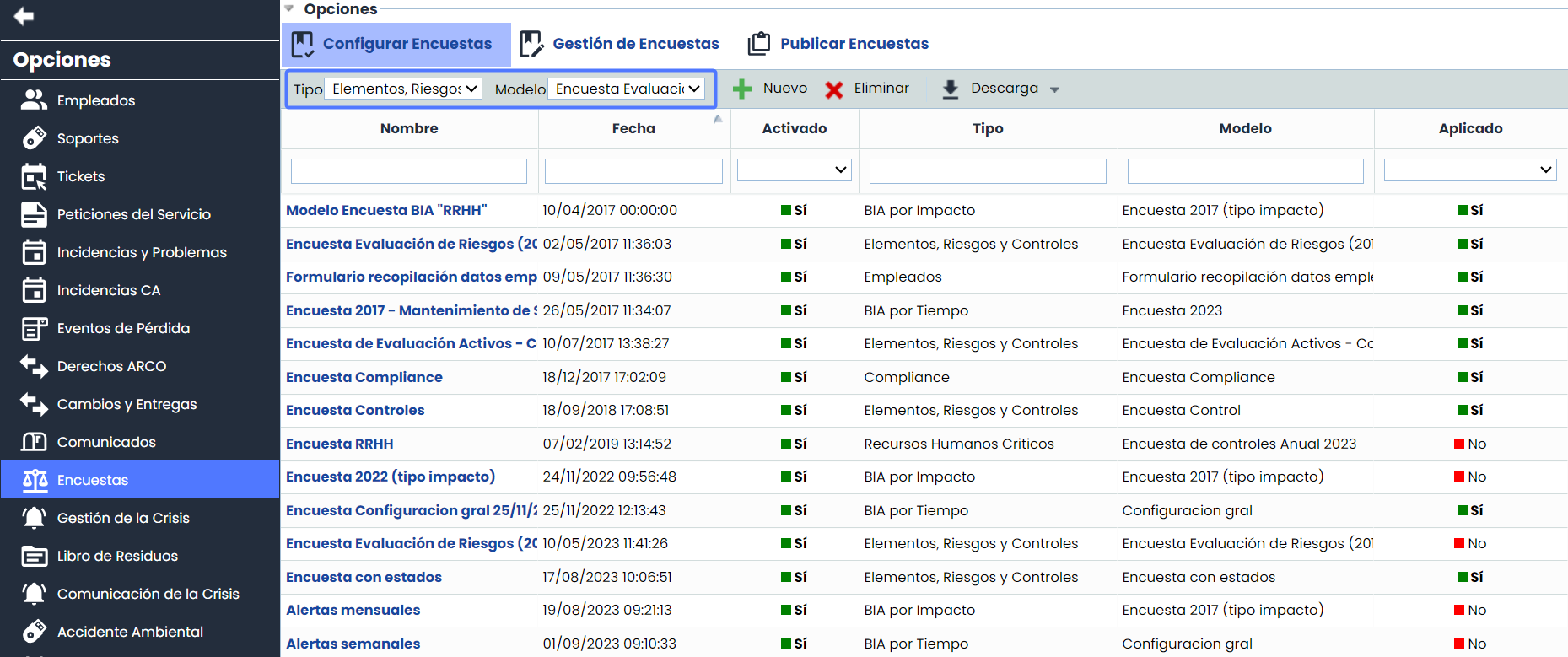
On access, in addition to selecting the scope of the assessment or the survey data itself, you will be able to configure periodic notifications and schedule the survey to be sent automatically from the first sending.
Is it possible to schedule surveys according to a defined frequency?
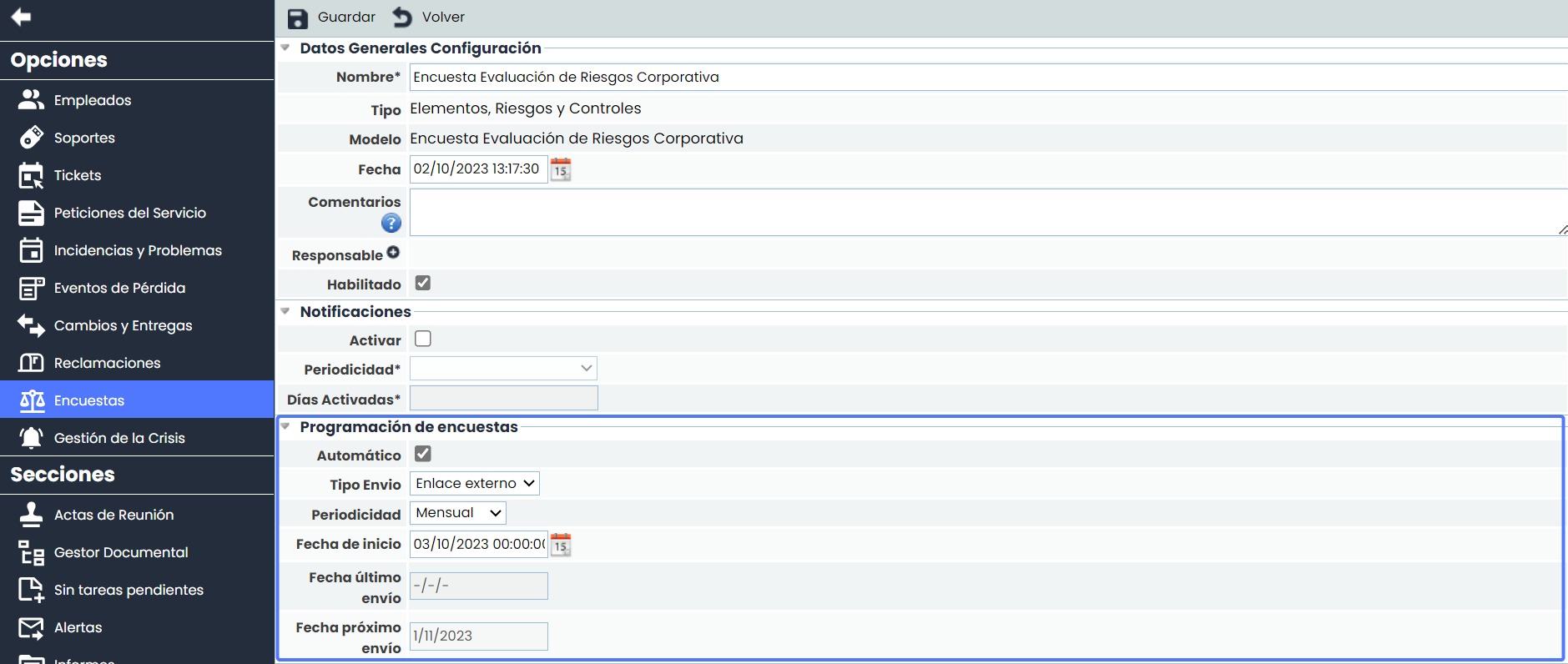
To automatically configure a survey, we must go to the Surveys Scheduling section and the first thing to do is check the Automatic option. With this step, the specific fields necessary for sending will be activated.
The fields for the definition are:
-
Send Type: External link or Internal link. For external links, the Surveys Publication option will be used and the recipient will not need a user.
-
Frequency: Choose Monthly, Quarterly, Semi-Annual and Annual.
-
Start Date: Date that will be used for the first sending. For this first sending, the start date and the frequency will be added. This first sending can also be done manually from Publication. If you want to have everything ready to launch on a specific date, you can set the start date so that the Next Send Date is the day of the survey sending.
-
Last Send Date: Date of the last sending for this Survey Configuration.
-
Next Send Date: Date calculated based on the frequency and the sending date.
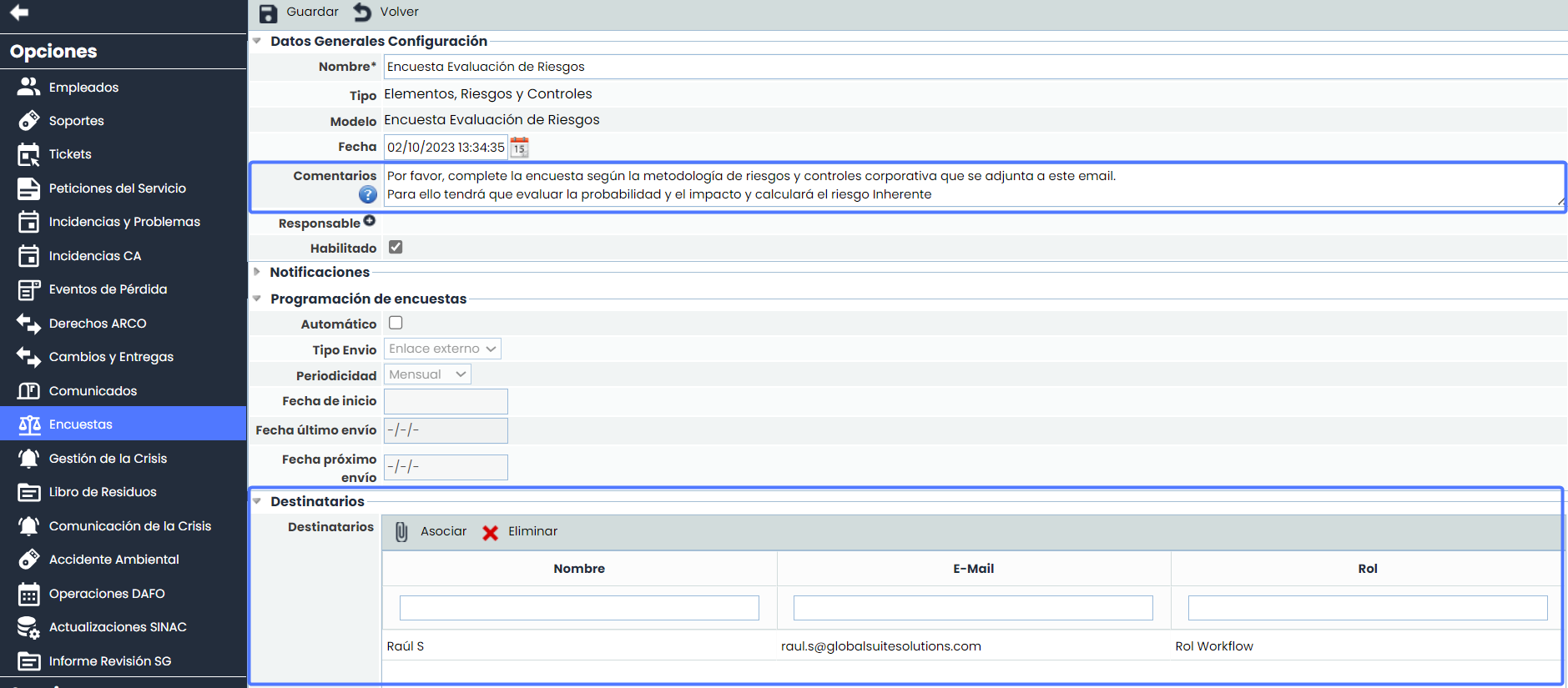
Additionally, there are two fields required for this type of send. The Comments field, if filled, will be sent with the notification, so you can fill it with instructions for the risk and control assessment campaign, the evaluation methodology, or any other relevant topic. The second field corresponds to the Owner field; you will need to add the person or people to whom you want to send this survey. You can use approval Workflows or just a status.
How to configure survey notifications to monitor progress?
Within this process, GlobalSuite® offers several types of notifications that will allow monitoring and not missing the target date for the publication owner and for the survey recipient. All those responsible for participating in this assessment process will have automatic notifications when they are the ones responsible for answering. Thus, for any survey sending, survey completion, WF status change, GlobalSuite® will send a notification at that moment. In addition to these alerts, periodic alerts can be configured that will be sent based on defined dates.
How can I configure periodic notifications based on the start date?
This alert will be sent to the survey recipient as a follow-up. It will be a periodic alert that will be sent according to a defined frequency. Although a response deadline is provided, the user can configure this notification as a reminder and it will be sent to the recipient to prevent reaching the deadline without reviewing the survey. This alert will work for both External Link and Internal Link.
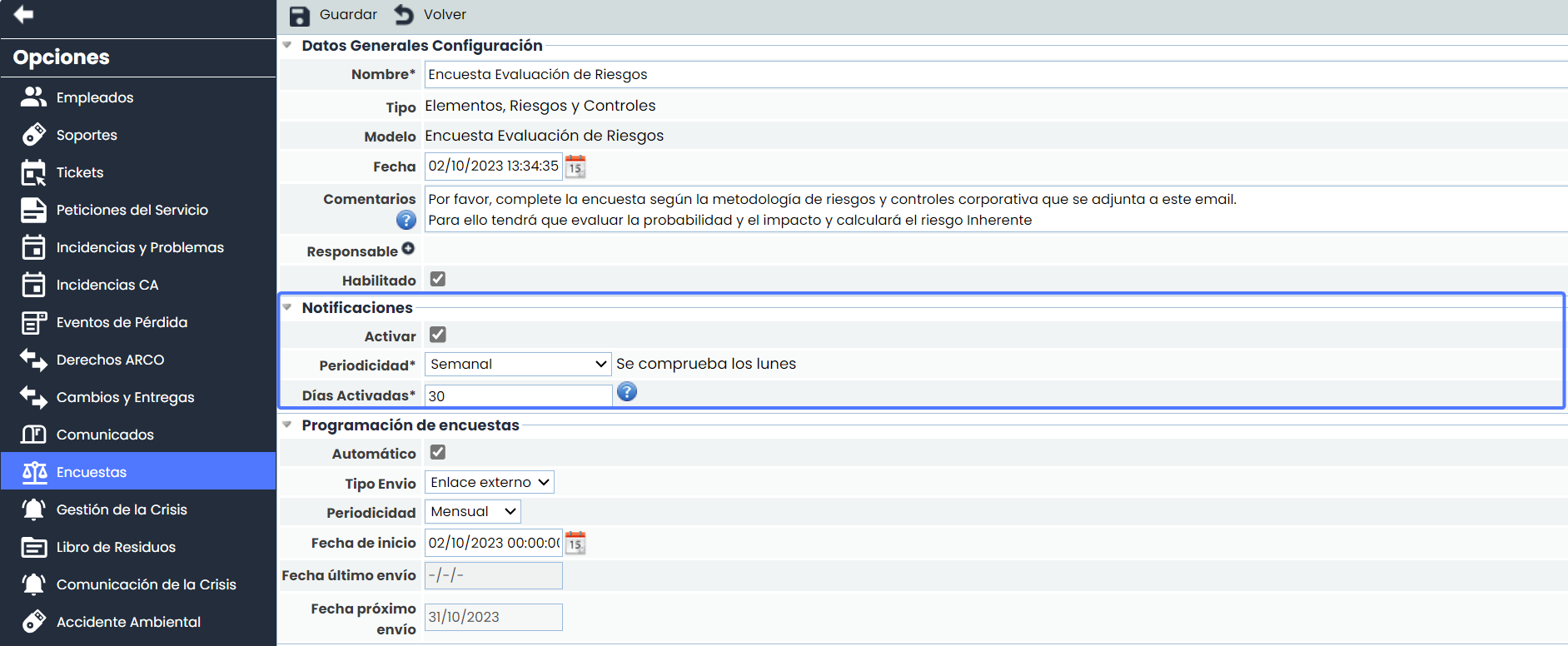
To do this, you will need to enable this section and configure the frequency and the days you want this alert active. In the example, you can see a weekly frequency (sent every Monday) for 30 days, which is the deadline for risk and control owners for this survey.
How to configure end-of-term notifications?
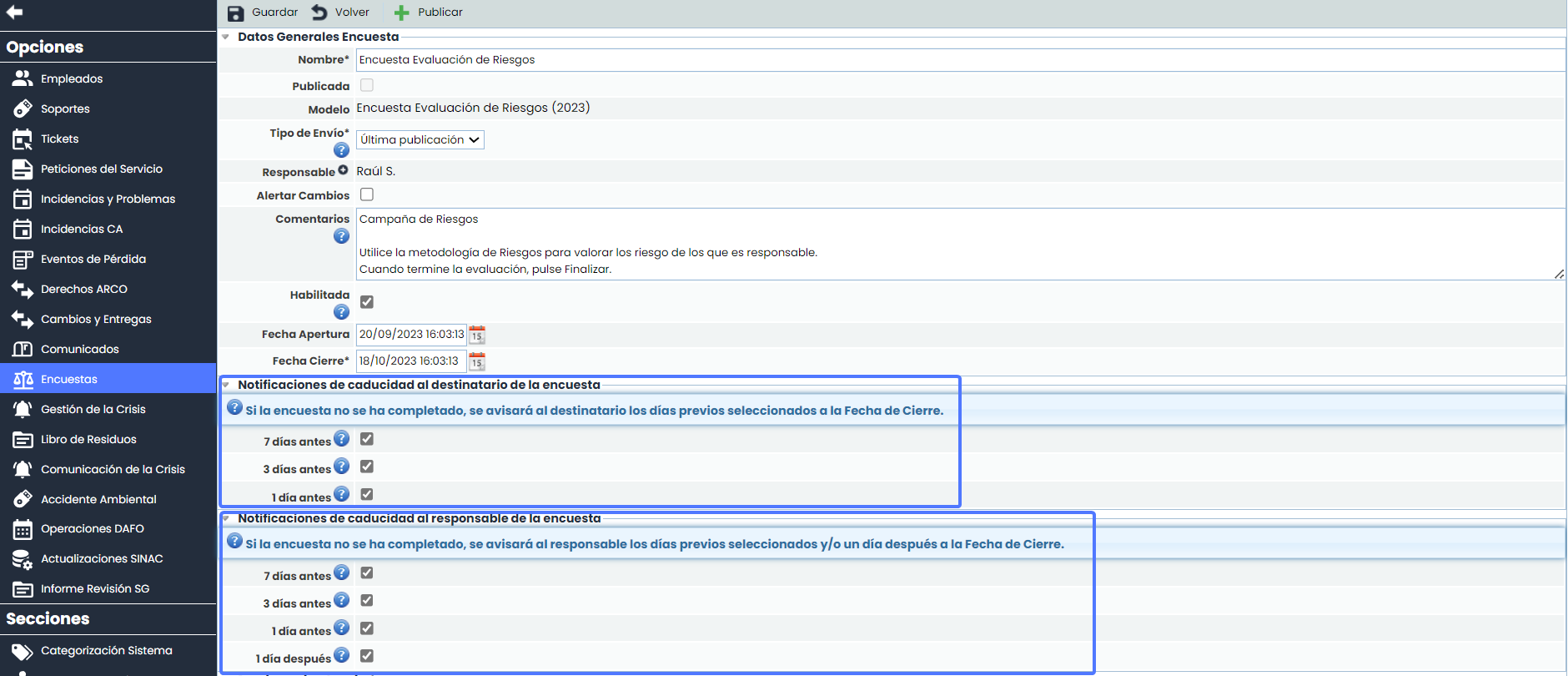
In addition to periodic alerts, there are other alerts that will help control the deadline defined to obtain responses about Elements, Risks and Controls. These alerts are only available when External Link is chosen in the configuration or, what is the same, from the Publish Surveys option.
To go to this option you must click Surveys > Publish Surveys. By accessing, you can define which deadline alerts to send to both the recipient and the publication owner who will be responsible for reviewing the survey results.
This alert is very useful for the publication owner since they usually have several publications to monitor. In this way, GlobalSuite® will monitor based on the closing date.
One of the notifications for the survey owner is the 1 day after the closing date. With this notification you can know which surveys have finished and which are about to finish and the survey link has expired. This will trigger contacting the associated recipient to extend the period of the same.