
This section allows you to establish and configure different methodologies to evaluate the controls or safeguards implemented in the organization in order to mitigate existing risks.

The tool allows performing the following initial actions:
-
Add: Allows selecting one of the created methodologies. To do this, select the methodology from the dropdown and click the 'Add' button.
-
New: Enables inserting a new entry in the table.
-
Delete: Offers the possibility to delete a methodology from the list. To do this, select the desired row and click the 'Delete' button.
By clicking on one of the methodologies, the following configuration options are provided.
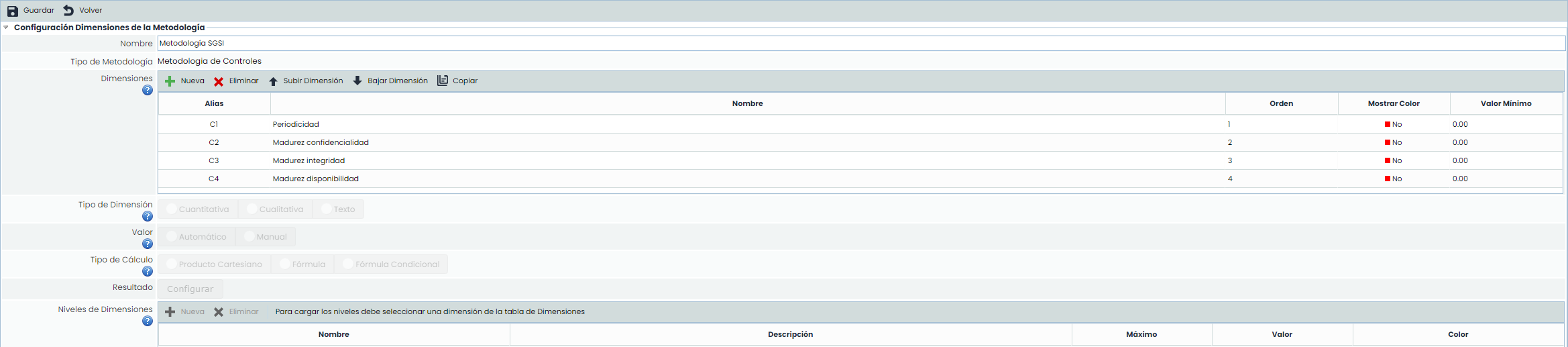
Methodology Dimensions Configuration
-
Name: Identifies the name of the methodology. This name is displayed in the list of methodologies.
-
Methodology type: Provides information about the type of methodology being managed, in this case, controls.
-
Dimensions: Allows the configuration of the dimensions to be assessed in the risk analysis for each of the implemented controls. Dimensions can be created and deleted, as well as configured for their order of appearance in the corresponding table using the 'Move Dimension Up' and 'Move Dimension Down' buttons.
To facilitate modeling, using the " Copy " button, it is possible to copy a dimension from the Controls methodology with all its information (levels, formulas, visibility, groups).

The information provided by the table is as follows:
-
Alias: Identifier automatically generated by the tool
-
Name: Displays the name of the dimension. Double-clicking on the cell allows changing its name.
-
Order: Identifies the order in which the dimension will appear in the risk analysis.
-
Show Color: Allows defining whether we want to highlight the dimension in a color.
-
Minimum value: Identifies the minimum number on which the formula of the selected dimension is calculated.
-
Type: Identifies whether the dimension is of Text type or not.
-
Visible: Identifies whether the dimension will be visible in:
-
Tables: In the Control Management, Risk Analysis tables, etc.
-
Control Sheet: In the control sheet itself.
-
All: Both in the tables and in the control sheet.
-
-
Modifiable: Identifies whether the dimension can be modified in:
-
Tables: In the Control Management, Risk Analysis tables, etc.
-
Control Sheet: In the control sheet itself.
-
All: Both in the tables and in the control sheet.
-
-
Dimension type: Offers the possibility to establish the calculation method for the dimensions, allowing the following options:
-
Quantitative: Allows defining that the calculation of the selected dimension is quantitative, enabling a numerical value to be set for the dimension.
-
Qualitative: Allows defining that the calculation of the selected dimension is qualitative, enabling a specific range of values to be set (e.g., High, Medium, Low).
-
-
Value: Allows defining how we want the calculation (Manual or Automatic) of the selected dimension in the upper table to be performed.
Calculation Type
If an automatic calculation was selected in the previous option, the tool offers the following options:
-
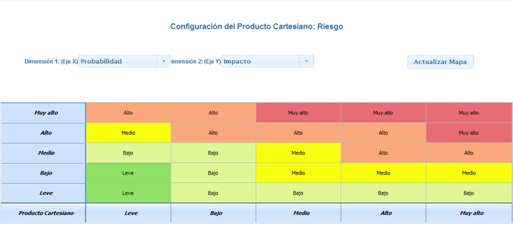
Cartesian Product: Allows establishing the calculation of the selected dimension based on a matrix of two dimensions defined in the 'Dimensions' option. For this, a dimension must be selected on the 'X-Axis' and another dimension on the 'Y-Axis', and values must be assigned based on the established levels.
NOTE: The Cartesian product cannot be generated based on dimensions whose calculation is quantitative.
-
Formula: This option allows defining how the calculation of the selected dimension will be obtained, based on a mathematical formula. For this, the tool provides the following option:
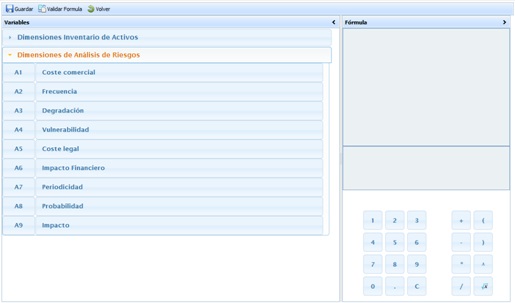
NOTE: The calculation of automatic dimensions with Formula is performed whenever there is a parameter of the formula with a value (a parameter can be another manual or automatic dimension, or a numeric digit).
If the formula is evaluated, parameters without a value (empty dimensions) will be replaced with a zero value.
-
Conditional Formula: This option allows establishing a conditional calculation between different dimensions set in the controls methodology.
To configure this section, click the 'Configure' button to access the following screen:
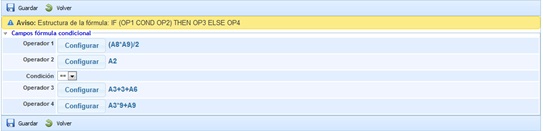
The configuration of the conditional formula is established based on the operators, where operators 1 and 2 are used to set the condition, and it is necessary to select it in the dropdown. The options provided by the tool are:
-
==: Equal to
-
!=: Not equal to
-
<: Less than
-
>: Greater than
-
<=: Less than or equal to
-
>=: Greater than or equal to
Once the condition formula is established, the results to be obtained must be set. If the condition is met, the results shown correspond to operator 3, and otherwise to operator 4.
The user can choose between the different dimensions and calculation options to generate the formula based on which the result of the selected dimension will be obtained.
Note: It is necessary to validate the formula before saving it by clicking on the 'Validate Formula' button.
-
Result: Allows defining the values of the selected calculation option in the upper section (Cartesian Product, Formula, or Conditional Formula).
Dimension Levels
Allows defining the valuation levels of the selected dimension. As with the other options, levels can be created and deleted, as well as configuring the desired color to highlight the levels during valuation by selecting the level to modify and clicking the 'Change color' button.
Note: If the levels are defined for a qualitative dimension, the tool allows defining the calculation range of the selected level and the value on which it will be calculated. If the levels are defined for a quantitative dimension, it allows defining the color in which the numerical values will be highlighted in the asset inventory.

-
Control evaluation type: Allows establishing the evaluation of the controls, with the option to choose between a Global calculation (which will allow evaluating a control once and globally for all Risks) or By Risk (allowing modifications to the evaluations for each of the risks assessed in the risk analysis).
-
Choose control maturity dimension: Allows defining based on which dimension, among those defined in the upper section, we want to obtain the global values of the maturity of the controls in the organization.
