
This section allows the tool user to define the necessary values when creating the inventory of items.
Unknown Attachment
Options Visibility
-
Cost Analysis: If enabled, it allows access to the "Cost Analysis" functionality in the Risk Analysis option.
-
Multiple Risks: If enabled, it allows access to the "Multiple Risks" functionality in the Risk Analysis option.
-
Impacted Risk Map: If enabled, it allows access to the "Impacted Analysis Graph" functionality in the Risk Assessment option.
-
Indicators in risk analysis: If enabled, it allows associating Dashboard Indicators with the risks in Risk Analyses.
-
Documentation
-
Visible in form: Selecting this option will add the possibility to include documentation in the inventory items and treatments form.
-
Visible in item table: Selecting this option will add the possibility to include documentation in the Item Table and the Treatment Table.
-
-
Allow editing propagated records: If enabled, records of Services, Processes, Inventory Items that are propagated to lower entities can be edited. If unchecked, they will not be editable.
General Analysis Configuration
-
Dependencies: Selecting this option enables the possibility to manage the dependency tree, allowing for easy modeling of the inventory of items through dependencies between them.
-
Item Table in Dependencies: If enabled, it allows displaying the item table on the right in the "Inventory" / "Item Tree" option.
-
Propagate dependencies between items: If enabled, when items are propagated to lower entities, their dependencies will also be propagated.
-
Propagate item dimensions: If enabled, when new items are propagated to lower sub-entities or already propagated items are updated, the dimension valuation will be included.
-
Degree of accumulated dependency: Allows identifying whether dependencies between items should be established "by dimension" (different for each one) or globally.
-
Degrees of dependencies: Enables defining the dependency levels between the established dimensions and the percentage reduction for each of them.
Unknown Attachment
Categories
Asset Category:
Option that allows defining the categories or subcategories to associate with the assets in the inventory and CMDB. To create categories, click the 'New Category' button, which generates a new entry in the table at the first level. To generate levels associated with a category, click the 'New Subcategory' button. When creating a new entry in the table, the tool assigns a default icon, which can be modified by selecting the desired category/subcategory and clicking the 'Change Icon' button.
Unknown Attachment
The 'Type' column allows associating an asset category with one of the tool's options found in the dropdown menu that appears when double-clicking. This way, when an item is created in one of these options, that item is registered in the asset inventory as an asset of the associated category.
When a company is created, a set of asset categories is generated by default, where some of them are automatically associated with a type. This is done so that, by default, the tool considers services, processes, etc., registered in these options as assets. Each of the types available in the dropdown corresponds to:
-
Services: "Service Catalog" option. All services registered in this option are recorded in the asset inventory with the name of the category associated with the type.
-
Processes: "Processes" option. All processes registered in this option are recorded in the asset inventory with the name of the category associated with the type.
-
Information: "RTO and RPO Calculation" option. All items registered in the "RPO Calculation" tab of this option are recorded in the asset inventory with the name of the category associated with the type.
-
Infrastructures: "Infrastructures" option. All infrastructures registered in this option are recorded in the asset inventory with the name of the category associated with the type.
-
Personnel: "Employees" option. All employees registered in this option are recorded in the asset inventory with the name of the category associated with the type.
-
Suppliers: "Providers" option. All providers registered in this option are recorded in the asset inventory with the name of the category associated with the type.
Risk Category :
Unknown Attachment
Allows establishing general risk categories to classify any type of threat analyzed in risk analyses. The risk categories established in this option are independent of the risk analyses performed, allowing threats from different risk analyses to be classified under the same category. This enables obtaining the total list of threats associated with each risk category.
Configurable Attributes
Configurable Attributes allow defining new custom attributes associated with items within the management system.
Dimension Configuration
Treatment of accumulated values
Unknown Attachment
Allows establishing which value to select for the calculation defined by the user. The following options can be chosen:
-
Own: Allows defining that the value of the selected dimension is the one used in the calculation.
-
Accumulated: Allows establishing that the value of the accumulated dimension is the one used in the calculation.
-
Highest Value: Offers the possibility for the maximum value between the selected dimension or its accumulated value to be used in the calculation.
Dimensions
Allows configuring the dimensions to be evaluated in the asset inventory. Dimensions can be created and deleted, as well as configured for their order of appearance in the corresponding table using the 'Move Dimension Up' and 'Move Dimension Down' buttons.
To facilitate modeling, the “Copy” button allows duplicating a dimension along with its configuration.
Unknown Attachment
The information provided by the table is as follows:
-
Alias: Identifier automatically generated by the tool
-
Name: Displays the name of the dimension. Double-clicking the cell allows changing its name.
-
Order: Identifies the order in which the dimension will appear in the asset inventory.
-
Show Color: Allows defining whether the dimension should be highlighted with a color.
-
Minimum Value: Identifies the minimum number on which the formula of the selected dimension is calculated.
-
Accumulated: Enables including and establishing dependencies for the selected dimension (Dependency Table) and visualizing its accumulated values in the 'Analysis/Asset Inventory' section.
Dimension Type
Offers the possibility to establish the calculation method for dimensions, with the following options:
-
Quantitative: Allows defining that the calculation of the selected dimension is quantitative, enabling a numeric value to be set for the dimension.
-
Qualitative: Allows defining that the calculation of the selected dimension is qualitative, enabling a range of values to be set (e.g., High, Medium, Low).
-
Text: Allows defining that the value of the dimension is free text, enabling any alphanumeric value to be entered.
Value
Allows defining how the calculation of the selected dimension in the upper table will be performed, with the following options:
-
Manual: The value is directly entered by the user.
-
Automatic: The value is automatically calculated based on a prior configuration, allowing the type of calculation to be defined (formulas, formulas with conditionals, or Cartesian product).
-
Multilevel: Allows selecting multiple values for the dimension instead of a single one. This option is only available for Qualitative-type dimensions.
Calculation Type
If automatic calculation was selected in the previous option, the tool offers the following options:
-
Cartesian Product: Allows establishing the calculation of the selected dimension based on a matrix of two dimensions defined in the 'Dimensions' option. To do this, select one dimension on the 'X Axis' and another on the 'Y Axis' and assign values based on the established levels.
NOTE: The Cartesian product cannot be generated from quantitative-type dimensions.
Unknown Attachment
-
Formula: Allows defining how the selected dimension is calculated using a mathematical formula. To do this, the tool provides an editor where variables, numeric values, and operators can be combined.
Unknown Attachment
The user can choose between the different dimensions and calculation options to generate the formula based on which the result of the selected dimension will be obtained.
It is necessary to validate the formula before saving it by clicking the ' Validate Formula' button.
The automatic dimension calculation using Formula is executed whenever at least one of the parameters has a value (whether another dimension —manual, automatic, or multilevel— or a numeric value).
If the formula is evaluated and there are parameters without values (empty dimensions), these will be considered as 0.
In the case of multilevel dimensions, when a dimension has multiple selected values and is used within a formula, the system will automatically take the highest value among the selected ones.
Result
Allows defining the values of the selected calculation option at the top point (Cartesian Product or Formula)
Dimension Levels
Allows defining the valuation levels of the selected dimension. Like the rest of the options, levels can be created and deleted, as well as parameterizing the desired color to highlight the levels during valuation by selecting the level to modify and clicking the ‘Change color’ button.
Unknown Attachment
Choose Criticality Dimension: Additionally, in the methodology of items, it is possible to choose which dimension corresponds to the criticality of the item.
NOTE: If levels are defined for a qualitative dimension, the tool allows defining the calculation range of the selected level and the value on which it will be calculated. If levels are defined for a quantitative dimension, it allows defining the color in which numerical values will be highlighted in the asset inventory.
Dimension Visibility Configuration
-
Dimension Visibility (forms)
This table allows configuring GlobalSuite so that the visualization and/or valuation of some types of items (services, processes, suppliers, infrastructures, employees, etc.) and even the form of the items themselves can be performed in the option where they are generated, in addition to the 'Inventory' option.
Unknown Attachment
As shown in the image above, it is possible to configure some tool options (services, processes, suppliers, infrastructures, and employees) to indicate which inventory dimensions can be valued in the corresponding GlobalSuite option. To indicate 'Yes' or 'No,' simply click on the corresponding cell. If an option has all dimensions set to 'No,' the corresponding form will not have the section that allows valuation.
Multilevel type dimensions cannot be marked as visible in all forms. For now, they can only be seen in Inventory, Services, Processes, Suppliers, and Treatment.
Dimension Visibility in Tables
This table allows configuring GlobalSuite so that the visualization of dimensions in specific option tables can be modified.
Unknown Attachment
Predefined Filters.
Here, different views in the inventory can be configured. These filters allow us to configure which dimensions to view according to the Category of the item.
-
Filter Administration:
-
New: Creates a new filter named “New filter + date and time” with no categories or dimensions selected inside.
-
Duplicate: A copy of a predefined filter is made, named by default as “Copy of + name of the copied filter.”
-
Delete: Deletes the selected filter.
-
-
Unknown Attachment
Filter Configuration
When entering the filter, a pop-up window is displayed where the selected filter can be configured.
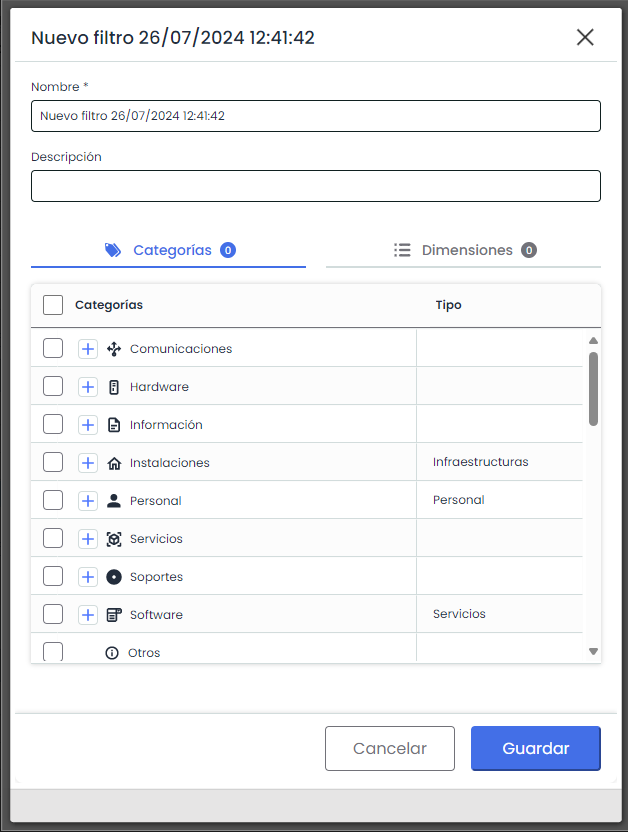
Name: Mandatory field where the name to display the filter in the Inventory is entered.
Description: Field that allows entering the description/purpose of the filter.
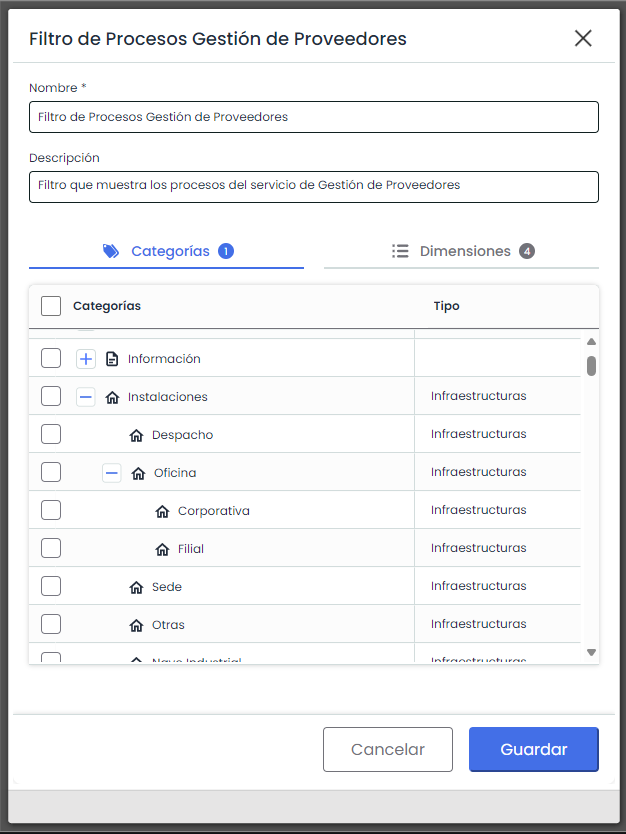
Category Tab: This tab displays all categories and subcategories configured in the system. This selection will indicate which item categories the filter will display in the inventory.
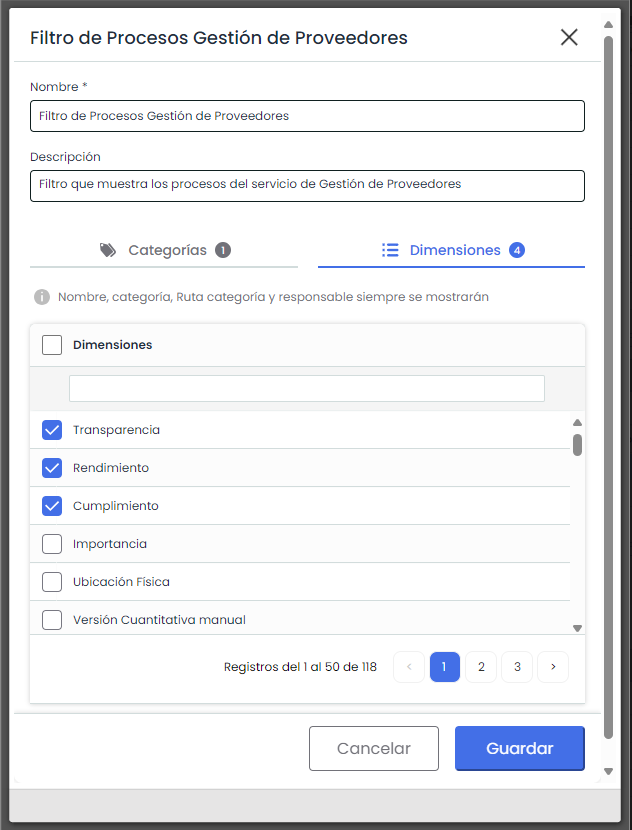
Dimensions Tab: This tab displays all dimensions defined in the system. In this selection, it is possible to choose which dimensions will be displayed for the selected categories.
Keep in mind that even if they are not visible in this tab, the fields Name, Category, Category Path, and Responsible will be displayed by default in all filters.
Control Field Configuration
-
Associate Standards to Controls: If enabled, it allows associating standards to controls. These standards are configured in Standards Configuration.
-
Compliance Requirements in Control Record: If enabled, it allows consulting within a control form, in Control Management, which Compliance requirements are associated with that control.
-
Control Levels Risk Management / Adaptation Plan: Allows defining the levels of the different states of a Treatment Plan and Adaptation Plan.
As shown in the table above, we can define as many levels as we want, specifying their name. We will also define the degree of completeness the plan will have when selecting that state. It will be measured in %.
Unknown Attachment
-
Control Record
Allows configuring the fields that will be displayed in the control record.
Unknown Attachment
As shown in the table above, we can modify the names of all fields. We can decide the following visualization for each field:
-
Control Record: This field can only be viewed when accessing a control record.
-
Tables: This field can only be viewed from the Risk Analysis, Control Management, etc., tables.
-
All: It can be viewed both in the Control Record and in the Tables.
-
None: This field will not be displayed anywhere.
We can configure the order of the fields using the Move Up Order and Move Down Order buttons. The last column indicates the fields that will be displayed in the Treatment Plan.
Translate
At the top right of the view, there is a button that allows switching to a view where we can configure labels and field names in another available language.
Unknown Attachment
Unknown Attachment
When selecting one of the available languages, we switch to the translation view, where texts and fields can be changed in that language. GlobalSuite® users configured with that language will see those names.
If any configured field does not have a defined translation, it appears shaded in gray, with the text in the default language.
If we want to exit the translation view and return to the configuration view, simply click "Back."
Unknown Attachment