
The GlobalSuite Indicators option allows you to establish all those monitoring measurements that will provide you with information about the operation and performance of the Management System, as well as support for the defined specific objectives.
On the main screen, you will find the list of indicators that have been defined.

The Status and Trend fields indicate the evolution of each of the indicators, and the Last Value and Last Date fields show whether the indicators are being updated:
- Status: Indicates whether the last obtained value is better than the target value defined for each indicator, informing whether it improves, worsens, or remains the same.
- Trend: Establishes whether the obtained value is better than the immediately previous value.
- Last Value: Indicates the last value that has been applied.
- Last Date: Indicates the date on which the last value was updated.
Additionally, on this main screen, the following options are available:
-
New: Allows you to create a new indicator.
-
Delete: Allows you to delete indicators that have been previously created.
-
Indicator Catalog: Allows you to select and associate a series of indicators automatically proposed by GlobalSuite.
-
Download: Allows you to download the list of all defined indicators.
If you use the indicator catalog option, a pop-up screen will appear with the indicators organized by categories.
All those indicators considered useful for measuring the efficiency of the management system and specific objectives must be selected in the left column. Once selected, click associate at the top left of the window, so they are automatically loaded.
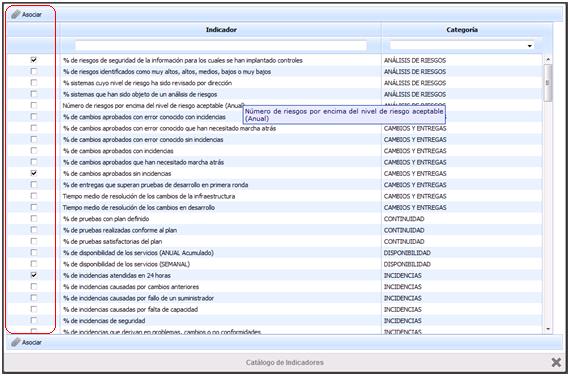
Once associated, the list of indicators will appear on the main screen.
NOTE: For each indicator created from the Catalog, a metric with the same name is automatically generated.
To define or review the established indicators, you must click on their name, displaying the following graph and options:
Graph
The graph shows the measurements made, each associated with the date on which it was reviewed, as well as the target value of the indicator and the graphical representation of the measurements made.
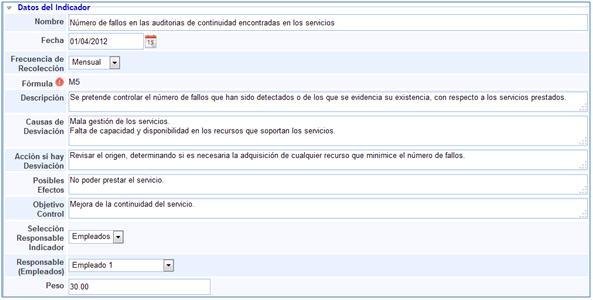
Indicator Data
-
Name: Allows you to determine the name of the indicator.
-
Date: Establishes the date from which its measurements are collected.
-
Collection Frequency: Determines how often measurements should be made.
-
Formula: Allows you to determine from which metrics the indicator value is obtained.
To define the formula from which the indicator data is obtained, you must click on the red circular image with an exclamation mark, and a new pop-up window will appear.
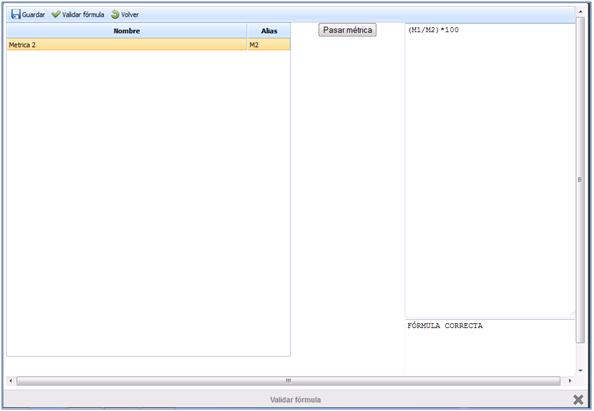
The steps to follow to determine the formula with which the indicator values will be obtained are carried out as follows:
-
Select the metrics that provide the necessary data to obtain the indicator values.
-
Once the metric is selected, it is necessary to click on the “Pass Metric” option, so it is placed in the right column.
-
Once all the metrics that provide the indicator values have been selected, it is possible to edit this column, generating the corresponding formula.
-
Once the formula is defined, it is necessary to check if GlobalSuite recognizes it. To do this, you must click on the Validate Formula option.
-
Once detected, a text is generated in the right column confirming that the formula used is valid.
-
Once validated, it must be saved so that it is defined as the formula from which the values of the associated indicator are obtained.
NOTE: To associate a metric with a specific indicator, it is necessary that both share the same periodicity.
-
Description: Allows you to clarify or include any information that may be useful for performing the corresponding measurements.
-
Causes of Deviation: Establishes what may cause the determined values for the indicator not to be met.
-
Action if Deviation: Allows you to determine how to act in case the established values for the indicator are not met.
-
Possible Effects: Establishes what may happen in case of deviations.
-
Control Objective: Determines what objective is to be achieved by controlling the activity corresponding to the indicator.
-
Indicator Responsible Selection: Determines whether the employee corresponds to a person registered in the employee management of GlobalSuite or if it is someone external, where the Manual option will be selected.
-
Responsible (Employees): Establishes which employee registered in GlobalSuite is responsible for managing and reviewing the values obtained from the indicator.
-
Weight: Determines the importance of the defined indicator in achieving the specific objective it supports.
-
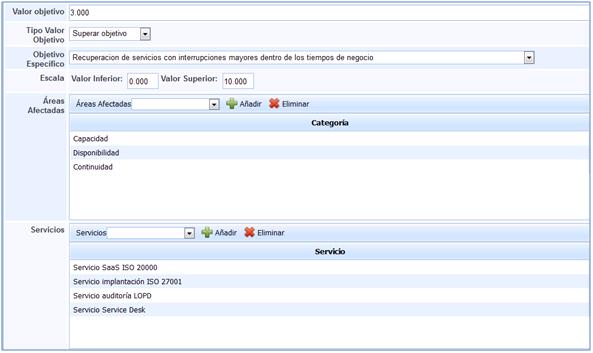
Target Value: Establishes the value from which the actions taken regarding the activity being measured are considered effective.
-
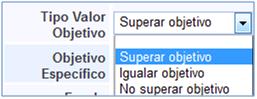
Target Value Type: Determines how the objective measurement results should act concerning the defined target value.
The options provided by GlobalSuite correspond to:
-Exceed target.
-Match target.
-Do not exceed target.
-
Specific Objective: Allows you to associate the specific objective related to the indicator.
-
Scale: Establishes between which values the graph in the Graphs section should be represented.
-
Affected Areas: Determines which areas are affected or influenced by the defined indicator.
-
Services: Determines which services are affected or influenced by the defined indicator.
Evaluations
Through this option, it is possible to determine for which values the obtained data are or are not acceptable. Similarly, it allows generating records of the evaluations carried out.
.jpg?cb=537b44f773d776cf8e8169461363ccdb)
-
Unacceptable Range: Determines for which range of values the obtained data are not acceptable.
-
Acceptable Range: Determines for which range of values the obtained data are acceptable.
-
Ideal Range: Determines between which range of values the obtained data is considered ideal.
-
Evaluations: Allows you to record the evaluations of the data carried out.
NOTE: All scales of the ranges provided by GlobalSuite are set and managed from the ScoreCard tab in the Configuration option.
GlobalSuite provides the following options in the Evaluations section:
-Recalculate: Allows you to generate an evaluation automatically.
NOTE: Through this option, a new evaluation can be generated as long as a new value has been included in the indicator. If no new value has been included, this option does not perform any calculation.
-Delete: Allows you to delete a previously generated evaluation.
-Send email: Allows you to send the evaluations carried out via email.
The fields defined in this section correspond to:
-Name: Corresponds to the name of the evaluation carried out.
-Date: Indicates the date the evaluation was carried out.
-Description: Allows you to complete the evaluation with any necessary complementary information.
-Value: Corresponds to the value obtained from the indicator.
-Status: The indicated value establishes whether it is better than the target value defined for the indicator.
-Trend: Establishes whether the obtained value is better than the previous one.
-Scale: Indicates in which of the defined ranges the corresponding value of the indicator is located.