
The consolidated BIAs option allows merging individual BIAs conducted on the same process, so the user can have a global view of the impact analysis on a single process.
When the final BIA of a Process is consolidated from an Individual BIA, a copy of all the information from the selected BIA will be made, including the Business Impact assessment, MTPD, RTO, and customized questions (except questions of the Table of Elements type).
When accessing the option, the tool displays a graph representing the consolidated MTPD and RTO of the processes, as well as the list of processes defined within the scope. Each process identifies the services it supports, the number of individual BIAs conducted on that process, the consolidated MTPD, and the consolidated RTO.
NOTE: The consolidated MTPD and RTO values are only displayed once the individual BIAs have been merged.
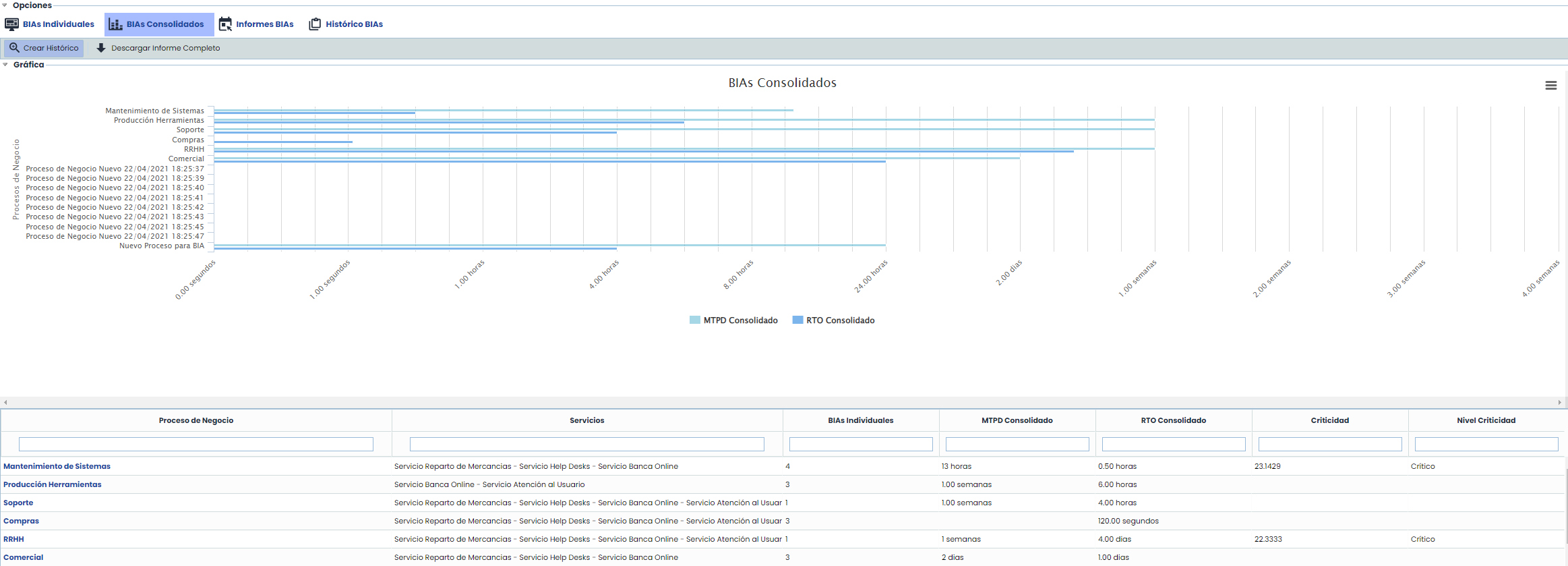
The options available in this table are as follows:
-
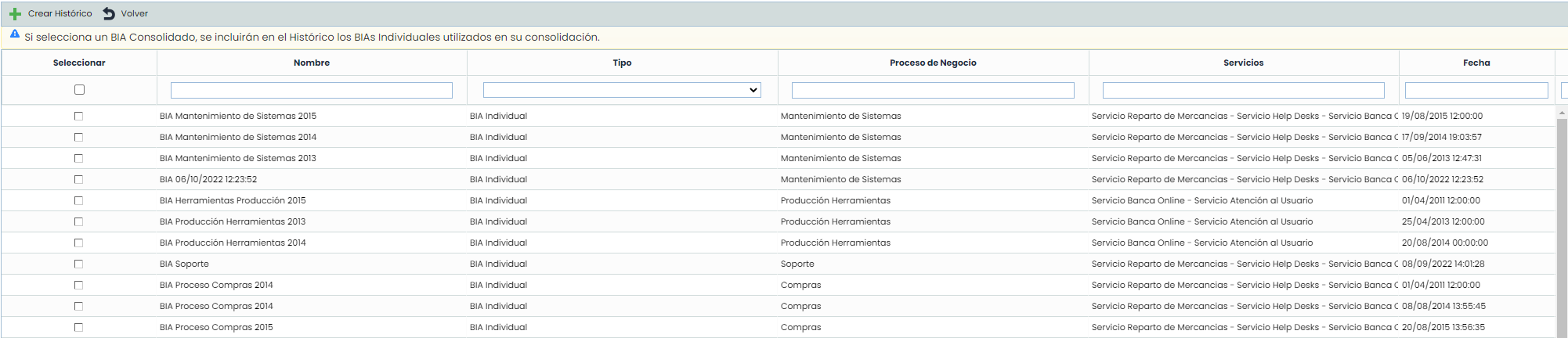
Create History: Allows creating historical BIAs from Consolidated or Individual BIAs. By clicking the "Create History" button, a window will open where we can select which Individual and Consolidated BIAs will be included in the history.
NOTE: If a Consolidated BIA is selected, the Individual BIAs used in its consolidation will automatically be included in the History.
-
Download Full Report: Allows downloading a report with the information of the conducted BIAs, grouped in a .zip file, a CSV report for each of the customizable Table-type questions, or Table of Elements (configured in Settings > Business Continuity > BIA Configuration), and includes the information of the Impact assessments (qualitative and quantitative) and the information of the Impact assessments (qualitative and quantitative) for all the BIAs.
To consolidate individual BIAs on the same process, click on the process name, which will lead to the following screen:
.jpg?cb=19a4a8ed837ba31a26df07461b3e02fc)
The allowed options are as follows:
-
Save: Once the type of Consolidation (Manual or Automatic) is selected, it allows saving the selection made.
-
Back: Allows returning to the list of consolidated BIAs.
-
Show Dependencies: Displays a pop-up window with the organization's dependency tree filtered by the Consolidated BIA process. In this window, you can view the process dependencies and the assets (software, hardware, communications, etc.) each process requires. Additionally, by clicking the Properties button, a new tab will open with the information of the element to be analyzed.
.jpg?cb=dae2bd2ca0054a64249aeb7fc4bff1c3)
-
Show Values: Displays the values used to calculate the impact level. These values have been defined in the Settings section > Business Continuity > BIA Configuration.
-
By Department: Allows graphically visualizing the assessments conducted on the same process by different departments of the organization. When visualizing, you can choose between a pop-up window or displaying the graphs in an individual browser tab.
.jpg?cb=03b7a768fcfe99af502fdbb750eb2109)
-
By Impact Type: Allows graphically visualizing the assessments conducted on one or several impacts by different departments of the organization. When visualizing, you can choose between a pop-up window or displaying the graphs in an individual browser tab.
Consolidation Data
To consolidate BIAs, the tool allows choosing between two options: Manual and Automatic.
-
Manual: Offers the user the possibility to manually set the impact values based on the individual BIAs conducted by different departments. For this, the user can rely on the 'By Department' and 'By Impact Type' buttons, where the values defined in the individual BIAs are graphically displayed.
-
Automatic: Allows automatically consolidating individual BIAs, with the option to choose between two calculation types. Additionally, this type of consolidation allows using the BIAs of the subprocesses of the process being consolidated. To do this, check the "Include subprocesses" box, so that the dropdown list shows the individual BIAs of the subprocesses.
The types of automatic consolidation are as follows:

-
Same for all Impact Types:
Performs an automatic consolidation of the desired individual BIAs. To do this, click on the dropdown, select the required individual BIA, and click the 'Add' button. If you want to remove a BIA from the list, click the 'Remove' button. Once the individual BIAs are selected, define the desired consolidation criterion, which can be:
-
Average: Calculates an average of the defined values.
-
Weighted Average: Allows calculating a weighted average of the values by setting the importance weights on the Individual BIAs.
.jpg?cb=b674ee45b45a0e75aa97467639590962)
-
Maximum: Consolidates the defined values in the selected individual BIAs by choosing the maximum value of the values to be consolidated.
.jpg?cb=7c0c7eb76c9410a24c95da79e6514c4d)
According to the economic impact graph, the consolidation on the maximum value in 1.00 seconds would show the Medium level.
-
Minimum: Consolidates the defined values in the selected individual BIAs by choosing the minimum value of the values to be consolidated.
.jpg?cb=c86dd3896eb985e960a6514167871879)
According to the economic impact graph, the consolidation on the minimum value in 1.00 seconds would show the Very Low level.
Once the consolidation values are defined, the consolidated BIA must be managed and defined as developed in the individual BIAs section, obtaining the MTPD, defining the minimum operating levels, etc.
-
Different for each impact type:
.jpg?cb=acfaadd1fc53b7d0087ec6c0ac9e6f67)
Allows defining specific consolidation criteria for each evaluated impact. These criteria have been developed in the previous section.
Once the consolidation criteria are defined, the consolidated BIA must be managed and defined as developed in the individual BIAs section, obtaining the MTPD, defining the minimum operating levels, etc.
NOTE: If a single Individual BIA is selected for consolidation, the information from the original BIA will be copied, except for the configured Table of Elements.
BIA Information
.jpg?cb=37b8aaa721f20f32d05a55d836ce8114)
-
Name: Refers to a descriptive name of the BIA that will be displayed in the start table.
-
Date: Allows setting the date of the BIA's creation.
-
Modification Date: Allows setting the date of modification or update of the BIA.
-
Responsible: Identifies the person responsible for conducting the BIA.
-
Department: Identifies the department(s) involved in conducting and evaluating the BIA.
-
Conclusions: Allows identifying the conclusions related to the results obtained in the impact analysis by clicking the 'Add' button. If you want to delete a conclusion, select the desired row(s) and click the 'Remove' button.
Business Impacts
When the final BIA of a Process is consolidated from an Individual BIA, a copy of all the information from the selected BIA will be made, including the Business Impact assessment. The dimensions assessed for the Business Process will be definitively applied to it in the Inventory.
Necessary Resources
.jpg?cb=fce08afdd5ed38b9b28d9211196cd3c3)
Allows identifying the resources needed to recover a specific business process within the MTPD. The actions the tool allows are:
-
Add: Allows inserting a new entry in the table.
-
Remove: Allows deleting a defined resource in the table. To do this, select the desired row(s) and click the 'Remove' button.
-
Copy Resources: Allows associating the necessary resources identified in the individual BIAs. By clicking the 'Browse' button, a list of all identified resources is displayed. To associate them, select the desired checkbox and click the 'Associate Records' button.
-
Associate with Assets: Offers the possibility to associate a defined resource with an asset by clicking the 'Browse' button. To make the association, drag the resource from the right table to the desired asset in the left table. If you want to remove an association, drag the resource from the left table to the right table.
Resumption of Normal Operating Levels
.jpg?cb=caf78f3cbbcf2810ca4f160b415e8965)
-
Recovery Timeframe: Allows setting the maximum time within which the organization must return to normal.
-
Justification: Allows making any annotation that justifies the time defined in the previous point.
RTO
.jpg?cb=58c5c442419f942931de0a8f830ef94f)
Allows defining the specific RTO of the evaluated and consolidated process. To do this, a number (text field) and the time scale (dropdown) must be defined.
RPO
.jpg?cb=abb10e56b1c1629abd2d68a09adb03dc)
Allows defining the specific RPO of the evaluated and consolidated process. To do this, a number (text field) and the time scale (dropdown) must be defined.
NOTE: When the final BIA of a Process is consolidated from an Individual BIA, a copy of all the information from the selected BIA will be made, including the MTPD and RTO assessment.
Inventory Assessment
This section allows assessing the process based on the dimensions defined in the 'Administration/Analysis Methodologies' section.
.jpg?cb=f490d67403ee0bcaa73f5e66e7ab592d)
NOTE: Depending on the methodology defined in the 'Settings /Analysis Methodology' section, the assessments can be qualitative or quantitative.
Customizable Questions
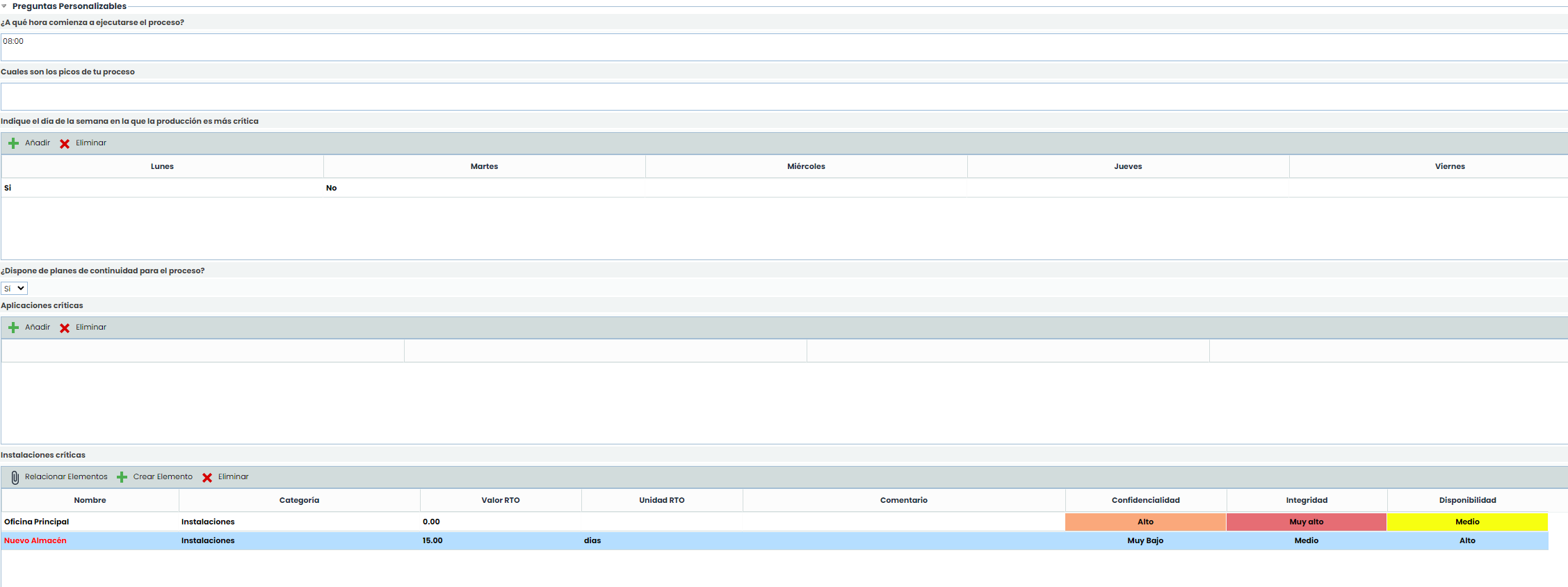
In the BIA form, the questions configured in the Settings > Business Continuity > BIA Configuration section will appear. These questions can be of different types: 'Text', 'Select', 'Table', or 'Table of Elements'.
In 'Table'-type questions, records can be added by clicking the 'New' button and removed with the 'Remove' button, as well as editing each of the fields by double-clicking.
Questions of "Table of Elements" Type
The options for this table are as follows:
-
Relate Elements
-
Associate Elements: For this type of question, it is possible to include elements from the Inventory (Analysis > Inventory) using the "Relate Elements" button. Clicking it opens a pop-up window where the list of elements with the categories configured for the question will appear, allowing the selection of the elements to be incorporated and adding them through the "Associate Elements" button.
-
Show: This option allows visualizing all the elements in the inventory > "All" option or only the elements associated with the process > "By Process" option.
-
In addition to default fields such as Name, Category, Value, or RTO Unit and Comment, manual dimensions from the inventory can be added, such as Confidentiality, Integrity, and availability of an element.

-
Create Element
New elements can also be incorporated by clicking the "Create Element" button. These elements will appear in red to indicate that they are not part of the Inventory, and they can also be Transferred to the inventory by clicking the option.
For all elements incorporated in the "Table of Elements" type question, it is possible to specify the recovery moment in case of disaster, using the "RTO Value" and "RTO Unit" fields, and the "Category," as well as adding a comment for each element. Additionally, the added dimensions of the inventory elements can be assessed.

-
Transfer of new elements to the inventory
In addition to the automatic consolidation capabilities of individual BIAs into the Consolidated BIA, the possibility of Transferring to the Inventory new elements identified during the Business Impact Analysis.
To perform this transfer, add or modify the individual BIA from which the Consolidation is to be made in the "Consolidation Data" section and click "Save." Then, in the "Table of Elements Type Questions" section, the new element added in the individual BIA will be displayed, which will be shown in red. Finally, select the new element and click "Transfer to Inventory." The new element will be automatically transferred to the inventory.

Once added to the inventory, the element will appear in black. Additionally, the elements included in the Table of Elements type questions will be consolidated in the Inventory > Table of Elements along with the assessment indicated in the Consolidated BIA, and will be included under the Business Process in the Element Tree.

NOTE: If any matching element already exists in the Inventory, it will not be transferred, and the consolidation results can be consulted in a generated report.
If the process is in the dependency tree with associated elements, the elements associated in that dependency tree will appear by default in the elements table. If, on the other hand, the process is not in the dependency tree, all the elements in the inventory will be displayed in the assets table.