This tutorial explains how to configure and manage the synchronization between GlobalSuite® and FACT24, the emergency management and crisis communication platform.
The goal is to enable the automatic integration of information between both tools: from the initial connection and entity mapping to the synchronization of committees, roles, employees, and alarms. This way, users will be able to activate plans, update contact data, and coordinate critical alerts in real-time from GlobalSuite®.
FACT24 connection configuration
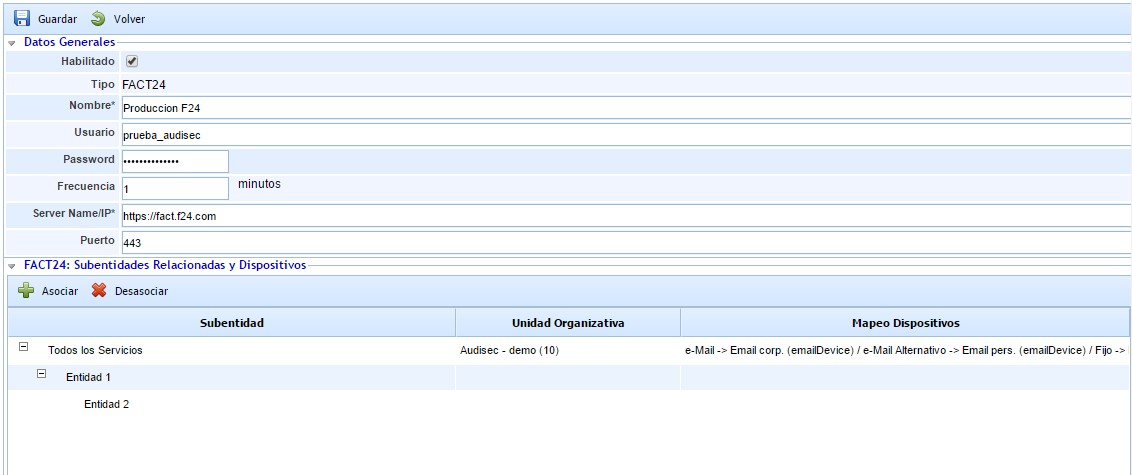
The configuration of the connection to FACT24 from GlobalSuite® allows you to start working quickly.
The only thing that needs to be defined are the configuration parameters and the account used for synchronization.
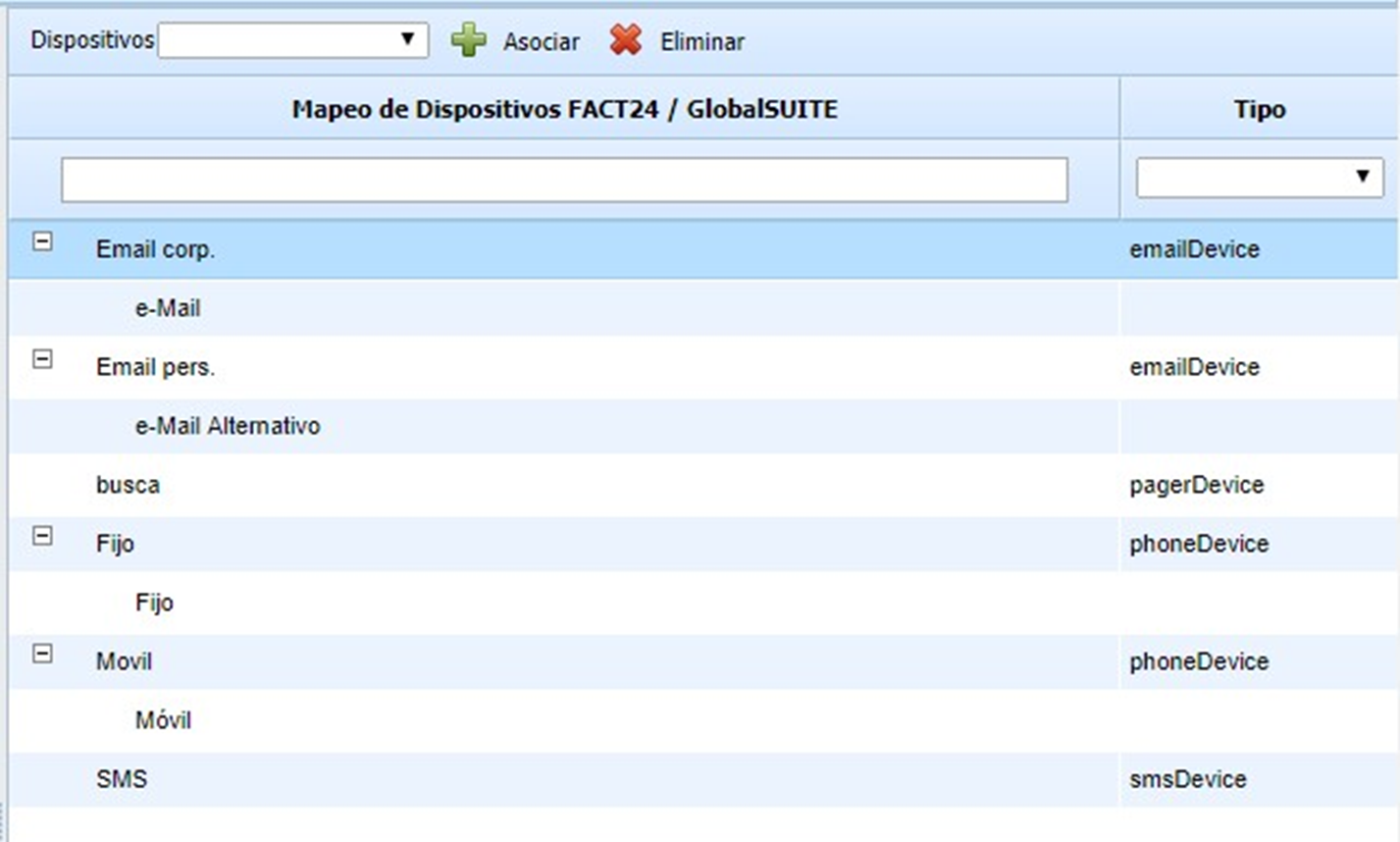
It will also be possible to link the alert devices used by FACT24 with the contact information fields in GlobalSuite®. This will allow the information to be updated automatically.
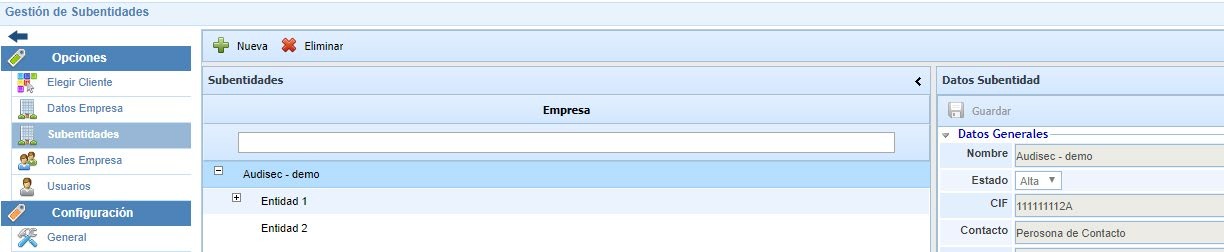
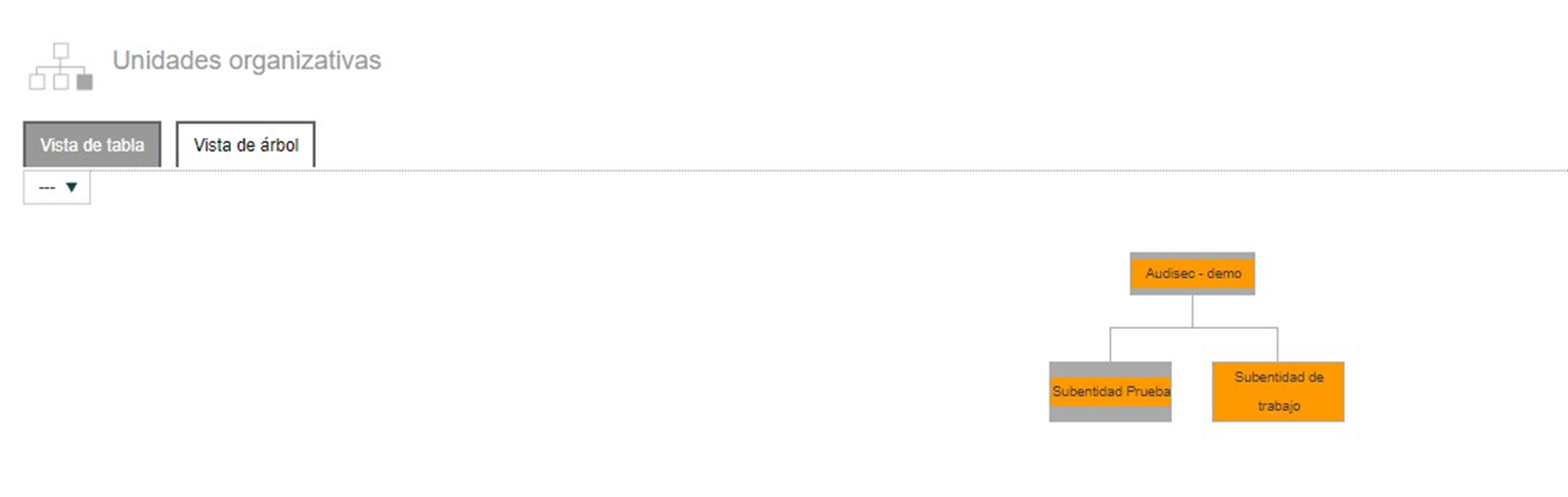
Both in GlobalSuite and FACT24, a hierarchical structure of Entities or Organizational Units with independent environments can be set up. Therefore, it is possible to establish a correspondence between these entities in the two platforms.
Additionally, for each one, it is possible to establish the correspondence of devices or fields to synchronize the contact information of each person. These devices in FACT24 can be of different types:
-
Phone (emailDevice)
-
Email (emailDevice)
-
SMS (smsDevice)
In GlobalSuite, there are email fields (primary and alternative) and different types of phone numbers that can be configured.
According to this correspondence, the contact data of GlobalSuite employees will be updated in the corresponding devices of the people in FACT24.
Synchronization of Committees and Critical Staff Teams
GlobalSuite® allows the automatic update of the various committees and teams defined to configure them as Groups in FACT24. These groups will be the ones alerted in different emergency situations.
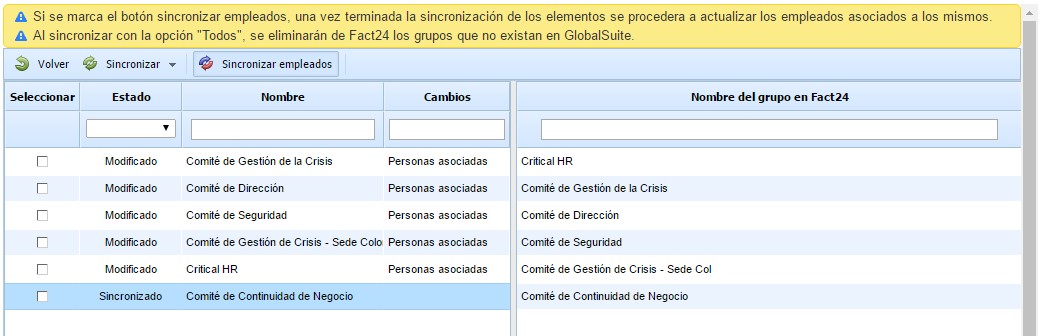
We can simply synchronize the committees and critical staff teams, incorporating into FACT24 the committees newly created in GlobalSuite®, updating the modified ones, and deleting those that no longer exist, as well as modifying the members of each one.
Note
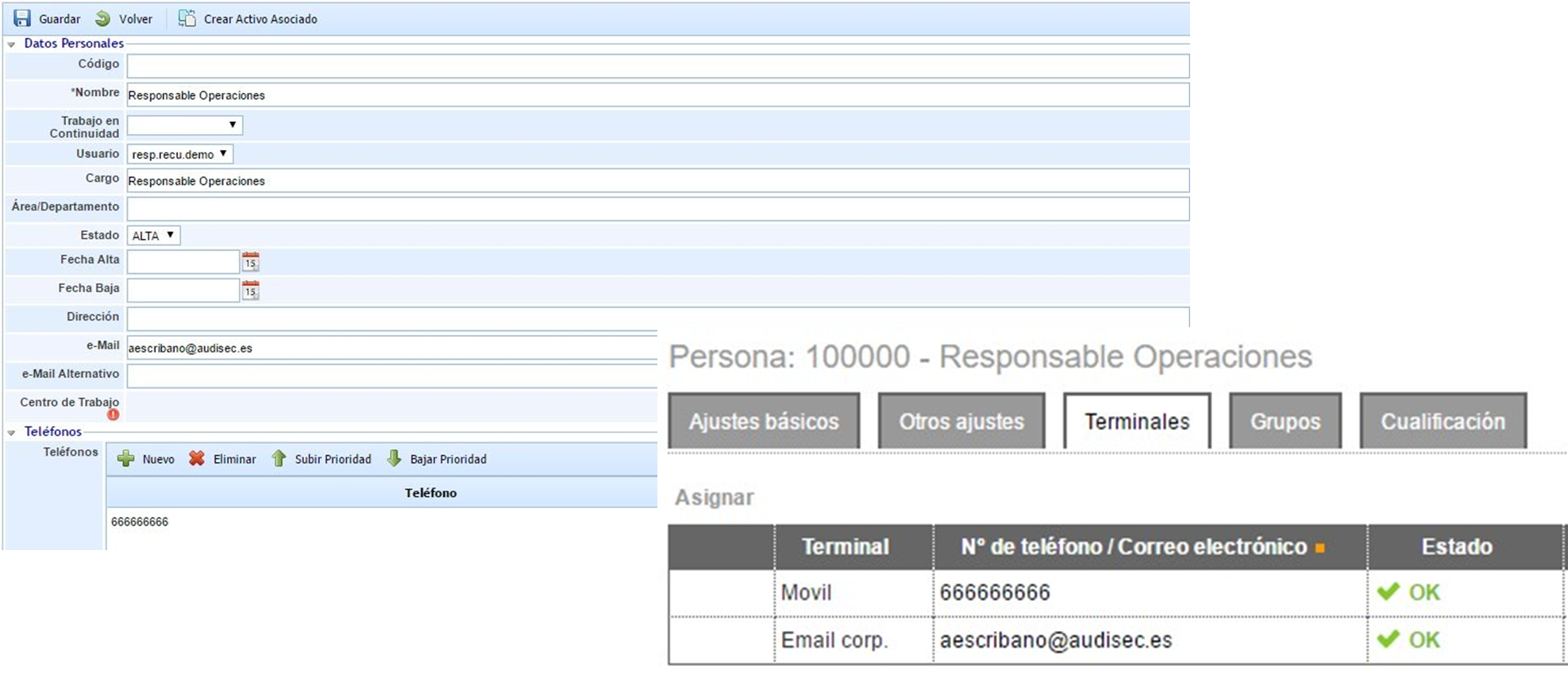
If we check “Synchronize employees,” the contact information of those members will also be updated in a single step, although it can be done independently.
The committee members, both primary and alternates or substitutes, will be incorporated into the FACT24 Group with the indicated precedence.
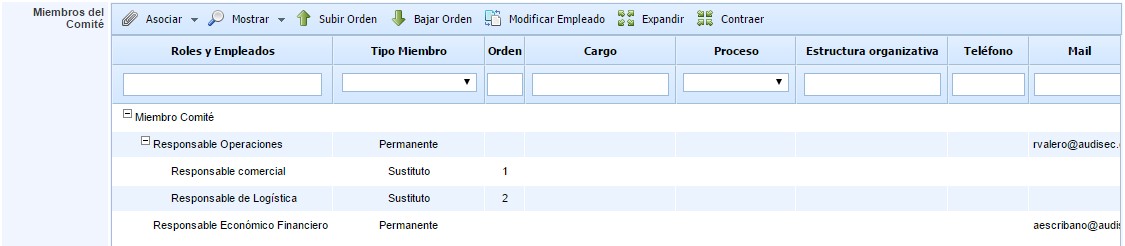
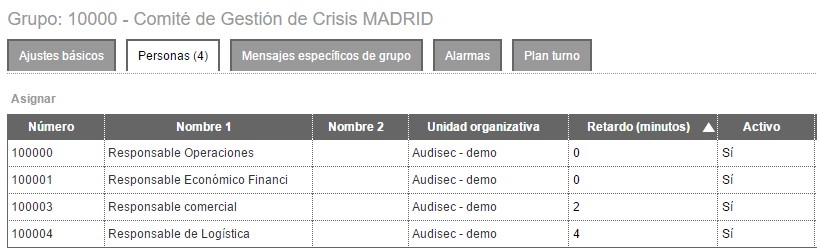
The primary members of the GlobalSuite® committee will be included in the FACT24 group to be notified first, while the substitutes will be included with a 2-minute delay so that if the primary members do not respond to the alert, FACT24 will contact the alternates.
Additionally, for each person, their contact information will be updated automatically according to the configuration we have made.
Plan and Alarm Activations
In addition to updating the information of involved personnel, committees, and defined teams, GlobalSuite allows linking the activation of Alarms in FACT24 with the activation of Crisis Management Plans and Recovery Plans.
This activation can be carried out from GlobalSuite itself, and FACT24 will handle communication with all the people involved. It also allows activations made from FACT24 to be recorded in GlobalSuite for management and tracking within the tool.
Linking Crisis Management Plans and Recovery Plans with Alarms
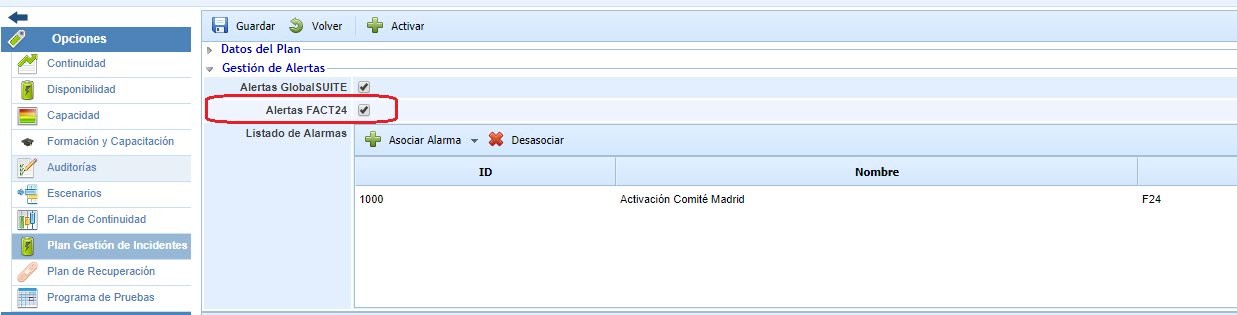
Each of the Crisis Management Plans (CMP) and Recovery Plans (RP) can be linked to one or more alarms configured in FACT24.
It is possible to decide which plans will use F24 alerts and which will use alerts from GlobalSuite (sent via email), or both. In the case of using FACT24 alerts, we can select which ones to activate when the plan itself is activated.

Synchronization and information update
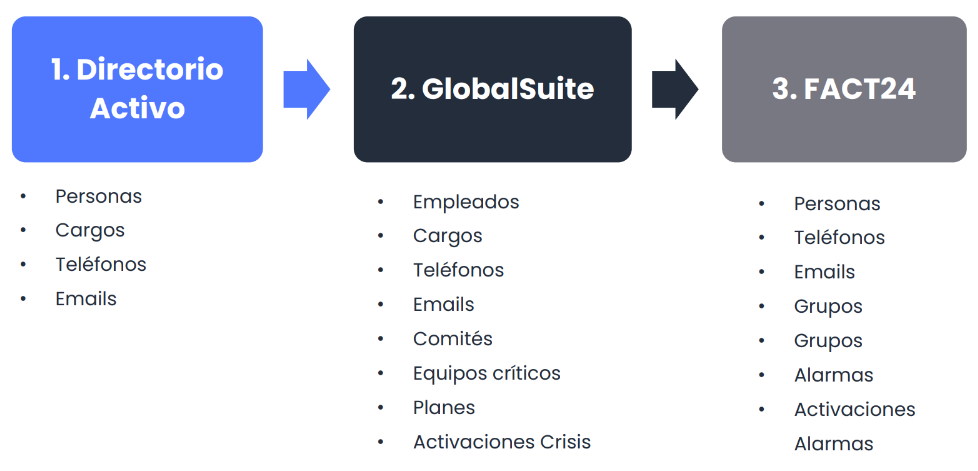
GlobalSuite® allows connecting and updating information from different parts of the organization's Active Directory.
This allows transferring information from one system to another automatically, avoiding duplications and inconsistencies.
Below, we show the elements that can be connected: