
Close surveys in GlobalSuite®.
This article details the functionality that allows closing and archiving surveys and publications in GlobalSuite®. With these actions, greater control over survey management is achieved, and data integrity is ensured.
How to close surveys?
To close a survey, simply access the Survey Management section. A survey can be closed at any time, regardless of whether it is still ongoing or if the response deadline has not yet passed.
-
Go to the Survey Management section of GlobalSuite®. This section can be accessed from Management > Surveys or according to the structure configured by the company on our platform.
-
Once inside the survey management, select the survey you want to close. If preferred, multiple surveys can be selected at once by clicking while holding the 'Shift' key.
-
Then, in the options on the top bar, press "Close survey"
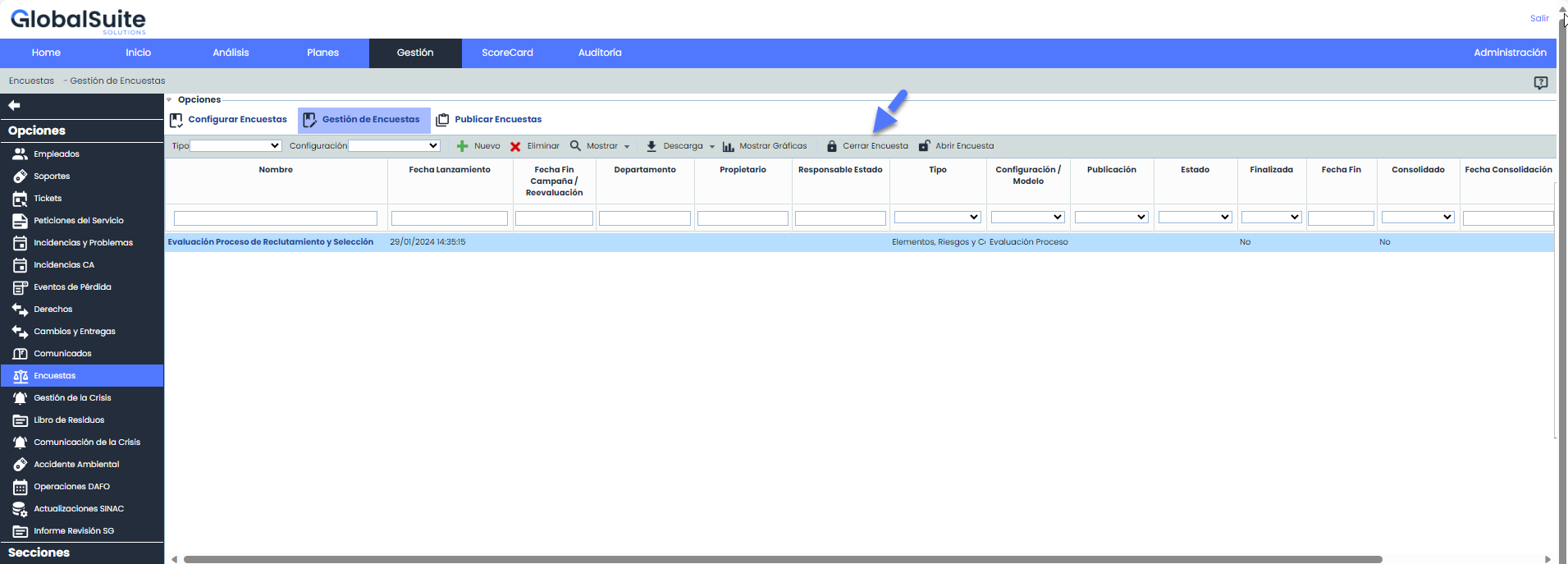
-
A confirmation message will be displayed, which must be accepted to effectively close the survey.
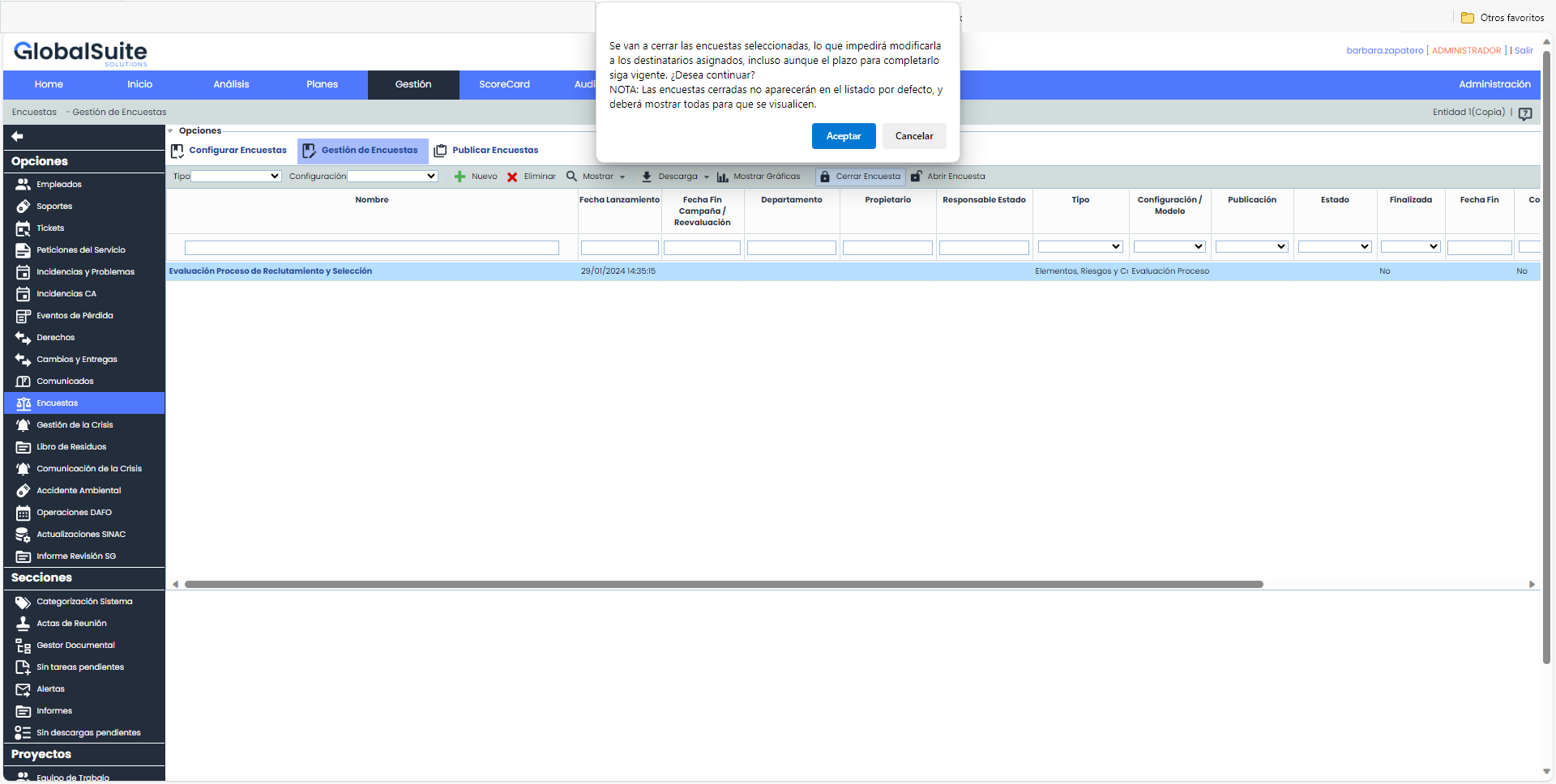
-
When a survey is closed, a message will be displayed indicating that the action has been successfully completed.
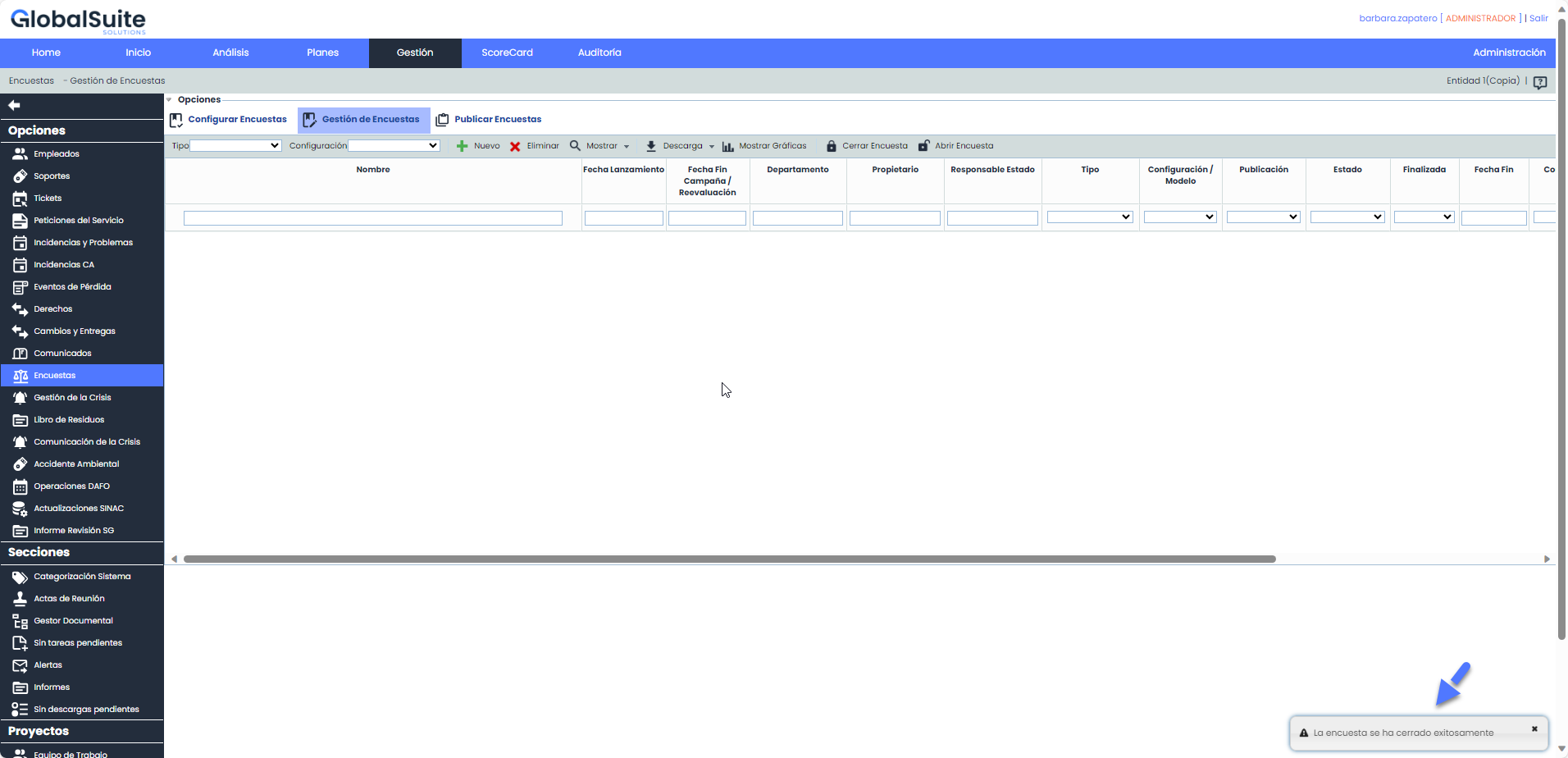
The survey will be automatically archived, so closed surveys will not appear in the main list by default.
How can I view Closed surveys?
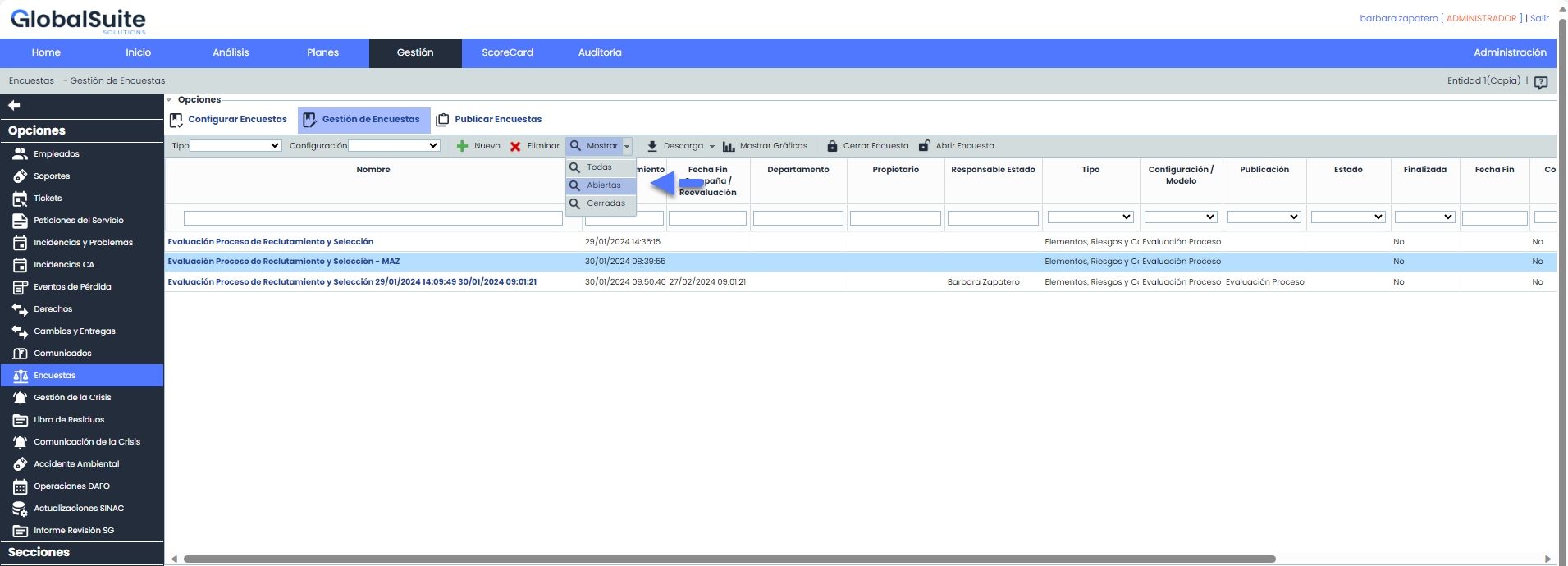
To view closed surveys, use the “Show” option on the top bar. The options are as follows:
-
All: Displays both open and closed surveys.
-
Open: Open surveys only.
-
Closed: Closed surveys.
By default, when accessing Survey Management, only open surveys that need to be managed are displayed.
What does it mean for a survey to be closed?
Once closed, recipients will not be able to access or modify the content of a survey (Users accessing via external link, anonymously, or users with access to My Information in Surveys).
A closed survey will not be included or generate notifications that the company may have configured.
Can closed surveys be reopened?
Yes, next to the “Close survey” option is the “Open survey” option.
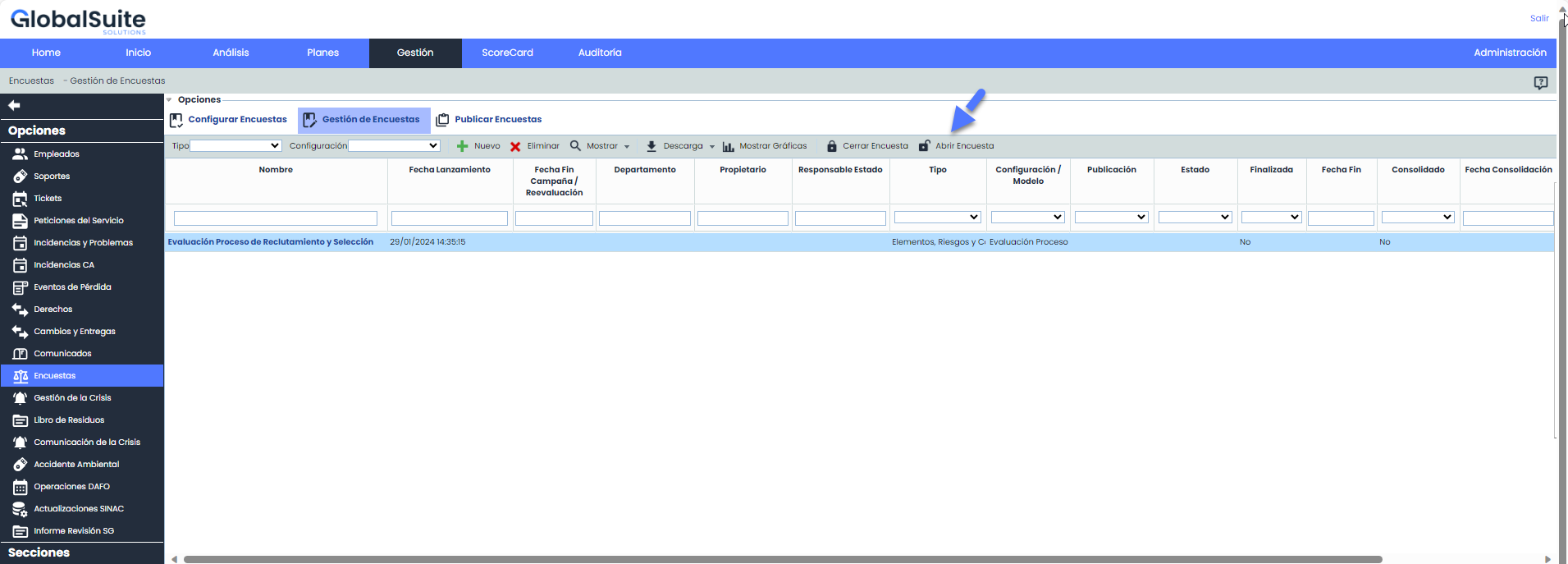
A confirmation message will appear, which must be accepted to effectively reopen the survey.
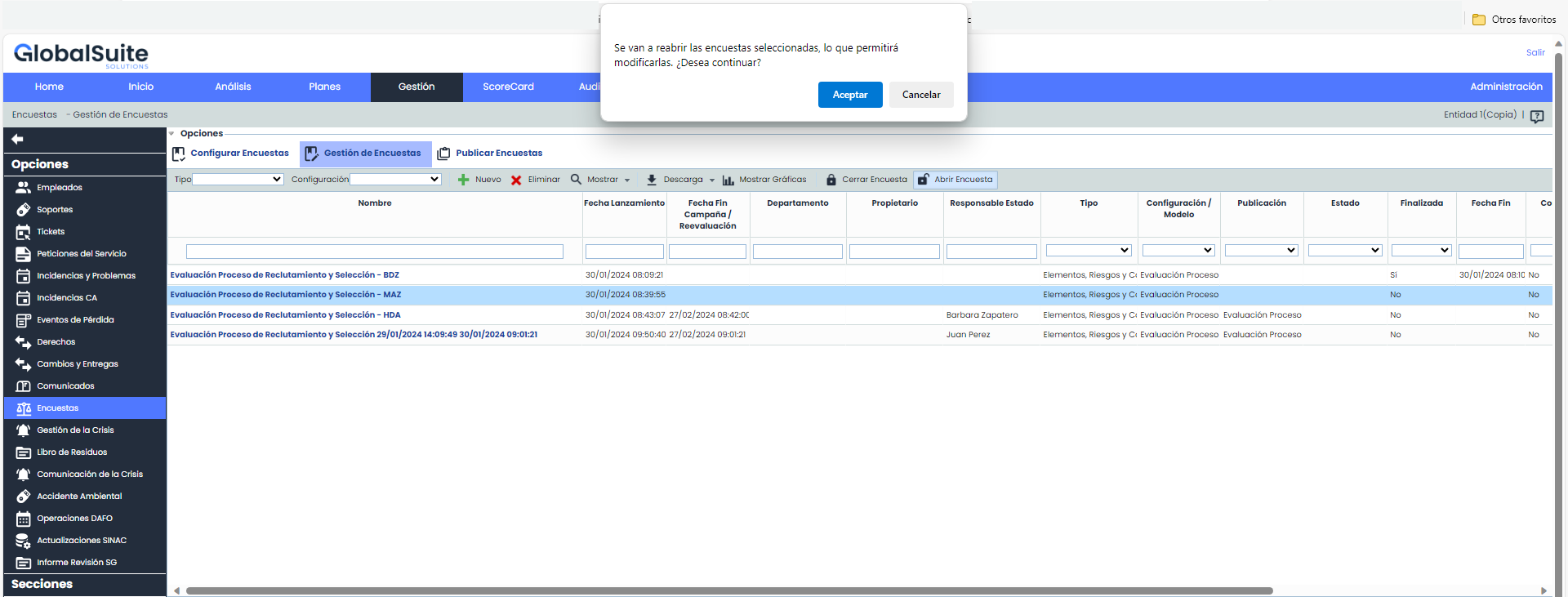
If the action was successfully completed, a message will be displayed informing you:
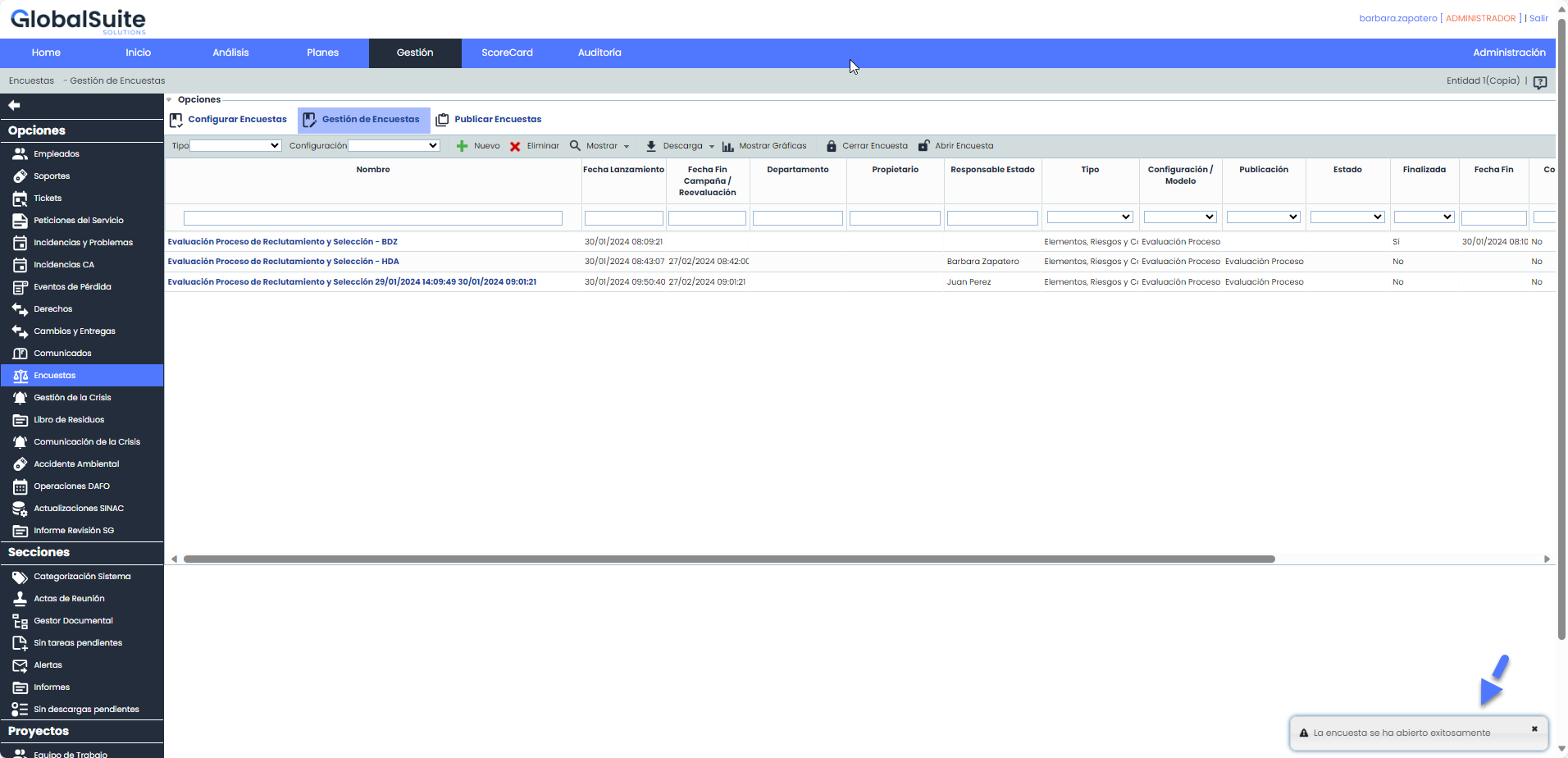
The survey will reappear in the main management table and can be accessed through the original link without needing to resend it.
Can Publications be closed?
There is no specific function to directly close a publication. However, by closing all surveys associated with a publication, it will be automatically considered closed.
Therefore, like surveys, closed publications will no longer be visible by default in the main table where all publications are listed.
To view closed publications, use the “Show” option on the top bar. The options are as follows:
-
All: Displays both open and closed publications.
-
Open: Only open publications. This option is displayed by default.
-
Closed: Publications where all their surveys are closed.
Where can I view the status changes a survey has undergone?
There is a detailed audit log that records the actions of closing and reopening surveys. This provides transparency and a change history for more effective management.
To consult them, you must have access to Settings > Action Logs.
-
Log when closing a survey:
-
Log when opening a survey:
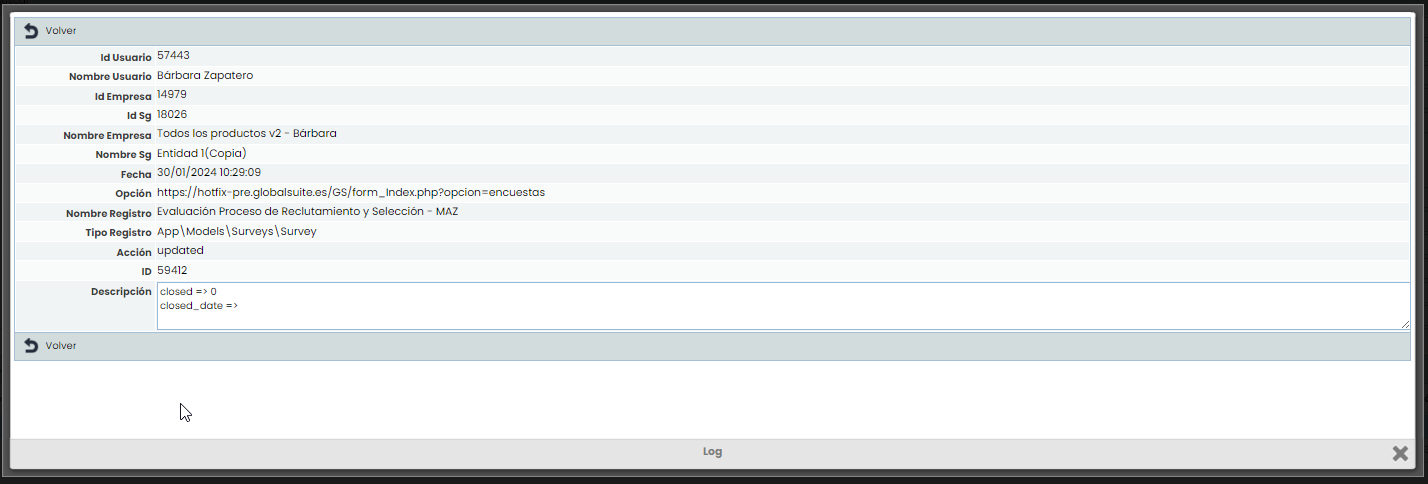
When a survey is closed, the closing date is recorded, and the indicator is set to 1. When the survey is opened, the date is cleared, and the indicator returns to 0.