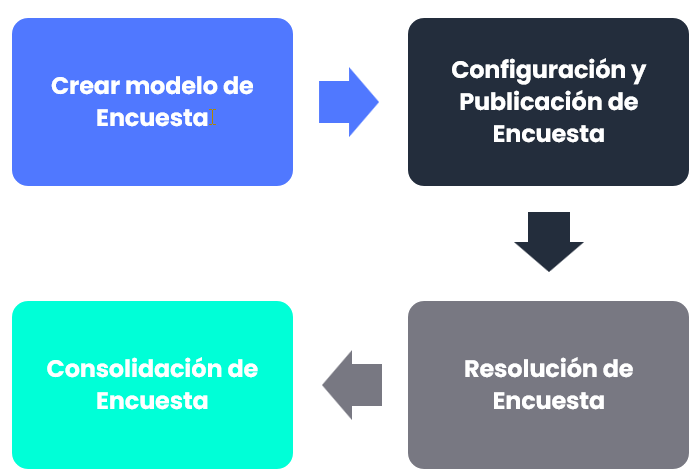
This article covers how to configure a Compliance survey model in GlobalSuite®, publish it to recipients, collect their responses, and consolidate the results into an active Compliance. The four phases of the survey — configuration, publication, completion, and consolidation — are explained, as well as how to update the compliance level based on the various evaluations received.
Phases of a Compliance Survey
Creating the survey model
This option allows you to configure the survey model that will later be sent to the desired recipients. Once this model is configured, it can be used in the GlobalSuite® Surveys option.
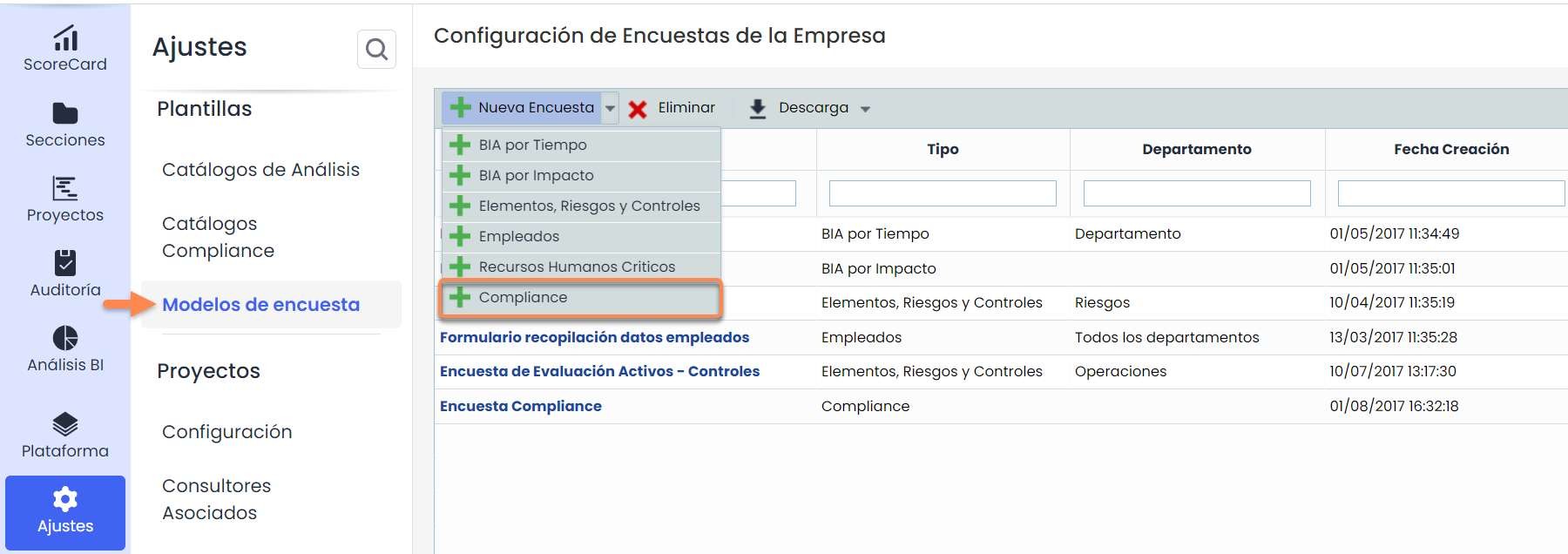
To generate a Compliance-type Survey, in Settings > Templates > Survey Models , you need to click the New Survey and Compliance button.
Creating the survey model
-
Clicking on the survey name will open a screen where the survey model must be defined.
-
Once the basic data (name, department, etc.) is completed, an approval workflow for surveys can be established. Additionally, the different approval levels of the workflow can be defined; if no states are defined, the survey will be sent to a recipient.
-
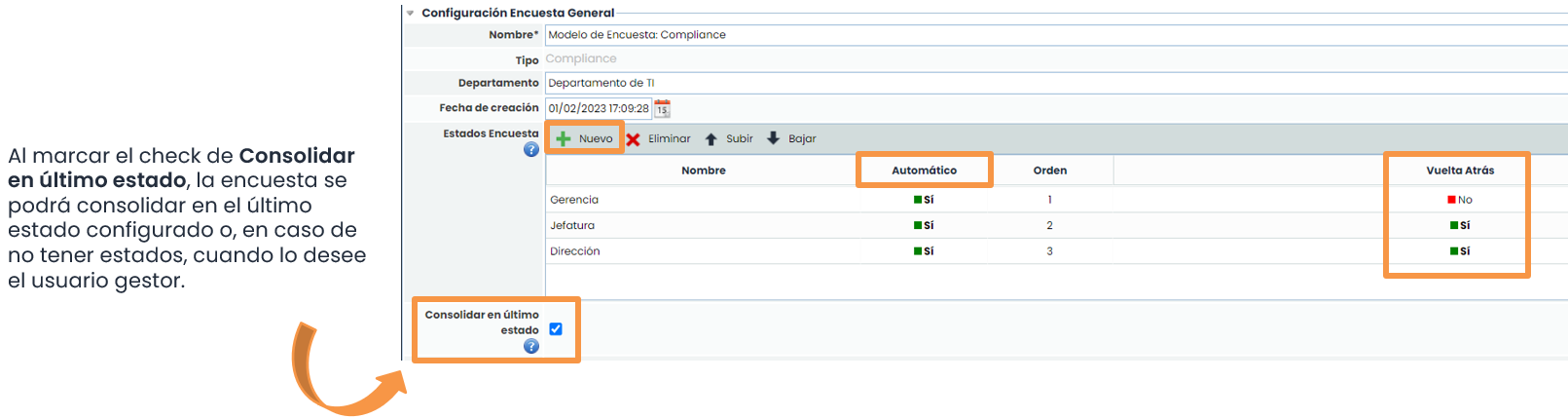
To create the states, you must click the New button and determine the names of the states.
-
With Move Up and Move Down, you can change the order of the states in the survey approval workflow.
-
If Automatic is checked, the survey will be automatically assigned at each state change; otherwise, the state change must be done manually.
The fundamental aspect of the survey is to choose which catalog(s) to question.
The survey will be generated with the controls defined on the selected catalog and configured in the Compliance Catalogs option (see guide How to create and configure a Compliance catalog in GlobalSuite®?)
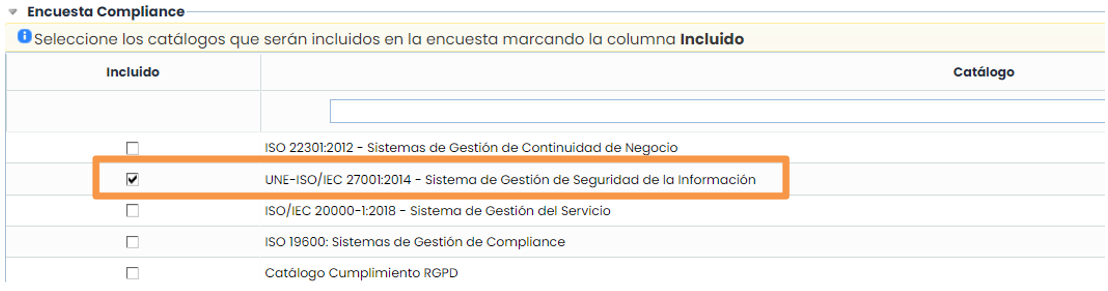
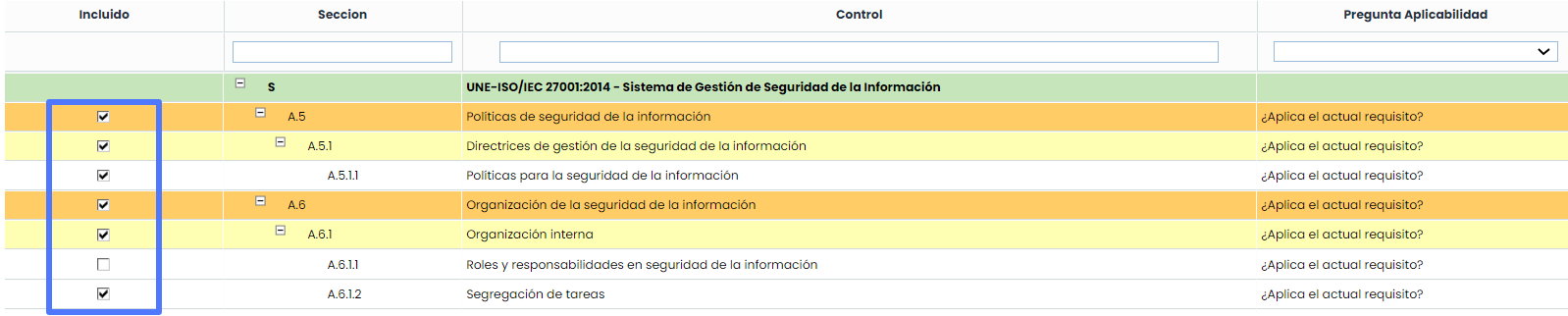
After selecting the catalog, all the controls to be updated in the survey will appear at the bottom. However, a prior selection of the controls to be sent in the survey can be made by checking or unchecking them in the “Included” column.
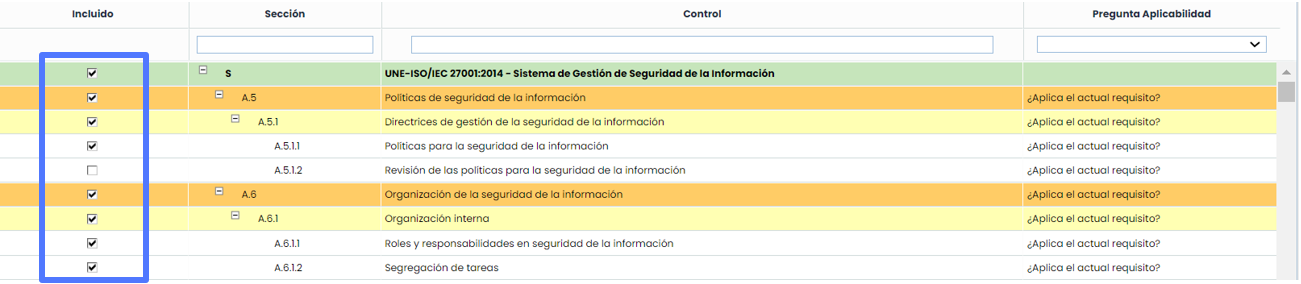
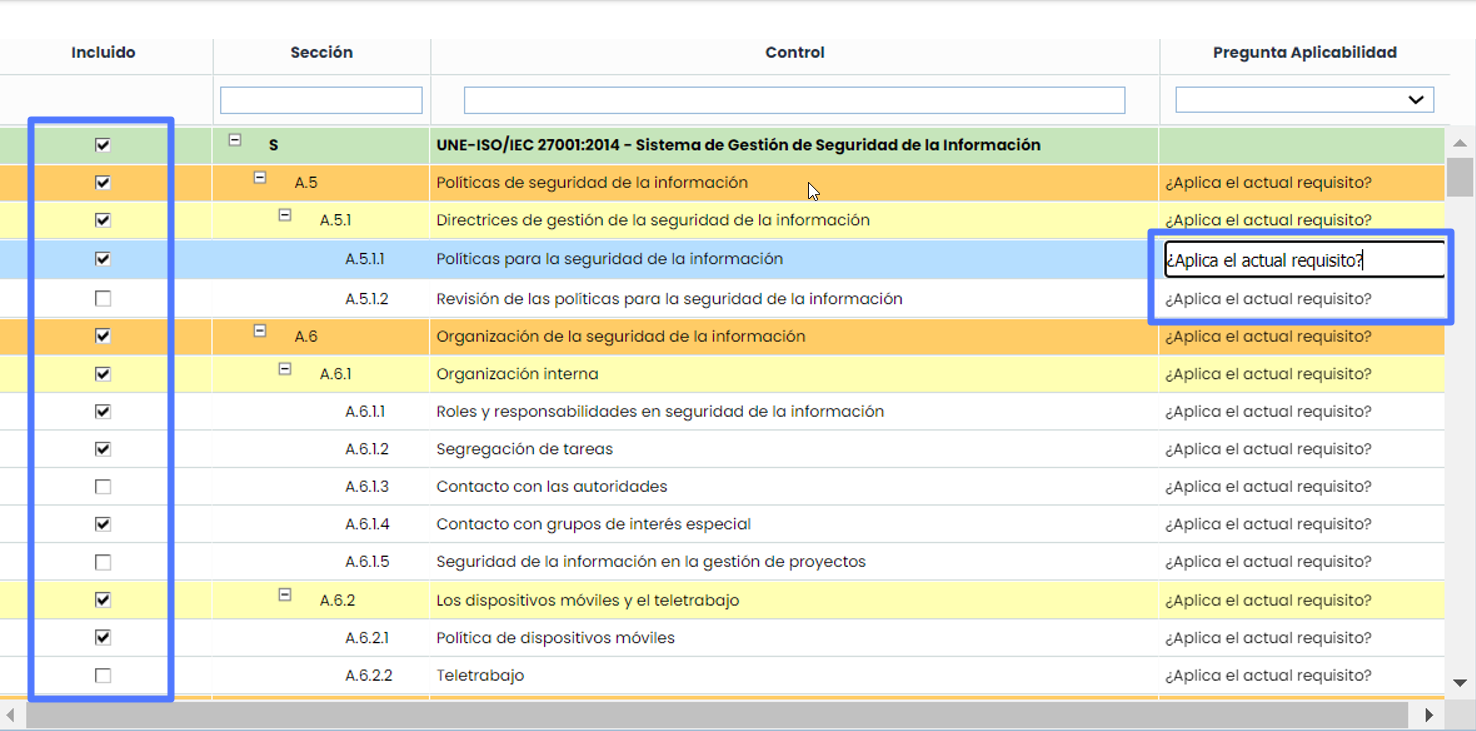
In addition to choosing which controls to generate the survey on, the question to check the applicability of the controls can be modified, and the recipient will have to choose the answer. Double-clicking on the cell will allow you to edit its text.
The first aspect to configure will be the question asked to determine the % of control completeness in the organization. Clicking on the desired control will open a table on the right to configure this question.
By default, there is one question, but it can be modified or more questions/answers can be added depending on the organization's methodology.
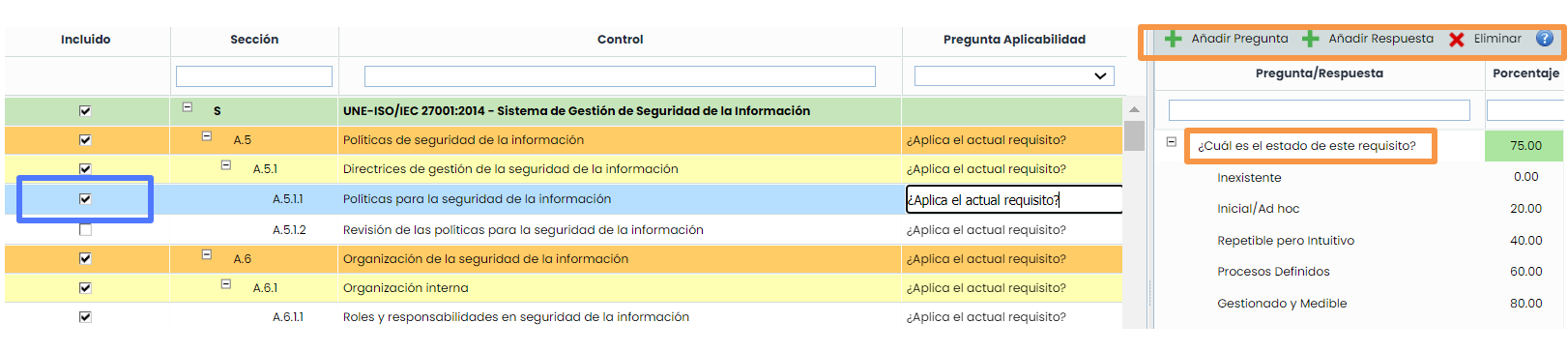
More questions about the completeness percentage can be added. If more questions are added, the weight of each in the calculation formula must be chosen, as all questions together must sum up to 100 (green fields in the image).
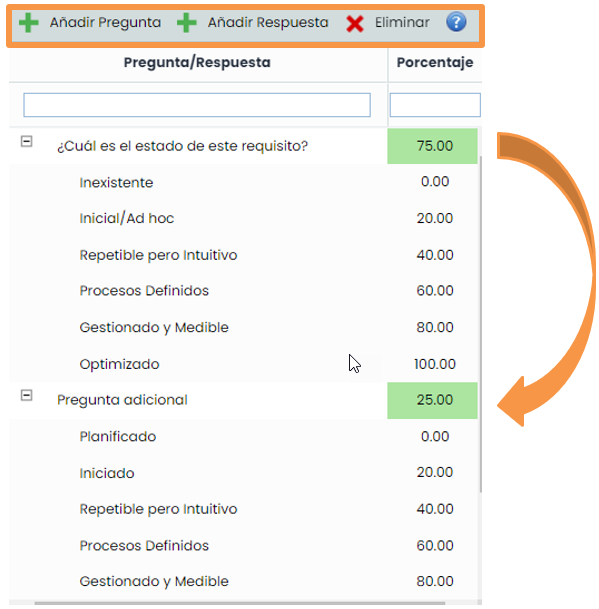
Continuing, for each question, the possible answers can be configured: adding or removing existing ones or modifying their names.

If only one question is configured, no action is required, as all controls come with a default question.
The default states are those configured in the Compliance Catalog.
Survey Configuration and Publication
1. Configuration
Once the model is configured, a survey must be created and associated with that model.
In the top menu, three icons will appear. By default, the application always shows the “ Survey Management ” tab. However, the first step is to go to Configure Surveys to create a new survey based on the previously generated model in Settings. Finally, the “type” of survey and the “model” to use will be selected.
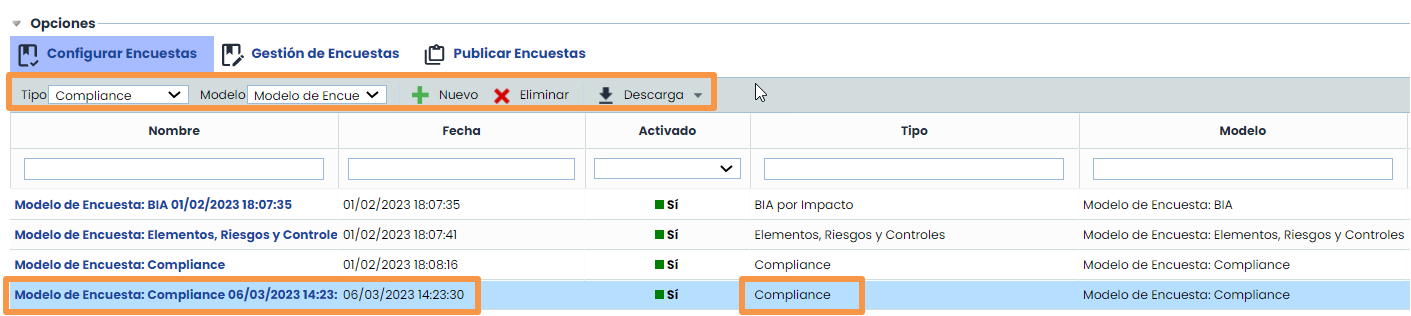
After defining the main data of the survey, if the survey has a workflow, an additional table with the states configured in Settings will appear. In this case, the responsible persons for the states must be selected so that the survey is automatically sent to them upon publication.
By selecting the state and clicking the Associate Responsible button, a pop-up window will appear with the employees defined in the Management> Employees option.

The next step is to choose which active catalogs the survey will be conducted on. For this, an active catalog must be available in the Analysis > Compliance option.
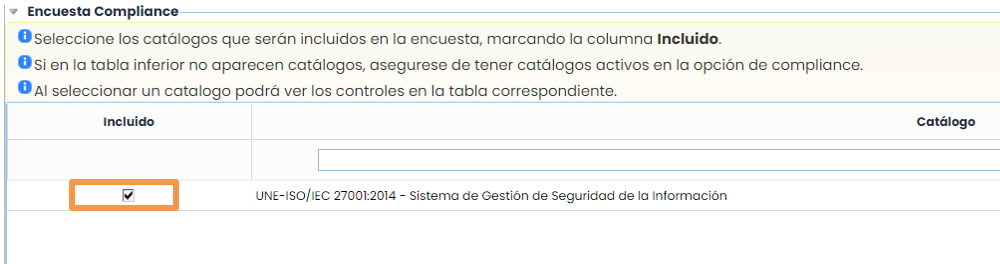
If the catalog is selected in the table below, it will be loaded, allowing you to select the controls on which the survey will be conducted. If you want to delete an entire section (orange/yellow), you must delete all the elements that make up that section (white lines).
2. Publication
Once configured, the survey will be sent to employees for them to answer.
By clicking on the Publish Surveys icon, in addition to viewing those surveys that are published, the previously configured model must be selected, and the New button must be clicked.
This functionality allows the survey to be sent to anyone (without needing to have a user in the tool) to answer about the required catalogs.
The recipient will only receive a URL via email, and clicking on it will open a window with the configured survey.

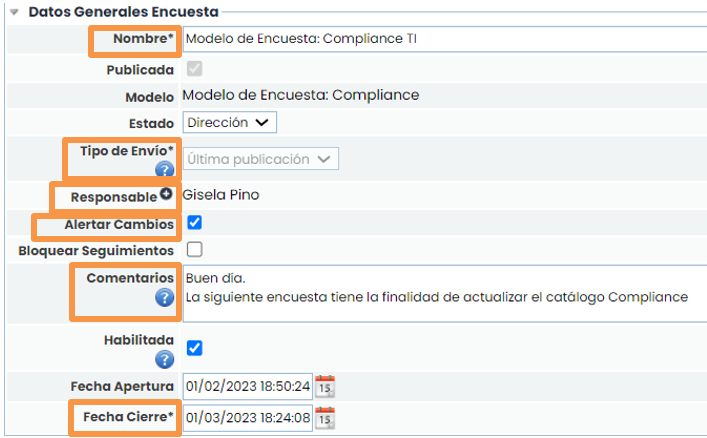
To send the survey, you must access the previously created publication and complete the following fields:
-
Name: name of the survey to be sent.
-
Sending Type:
-
Empty It will take the data from the GlobalSuite option related to the catalog to be sent.
-
Last publication A previous survey can be associated, and the new one will be sent with the data from that survey.
-
-
Responsible : manager and person in charge of consolidating the survey (must be a GlobalSuite user)
-
Alert Changes : alerts the publication manager of any changes made to the survey.
-
Comments : additional instructions the recipient will receive in the email.
-
Closing Date: deadline until which the survey will be accessible
If the survey has an associated workflow, a dropdown element will appear to choose the workflow state. Additionally, the associated recipient will be automatically inserted and will be responsible for the first state of the workflow.
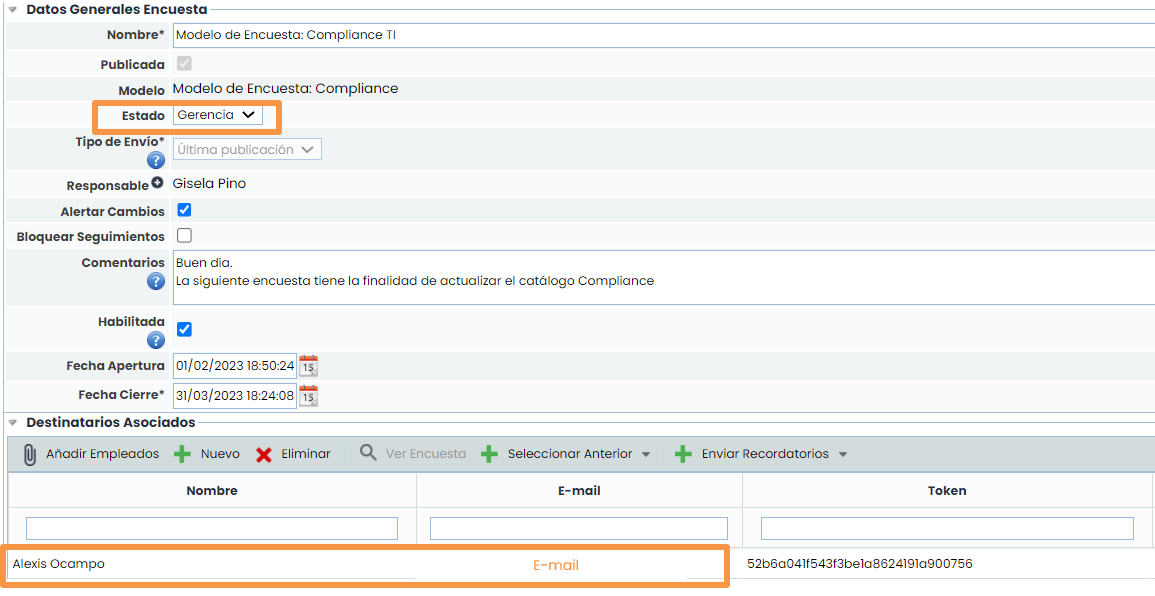
The next step will be to choose the people (one or more) to whom this survey will be sent (remember that if there is a workflow, the recipients will be chosen in the Survey Configuration).
Employees can be created in the Management> Employees section or any person not defined in the application can be added:
-
If you click on Add Employees, a pop-up window will appear with the employees registered in GlobalSuite.
-
If you click on New, a pop-up window will appear requesting the recipient's name and email.

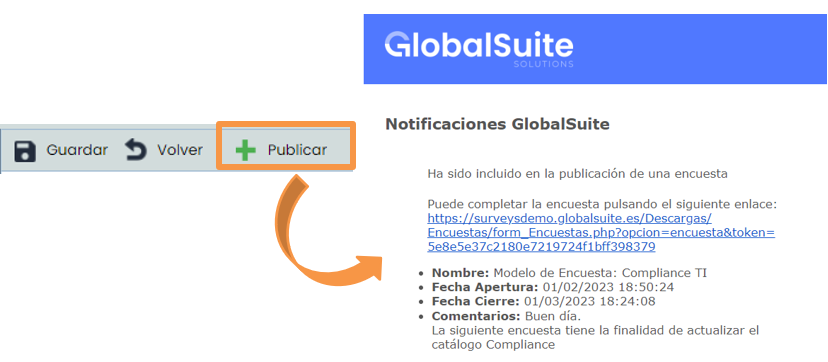
Once all the information is configured, you must click the Publish button to enable the link generated in this survey for the indicated recipient:
-
The generated link will be available until the configured closing date.
-
By clicking the Publish button, the recipient will receive an email.
3. Completion
Clicking the link will open the screen shown in the image. If there is more than one catalog, you can select which catalog to answer. In this example, the survey is conducted on one catalog.
The recipient will have to evaluate the controls according to the applicability question and the % completeness question.
Control by control will be selected, but the % completeness response will only be available for controls without dependent controls (in white). On the other hand, the applicability response is available for all controls.
To complete the survey, all applicable controls in the organization must be completed.

Once all the requirements are answered, the user will click the Finish button and alert the publication manager with an email.
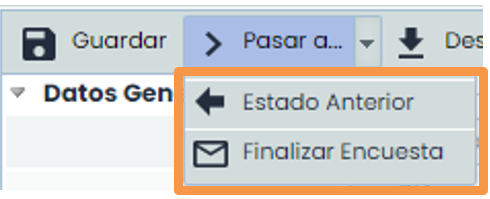
If the survey has an associated workflow and the states configured in the model are automatic, when the recipient clicks “Move to Next State”, the survey will automatically move to the recipient of the next state. This process will repeat as many times as there are states in Settings> Survey Models .
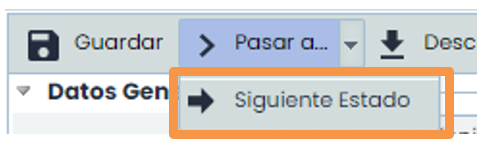
If the model has marked the state with the possibility of going back, the recipients of those states can return the survey to the previous one. When the recipient of the last state finishes the survey and clicks “ Finish Survey”, it will be recorded as completed.
4. Consolidation
The Consolidation functionality is used to update the data of an active Compliance considering the responses from one or more surveys. Consolidation seeks a consensus among the different opinions of the Compliance evaluation managers.
The consolidation criterion is modifiable and allows updating the existing evaluation in GlobalSuite® by overwriting it with the maximum or minimum values, or applying an arithmetic mean, of all the surveys.
Below, the Consolidation of information is detailed.
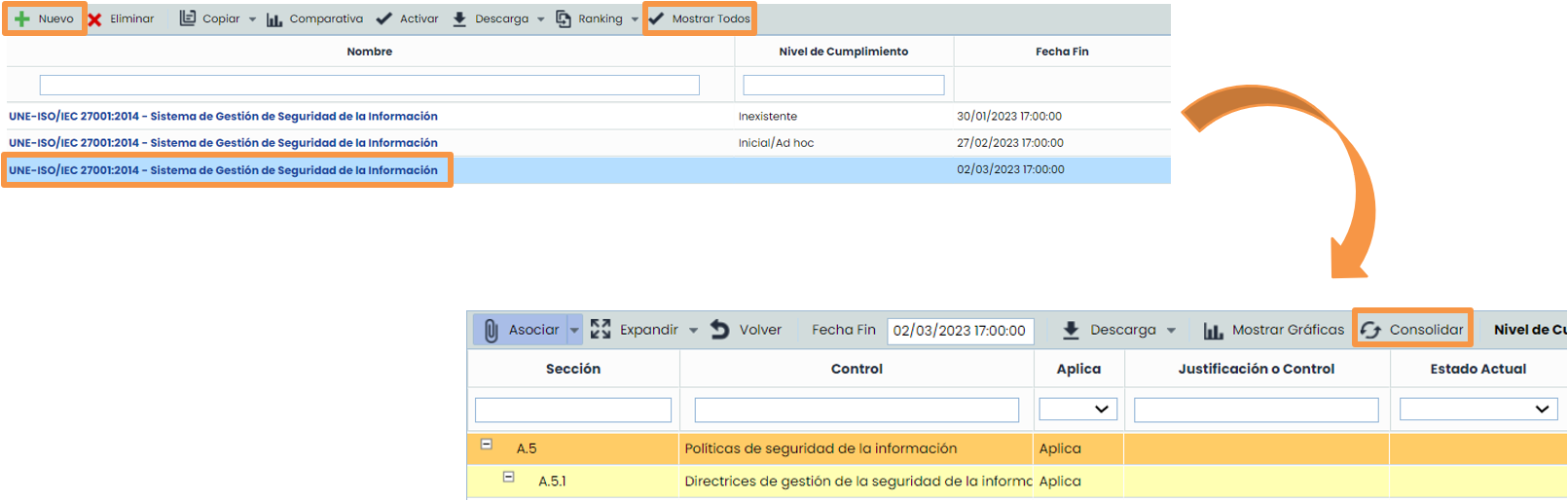
In the Analysis > Compliance , option, you must choose the Compliance you want to consolidate with the responses from Surveys. Clicking on the active version to access (green row – if you do not click Show All, only active versions will be displayed). In the toolbar, you must click the Consolidate button.
Consolidation Options:
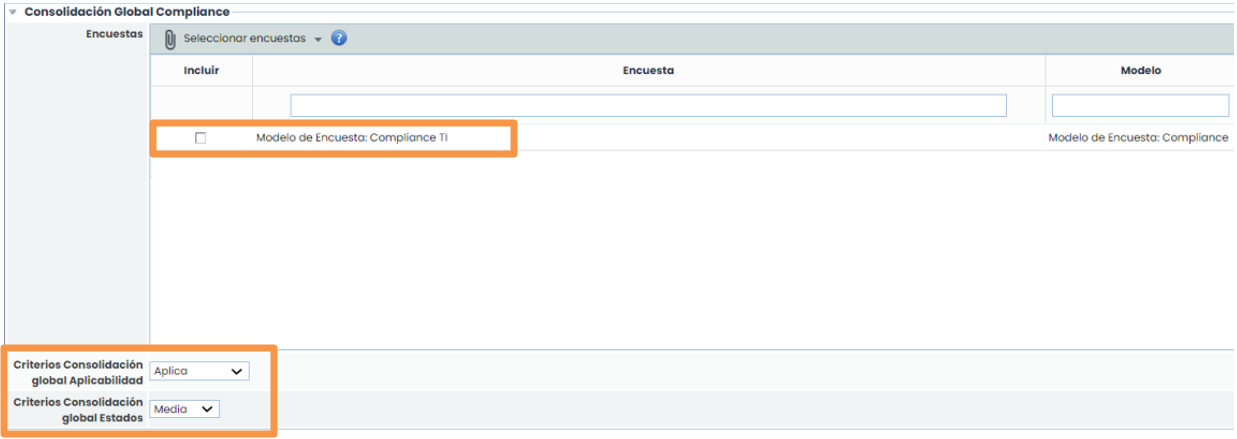
Once on the consolidation screen, the following options must be chosen to consolidate:
-
Surveys published on this catalog. Select the survey in the left column.
-
Applicability Consolidation Criterion.
-
Applies: if one of the surveys applies the control, the result is applies.
-
Does Not Apply: if one of the surveys does not apply the control, the result is does not apply.
-
Does Not Consolidate: does not consider controls with different criteria.
-
-
State Consolidation Criterion
-
Minimum: takes the minimum value of the completeness result for the same control.
-
Maximum: takes the maximum value of the completeness result for the same control.
-
Average: calculates the average of the responses a control has received.
-
Note: if there is only one survey in the consolidation, the resulting control value will be the same as that of the survey.
Consolidation — selection and execution
Finally, the consolidation of the survey result remains.
-
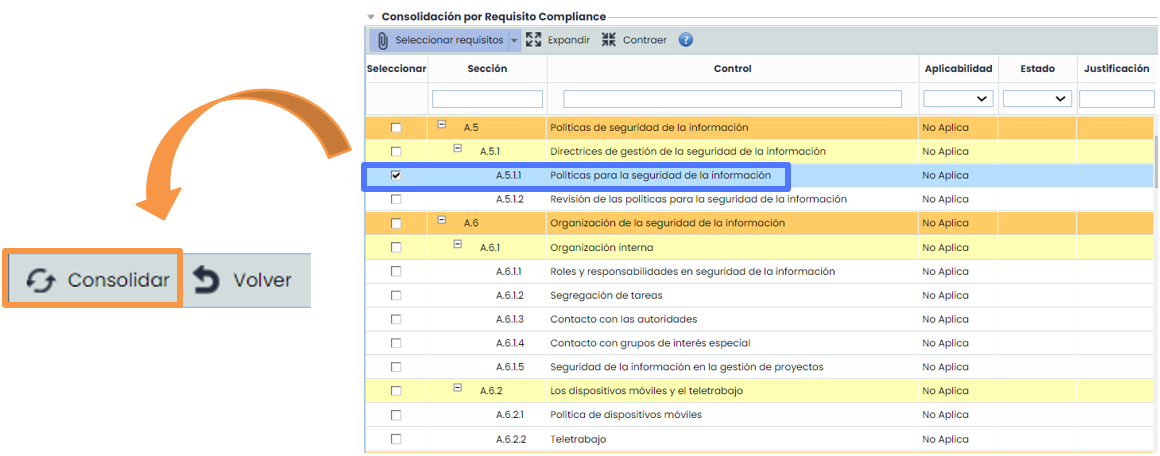
First, the controls to be consolidated must be selected by checking the ones to be included in the left column.
-

Then, each control's response from the recipient must be reviewed to make the correct decision.
-
In the table on the right, the different responses can be seen, and the decision to use the global consolidation (explained in the previous point) or choose the individual consolidation option for each control must be made.
-
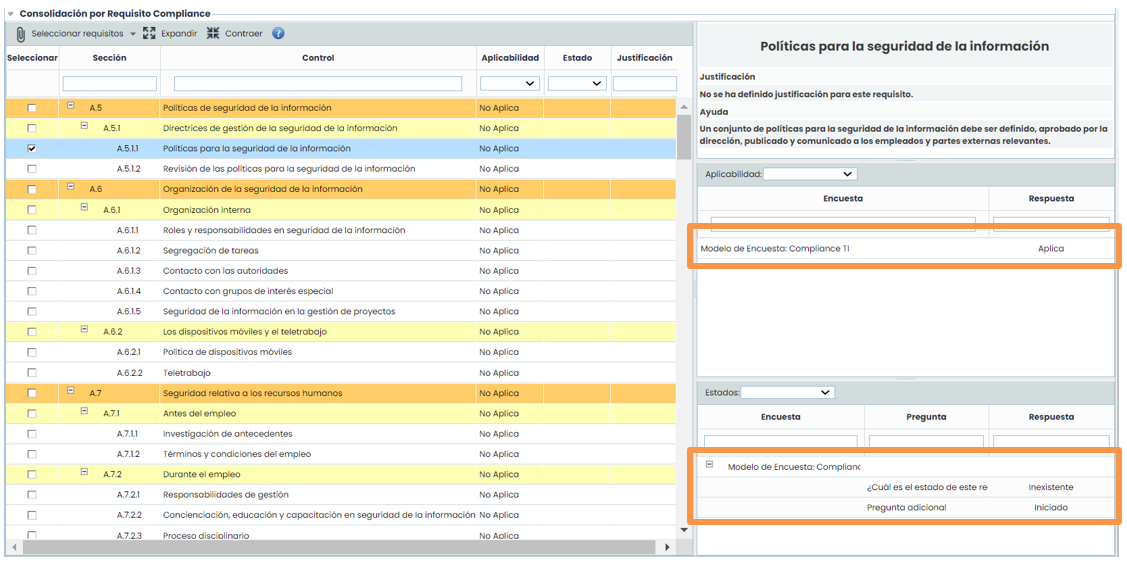
Selecting each control will display two tables where the different responses about the control can be seen (see next point “ Consolidate criteria by control”).
-
When the consolidate button is clicked, the survey result will be copied into the GlobalSuite® catalog.
Consolidate Criteria by Control
In the first table, the responses to the applicability question can be seen. In the dropdown list, the individual criterion for that control can be chosen. If nothing is chosen, the global criterion will be used.
In the second table, the response about the % completeness can be chosen. In the dropdown list, the individual criterion can be chosen. If nothing is chosen, the global criterion will be used.