
The Metrics option allows you to include the values that generate the indicators supporting specific objectives.
On the main screen, you can identify the list of all the metrics that have been defined.
The fields Last Value and Last Date show whether the metrics are being updated:
- Date: Creation date of the metric.
- Responsible: Person responsible for the metric.
- Auto: Indicates whether the metric is manual or automatic.
- Frequency: Indicates the frequency with which the metric is calculated.
- Areas: Indicates the area associated with the metric.
- Last Value: Indicates the last value that has been applied.
- Last Date: Indicates the date on which the last value was updated.

On this main screen, the following options can be identified:
-
New: Allows you to generate Metrics.
-
Delete: Allows you to delete Metrics that have been previously generated.
-
Automatic Metrics Catalog: This option allows you to generate a series of Metrics proposed by GlobalSuite. These Metrics generate data automatically.
-
Download: Allows you to download the list of all the Metrics used from the tool.
Regarding the Automatic Metrics Catalog, a pop-up window appears where all those Metrics organized by categories are defined.
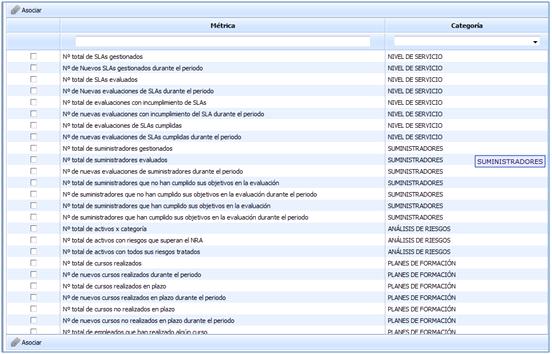
The main feature of these Metrics is that they are completely automatic, generating the corresponding data from other options in the tool.
The way to proceed to use them is similar to the case of indicators, first selecting those you want to use and associating them. In this way, they are included in the list of Metrics.

The Metrics associated with the catalog can be identified through the Auto column as it shows “Yes,” indicating that their data will be generated automatically from the corresponding GlobalSuite option. NOTE: To access each of the metrics, you need to click on the name of each one. Once you have accessed each of the established metrics, the following tabs can be identified:
Charts
In this section, the values obtained in the corresponding measurement are displayed, represented graphically.
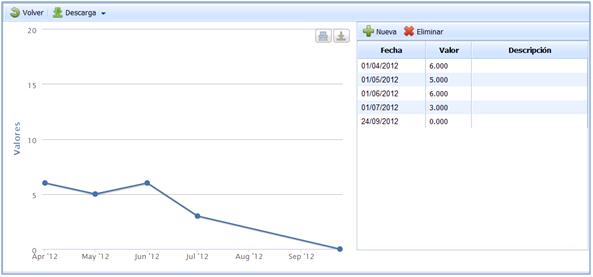
The Metrics option in the graphs section provides the following options:
-
New: Allows you to generate or include a new value in the metric.
-
Delete: Allows you to delete a previously defined value.
Additionally, for each of the registered values, it is possible to indicate complementary information deemed necessary to clarify the included data.
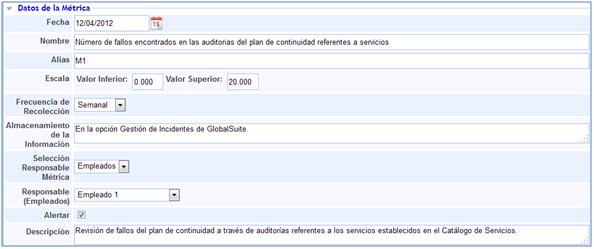
Metric Data
-
Date: Sets the date on which the collection of values begins.
-
Name: Allows you to determine the name of the metric.
-
Alias: GlobalSuite automatically generates a determination for the alias. This will be used to generate the calculation formula for the corresponding indicator.
-
Scale: Allows you to set the range of values in which the generated graph will be represented.
-
Collection Frequency: Sets how often the collection of values should be performed.
-
Information Storage: Allows you to determine where the obtained values are stored.
-
Metric Responsible Selection: Allows you to establish whether the selected responsible person is manually assigned or automatically set, identifying an employee managed through GlobalSuite as responsible.
-
Responsible (Employees): Determines which employee is in charge of managing the metric.
-
Alert: When this field is selected, GlobalSuite will send an email to the established responsible person.
-
Description: Allows you to generate or include any type of description deemed appropriate to clarify the purpose of the defined metric.
-
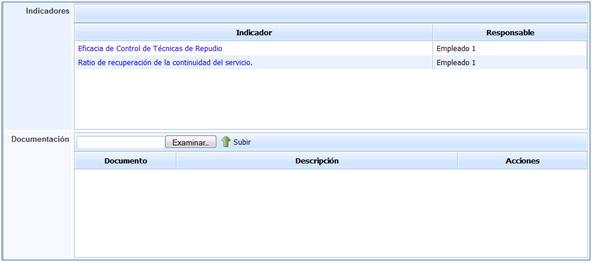
Indicators: Establishes those indicators associated with the defined metric.
-
Documentation: Allows you to associate documentation that clarifies the defined metric or serves as a record of it.
Metrics Propagation
This option allows the propagation of metrics defined in the parent company to the sub-entities that depend on it.
Once the option is accessed, the following tables are displayed:
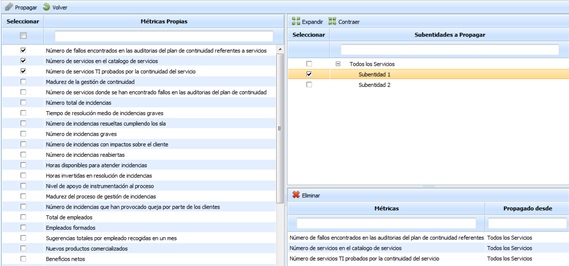
Left Table: Displays the list of metrics defined in the parent company. The options allowed by the table are:
-
Propagate: Once the desired metrics are selected, it allows propagating them to the selected sub-entities.
-
Back: Offers the possibility to return to the initial metrics screen.
Top Right Table: Displays the list of sub-entities to which metrics from the parent company can be associated. The table allows the options to expand or collapse the list of sub-entities.
Bottom Right Table: Once the sub-entity is selected in the top table, it shows the metrics that have been associated with it. The tool offers the possibility to delete an associated metric; to do this, the desired row must be selected, and the 'Delete' button must be clicked.
Metrics Consolidation
This option allows the consolidation of metrics defined in the parent company with the metrics of the sub-entities that depend on it.
Once you have accessed the option, the following information is displayed:
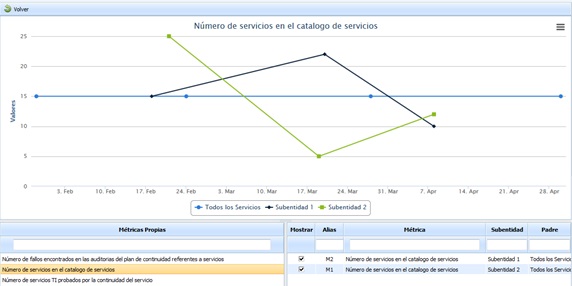
Graph Displays the different evaluations performed on the metrics of the parent company and the sub-entities.
Own Metrics Table Allows you to view the list of metrics from the parent company that have been associated with one or more sub-entities.
Propagated Metrics Table Allows you to view the sub-entities to which the selected metric has been associated. The information provided by the table is as follows:
-
Show Offers the possibility to view the metric results in the upper graph.
-
Alias Indicates the alias assigned to the metric in the sub-entity.
-
Metric Provides information about the name of the metric associated with the sub-entity.
-
Sub-entity Displays the sub-entity to which the metric has been associated.
-
Parent Indicates the parent company from which the metric has been propagated.