
Survey Follow-up
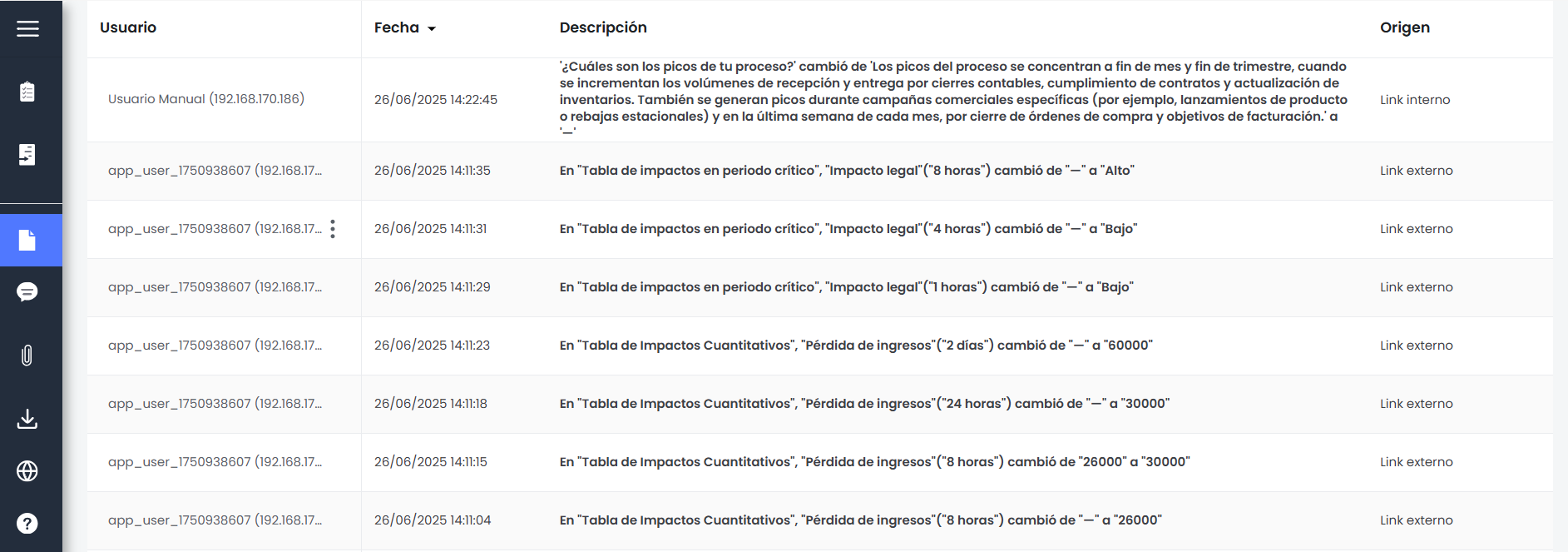
The Follow-up section shows a detailed history of the actions performed on the survey. Each row in the table represents a modification or event automatically recorded by the system, allowing control of the changes made over time.
The fields included in this table are:
-
User: displays the identifier of the user who performed the action, along with their IP address, in the same format used in other modules of the platform.
-
Date: indicates the exact date and time when the action was performed. It is displayed by default in descending order (most recent first), although it can be manually reordered from the header.
-
Description: specifies in natural language the action performed. For example:
A response has been added to the table "What are the critical days of the week in the process?"
This description adapts to the context of the change, clearly indicating which question or field was affected.
-
Origin: allows identifying whether the action originated from internal or external access to the survey. The labels Internal link or External link are displayed as appropriate.
Additionally, the table includes controls at the top to sort or filter the displayed records, facilitating analysis in forms with a large amount of recorded activity.
Comments
The BIA survey includes a Comments section that allows direct communication between survey participants. Through this space, users can leave messages, clarifications, observations, or request additional information related to the survey content.
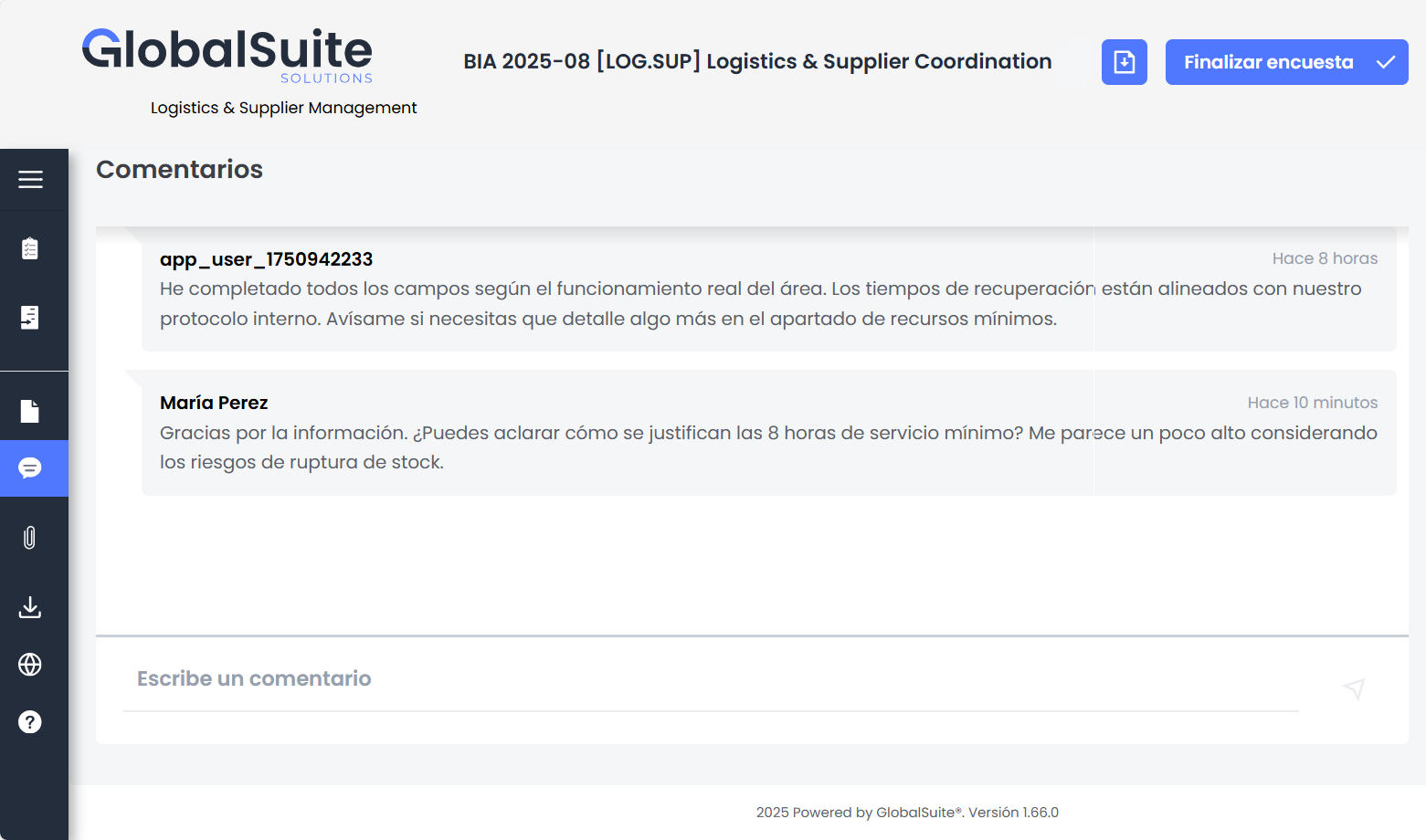
Each comment shows:
-
The name of the user or identifier who wrote it.
-
The content of the message.
-
The time elapsed since its publication.
Comments are presented in chronological order and remain visible to all users with access to the survey.
At the end of the section, there is a field enabled for writing new comments and sending them in real-time.
Attachments
This section displays the attachments associated with the survey. These documents can serve as references to facilitate the completion of the survey, including guides, criteria, examples, or relevant definitions.
The files may have been added from two different places:
-
Settings> Survey Templates : documents are attached that will be displayed in all surveys created from that template.
-
Management > Surveys> Survey Configuration : documents are attached specifically for the surveys created from that configuration.
Each file is displayed with its name, a brief description, and a download icon. This section allows users to easily consult all the supporting documentation available for completing the survey.
Downloads
From the survey, the user can generate a downloadable report with all the content completed up to that moment. To do this, they must press the Download button located in the upper right corner of the screen.
By doing so, the system will start the report generation with the current survey data. This process may take a few seconds, depending on the volume of information.
A confirmation message will be displayed indicating that the report generation has started successfully.
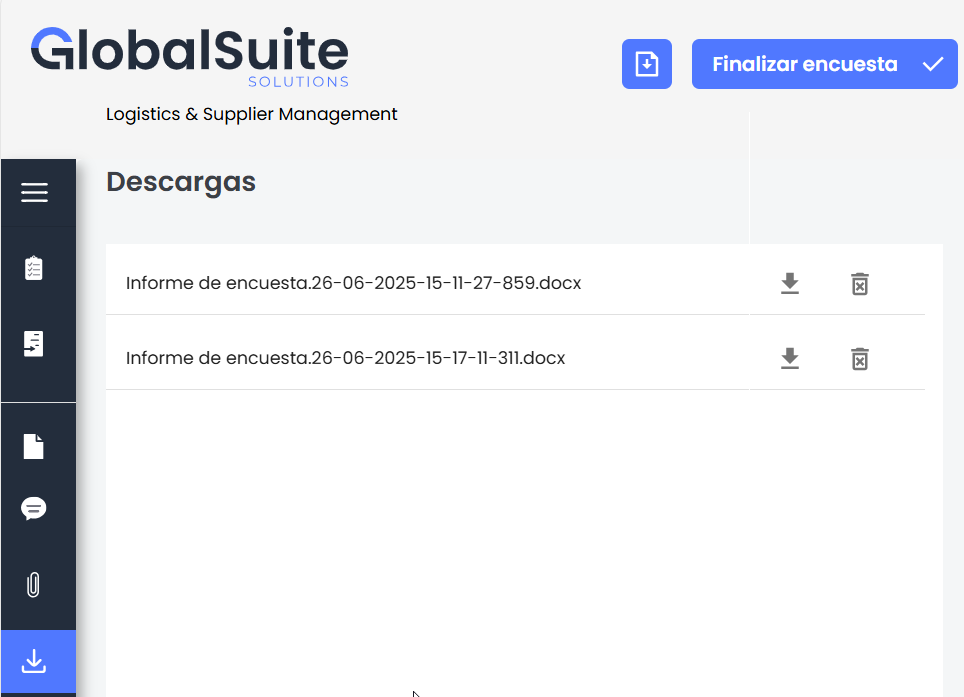
Once generated, the report will be available in the Downloads section (accessible from the left side menu). There, the documents available for download will be listed, indicating the file name, format, and generation date. From this view, it will also be possible to delete or re-download any previously generated report.