
The Meeting Minutes option allows managing and evidencing all the meetings held for the system management.
The first thing GlobalSuite displays is a table with all the meeting minutes of the organization. The table has filters for better search of the fields.
To create new meeting minutes, you must click on the 'New' button, which generates a new entry in the table. To access and modify each of the minutes, you must click on the link that appears on its name or date.
Once the minutes are selected, the Meeting Minutes modification form appears, where all its characteristics can be specified, in addition to having options for generating reports and sending them.
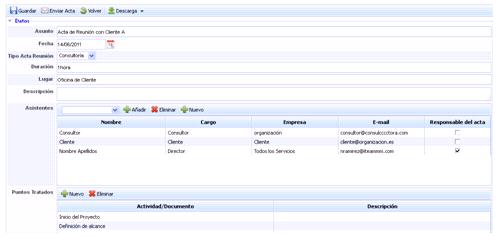
The buttons located at the top allow the following actions:
-
Save: save the changes made to the minutes form.
-
Send minutes: Enables sending the minutes via email to all attendees identified in the 'Attendees' field. If a person responsible for the minutes (meeting responsible) is marked, they will be the person to whom emails with modifications and objections from other attendees will be returned.
-
Back: The tool returns the user to the Meeting Minutes screen.
-
Download: Allows downloading all the fields of the minutes in an editable format (.docx).
The form has the following definition fields:
-
Subject: Descriptive name of the meeting.
-
Date: Date on which the meeting was held.
-
Meeting Minutes Type: The dropdown will display different types of minutes. These fields can be configured in the 'Configuration/General' section, although the tool proposes by default the types Committee, Consulting, Monitoring, and Support.
-
Duration: Free text field to indicate the duration of the meeting.
-
Location: Field to indicate where the meeting is held.
-
Description: Summary of the meeting.
-
Attendees: In this table, the attendees of the meeting can be specified. There are two options:
-
Employees: You can choose from the employees identified in the 'Management/Employees' section. To do this, select the employee in the dropdown and click the 'Add' button.
-
New: Allows adding new participants by clicking the 'New' button, which will open a window to identify the data required by the user.
-

The information displayed in the attendees table is as follows:
-
Name: Identifies the name and surname of the attendee at the meeting.
-
Position: Displays the position associated with the attendee.
-
Company: Provides information about the company to which the attendee belongs.
-
Email: Displays the email associated with the attendee.
-
Minutes Responsible: Allows identifying the user responsible for generating the minutes.
-
Meeting Attendee: Offers the possibility to identify, among all attendees, who attended the meeting.
-
Discussed Points: Identifies the points to be discussed in the meeting, such as the index of topics and issues to address. New points can be added and removed using the 'New' and 'Delete' buttons.
-
Conclusions: As in the previous section, the conclusions derived from the meeting can be specified.
-
Pending Issues: The issues refer to the actions derived from the meeting or the topics that are postponed. It allows identifying pending tasks, people responsible for carrying them out, and the deadline.
-
Documentation: The 'Documentation' option allows uploading the documentation delivered and used by the attendees at the meeting.