
Ticket Data
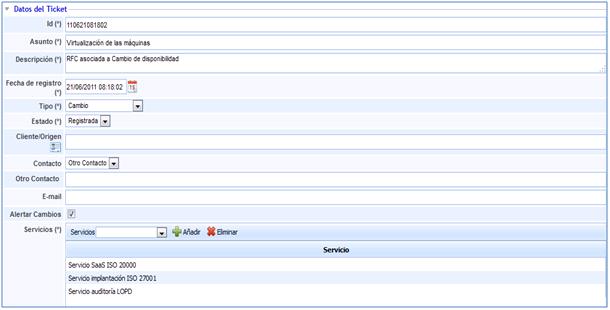
To access any type of change, simply click on the ID or subject in the list on the main screen. Once inside, GlobalSUITE provides us with the following options:
-
Id: Corresponds to the name or identifier of the change being registered.
-
Subject: This field defines the title of the change.
-
Description: This is one of the most important points, as it is through this field that the change will be specified in as much detail as possible.
-
Registration Date: Communication date.
-
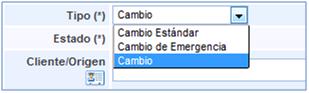
Type: Allows defining the type of change to be carried out.
-
Status: Defines whether the service request is registered, approved, denied, or closed.
-
Services: This field will associate the services linked to the request.
All the fields identified above are those that will appear in the information received by the client if the need to make the change has been communicated through a ticket via the Client Portal.
GlobalSUITE also allows defining the following information in service requests:
-
Client/Source: If it has been opened from the portal, this field will be automatically completed. If it is opened manually, the solution allows establishing the source or origin of it.
-
Contact: If it has been generated from the client portal, the contact will correspond to the person responsible for generating the event. This contact field is editable, allowing another user to be specified to inform about the status of the request.
If it has been generated manually, this field will indicate who to contact to inform about the status of the change.
-
E-mail: Indicates the email to which the status of the request can be communicated.
-
Alert Changes: By selecting this option, GlobalSUITE will send information about status changes and classifications made to the request to the email indicated in the field above.
-
NOTE: If a mailing group has been created in the 'Home/Business Relations' section, the tool allows sending alerts to a specific group. To do this, the desired company must be selected (it must be created in the 'Home/Business Relations' section), and it must be determined whether to alert a Contact or a Group. If a Group is selected, the tool offers the possibility to choose the group to notify about the ticket changes.
-
Affected Areas: Allows determining which areas of the company are affected by the change to be made.
Employees
-
Employees: Allows defining the employees who will be responsible for carrying out the change. These employees must be defined in the employee management option.
Evidence
-
Evidence: To define as completely as possible, the solution allows attaching any type of file. If such documentation is not attached, it is also possible to provide a description in the Evidence field.
Evaluation Data
-
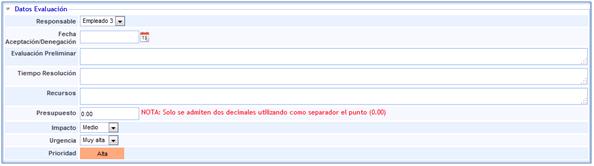
Responsible: Allows defining the employee who will be responsible for evaluating the change before proceeding with it.
-
Acceptance/Denial Date: Allows defining when the registered change was accepted or denied.
-
Preliminary Evaluation: Allows recording the information generated during the initial evaluation performed.
-
Resolution Time: Allows establishing the time spent determining whether the change is accepted or denied.
-
Resources: Allows defining all the resources necessary to proceed with the change.
-
Budget: Allows establishing the available budget to carry out the change.
-
Impact: Establishes a qualitative value to determine the level of damage caused by the change.
-
Urgency: Allows establishing a qualitative value to determine the speed with which the change must be resolved.
-
Priority: This value is automatically generated by GlobalSUITE®, calculating the arithmetic mean of the values established in the impact and urgency fields.
Configuration
-
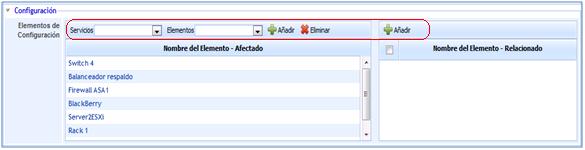
Configuration Items: Allows determining which configuration items are affected by the change. Through this field, the corresponding RFC can be automatically associated with certain configuration items.
It should be noted that to associate these configuration items, the Services option and the Items option must be used.
-
Services: Allows determining which service is affected by the change to be made.
In this way, GlobalSUITE will offer in the next option those items involved in providing the service affected by the change.
-
Items: Establishes, based on the determined service, all those configuration items affected by the evaluated and approved change.
Risks
It offers the possibility to view the elements affected by the event and values defined in the risk analysis. The tasks that can be performed in this section are:
.jpg?cb=3c3d939cdd189f8dd7193813ff2bd8f7)
-
Items: Allows selecting the item(s) affected by the event.
-
Analysis: Allows selecting the risk analysis where the selected item is evaluated.
NOTE: The same item can be evaluated in different risk analyses with different assessments, hence the need to indicate the risk analysis we want to load.
-
Add Item: Once the item is selected, it allows inserting it into the table.
-
Delete Item: Allows deleting one or more items from the table. To do this, the desired row must be selected, and the 'Delete Item' button must be clicked.
Once the desired item row is selected, the table at the bottom allows the user to view or modify the values defined in the 'Analysis/Risk Analysis' section. The tool highlights in red those assessments that have been modified.
NOTE: The tool allows simulating how the incident affects the items evaluated in the 'Risk Management/Projection and Simulation' section. Depending on the methodology defined in the 'Settings/Analysis Methodology' section, the dimension assessments can be qualitative or quantitative.
The actions that can be performed on the table are:
-
Restore Threats: Allows restoring the initial values of the table according to the Risk Analysis performed.
Implementation and Monitoring
GlobalSUITE allows establishing all the actions carried out for the Implementation and Monitoring of the defined change through the following options:
-
Implementation Responsible: Establishes the employee responsible for controlling the actions carried out to achieve the change.
-
Implementation Date: Allows recording the date on which the change was implemented.
-
Implementation Plan: Allows referencing or defining the actions to be taken to carry out the change.
-
Rollback Plans: Allows referencing or defining the actions to be taken if the change process has resulted in incidents, so that the previous state before the change can be restored.
-
Post-Implementation Review: Allows recording the actions performed to verify that the change made was correct.
-
Monitoring: Within this option, any action taken regarding change management can be identified.
Any monitoring that is recorded can be sent via email to all those considered necessary to inform. As indicated, it is necessary to specify the email addresses and use the Send Email option.
Delivery and Closure
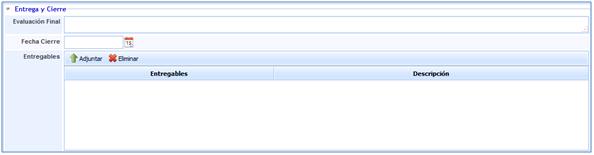
GlobalSUITE allows managing changes and their subsequent deliveries within the same option. For managing the closure of a change and its subsequent delivery, the solution provides the following records.
-
Final Evaluation: Allows recording the actions associated with the delivery evaluation.
-
Closure Date: Determines the closure date or delivery completion date.
-
Deliverables: Allows associating any document necessary to record a proper delivery after the change.
Inputs and Outputs
-
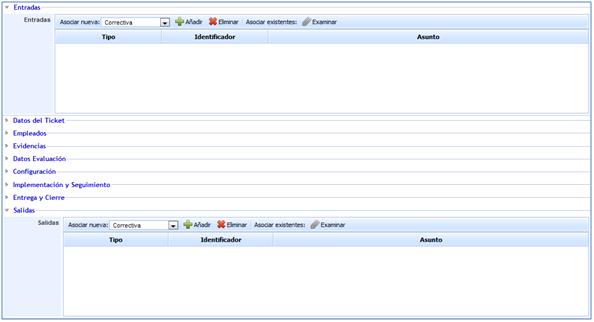
Inputs: Allows determining if the defined incident or problem originates from another type of event, providing the tool with the following options:
-
Corrective action.
-
Preventive action.
-
Non-conformity.
-
Change
-
Service Request.
-
Incident.
-
Problem.
-
Event.
-
False positive.
-
-
Outputs: Allows determining if the defined incident or problem results in another type of event, providing the tool with the options previously mentioned for inputs.
For both inputs and outputs, a series of common options are identified:
-
Add: By selecting the type of event it originates from or results in, it will be included in the corresponding field, generating the event in another option provided by GlobalSUITE®, except for the cases of Event and False Positive.
-
Delete: Deletes any event that has been added.
-
Associate Existing: If the event it originates from has been previously created, this option allows searching for that event so that it can be associated with the corresponding service request.