
In this section, options are presented to customize and secure the platform environment. Here you can configure the SMTP server for email management, enable two-factor authentication, customize the logo displayed on the site, and manage the sending of logs to external systems.
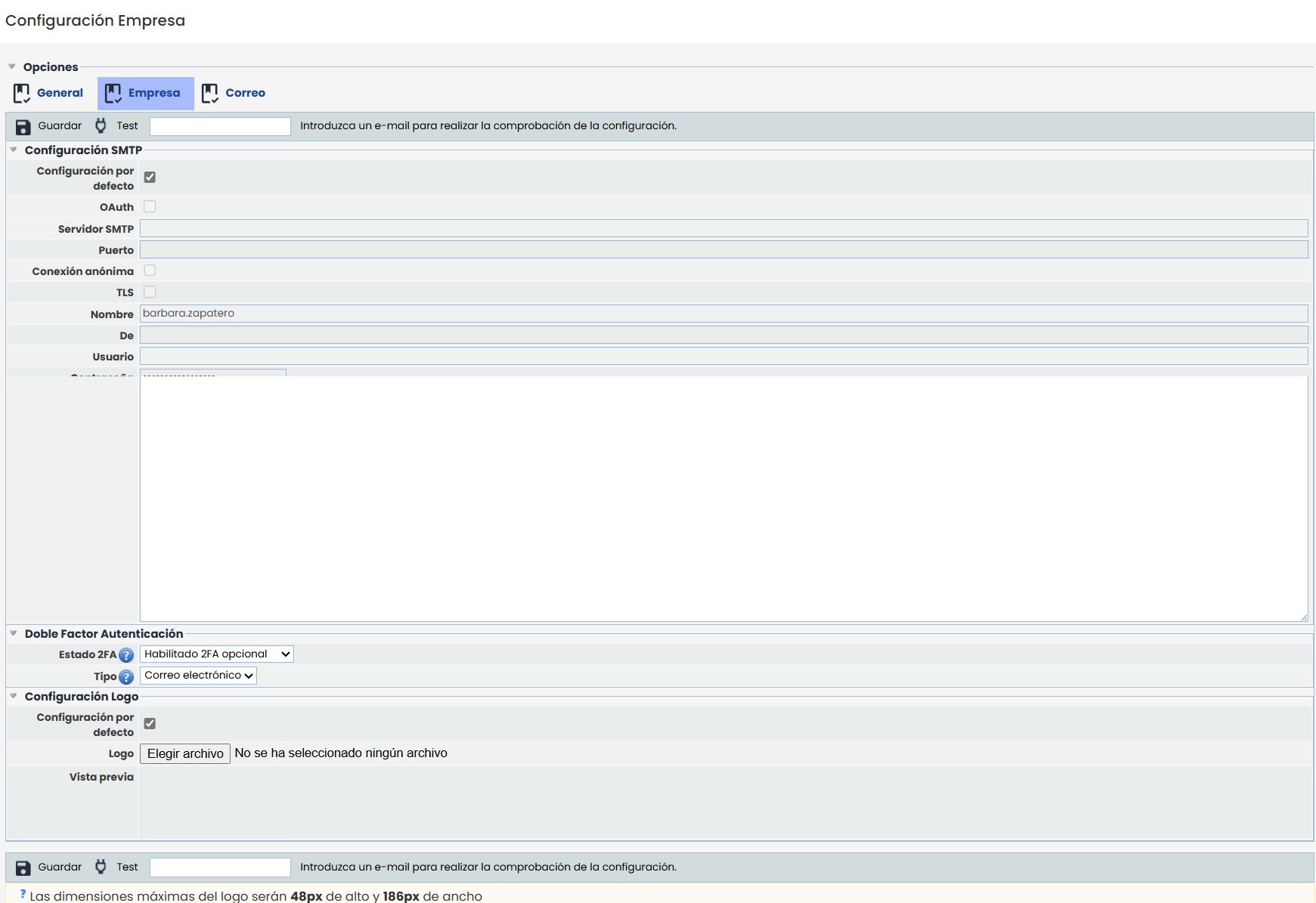
Two-Factor Authentication:
Allows the possibility of incorporating a second authentication factor in the GlobalSuite® GRC tool.
-
In addition to the current authentication mechanism ( Local, Active Directory, or ADFS Single Sign-On), a second authentication factor (2FA) can be activated using TOTP (Time-Based One-Time Password) or Email.
The TOTP mechanism allows synchronizing a device to enter a numeric code that changes every 30 seconds, while the Email option sends a unique and temporary code to the email associated with the user, which must be entered after logging into the tool.
-
This configuration can be activated if required, either as an optional feature or enabled as mandatory, in which case users will be required to configure it on their next access.
-
It includes security mechanisms to allow one-time access to the tool (Recovery Codes), as well as the ability to disable it for a specific user (by accessing their user profile) in case of loss or deletion of the associated device.
NOTE: The system administrator is the one who can decide whether to activate this configuration or not, and if activated, determine whether it will be optional or mandatory.
In the configuration dropdown, there are three options:
-
Disabled: Access to GlobalSuite® will only be done using access credentials.
-
Mandatory: Upon access, a pop-up window will automatically appear requesting the configuration of the two-factor security for our user. All users must configure it immediately if they have an open session or mandatorily the next time they log into GlobalSuite®, not allowing them to continue if they do not do so.
-
Optional: Each user must activate it individually in My Profile and must follow the steps indicated in the pop-up window. By default, the use of two-factor authentication is enabled as an optional feature.