
Risk Catalogs
The 'Analysis Catalogs' option provides the possibility of having catalogs with threats of various types (security, legal, financial, operational, etc.) already generated in the tool or creating a custom catalog. These catalogs will be necessary for the 'Inventory of Items, Risk Analysis, and Risk Management' option.
The catalog list has the following options:
-
Analysis Catalogs: Allows inserting a new catalog into the list.
-
New: Allows creating a new catalog.
-
Delete: Allows deleting an existing catalog. To do this, select the threat line and click the 'Delete' button.
-
Import: GlobalSuite® allows importing already created catalogs in XML format.
-
Export: GlobalSuite® allows exporting catalogs to XML format.
-
Rename: Allows renaming a catalog in the list.
If you click on one of the available catalogs, the following screen is displayed:
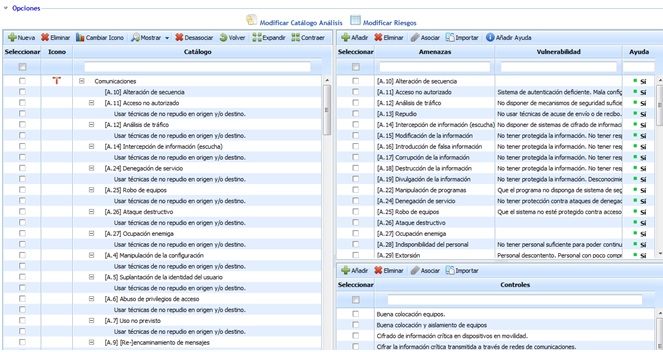
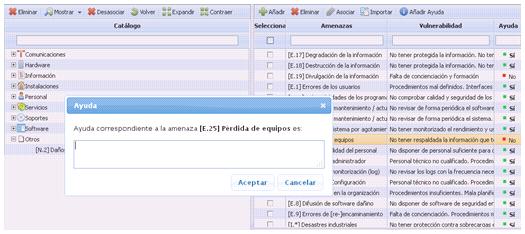
The left box shows different Categories to associate threats with. The categories are predefined (communications, hardware, information, etc.), but new ones can be created by clicking the 'New' button.
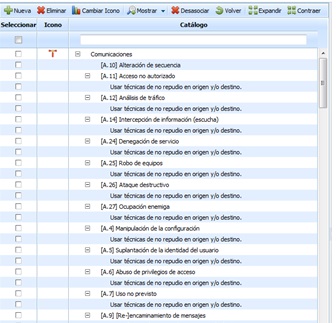
The Categories box has the following options:
-
Delete: Allows deleting a defined category.
-
Change Icon: Allows defining an identifying icon for the selected category.
-
Show: This option allows filtering the categories, which is very useful in case of having a large number of categories.
-
Unassociate: Allows removing the threat(s) associated with the category. To do this, click the box located to the left of the threat and click 'Unassociate'.
-
Back: The tool returns to the previous screen showing the catalog list.
-
Expand: Expands the list of all categories and associated threats.
-
Collapse: Collapses the list of categories, leaving only the categories visible.
The box located in the upper right shows the different Threats, which depending on the selected catalog, can be of various types (security, legal, etc.) as mentioned earlier.
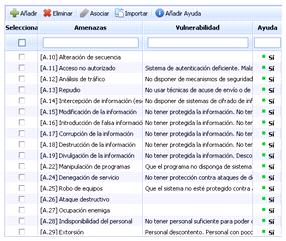
The Threats box has the following options:
-
Add: Allows inserting a new threat into the list.
-
Delete: Allows deleting an existing threat. To do this, select the threat line and click the 'Delete' button.
-
Associate: This option allows associating one or more threats with a specific category. To do this, select the box located to the left of the threat, select the corresponding category box, and click the 'Associate' button.
-
Import: GlobalSuite® allows importing threat catalogs already created in CSV format.
To ensure the import process correctly loads special characters, it must be imported in "CSV UTF-8 (comma-delimited)" format.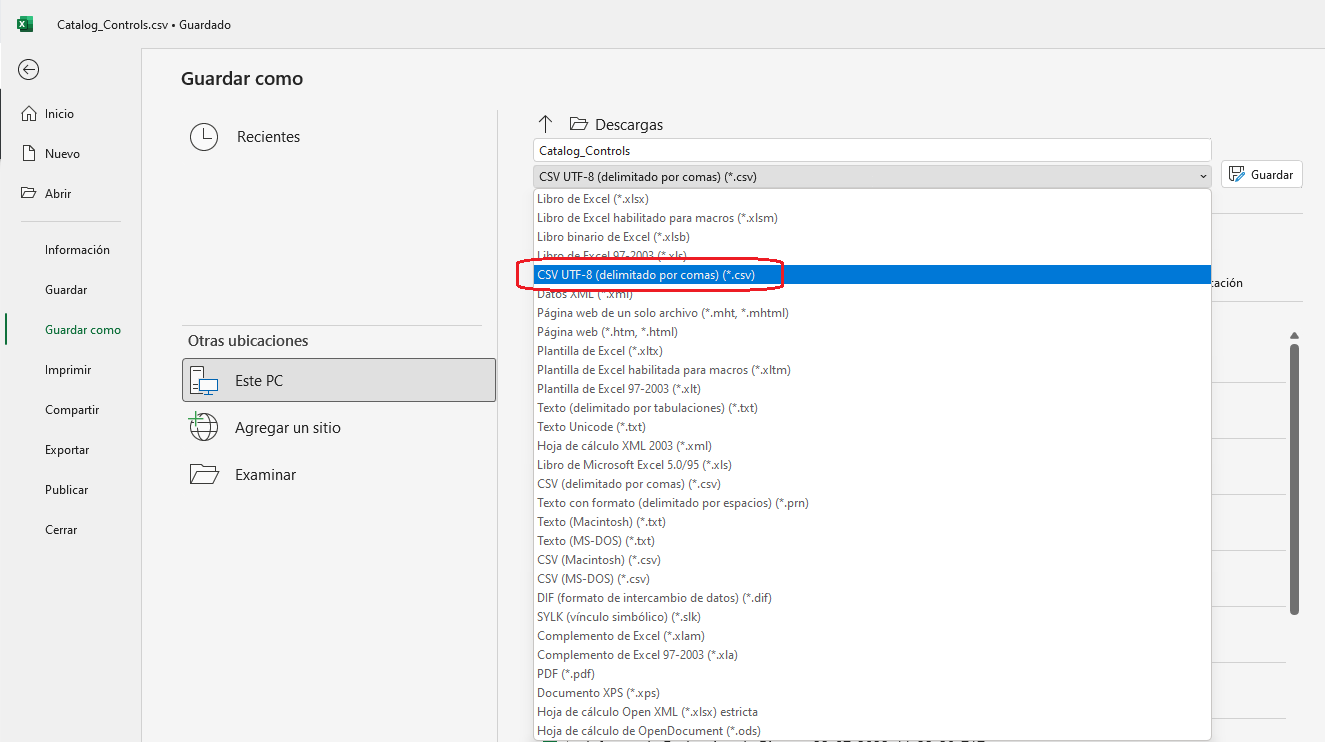
-
Add Help: Allows adding a more descriptive text to the selected threat as a form of help. If the threat has help, this will be displayed in the corresponding column.
On the other hand, the box located in the lower right shows a list of different controls, responsible for mitigating the defined threats.
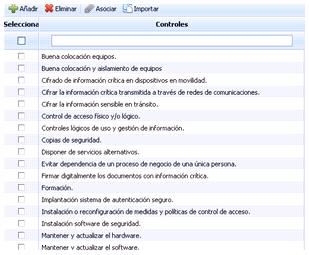
The Controls box has the following options:
-
Add: Allows inserting a new control into the list.
-
Delete: Allows deleting an existing control. To do this, select the control line and click the 'Delete' button.
-
Associate: This option allows associating one or more controls with a specific threat. To do this, select the box located to the left of the control, select the corresponding threat box, and click the 'Associate' button.
-
Import: GlobalSuite® allows importing control catalogs already created in CSV format.
To ensure the import process correctly loads special characters, it must be imported in "CSV UTF-8 (comma-delimited)" format.
NOTE: The allowed associations are: associating controls with threats and associating threats with categories.
Risk Types
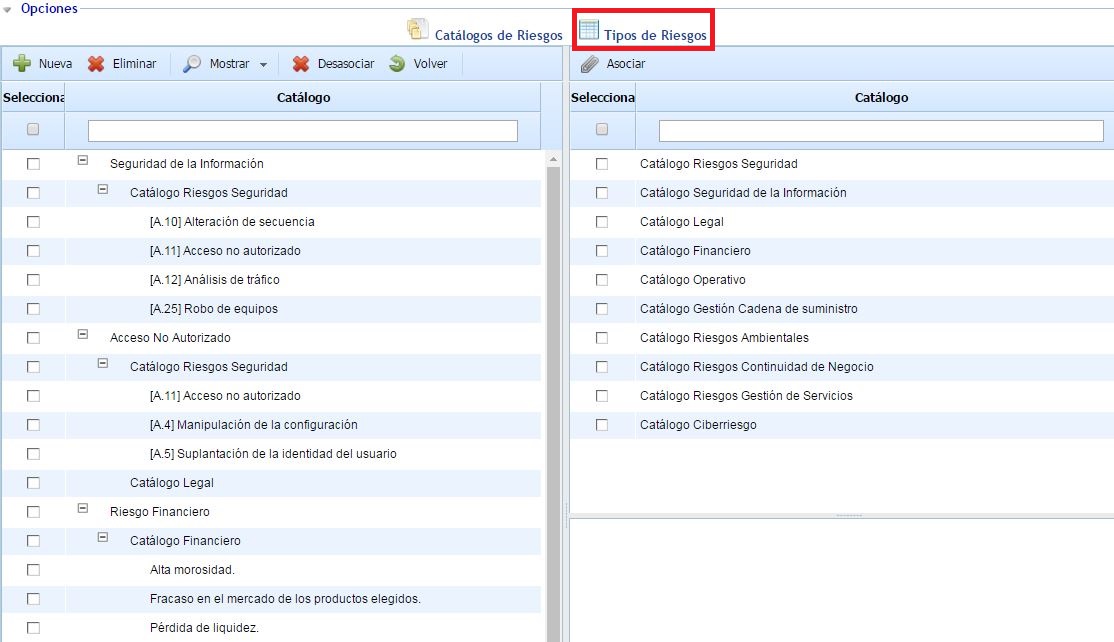
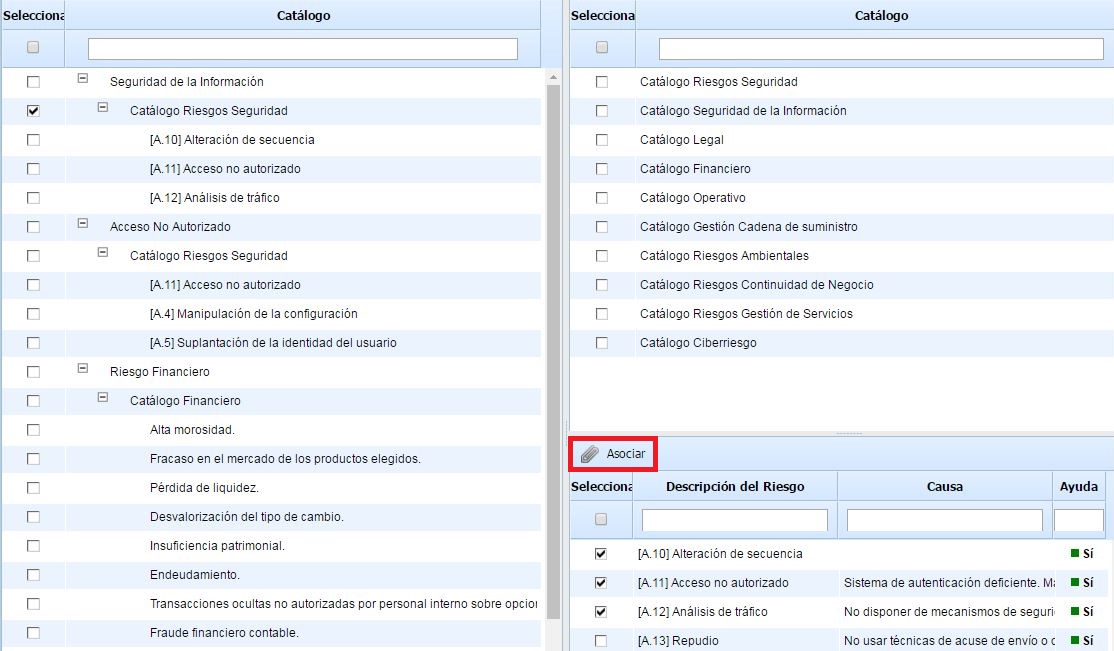
This option allows creating risk categories, establishing the risks associated with each category. This ensures that the risks from a risk analysis, derived from a catalog proposal, automatically have their category/categories associated based on the configuration established in this functionality.
The table on the left by default shows the risk categories (corresponding to the same categories considered in the "Analysis Methodologies - General Configuration" option). Each category can be related to one or more risk catalogs, located in the table on the right. To associate categories and risk catalogs, select the items you want to link and click the 'Associate' button located in the table on the right.
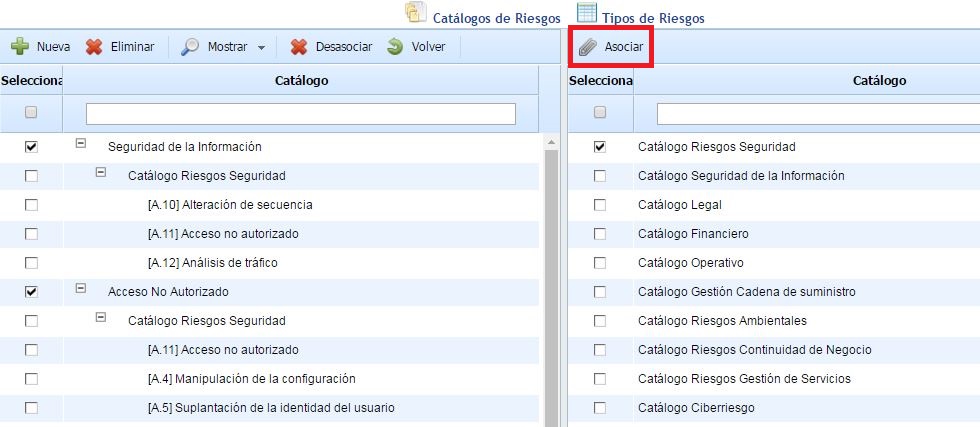
Once the association between categories and catalogs is made, you can select the risks from each catalog that are related to the corresponding category. To do this, select a catalog in the table on the left, and all the risks from the catalog will appear in the lower right. At this point, you can select the desired risks, and by clicking the 'Associate' button located above the risk table, the risks are associated with each category.
Additionally, the table on the left has a set of options that allow managing risk categories. Specifically, each option allows the following:
-
New: Allows inserting a new risk category.
-
Delete: Allows deleting a risk category. To do this, select the category you want to delete and click the 'Delete' button.
Note: Changes made when adding, modifying, or deleting risk categories are also reflected in the Risk Categories table located in the "Analysis Methodologies - General Configuration" option.
-
Show: Allows filtering risk categories, along with the associated catalogs and risks.
-
Unassociate: Allows unassociating a catalog and/or risk from a risk category. To do this, select the catalog or risk you want to unlink and click the 'Unassociate' button.
-
Back: Allows returning to the table with all the organization's risk catalogs.
-
Expand: Expands the list of all risk categories, catalogs, and risks.
-
Collapse: Collapses the list of risk categories, catalogs, and risks, leaving only the categories visible.
-
Download: Allows obtaining a report in Excel or PDF format with the information displayed in the table.