
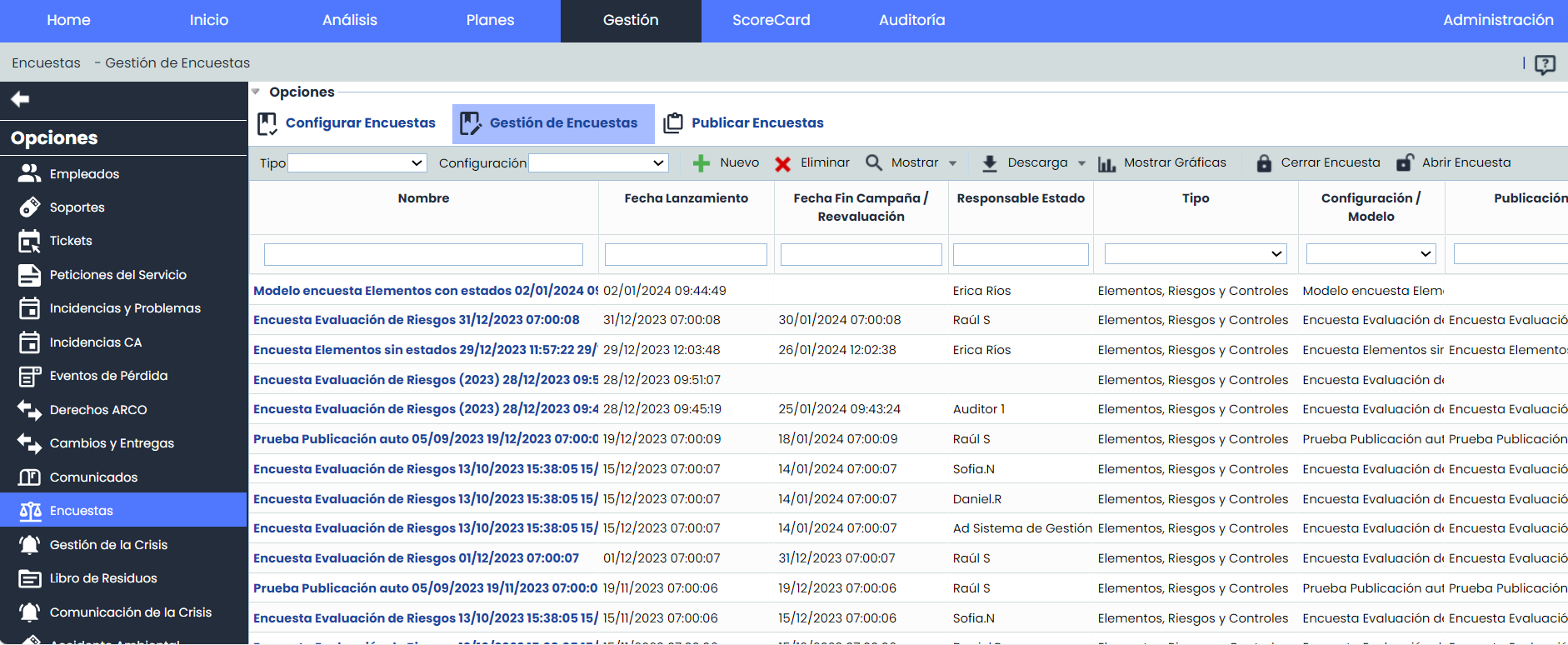
When accessing the 'Surveys' option, a table is displayed that provides the following information:
-
Name: Identifying name of the conducted survey.
-
Date: Date the survey was conducted.
-
Department: Name of the Department for which the survey results were obtained.
-
Responsible: Identifying name of the person responsible for conducting the survey.
-
Type: Allows viewing the type of survey generated.
-
Model: Indicates the Model based on which the survey was conducted.
Note
The survey models are defined in the Settings section > Survey Models
-
Publication: Identifies the publication name of the survey.
The options that the tool allows on the initial table are as follows:
-
Models: Allows selecting from the dropdown, the survey model created in the Settings section > Survey Models on which to conduct the survey. To do this, you must select in the 'Type' dropdown from which models to choose.
-
New: Once the desired model is selected, clicking the button generates a new entry in the survey table.
-
Delete: Allows deleting an already created survey in the table. To do this, the desired row must be selected and the 'Delete' button clicked.
-
Download: Offers the possibility to download the survey list in editable format (xlsx) or in PDF format.
-
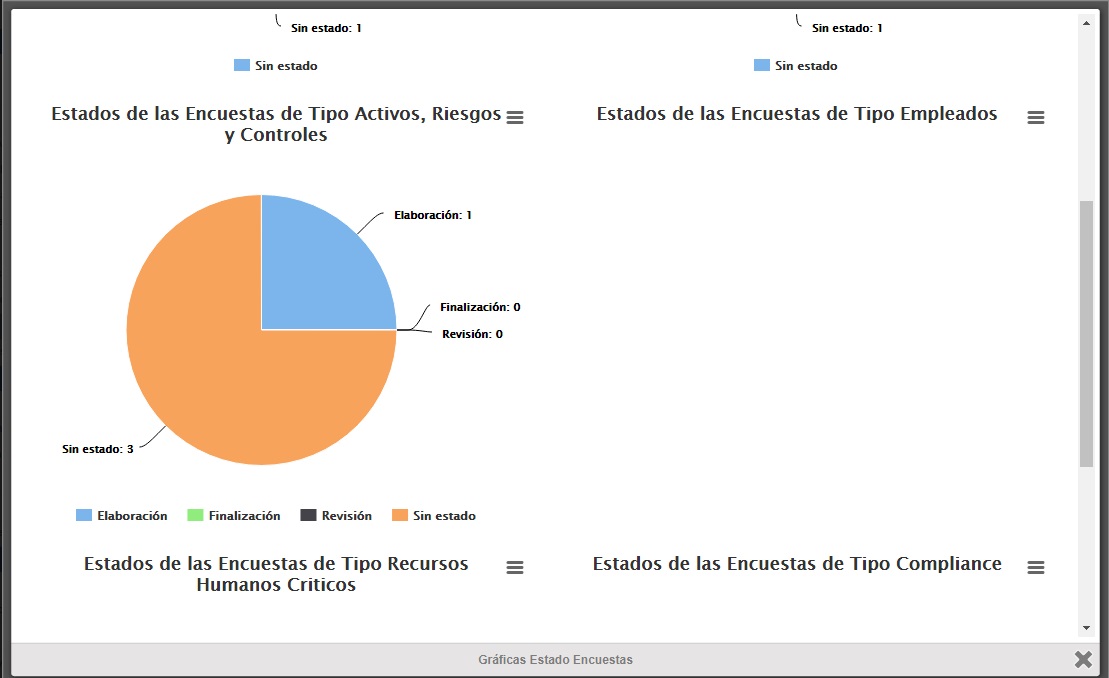
Show Graphs: Allows viewing graphs by Survey Type and status, to verify the situation of all generated surveys.
By clicking on any entry in the initial table, you access the specific information of the survey.
Close and archive surveys
This functionality incorporates the ability to close surveys and archive them at any time, adapting to the user's needs.
When a survey is closed, any modifications to the information will be prevented, and the survey will automatically be hidden from the main list.
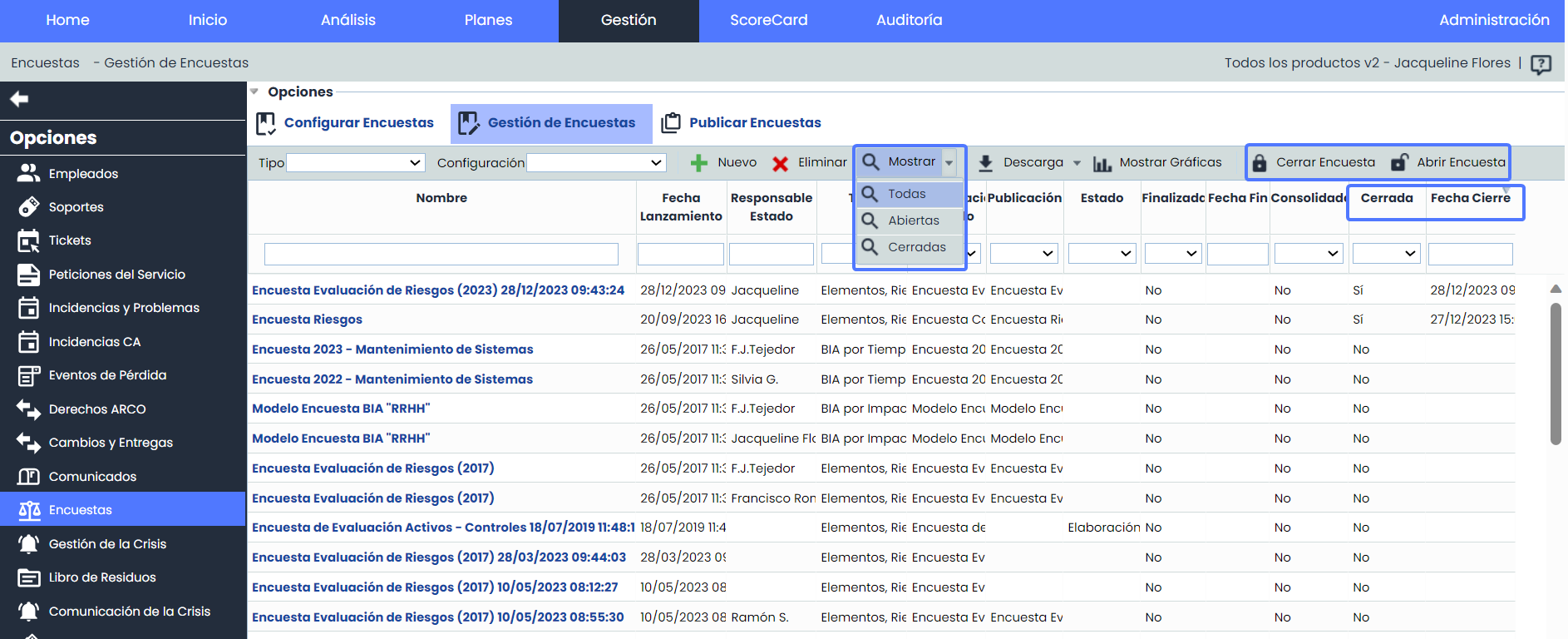
The following options are related to the functionality:
-
Show: It will be possible to filter by survey status.
-
All: All surveys (open and closed).
-
Open: Open surveys only.
-
Closed: Closed surveys only.
-
-
Close Survey: By clicking this option, the survey will be closed and archived to prevent further modifications by the recipients.
-
Open Survey: Allows reopening previously closed surveys, enabling adjustments and updates as needed.