
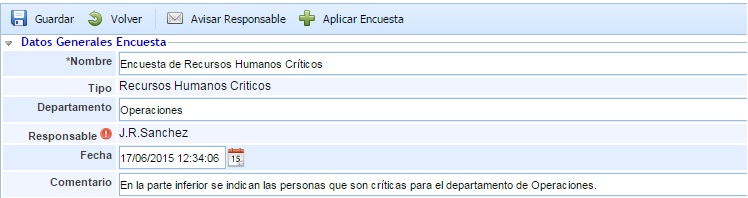
General Survey Data
Allows defining the following information:
-
Name: Allows defining the identifying name of the survey.
-
Type: Indicates the type of survey.
-
Department: Allows identifying the name of the Department for which the survey results were obtained.
-
Responsible: Provides the possibility to identify the person responsible for the survey.
-
Date: Enables setting the date the survey was conducted.
-
Comment: Indicates additional comments in the survey.
Survey Response
This section allows the user to select the committee members they want to define or modify.
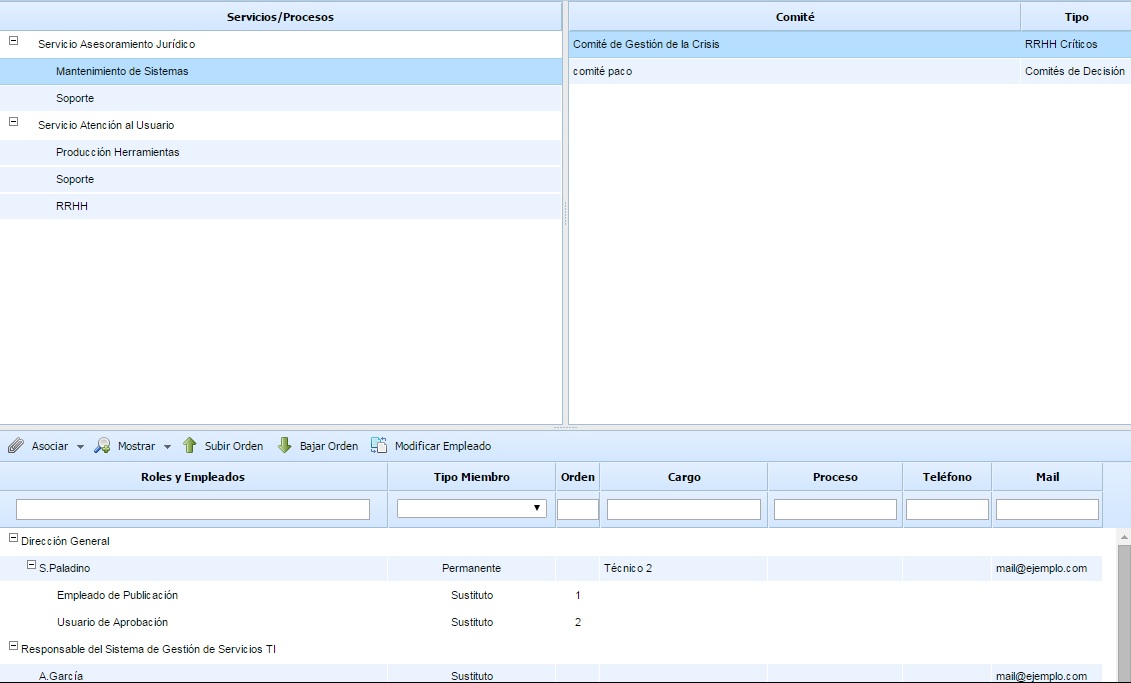
To modify the members of a Committee, you must first select a service or process from the table located on the left and then select one of the committees displayed in the table on the right. After making this selection, the members of the selected committee are displayed at the bottom, allowing the necessary modifications to be made. Note: If no committees are displayed in the right table, it indicates that the selected service or process does not have any associated committee.
The committee members table (located at the bottom) allows associating employees registered in GlobalSUITE with the committee or Critical HR. This table allows associating permanent employees, substitutes, and guests with the committee.
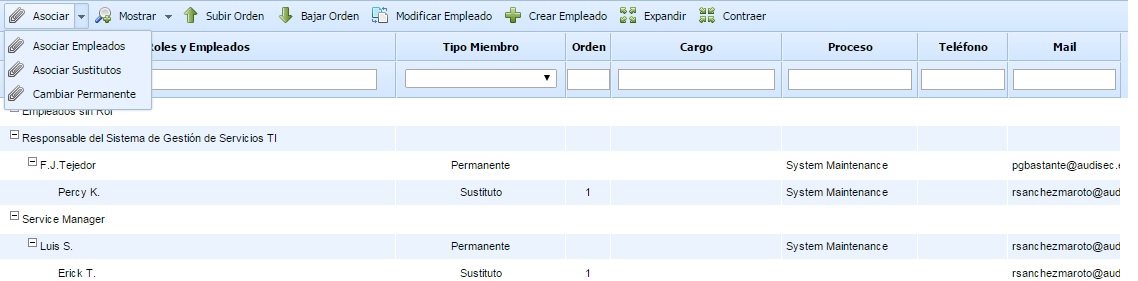
The available options to establish the committee members are:
-
Associate Employees: Clicking on this option opens a window with all the roles and employees defined in the 'Roles and Responsibilities' option. It also displays employees who are not associated with any role. Using the selection boxes on the right, employees can be associated with the committee. Once selected, you must click the 'Load Roles/Employees' button to add them to the committee.
.jpg?cb=cbdbc7e60a4228ba75ccc6a348dfb164)
Employees added to the committee are registered by default as 'Permanent' employees. It is possible to change the type in the 'Member Type' column, allowing an employee to be defined as 'Substitute' or 'Guest'.
-
Associate Substitutes: This option allows associating substitute employees with a 'Permanent' type employee (for 'Substitute' or 'Guest' types, it is not possible to associate substitute employees). To do this, you must select the employee and click the 'Associate Substitutes' button, displaying a table with all the organization's employees, allowing one or more substitute employees to be selected.
-
Change Permanent: This option allows replacing one permanent member with another.
-
Show: This button allows filtering the table to show/hide substitute employees associated with permanent employees.
-
Move Up/Down Order: These buttons allow ordering the substitute employees associated with a 'Permanent' employee. To do this, you must select a substitute employee and click the corresponding button depending on whether you want to move them up or down the order.
-
Modify Employee: This button allows modifying the identifying data of a selected employee. Clicking the button (with an employee selected) opens a pop-up window that allows changing all the data in the employee form.
-
Create Employee: This button allows creating a new employee for the organization and associating them with the members table. Clicking the button displays a pop-up window with the employee form.
-
Expand/Collapse: These buttons allow displaying all employees or collapsing the elements so that only the roles are shown, respectively.