This tutorial explains, step by step, how to perform the Business Impact Analysis (BIA) in GlobalSuite®, within the Business Continuity module.
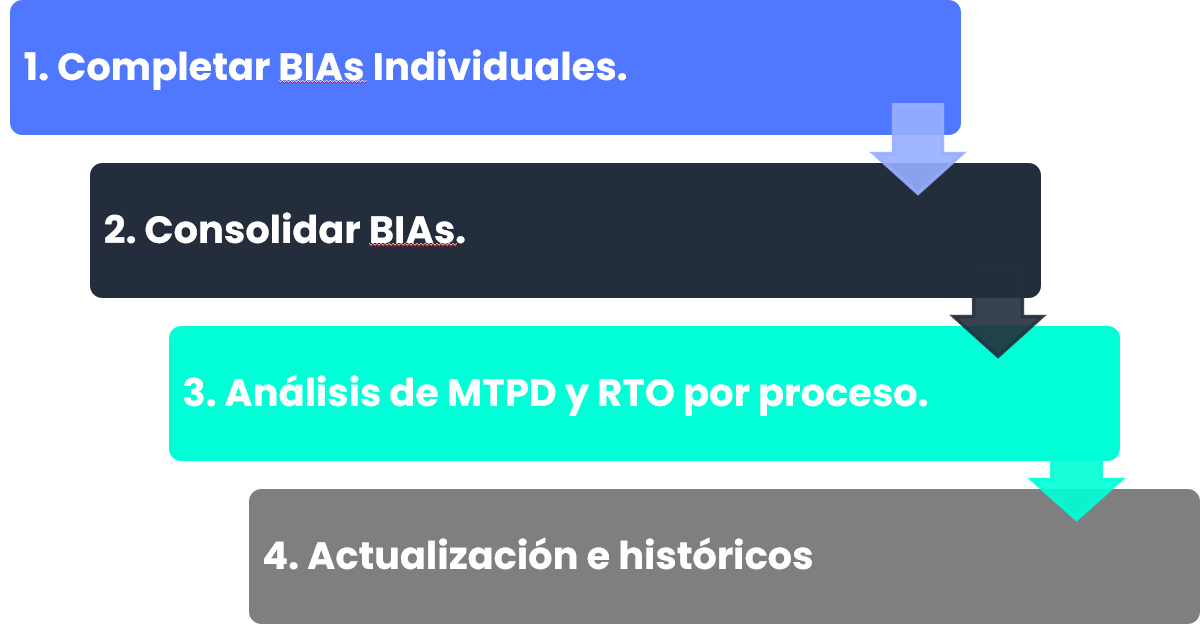
This guide describes the necessary phases to correctly execute the process: from the creation and completion of individual BIAs, to the consolidation of BIAs, the analysis of MTPD and RTO by process, and the creation of historical records.
Additionally, it details the sections of general information, business impacts, recovery parameters, required resources, and customizable questions, as well as the criteria to consolidate the information and analyze the recovery results of each business process.
The process or phases to execute for performing the Business Impact Analysis (BIA) are as follows:
Individual BIAs
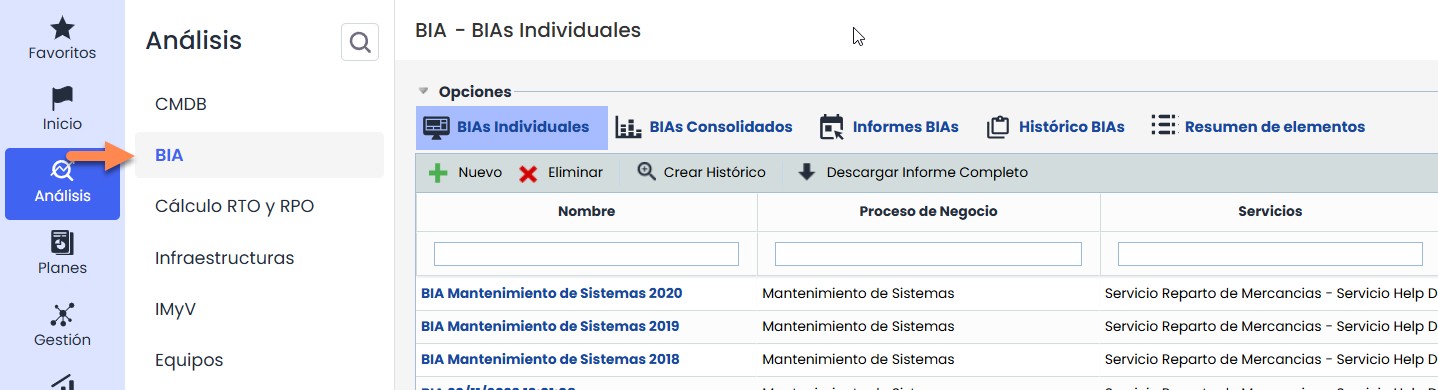
The organization's BIAs are performed in Analysis > Options > BIA .
This option allows generating all the necessary BIAs for the business processes included within the scope of the Continuity System, under Home > Options > Scope .
The following steps will show how to perform the Individual BIAs.
Creation of the Individual BIA
When accessing the BIA option, all the BIAs generated in the entity are displayed. This option consists of five tabs: Individual BIAs, Consolidated BIAs, BIA Reports, BIA Historical Records, and Summary of elements. By default, the first tab is loaded upon access.

A new BIA is generated through the “New” button, which opens a modal with a table of business processes available for evaluation.
From this window, the user can search and filter processes by name, category, or category path, select the desired process, and click “Create” .
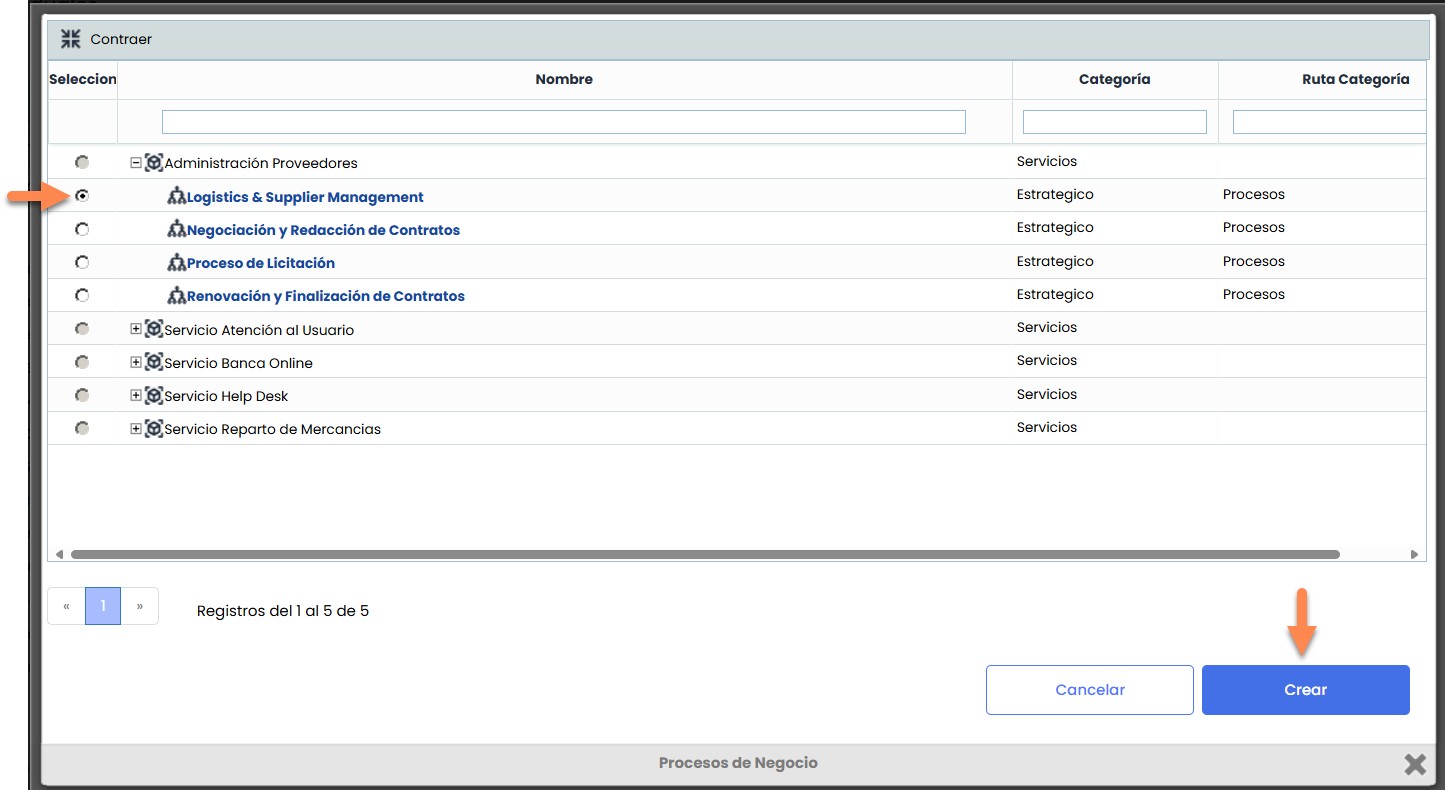
Upon doing so, the modal closes, returning to the main table, and the newly generated BIA record is displayed.
General Information and Business Impacts
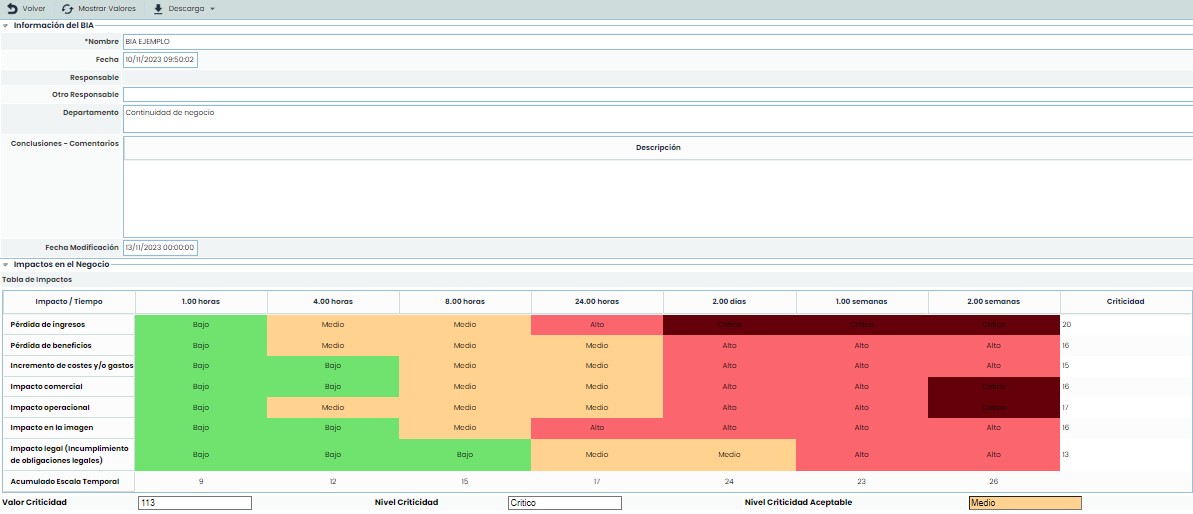
By selecting the name of the BIA, you access the detailed form, starting with the general information.
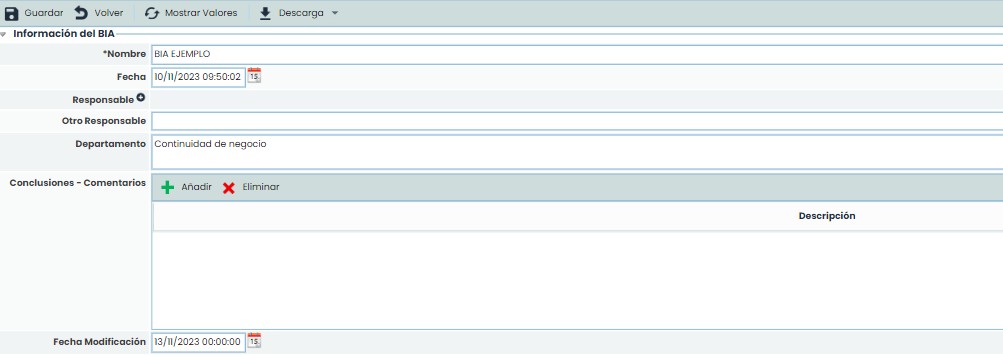
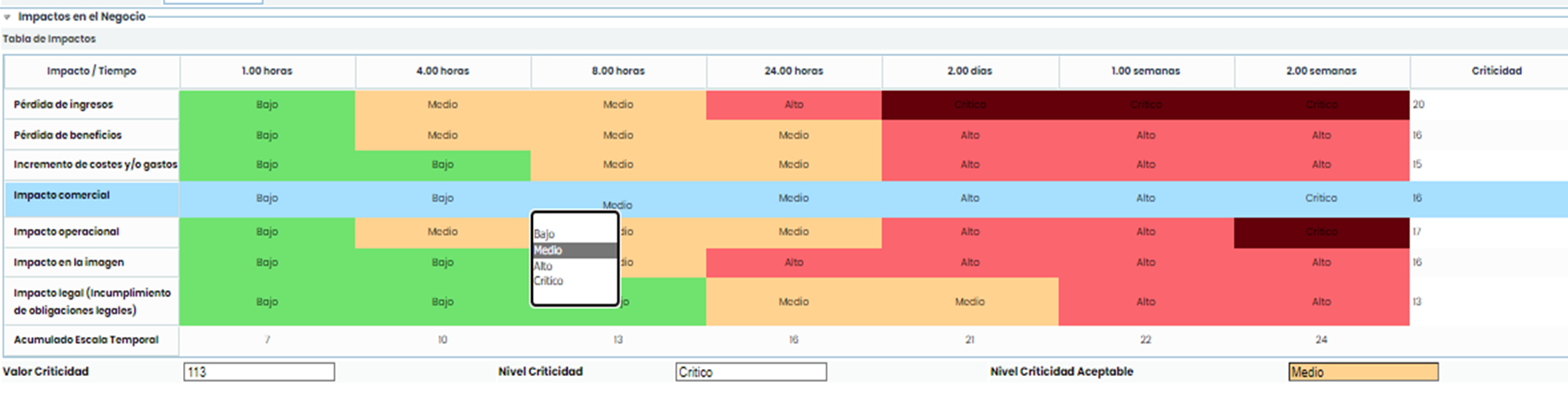
Following that section are the Business Impacts, with the impact table containing all configured impact types and time scales in the configuration option.
The impact value in the Impact Type/Time relationship is entered by double-clicking on each cell.
A specific option of the impact table is the ability to view the description of each impact using the “Show values” button at the top of the BIA.
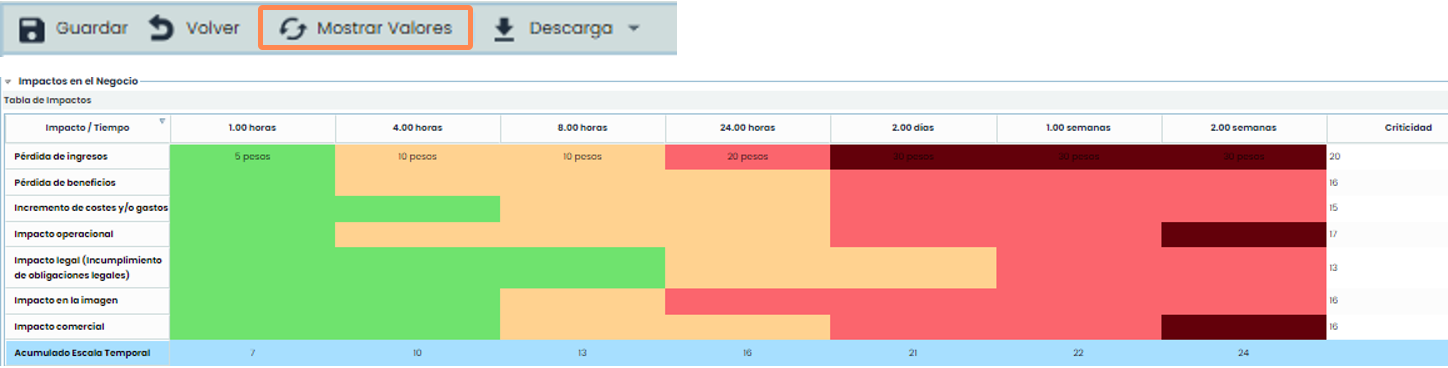
In this way, it will be possible to know the description of each value for each type of impact defined in the Settings > BIA .
Graphical Evaluation of Business Impacts
It will also be possible to graphically analyze the specific impacts, by each type and on a time scale.
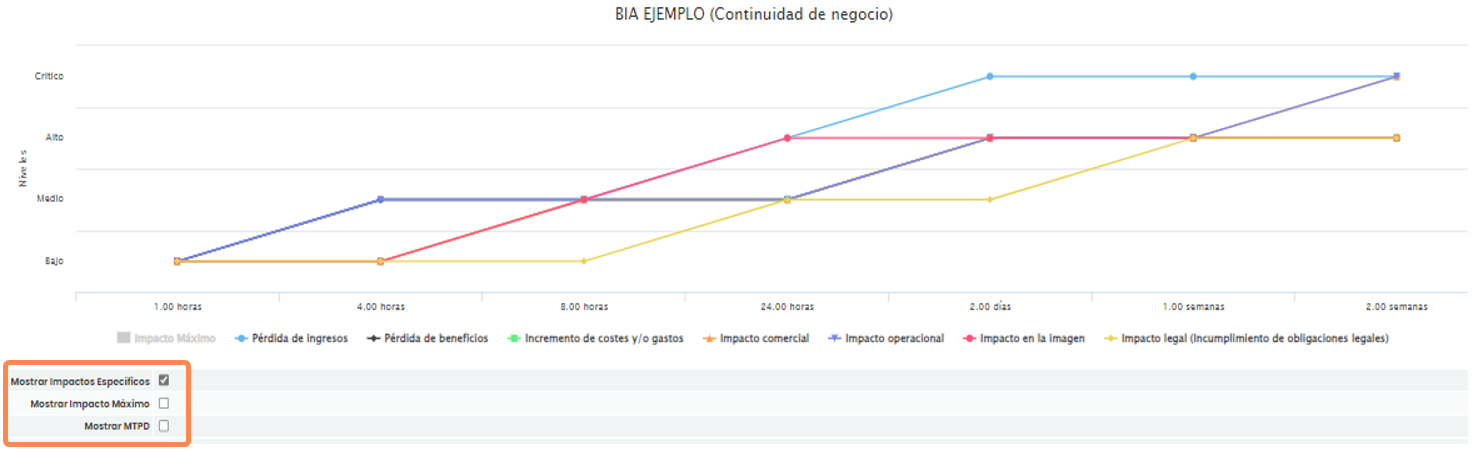
It is possible to display the values of Maximum Impact at each value of the time scale and even the MTPD ( Maximum Tolerable Period of Disruption), which will be defined in the next step.
Recovery Parameters
This section will allow calculating the values of MTPD, RTO, and RPO for the analyzed business process.
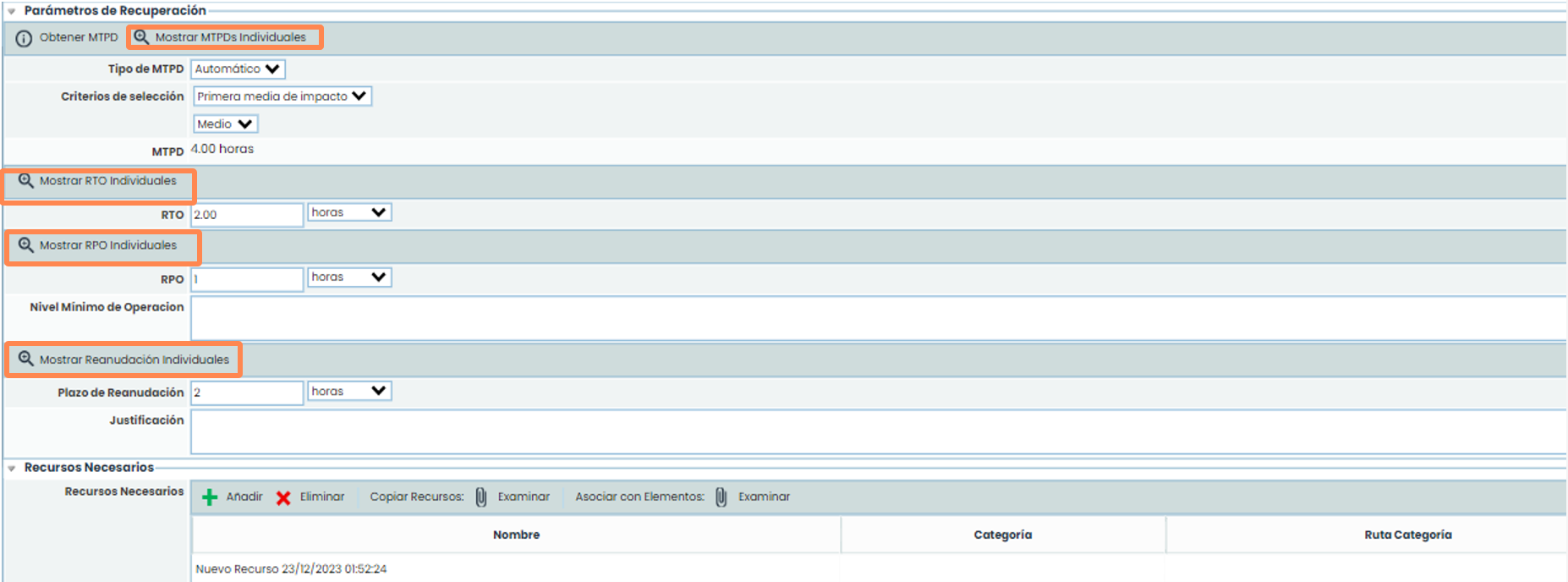
Regarding the MTPD, it can be calculated manually or automatically. For automatic calculation, GlobalSuite® uses the information recorded in the upper impact table and incorporates a series of criteria to calculate the MTPD. Once selected, click on the “Get MTPD” button.
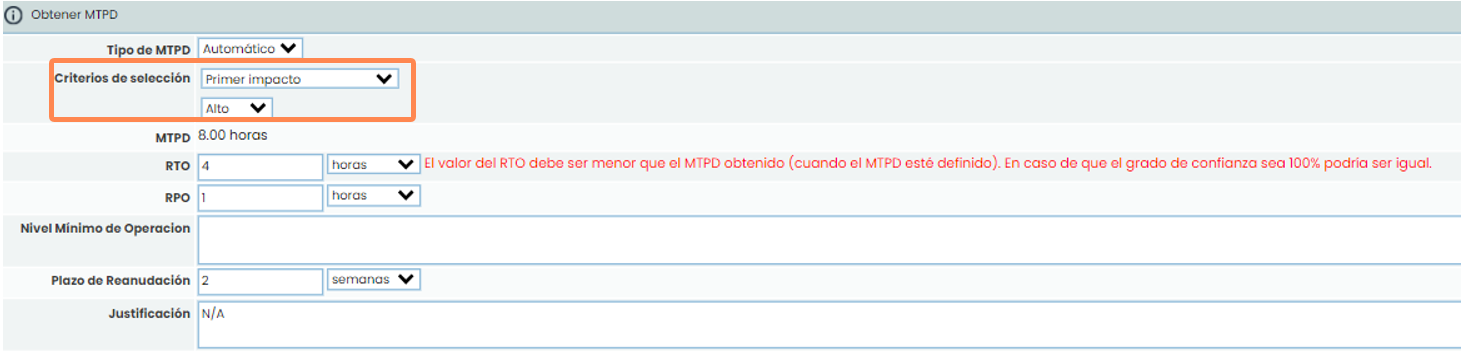
Once the MTPD is obtained, the values of RTO and RPO will be defined, as well as the rest of the recovery information for the process: Minimum Operating Level, Resumption Deadline, or the Justification for them.
Required Resources and Customizable Questions
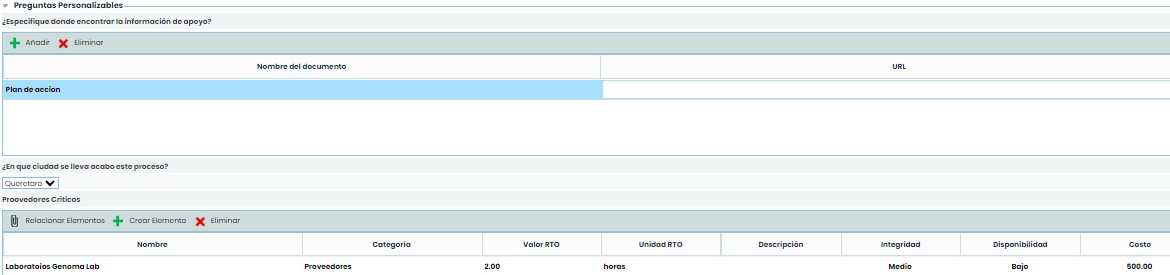
The BIA also includes a Required Resources section to record all the resources involved in the recovery of the business process, their category, and the necessary units.

In addition to all these aspects, at the end of the BIA, there is a block with Customizable Questions configured in Settings. These types of questions can be text-based, select via a dropdown, table-type, or even specific element table-type.
Consolidated BIAs
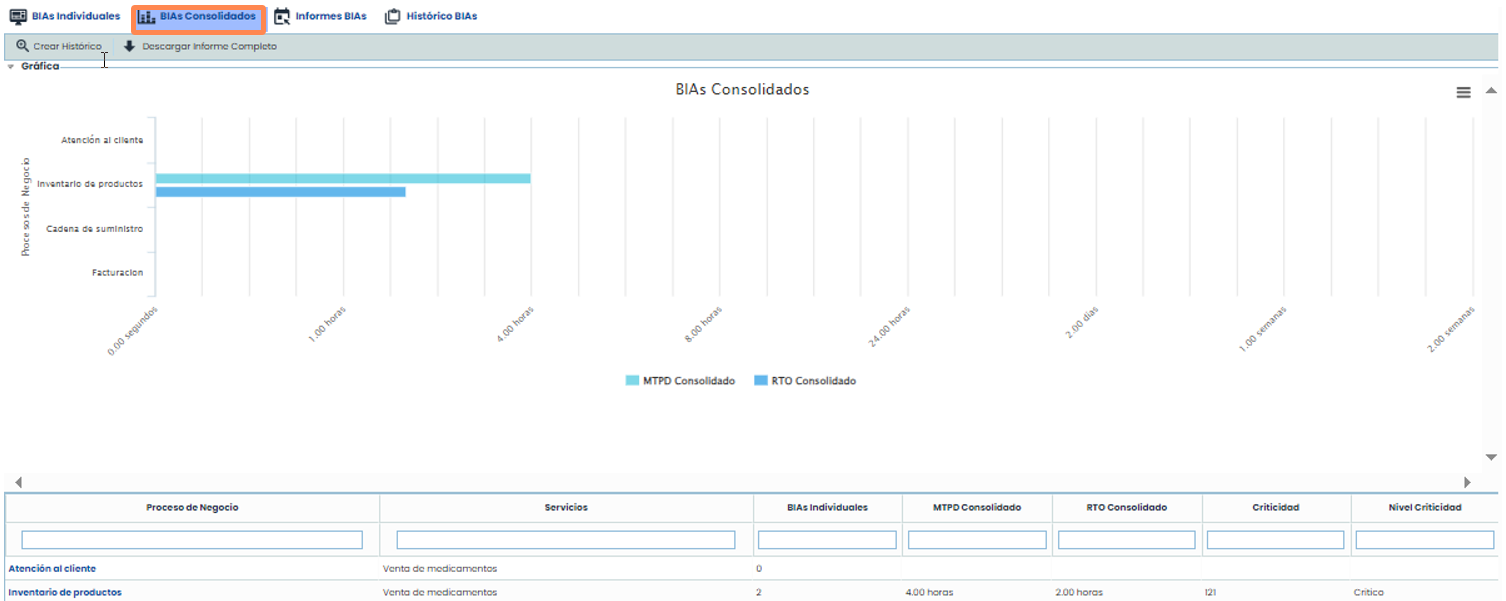
GlobalSuite® allows the consolidation of several BIAs performed on the same business process. This functionality enables the user to obtain a single BIA per business process using all the individual BIAs performed on the same business process, as well as the individual BIAs of the subprocesses associated with the business process.
To access this functionality, click on the Consolidated BIAs tab in the BIA option. This way, each of the business processes included in the scope of the Continuity System is displayed, indicating the number of Individual BIAs each has.
Consolidation Criteria
To consolidate a BIA, select one of the business processes from the main table. The Consolidation Data section will allow selecting the criteria for consolidating BIAs.
-
Type of Consolidation: This can be automatic (recommended) or manual (empty consolidation).
-
Impact Type Criteria: You can select the same criterion for all impact types or a specific criterion for each impact type.
-
Include Subprocesses: Checking this box allows including in the consolidation the BIAs of all subprocesses associated with the business process being consolidated.
-
General Consolidation Criteria: In this section, you can select which individual BIAs to use for the consolidation and choose the criterion to apply.

Once all criteria are selected, the consolidated BIA will be calculated by clicking on the “Save” button.
BIA Information
In the BIA Information section, similar to the individual BIA of the business process, general information about the consolidated BIA can be added.
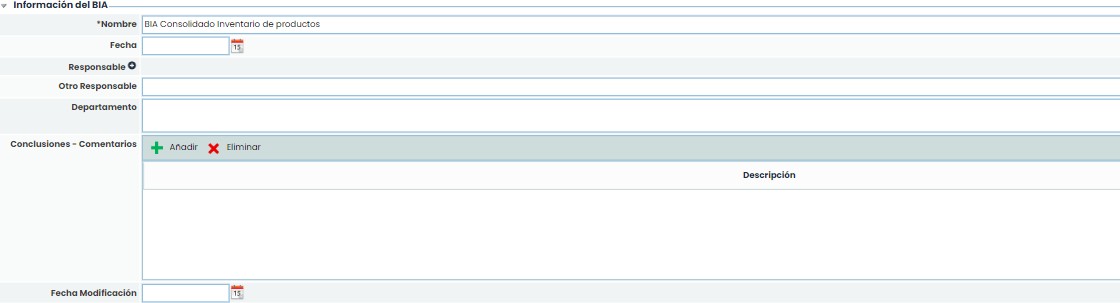
Starting from the name given to the consolidated BIA itself, GlobalSuite® will allow adding information about the creation date of this record, the person responsible for it, the department/area in charge, any comments or conclusions about this consolidated BIA, as well as the date of the last modification or update in the system.
Business Impacts
In the case of automatic consolidation, GlobalSuite® will automatically calculate the consolidated Business Impact table, always based on the selected Individual BIAs.
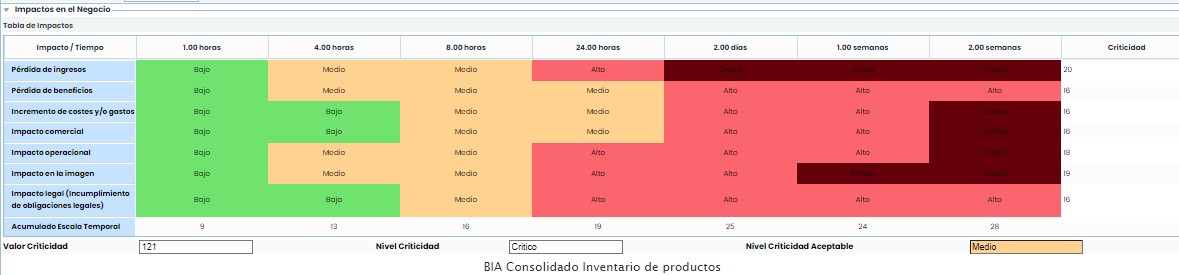
Similar to individual BIAs, it will also be displayed graphically with the Maximum Impact and MTPD options.
On the other hand, in the upper button panel, it is possible to display the description of each type of impact in the Business Impact table (button
“Show Values”). Additionally, several result views are incorporated, allowing the analysis of the mentioned impacts By Department and By Impact Type (buttons “By Department” and “By Impact Type”).

Recovery Parameters and Required Resources
The rest of the BIA information (MTPD, RTO, required resources, etc.) can be recorded in the consolidated BIA by consulting the existing information in each individual BIA. For this purpose, each section includes a button named “Show Individual XXXXX” that allows consulting the corresponding information for the section.
Customizable Questions
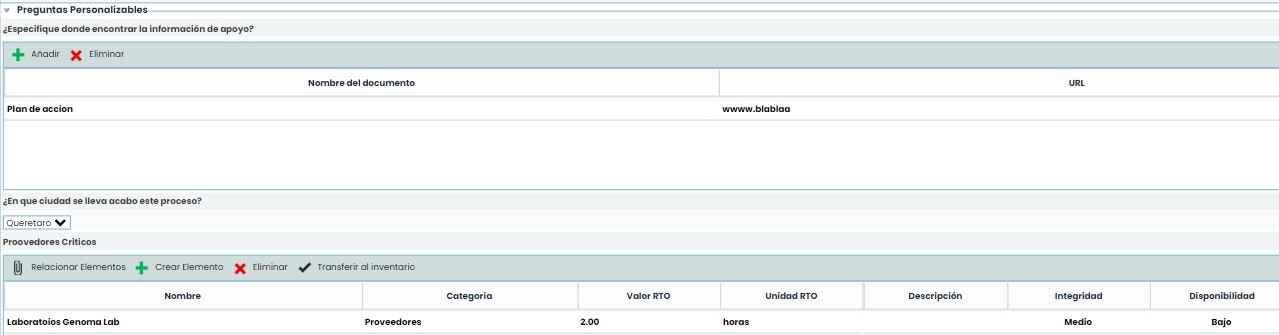
Similar to the information available in Individual BIAs, at the end of the Consolidated BIA, there is a block with Customizable Questions, which have been previously configured in the Administration section.
These types of questions can be text-based or select, via a dropdown, and even table-type, and will refer exclusively to the consolidated BIA of the business process being addressed.
Analysis of MTPD and RTO by Process
The determination of an MTPD and RTO value by process is carried out, as we have seen before, in the BIAs. Specifically, while individual BIAs allow identifying an MTPD and an RTO (among other information) by business process, the definitive MTPD and RTO for the process correspond to the value recorded in the corresponding Consolidated BIA.
This information can be consulted in the BIA Reports tab, where the information performed in all previous steps and phases will be analyzed in detail.
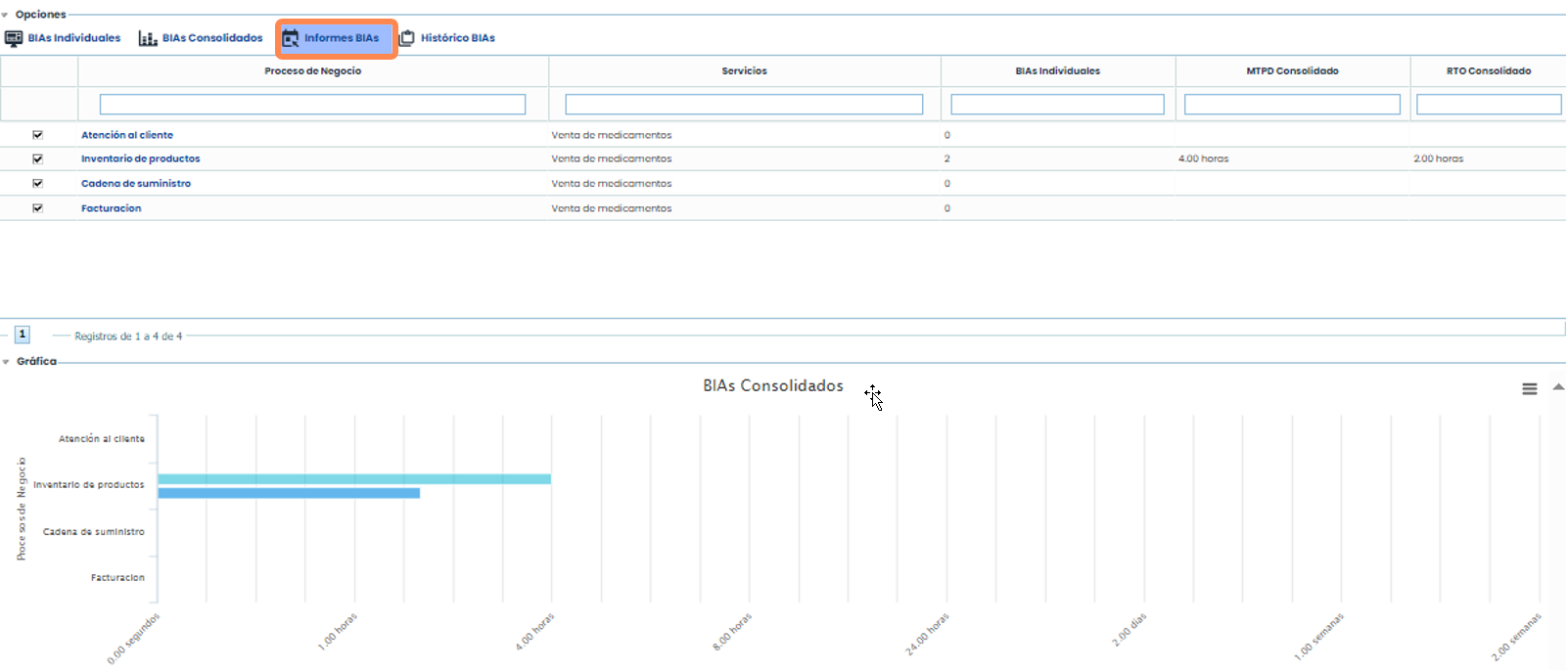
By selecting the BIA Report option, the business processes and the most important information found during the execution of the BIAs and Consolidated BIAs are displayed.
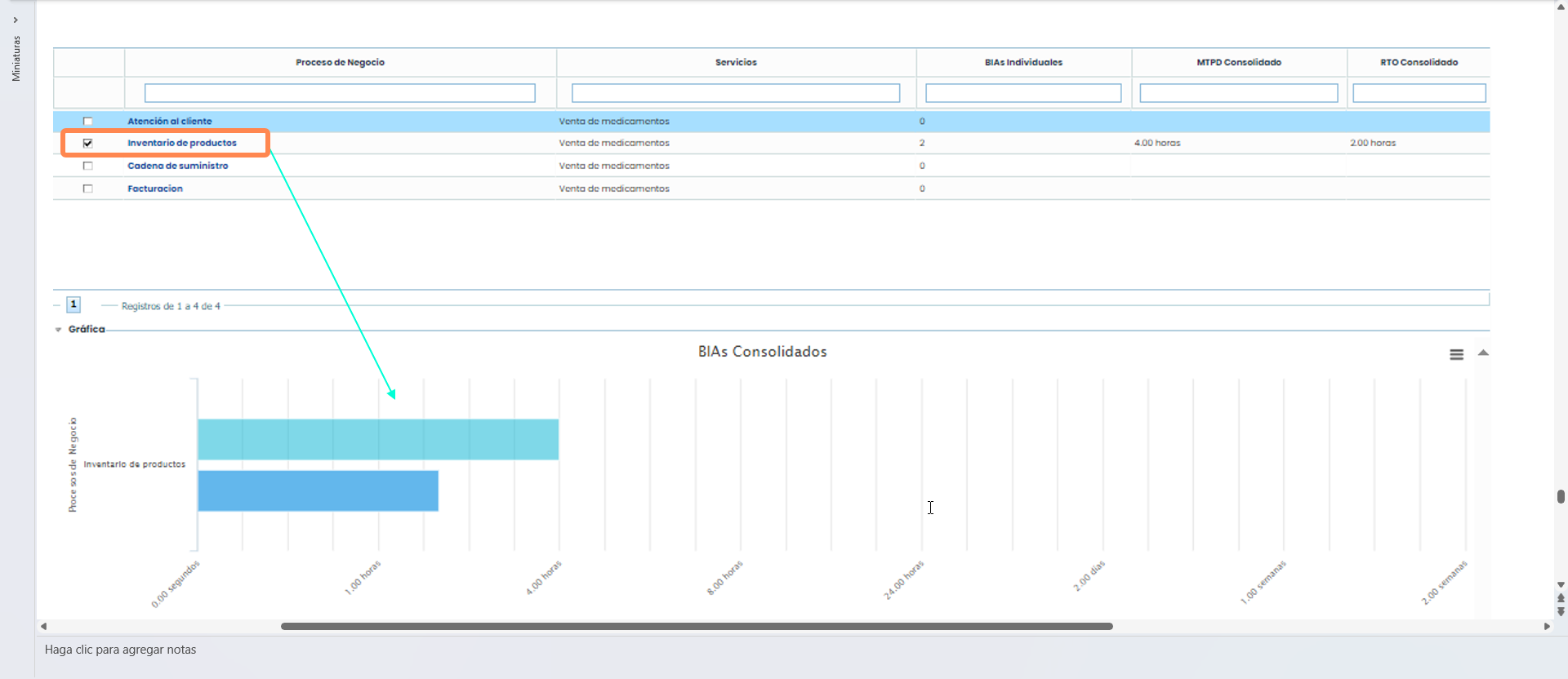
In the table, it will be possible to analyze the number of BIAs performed, the MTPD and RTO for the same (consolidated), and these values can be analyzed graphically by selecting the desired processes through their corresponding checkbox.
BIA Historical Records
The BIA Historical Records functionality will allow taking a static snapshot of the records and values of the individual or consolidated BIAs existing in the tool.

Using the “Create Historical Record” button, a pop-up will open where the desired BIAs can be selected through the corresponding checkboxes to create their historical record.
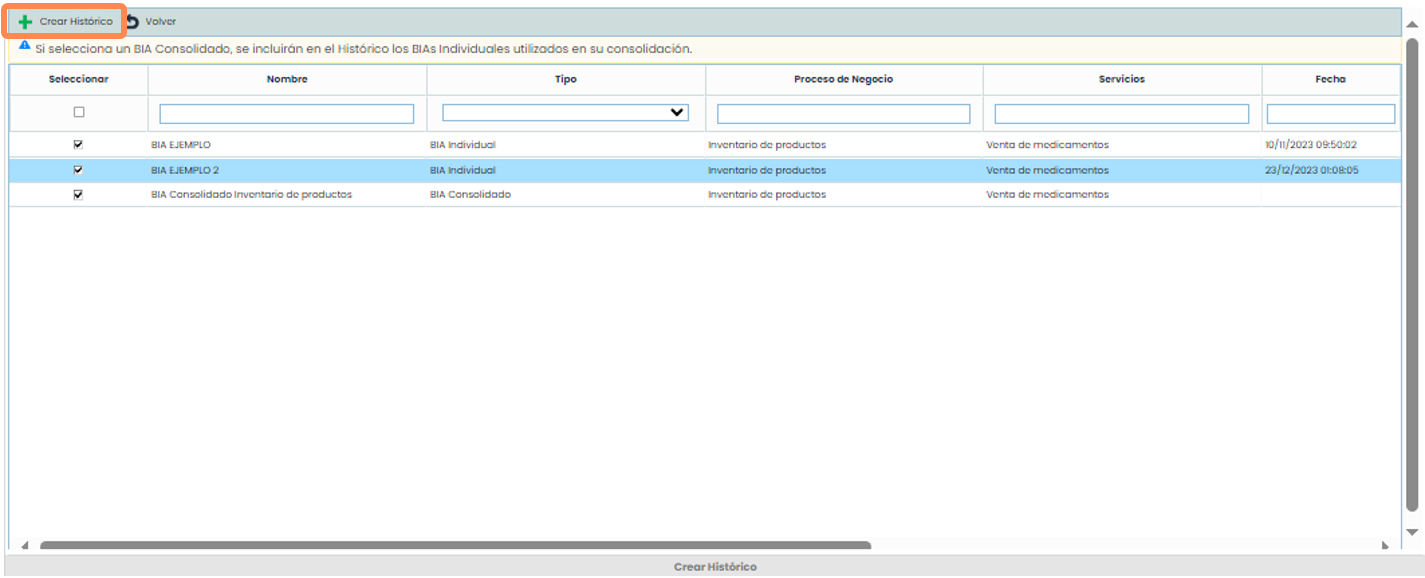
Once the historical records are created, they will appear on the main screen upon access.

By clicking on any of these values, GlobalSuite® will display the record in an informative manner, and it will not be possible to edit its information.