
This tutorial explains how to configure and translate the available languages in GlobalSuite® to customize the user experience according to their working language.
The goal is to show how to add new languages to a company, define the default language, and use the “Translate” function to adapt configurations, methodologies, and texts to different languages.
Languages
Available languages
Currently, there are 8 languages available in the GlobalSuite® tool:
-
Spanish.
-
English.
-
Portuguese.
-
Basque.
-
German
-
Catalan
-
French
-
Brazilian
Spanish and English are default languages in all companies within the tool, but to include any of the other languages in the default configuration of a company, they must be defined when creating the company (upon client request). The way to create a company that includes one of these languages (Basque or Portuguese) is by changing the language of the user creating the company in My Profile to any of these languages (Portuguese or Basque).
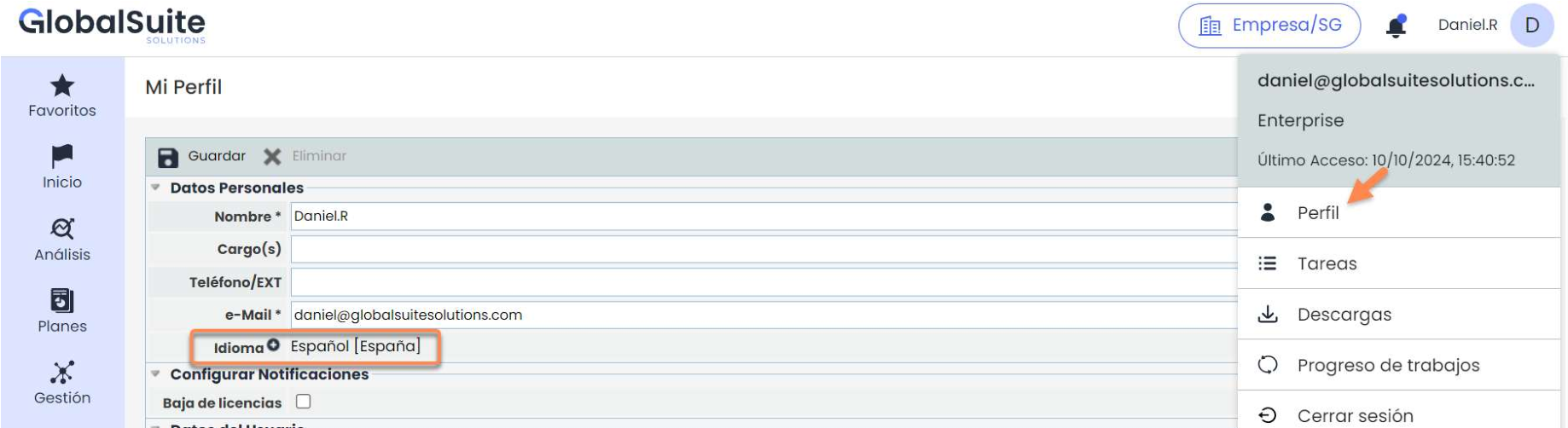
It is possible to add a new language later to an existing company.
When adding a new language, the configuration in that language is not inserted. Adding a language only allows manual modification of the company's configuration, meaning nothing is loaded by default.
Note
At the moment, it is not possible to have all 4 languages as default, only 3 of them, and manually configure a 4th.
Translation
Adding a language later causes the configurations of that company to have that new language empty, meaning the configurations will be in the default language.
GlobalSuite® enables the possibility to complete texts in different configurations, methodologies, etc., using the “Translate” functionality, so that when a user with that language accesses the company, they can see the different configurations in that language.
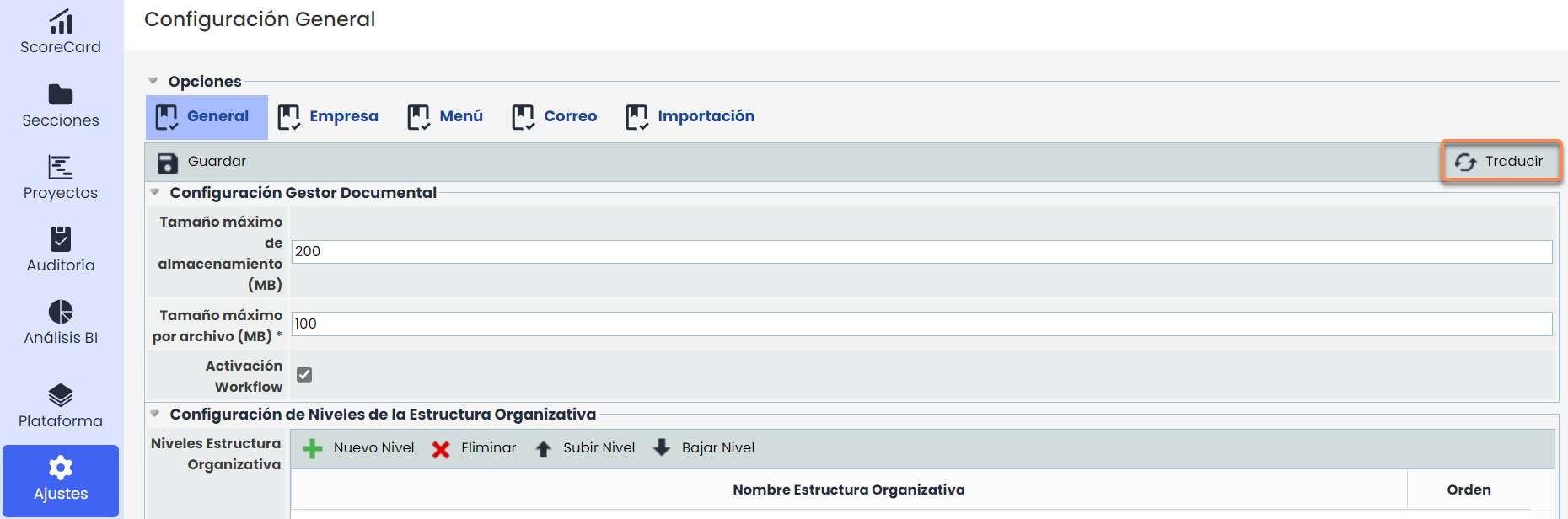
Once the translate button is clicked, a pop-up window appears, offering the option to translate the settings into the chosen language.
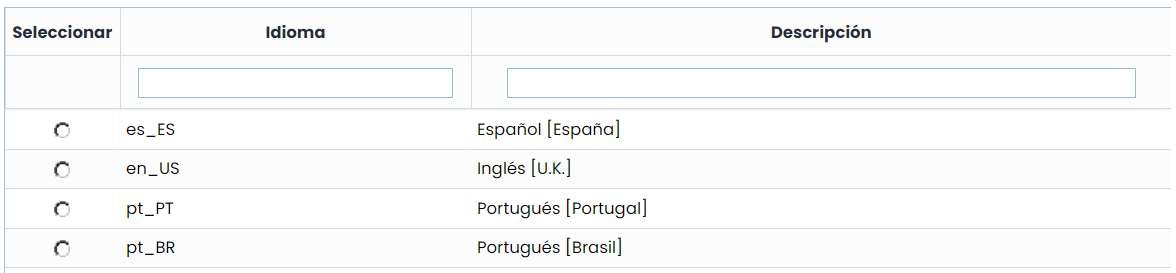
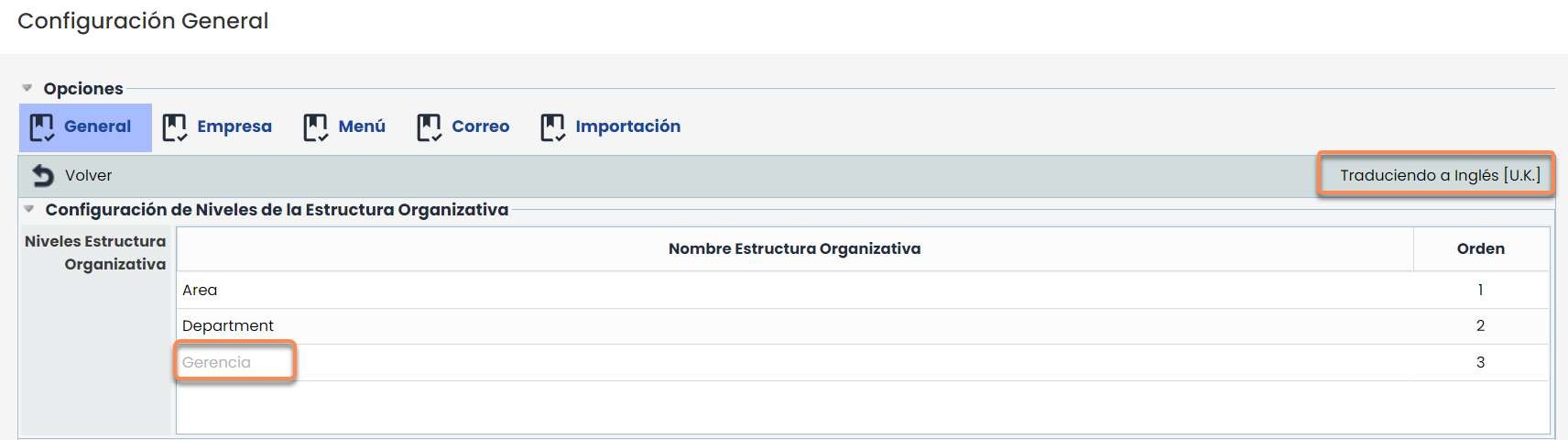
When selecting the language to translate to, the option where the button was pressed will open, in this case, General Configuration. At the top right, a text will display “Translating to ____” and the chosen language.
The texts in the source language (in the example, Spanish) will appear in gray to use as a base for the translation:
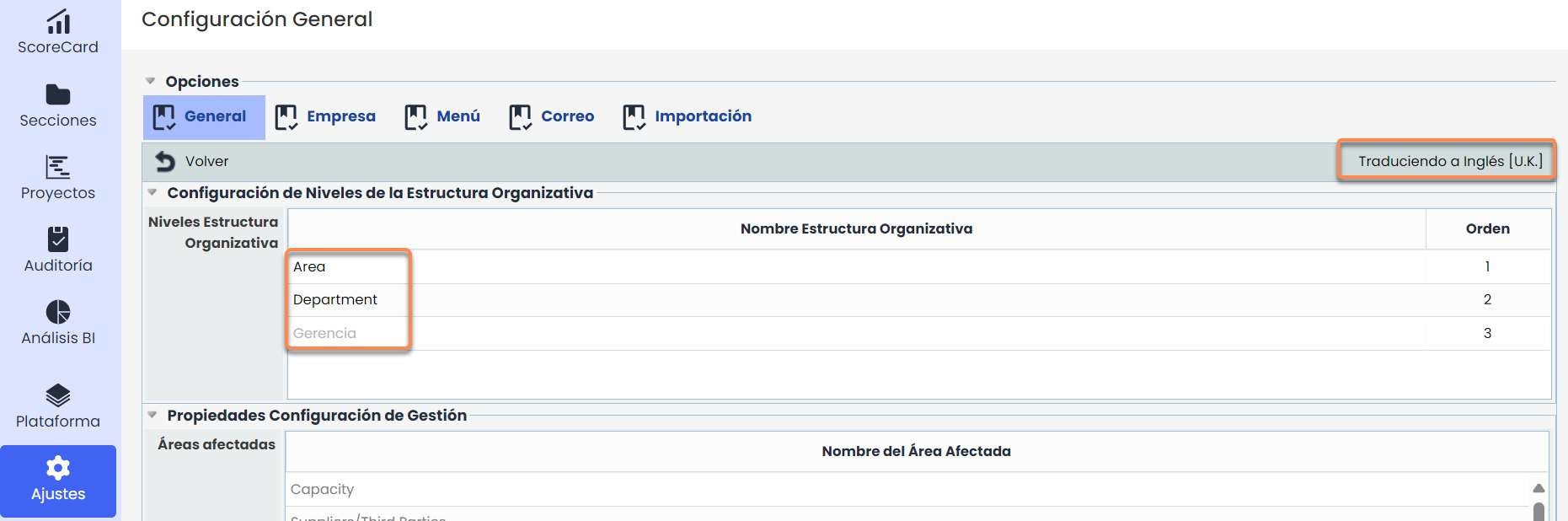
Once the records are modified, they will appear in black to indicate that those fields have been changed. This is how they will appear to users with that language in this company.
All options that are newly created or modified in the default language, since the tool does not translate automatically, must be manually translated into other languages using the “Translate” button if needed.
In other words, although the initial configuration does appear in the languages in which the company was created, any changes made must be translated into the different languages so that users with those languages can see them in their corresponding language, and not in the default language.
For example, if a level in the organizational structure is changed or added, it would need to be translated for the other languages; otherwise, it will appear in the default configured language.
This translation functionality is found in:
-
Settings:
-
Configuration:
-
General.
-
CMDB.
-
ScoreCard.
-
Tickets.
-
Suppliers
-
-
Business Continuity.
-
Plans.
-
BIAs.
-
Crisis.
-
-
Methodologies:
-
Elements.
-
Audit > General
-
-